Wazo Configuration
This document shows how to install and configure the BlueMind plugins that allow interconnection with Wazo.
Installing the Wazo add-on
- Install the required packages:
- Debian/Ubuntu
- RedHat/CentOS
aptitude install bm-plugin-core-cti-wazoyum install bm-plugin-core-cti-wazo - Restart BlueMind:
bmctl restart
BlueMind configuration
Domain configuration
- Log on to BlueMind as system administrator or domain administrator
- Go to the page System Management > Manage Domains
- Select the domain you want ton configure
- Click the "Telephony" tab
- Select the implementation you want to use, in this case "Wazo"
- Enter the https address of the Wazo server:

- Save the changes
User configuration
- Log on to BlueMind as system administrator or domain administrator
- Go to the page Directories > Directory Browser
- Select the user you want to configure
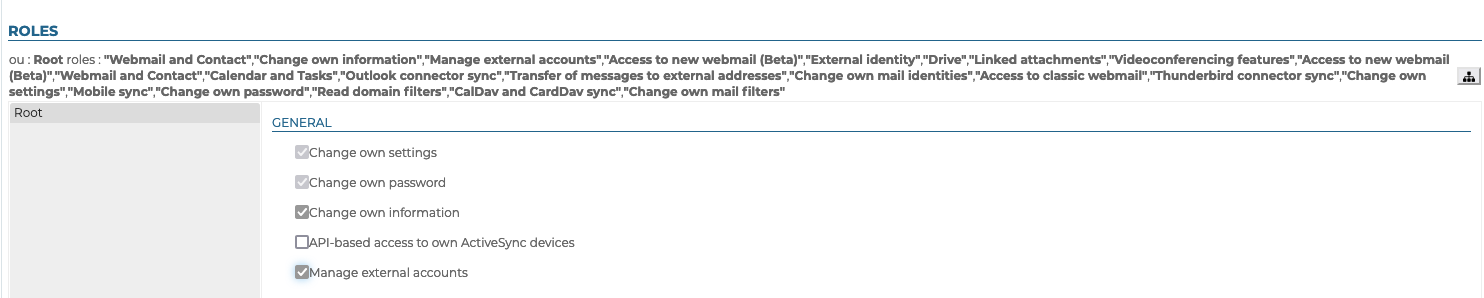
- Check the "Manage external accounts" role in the "General" tab:
- Save the changes
User configuration
The following bm-cli command maps BlueMind users to Wazo users, and creates external accounts in BlueMind associated with existing users:
bm-cli wazo populate [-s] -d=<domain> -u=<userLogin>
-d: the BlueMind domain name-u: the login of a BlueMind user with an external Wazo account (Wazo Admin account required), which must first be configured manually (see below Using Wazo > Configuring an external account)
Wazo usage
Configuring an external account
It is necessary to link the BlueMind user account to the Wazo account using an external account.
For further information, see Managing external accounts.
Making calls from the Webmail
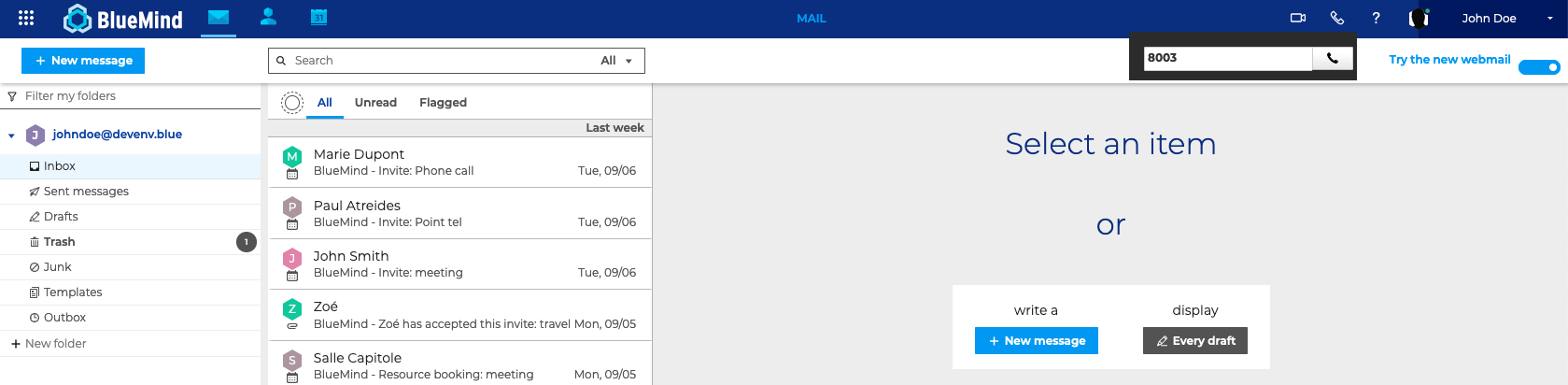
Click the phone icon and enter the phone number of the person you want to call:
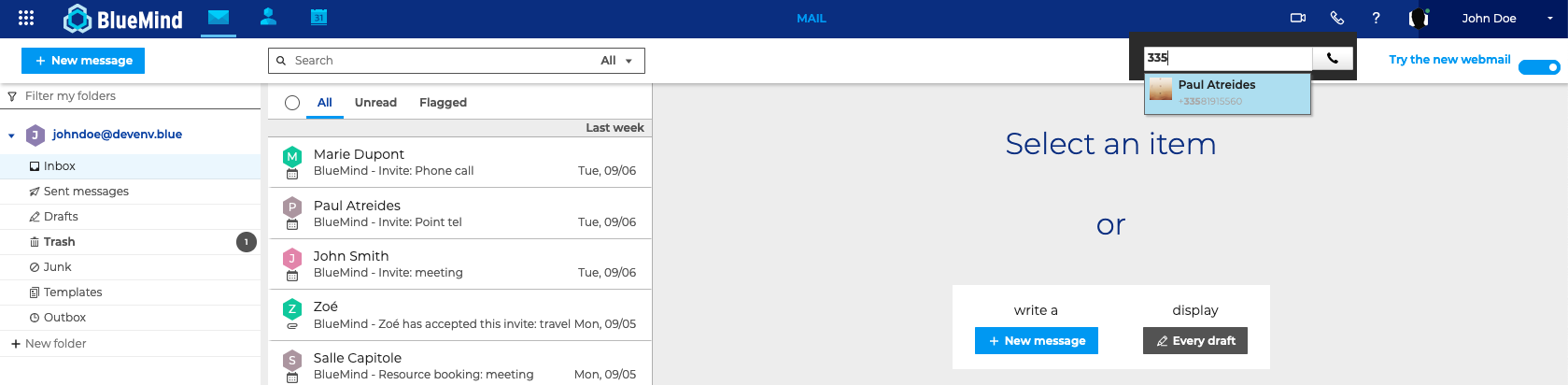
If the user's phone number is included in their contact card, autocomplete can help you find it:
Making a call from a contact card
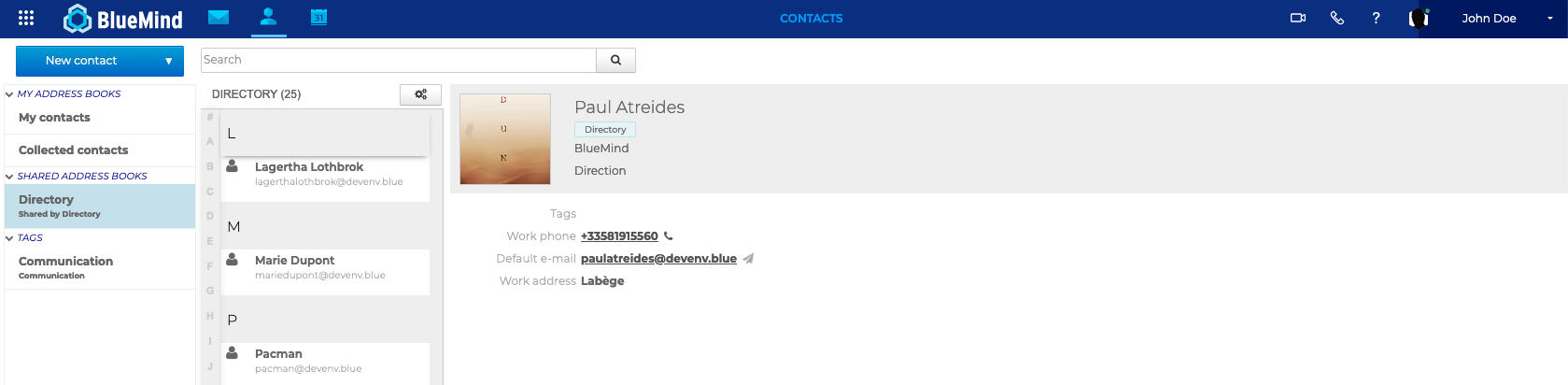
- Open a contact card
- Click the telephony icon next to the telephone number of the user you wish to contact: