Setting up the subscription
BlueMind SAS has developed a professional offer, called BlueMind Subscription, based on this Open Source software. Its aim is to enable you to use the BlueMind collaborative mail system with complete peace of mind, over the long term. For more information on content, subscription types and how to subscribe, visit BlueMind Subscription.
Subscription file
Once the professional offer has been contracted, the subscription takes the form of a set of readable text files (one for each distribution supported), compressed into a .tgz archive, which constitutes a key, built-in the characteristics of the customer for whom it is issued, in particular :
- number of users (for SAAS offerings, the notion of user profiles is also included)
- subscription type (Prod, Host, Trial or Free)
- expiry date
The subscription file is valid for all supported host systems (see Installation Prerequisites for supported systems).
This file is readable and signed.
The information about the subscription is visible.
The file is signed at the client headers/information level, so it should not be modified under penalty of invalidity. In addition, the file must not be given to a third party: Access to the repository is nominative and tracked.
The subscription file contains the addresses of BlueMind's repositories and can be accessed by the system depending on its version. This file must therefore be updated when BlueMind versions change, in order to install the corresponding versions of the BlueMind packages as well as the new packages for the new version.
In the event of a major BlueMind version change, the subscription upgrade procedure is the same as for its installation, as described below.
For more information on the major version change, consult the page BlueMind major version update.
Technical information on subscriptions
Server installation
-
HOST: BlueMind recommends using one subscription per hosting server.
-
PROD and FREE: can only be installed on a single server. Therefore, a subscription per production server must be planned if necessary.
⚠️ In the event of a server change, swap with a TRIAL subscription so that the PROD subscription is only on the production server.
-
TRIAL: cannot be installed on a production server, only on a test server.
BlueMind major version change
- HOST, PROD and FREE: it is necessary to request a new subscription from BlueMind in order to change version. BlueMind will provide a new subscription valid for the target version.
Install subscription
BlueMind must be installed before installing your install the subscription using the installer available for download on the BlueMind website.
To activate the subscription and the additional modules, the step (detail below) summed up in 3 main steps:
- Installing the subscription file
- Update packages to get new components
- Configure BlueMind via the new update tool
BlueMind makes every effort to provide reliable updates. However, no one is immune to particular untested cases or external factors that may lead to data loss. BlueMind may not be held responsible for any possible update failure leading to system corruption.
It is therefore your responsibility to protect you from this risk by performing a complete backup of your system.
Installing the subscription file
Automated installation
- Connect to the BlueMind admin console as admin0 (login:
admin0@global.virt) - go to System management > Manage subscription
- Using the "Update Subscription" button, search for the BlueMind provided archive
- Validate. ⇒ BlueMind installs subscription.
The account is not yet ready and does not need to be restarted.
Manual installation
- Extract from the archive the file corresponding to the distribution you are using
- Rename file to
bm.list - As root, place the file on the server in the folder
/etc/apt/sources.list.d/ - If using secondary servers (edge, storage, etc.), also upload the file to these servers in the same folder
- Restart BlueMind to take into account the new subscription
Updating software packages
The subscription file contains BlueMind addresses and allows them to be accessed by the system, it will therefore need to be updated to install the latest versions of the installed packages as well as additional packages.
This operation is to be performed on each BlueMind server by subscription (production, testing or evaluation).
To update packages, log in as root on the affected machine and type the following commands:
- Debian/Ubuntu
- Redhat/CentOS
sudo aptitude update
sudo aptitude upgrade
yum makecache
yum upgrade
Install new packages
The following packages are now available:
- bm-setup-wizard¹ : special version of the installation and update wizard
- bm-plugin-cli-setup¹ : additional commands for bm-cli, enabling BlueMind to be upgraded from the command row (see the dedicated page CLI Admin Client for more information)
- bm-mapi²: connection of Outlook workstations via MAPI
- bm-plugin-core-ad-import² : ActiveDirectory import tool
¹ mandatory packages
² optional packages, to be installed according to needs
On the core server (the one where the BlueMind installation has been performed), install the new packages and restart BlueMind:
- Debian/Ubuntu
- Redhat/CentOS
sudo aptitude install bm-setup-wizard bm-plugin-cli-setup bm-mapi bm-plugin-admin-console-ad-import bm-plugin-core-ad-import
sudo bmctl restart
rpm -e --nodeps bm-installation-wizard
yum install bm-setup-wizard bm-plugin-cli-setup bm-mapi bm-plugin-admin-console-ad-import bm-plugin-core-ad-import
bmctl restart
Post-update setup
Caution: these operations momentarily cut off access to BlueMind and may disconnect users, who may then lose their work in progress. They must therefore be carried out at a time when there is no risk of impacting users.
The update manager tool – Setup Wizard – is now available.
Connect to it with a browser by going to the address https://your.server.com/setup.
The Setup wizard screen appears and displays the prerequisite verification status.
- If the Setup Wizard blocks the installation, correct the prerequisites and then relaunch the installation
- If the Setup Wizard raises alerts:
- Resolve the alerts, then reload the page in your browser (= access
https://votre.serveur.com/setupagain). - or click on "Continue ignoring issues".
⚠️ This choice isn't recommended, unless you know exactly what you are doing.
- Resolve the alerts, then reload the page in your browser (= access
If the packages are already up-to-date, a message that the system is ready for use will be displayed; otherwise, continue with the step below:
- Click on "Upgrade". Note: Next to this button, the current data version and the new version to be updated to are displayed.
⇒ The upgrade runs, and when it's complete, the Setup Wizard displays a "Successful Setup" page with links to BlueMind.
Checking installation
Go back to the administration console in order to check that the information contained in the subscription appears correctly:
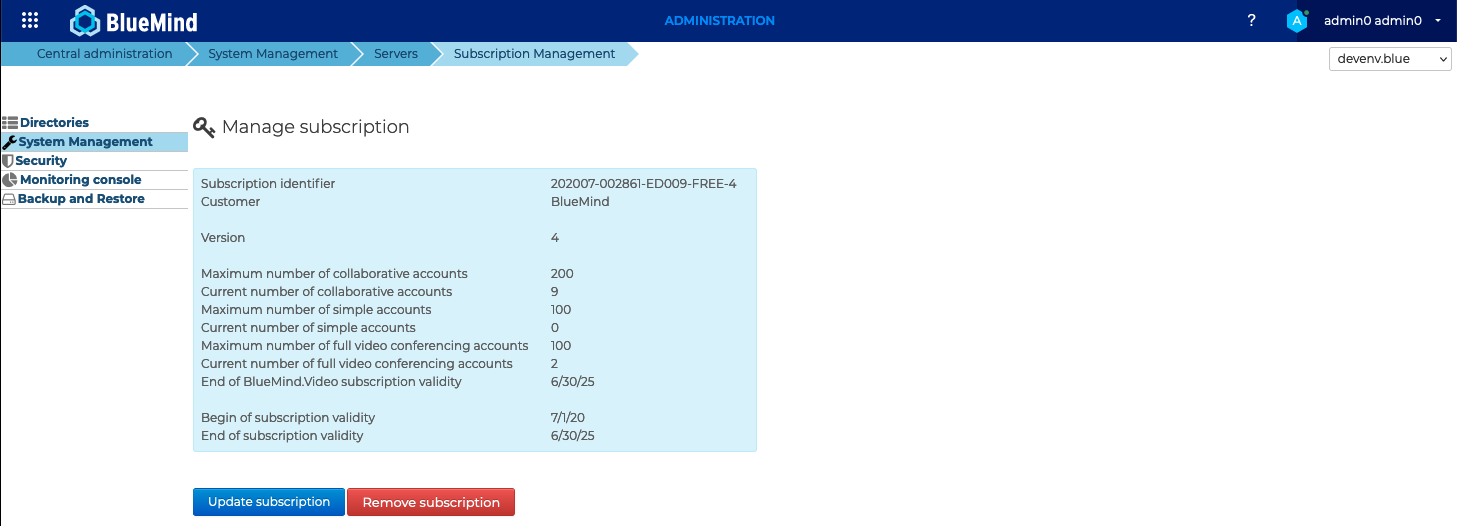
New version announcements are posted on the BlueMind forum. By creating an account, it is possible to access the settings to enable receiving notifications or alerts when a release is published. For further information, see BlueMind Tools and Resources > Forum
Assign the management role
Subscription administrators are users assigned the "BlueMind subscription management" role. It is important to activate the "Administration Console" role at the same time, so that the user can access it to install and update the subscription. This also allows managing end-of-validation alerts.
For more information on subscription and alert management, visit Managing subscription.
Connecting Outlook
Once the subscription and packages have been installed, you can launch Implementing MAPI for Outlook to enable users to use their software with their BlueMind account.
ActiveDirectory Import
As soon as the package is installed, AD import is available. Please refer to the relevant documentation in the administrator's guide for further information: Active Directory Synchronization