Backing up and Restoring Data
BlueMind automatically generates backups so that data can be easily restored through the admin console.
A full backup of user data (account information, calendar, contacts, and emails) is performed at regular intervals and stored in a system directory. An additional backup system (Bacula, TiNa, etc.) can be used to copy and externalize these backups on tapes or on the external backup system.
Backup data is organized so that you can go back in time and restore user data at a specific point.
The frequency of backups, which can be configured via the Dataprotect task, depends on the available disk space on the storage media. Please note that the minimum time between backups is one day.
Backups can then be linked to a centralized enterprise backup software provider (Time Navigator, NetBackup, etc.).
What are the benefits of a built-in backup system?
- Time savings:
Email backups are incremental, only the changes are saved (new emails, deletions, …) transit. - Gains in functionality :
Backup manages data historization. - Space-saving :
Backup saves data without duplicating it. Each backup is standalone (snapshot-like), even if only differences have been transferred. Thus, the space occupied by 10 backups is similar to the size of the email repository. - Optimizations :
Data are automatically deduplicated. - Full Backup:
The built-in backup tool ensures that all data is automatically backed up, whether it's mail data (emails stored as files), calendar data, address books (stored in a database), or configuration files. - Backup compatibility :
Backups, regardless of when they were made, remain compatible with all minor versions of the same major version. This means that a backup in a given version can be mounted again in a more recent version of BlueMind. For example, a backup made in 5.2.6 can be reassembled in 5.4.0. - Performance:
Backups do not cause service interruption; they are designed and carried out within a short timeframe to guarantee data consistency when they are restored. This constraint lies at the heart of the BlueMind backup design. - History:
Email backups must be performed incrementally, while maintaining a history of those emails. This archiving feature is particularly useful for those who do not have a large backup infrastructure: each email appears in only one backup, and new emails are stored in an incremental backup. In addition, to ensure a safe recovery, the program restores emails from a backup and one or more incremental backups. This is transparent to the administrator, who decides when the emails should be restored.
Technical backup architecture
-
Storage and logging component:
BlueMind is based on the Open Source rsync software. This utility allows you to make incremental copies. The data, including the mail spool, is backed up by creating symbolic links since the last backup; this ensures that only new emails are backed up. -
BlueMind modules and backups:
BlueMind is based on an architecture that enables services to be split between different servers. Depending on the services hosted on each server, they can be assigned different backup methods adapted to the data stored on that application node (mail spool, database, index, archiving, etc.). As a result, each role assigned to BlueMind servers has its specific backup procedure, thus ensuring optimum and comprehensive data retrieval. -
Backup location :
⚠️ The mount point must point to at least one other disk — ideally another server — so that the backup system functions properly and so that, in the event of a disaster, the backups are not at risk of being lost along with the primary data.
BlueMind offers 2 solutions for configuring storage spaces for backed-up data:
- Setting up an NFS mount on the production server's file system.
- Use a dedicated BlueMind architecture node (server) acting solely as a backup server.
Depending on availability and the type of infrastructure, either solution may be used; the goal in all cases is to separate production data from backup data, in order to ensure the ability to restore services in the event of data loss or corruption.
-
Integration into a backup infrastructure:
An information system is often equipped with a backup infrastructure. Software such as Atempo Time Navigator, Tivoli Storage Manager, Net Backup, and others centralizes backup processes and manages backup retention on its own. These tools interface well with BlueMind. They require special configuration to enable the retention of BlueMind backup histories. The BlueMind server performs the backup of production data securely, comprehensively and immediately. The client's backup software must be configured not to historize data. That way, the third-party backup software retrieves the contents of the backup made by BlueMind and transfers it to another tape or other medium.
Backup
Backup configuration
Configuring the built-in backup involves specifying the type of data to be backed up and its retention period.
To do this, go to the BlueMind administration console > Backup and Restore > Configuration :
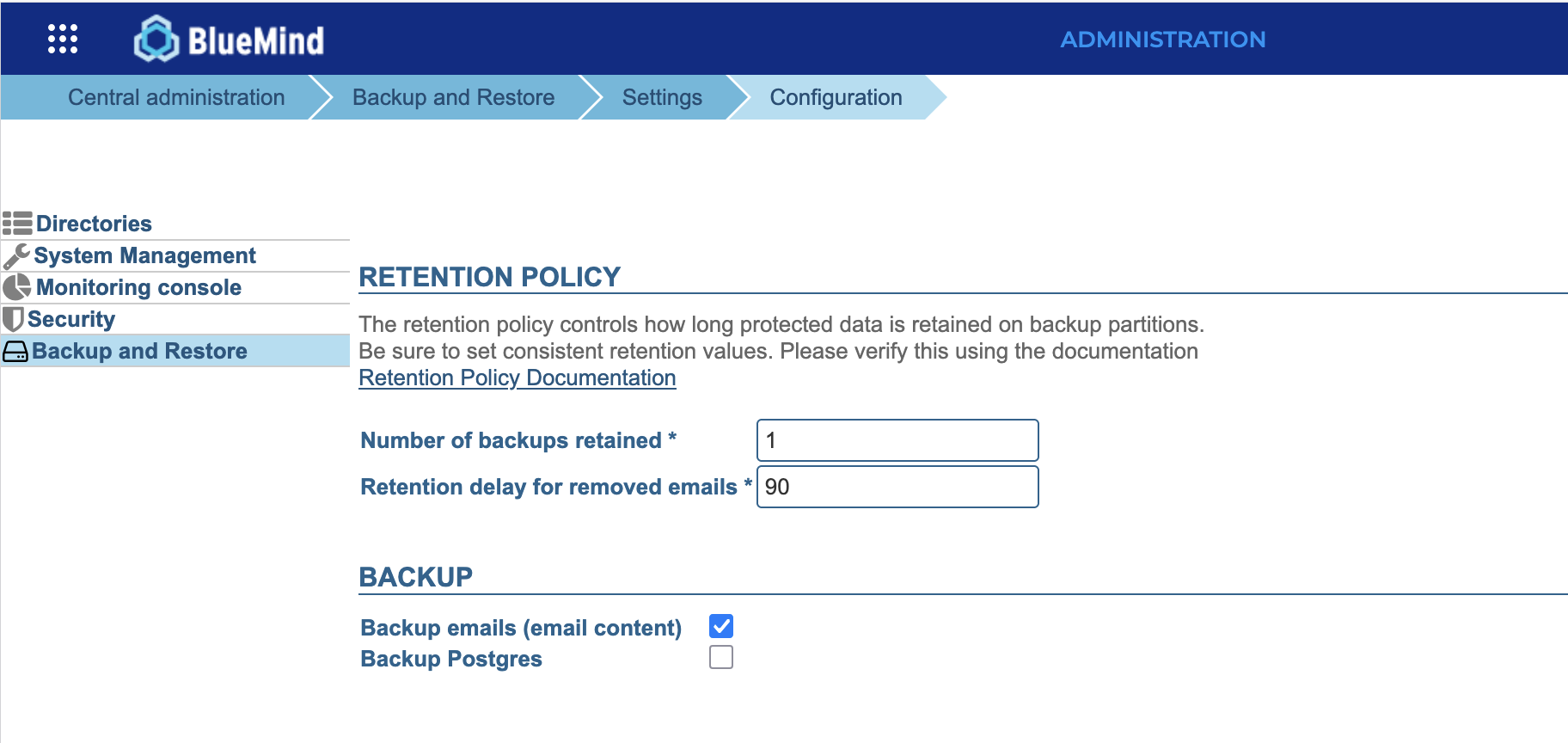
Retention policy
The retention policy specifies the number of days that backups and deleted emails must be retained on the BlueMind server dedicated to the built-in backup (the primary storage space).
Note: The retention policy must be consistent for the restoration to work properly.
The retention policy is based on three factors:
-
The number of backups and their frequency, which determines the number of days for which mailboxes can be easily restored via the administration console. (<PourInfo / >, the following paragraph)
-
The configuration of the double background of the trash, which determines the number of days that deleted messages remain available in the mailbox (and in saved backups) and allow the user to recover them himself. (
For further information see documentation System configuration > Mail retention) -
The number of retention days for emails deleted permanently, which determines the number of days that emails deleted from the double-bottom trash can are stored in the main storage space and remain recoverable. (<PourInfo / >, the following paragraph)
💡 The total retention period for an email is the sum of the double retention period and the retention period for deleted emails. For example, if emails are kept for 7 days in the double-bottom trash can and then for 90 days in the main storage area, they are retained for a total of 97 days.
💡 Recovering deleted emails that do not have a corresponding backup (in cases the retention period for deleted emails exceeds the number of days for backup retained) is still possible, but the email will need to be searched for manually in the object storage files.
Therefore, to ensure a consistent retention policy:
- The number of days emails are retained in the double-bottom trash can must be less than or equal to the number of days deleted emails are retained
- The number of days of the retention delay for removed emails must be equal to the number of days backups are kept
-
Number of backups retained: indicates the number of backups retained for each mailbox. A backup saves a snapshot of each mailbox to the primary storage area. A view contains the mailbox's data (account information, events, tasks, contacts, etc.) and references to emails, including those stored in the double-bottom trash can.
ℹ️ Default value
The default value is one backup per day to limit usage of the main storage space. The frequency of backups is specified in theDataprotecttask schedule.For further information see the page Scheduled Jobs. The number of days for which backups are retained therefore depends on the number of backups and their frequency. For example: 7 daily backups = 7 days of backups; 1 weekly backup = 7 days of backups.ℹ️ Recommended setting
Depending on the size of your data and the amount of available disk space, it may be a good idea to keep 7 days of backups (i.e., 7 daily backups). This means that data can be easily restored from the administration console over a longer period of time.For further information on the recommendations based on data size, see the Limits and Best Practices section. -
Number of days to retain deleted emails: indicates the number of days for which emails deleted from the double-bottom trash should be kept in the main storage space.
ℹ️ Default value
By default, the retention period is 90 days to facilitate the restoration of deleted emails when object storage is outsourced. Outsourcing storage to S3 or Scality Ring object storage is highly recommended for large volumes of mail and/or for retention over many days. See the limits and best practices section for more details.ℹ️ Recommended setting
For optimal performance, the number of days deleted emails are retained should equal the difference between the number of days set for the double-bottom trash can (DF) and the number of days backups are retained (SC).> For example, if DF=5 and SC=7 (i.e., 7 daily backups) => set the number of days to retain deleted emails to 2 and perform weekly external backups of /var/backups/bluemind.With this setup, emails deleted from the double-bottom trash can be easily restored using the retained backups. In fact, during the retention period, Dataprotect exports make it possible to recover deleted emails and re-establish the links between the backed-up mailboxes and the object storage on the BlueMind server or external storage.
⚠️ Setting Locked
The number of days deleted emails are retained cannot be less than the number of days backups are kept, as this would prevent deleted emails from being restored. To avoid this inconsistency, the retention period for deleted emails is automatically adjusted to match the number of backups retained. An alert appears, indicating the default value.
Backup
The backup specifies the types of data that must be saved in the retained backups, in accordance with the retention policy defined above.
-
Backup emails (email content): when this option is activated, all server data is backed up, including e-mails. When this option is deactivated, only contact, calendar and task data are saved. Incremental backup of email messages is also deactivated. Note that this has no impact on restoration, as this is carried out from the main storage space (retention) via Dataprotect - which remains active when the option is deactivated - and not from retained backups.
💡 When to enable this option?
Enable this option when object storage is outsourced, to make it easier for the third-party tool to copy backups. -
Postgres backup: when this option is activated, a complete database dump is performed, resulting in a longer backup. On the other hand, when it is not, only user data will be saved (users, resources, shared mailboxes, domain calendars, domain address books).
💡 When should I activate this option?
Activating this option is only necessary to run the Disaster Recovery Plan (DRP) procedure. If another platform backup system is in place and can be used as part of the DRP, this option is not necessary. On vSphere HA-protected BlueMind installations, for example, PostgreSQL backup is generally unnecessary.
Post-backup actions
When the backup is complete, the script /usr/bin/bm-post-full-backup.sh runs automatically if it exists.
It can contain several specific operations to be performed after a successful backup.
In this example, the script /usr/bin/bm-post-full-backup.sh allows creating, for each BlueMind role, a "last" folder pointing to the most recent backup version:
#!/bin/bash
parts=("bm/es" "bm/pgsql" "filehosting/data" "mail/imap" "mail/archive")
server_ip="192.168.124.72"

for part in ${parts[@]}; do
  echo "creating last directory for part : $part"
  # get last backup directory
  last_version=`ls -tr /var/backups/bluemind/dp_spool/rsync/$server_ip/$part | grep -v "last" | tail -1`
  echo " last version : $last_version"
  # create link
  rm /var/backups/bluemind/dp_spool/rsync/$server_ip/$part/last
  ln -s /var/backups/bluemind/dp_spool/rsync/$server_ip/$part/$last_version /var/backups/bluemind/dp_spool/rsync/$server_ip/$part/last
done
NFS mount configuration
The BlueMind backup space must be shared by all the servers on your BlueMind platform, excluding the edge server.
The backup directory must be accessible from all BlueMind domain nodes. You must therefore perform the following mount and verification operations on all the servers concerned.
For ext3 or ext4 NFS mount points, you need to apply the options nodiratime and noatime to speed up disk access. Advanced file systems such as NTFS, ext3/4 can tell you the last file access date. For each file read, an additional writing operation is performed in order to modify the last file access date and check it. Here is an example of mount for the file /etc/fstab:
# NFS mount point
nas.mydomain.lab:/backup  /var/backups/bluemind  nfs  rw,soft,noatime,nodiratime,vers=3,exec 0 0
To enable the NFS mount, run the following command as root user:
mount /var/backups/bluemind
Next, we recommend that you test the mount to make sure it is running properly, using the following command lines - always as root user from the BlueMind server:
cd /var/backups/bluemind
touch test
Then, delete the test file:
rm test
Restoration
One single BlueMind backup can be used to perform both a disaster recovery plan and single-user restoration (for a user's data or part of it).
Disaster Recovery Plan (DRP)
Launching a DRP procedure enables BlueMind architecture to be rebuilt from a complete backup, including e-mails, archived e-mails and the PostgreSQL backup.
Single-user Restoration
The single-user restoration functionality BlueMind offers is extremely useful if you want to restore a single user's data quickly. Restoration is done graphically and enables you to choose the object type (entity: user, mail, calendar, shared mailbox, etc.), and then the object whose data you want to restore itself
This functionality also relies on data historization to choose the date of the data you want to back up.
<PourInfo/ > the dedicated page Single-user restoration - DataProtect Navigator.
Limits and best practices
The volumes and durations indicated below are indicative values. They can be adjusted according to the performance and capabilities of your platform.
The backup duration is affected by the volume of mail and the retention policy. The larger the mail volume and/or the more important the retention policy, the higher the performance of the backup space.
Backups stored on the server simplify restoration without the need for third-party tools. However, a high volume of e-mails or a long retention time has a major impact on consumption of the main storage space. A company that receives 10GB of emails a day will consume +/- 1TB in main storage to ensure 90-day retention.
Generally speaking, for an email volume of <1 TB, the BlueMind backup can be used without any particular restrictions.
When the volume of email is large (>1 TB), the BlueMind backup can be used, but we recommend a retention period of 1 day. In this case, the use of third-party tools (file system snapshots, copying to a third-party space, etc.) is recommended to keep a history of backup data.
In addition, we recommend using the Mail retention setting for the double-bottom trash can, which is better suited for recovering emails that were deleted by mistake. In particular, it enables much longer retention times at no cost to platform performance.
For very large volumes of email (several terabytes), we recommend disabling the backup of emails and user data (directories, calendars, address books, resources, shared mailboxes, domain calendars, and domain address books) during the Backup configuration. Backup of e-mails, and ideally of the platform as a whole, will be carried out at infrastructure level (backup of VMs at hypervisor level, backup at file system or storage level, etc.).
Summary:
- Mail retention Email recovery relies primarily on the "double-bottom trash can" feature
- it is possible to reinject mail recovered from the third-party backup in special cases (mistaken deletion of a mailbox, etc.)
- integrated backup is used for all other data (directories, diaries, address books, etc.), with no retention period constraints, and restoration is carried out via the BlueMind dedicated tool. It is therefore possible to store 20 days of data via DataProtect.