Videoconferences with Teams
Teams conferences can be easily created and linked to a BlueMind meeting.
Prerequisites
A Teams subscription is required https://www.microsoft.com/fr-fr/microsoft-teams/compare-microsoft-teams-options
Teams Configuration
Declare the application in the Azure portal
- Connect to the Azure portal https://portal.azure.com/#home
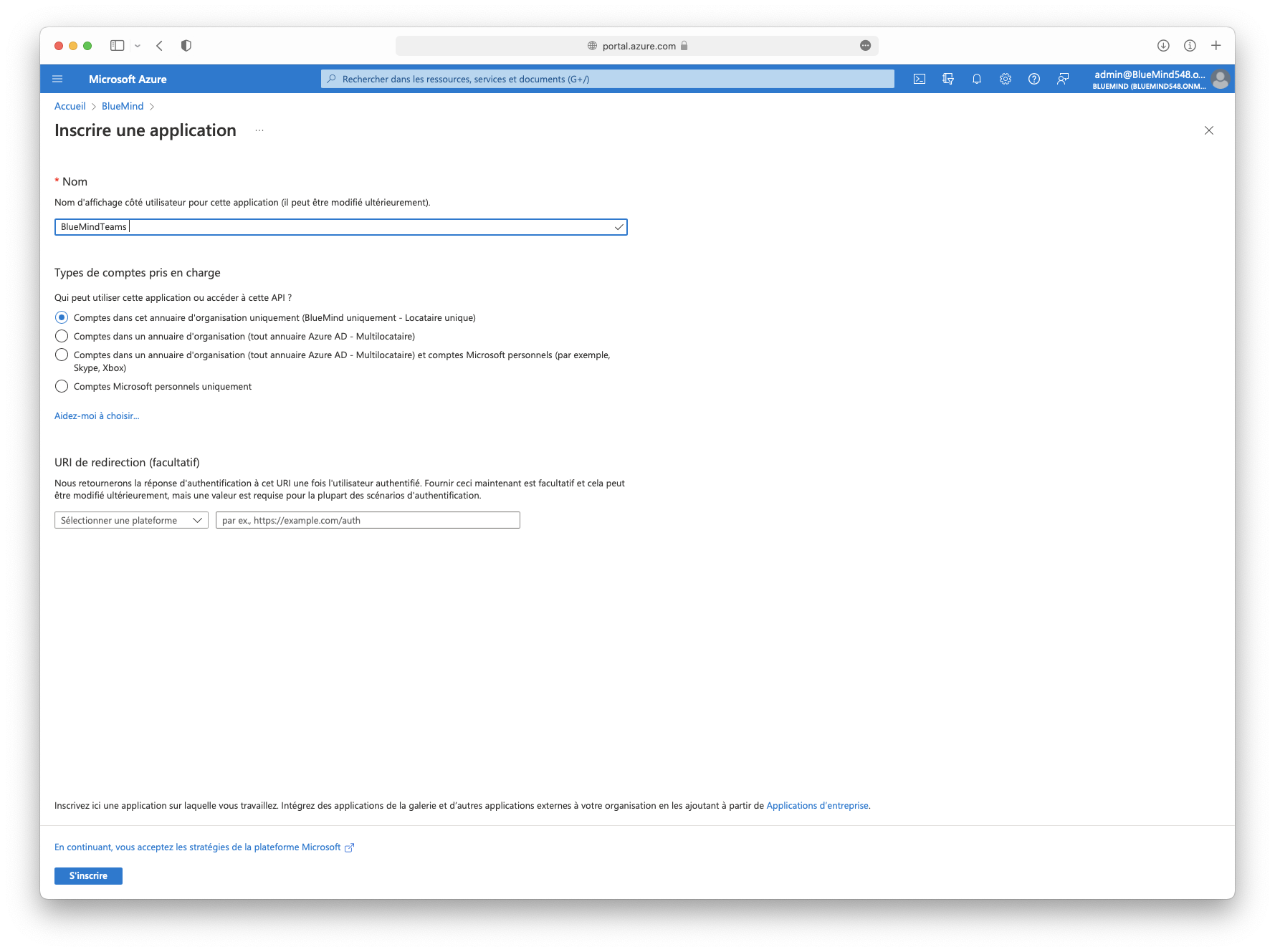
- Register a new application in Azure Active Directory > Application registration > New registration
- Enter the application name (e.g. BlueMindTeams):
Generate a secret
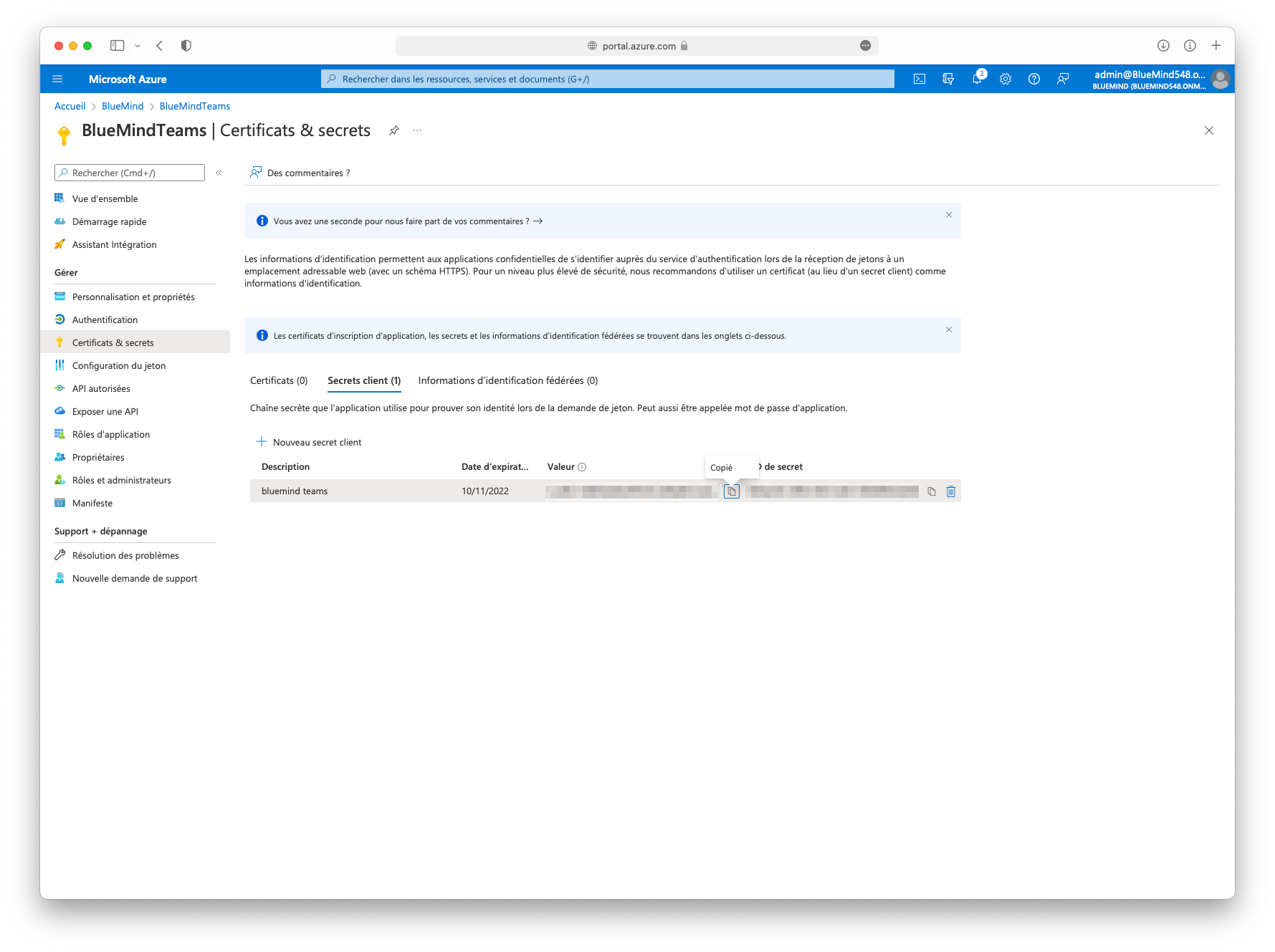
- In the application overview > Add certificate or secret > New customer secret
- Enter a description and expiration date:
Recover Teams credentials
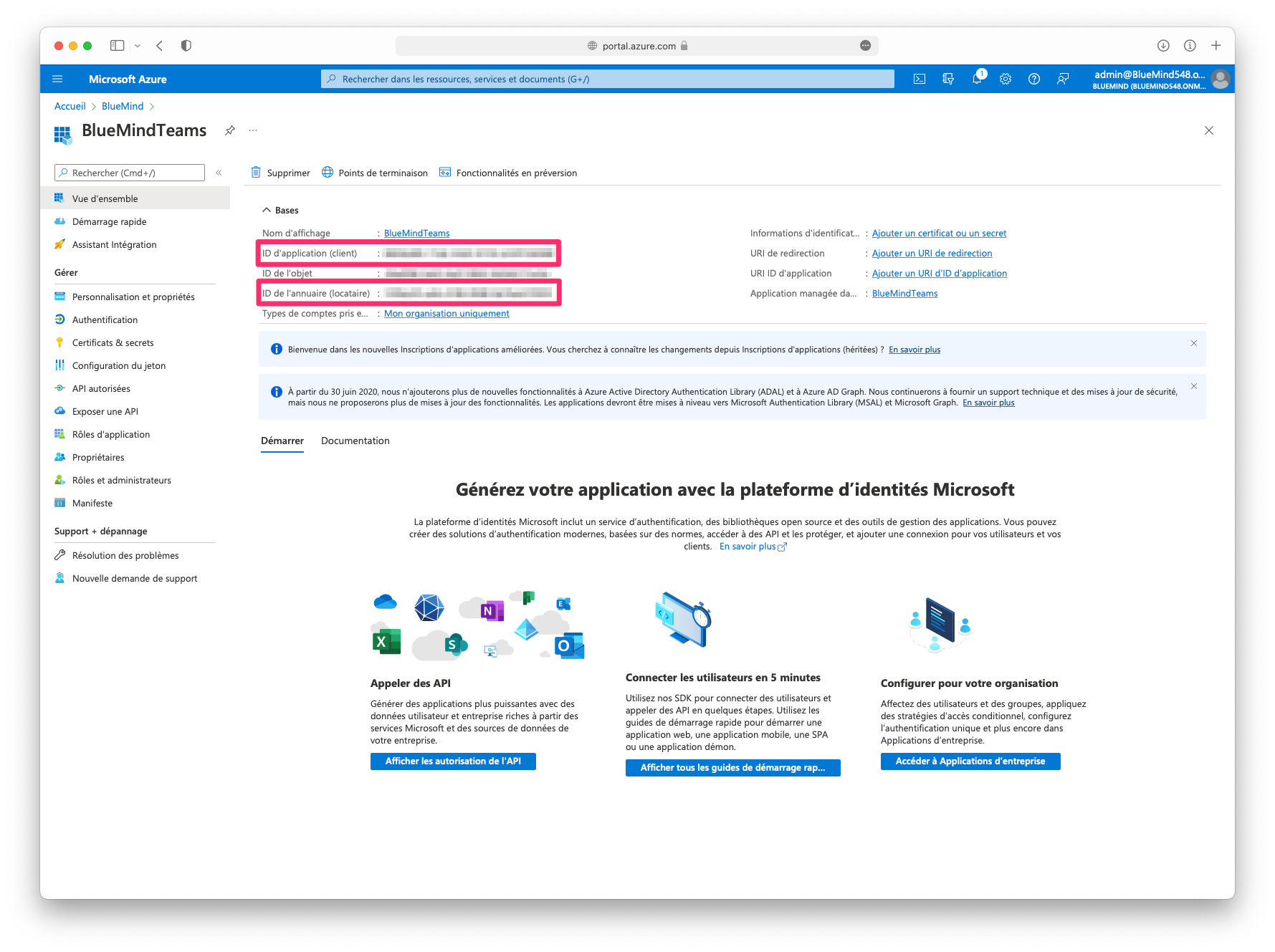
- In the overview, retrieve the following items:
- Application ID (APPLICATION_ID)
- Directory ID (TENANT)
Allow the application to access Teams meeting APIs
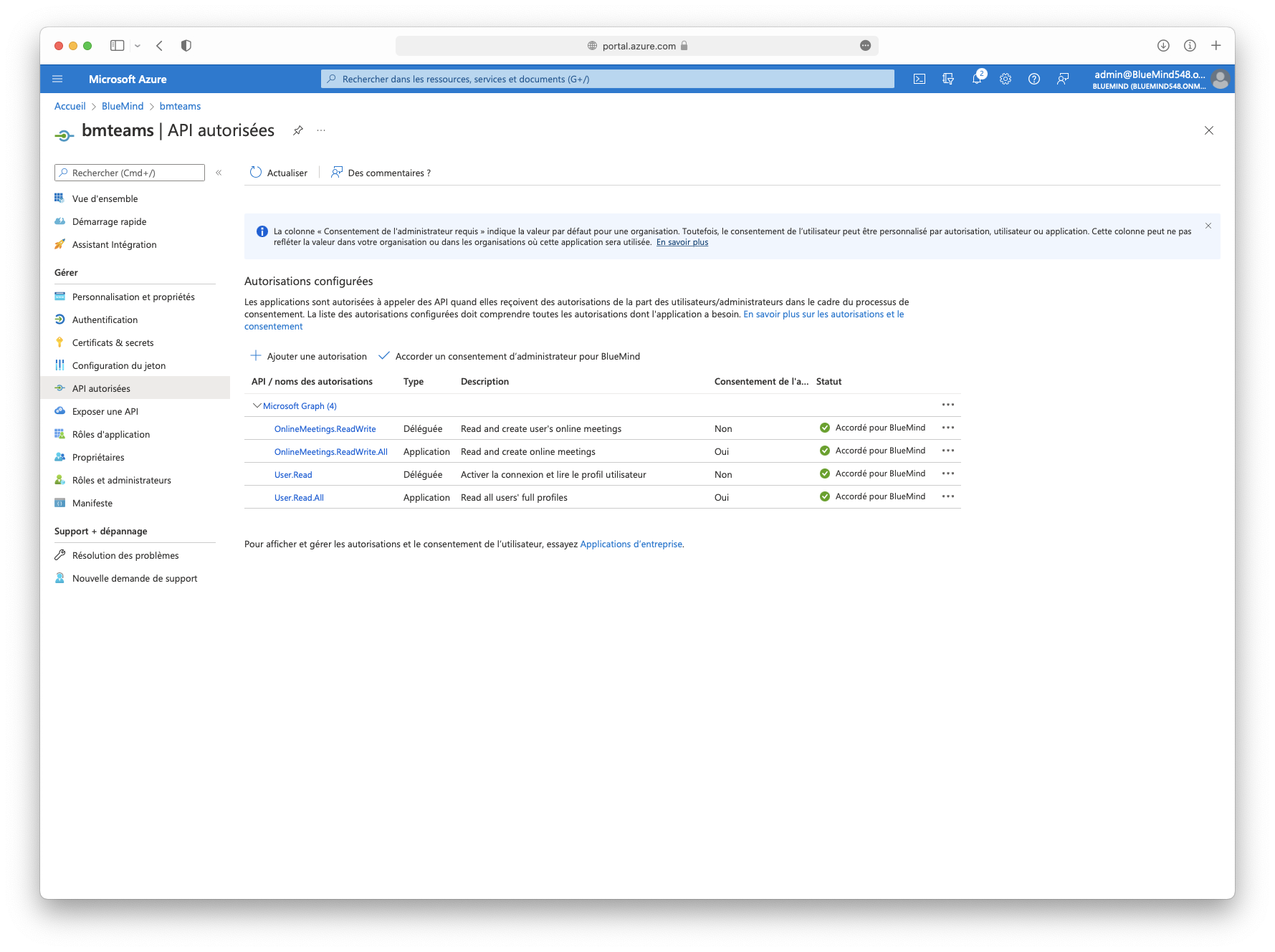
- In the Authorized API screen > Add authorization > Microsoft Graph
- Add APIs :
- Delegated authorizations
- None
- Application authorizations
- OnlineMeetings.ReadWrite.All
- User.Read.All
- Delegated authorizations
- Grant administrator consent:
Add an access policy
In Powershell:
-
Install the Microsoft Teams PowerShell module if necessary:
Install-Module -Name PowerShellGet -Force -AllowClobberInstall-Module -Name MicrosoftTeams -Force -AllowClobber -
Connect to Teams :
Import-MicrosoftTeams module$userCredential = Get-CredentialConnect-MicrosoftTeams -Credential $userCredential -
Create access policy Grant-CsApplicationAccessPolicy :
New-CsApplicationAccessPolicy -Identity BlueMindTeams-policy -AppIds "APPLICATION_ID" -Description “bluemind teams” -
Assign this access policy to :
-
all directory users :
PS C:\> Grant-CsApplicationAccessPolicy -PolicyName "BlueMindTeams-policy" -Global -
a user :
PS C:\> Grant-CsApplicationAccessPolicy -Identity "USER_ID" -PolicyName "BlueMindTeams-policy"
-
BlueMind configuration
Installation
To make the new features available to users, install the plugin by installing the following packages on the server and restarting BlueMind:
- Debian/Ubuntu
- Redhat/CentOS
aptitude install bm-plugin-admin-console-videoconferencing-teams bm-plugin-core-videoconferencing-teamsteams
bmctl restart
yum install bm-plugin-admin-console-videoconferencing-teams bm-plugin-core-videoconferencing-teams
bmctl restart
Server configuration
- Go to the administration console in System management > Supervised domains > choose the desired domain > Videoconferencing tab
- Fill in the information retrieved from the Azure portal:
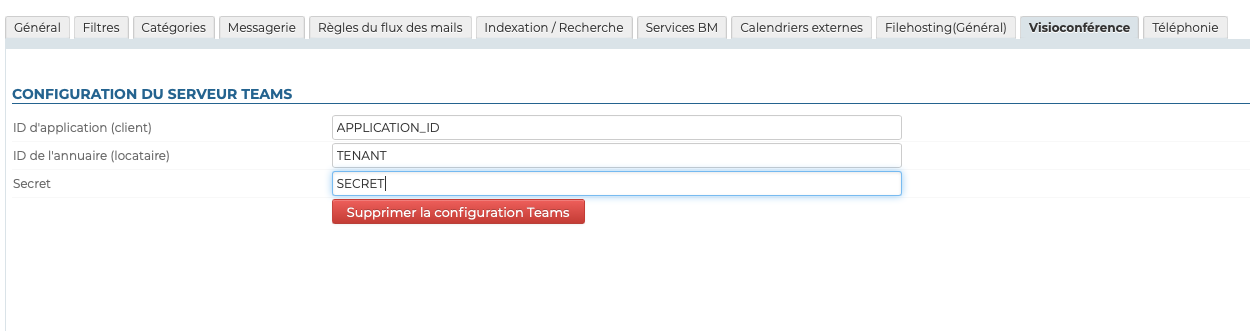
- Click on "Save"
Once the template has been saved, a resource named "Teams" is automatically created and displayed in the directory. This will enable users to create videoconferences automatically.
By default, the resource is not shared, users cannot link video conferences.
For users to have access, they must be assigned sharing rights to the resource. To learn more, see the following paragraph Granting access rights to users
Unlink a Teams installation
To disassociate a Teams server from the domain :
- Go to the administration console in System management > Supervised domains > choose the desired domain > Videoconferencing tab
- Click on the "Delete Teams configuration" button
- validate the confirmation request
There's no need to click on the "Save" button at the bottom of the page, as your request is effective as soon as you've confirmed it.
Accessing the videoconference
Give users access rights
Access to the new functionality is via the resource created in the "Teams" section during the Server configuration :

This resource is administered like any other resource, with share management opening up reservation rights and, de facto, the generation of videoconferencing links. Thus, users or groups must be given a reservation right (sharing right "can reserve the resource" or higher) so that they can create videoconferences for their events.
As a resource, it can be assigned working hours or a reservation policy. However, as the link generated is unique, this will not affect the availability of the videoconference itself: the link will still be active and available outside these times.
Connect user account to Teams account
From user preferences
It is necessary to link the BlueMind user account to the Teams account using an external account.
For further information, see Managing external accounts.
Provisioning from bm-cli
An administrator can provision external accounts by importing a CSV file from a bm-cli command:
bm-cli user externalaccountimport --domain=DOMAINE --file=FICHIER_CSV
The CSV file must be structured as follows:
videoconferencing-teams;emailBlueMind;emailTeams
To associate accounts, the first field of the CSV file must contain videoconferencing-teams.
For example:
videoconferencing-teams;david@bluemind.lan;david@teams.com
Using the resource
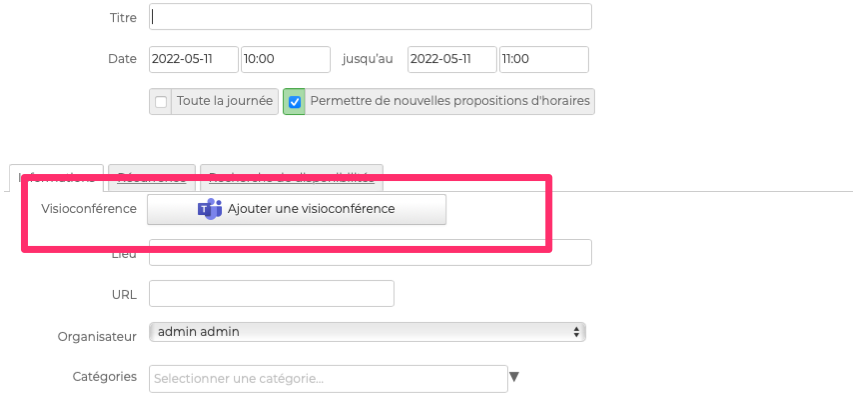
As soon as users have reservation rights on the resource (see above), a button is available in the event creation interface:
For further information, see: