Managing Account Identities
BlueMind lets you manage several identities for the same account, with a different wording, e-mail address and signature for each one, allowing you to personalize the sender and signature when writing messages.
It is possible to create identities from :
- your default mail address or its aliases
- an external mail address
:information_source: Role required
For a user to create an identity from an address outside BlueMind1, the administrator must grant him the "External identity" role (see Mail roles). - the mail address of a mailshare (collective shared mailbox)
ℹ️ Right required
To create an identity from the e-mail address of a shared mailbox, the user must have write rights and be subscribed to it. - the group mailbox e-mail address.
ℹ️ Right required
To create an identity from a group's e-mail address, the user must have management rights and be subscribed to it. - the mail address of a delegating user
ℹ️ Delegation required
For a user to be able to create an identity from another user's e-mail address, he must be named as a delegate by the latter.For more information on creating and managing delegations, see Managing delegations.
Identities are managed in your mail settings. To modify and add identities, go to Preferences > Mail > Composing messages > Identities :
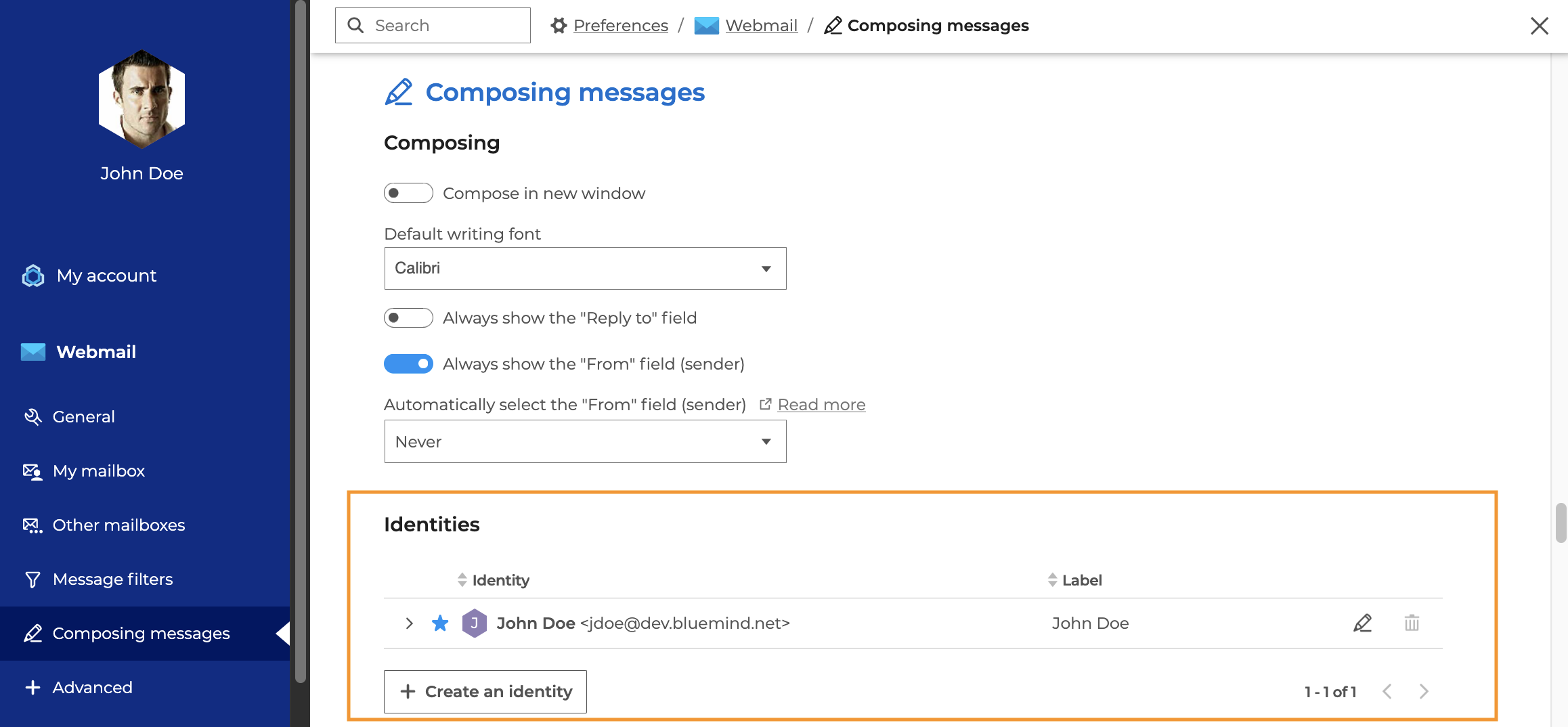
Creating an identity
A default identity is created on the user's main address. You can add as many identities as you like to, for example, write as a delegate, write in the name of a mailshares, write with one of your own email aliases, or have multiple signatures for the same address. You can also choose a default identity, i.e. the identity that will be used when you create a new message.
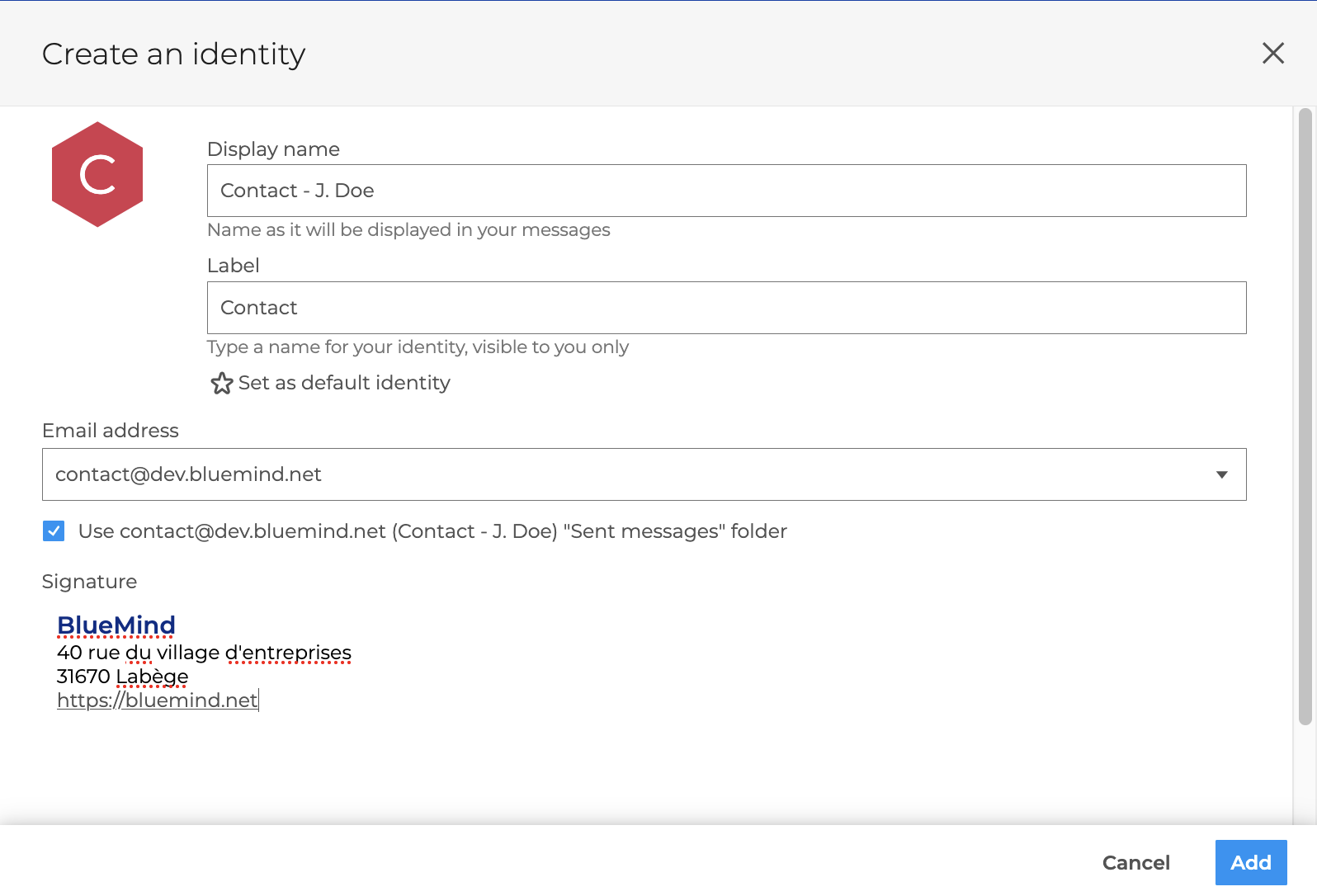
Click on Create an identity to open the creation form:
-
Display name: the name that will appear when you send messages
-
Label: the label is used to identify the identity in the list -- one email address and display name may be used by several identities
-
Email address allows you to choose the identity's email address from the list of addresses assigned to or shared with the user account
💡 Alias
To make the list easier to read, aliases are hidden by default. To display them, click "Display aliases"
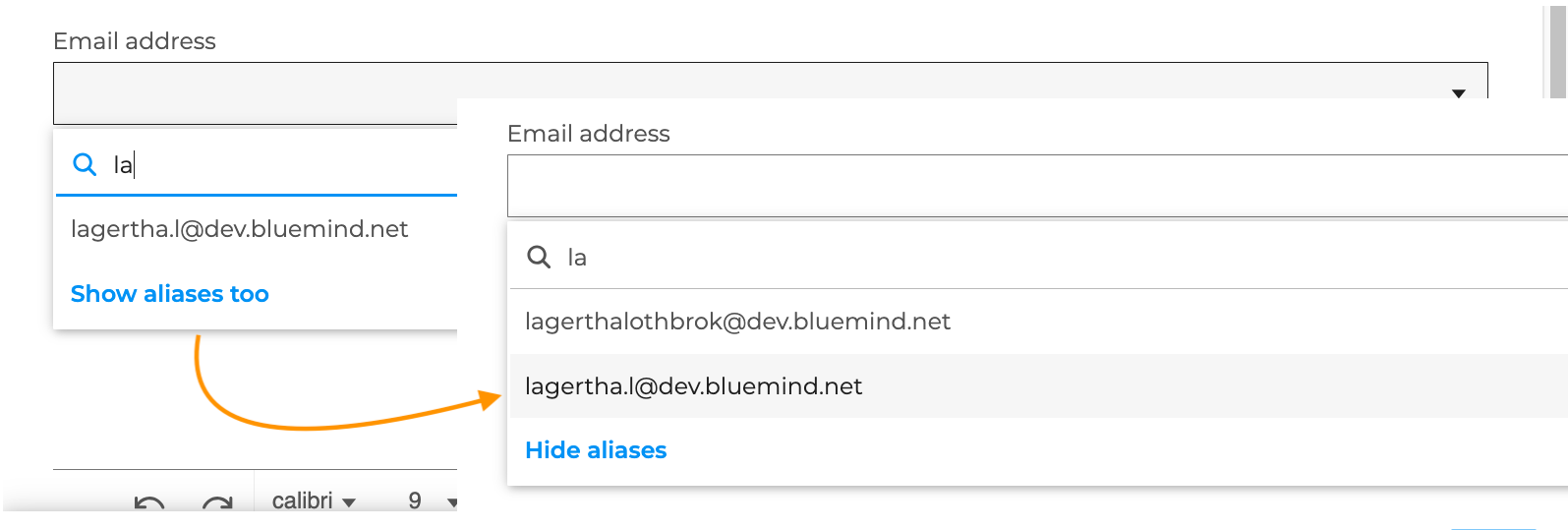
- **your default mail address or aliases: select the address from the list
- an external address: type the desired address and validate by clicking on the proposed address or by simply leaving the field:

- a shared mailbox email address (group box), a group email address or a delegating user's email address: select the address from the list
When the email address of a group box or delegating user - shared at least with the "Can edit" level - is selected, an option appears to choose the folder to be used for storing sent emails : check the box to use the shared mailbox folder, or leave it unchecked to use the user's default folder

-
Signature: the signature is in HTML format, i.e. it can include images, logos, etc. *For further information, see Adding a signature *
-
Make this identity my default identity : this option does not appear on the identity already set as default.
Click on "Add" to validate the creation.
Modifying or deleting an identity
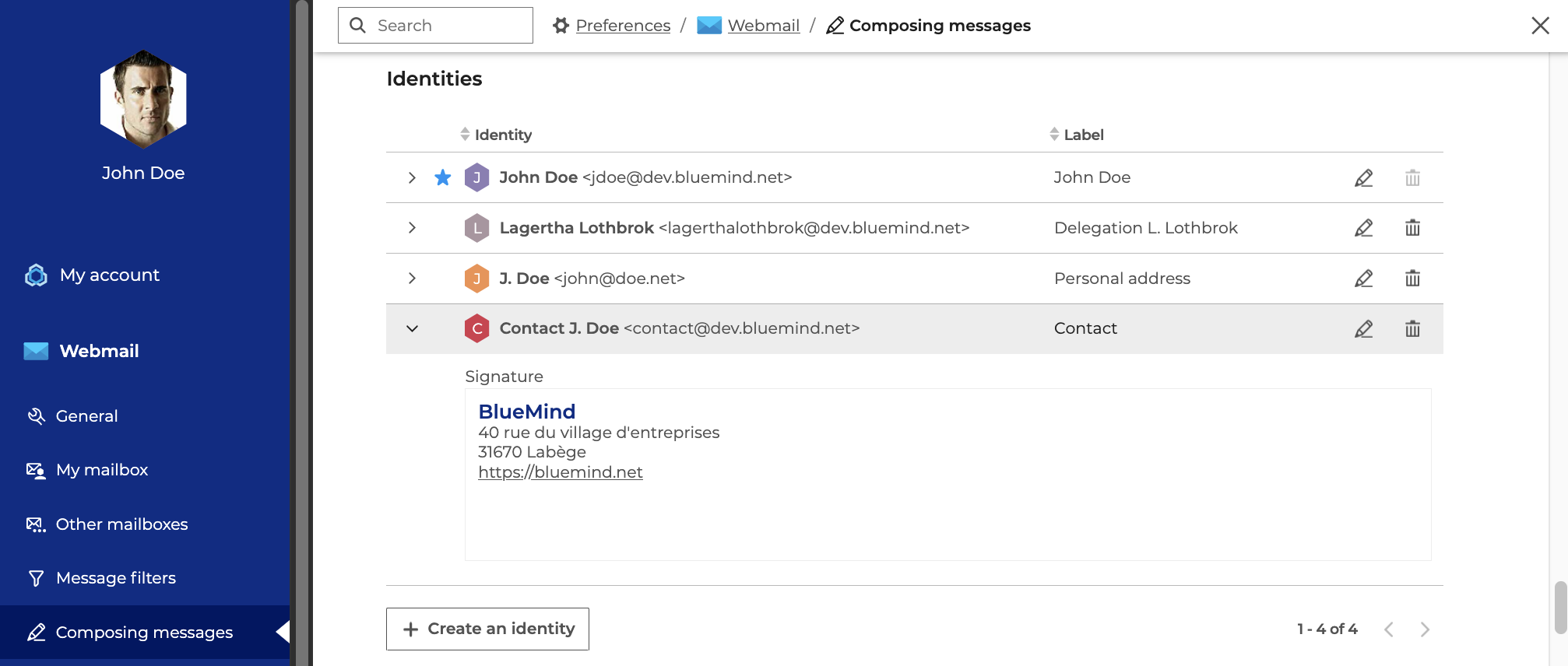
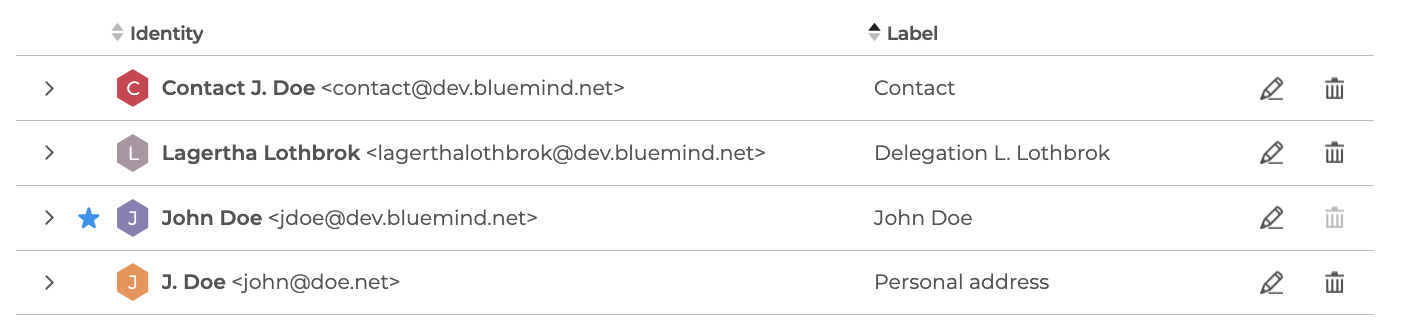
All created identities are listed in order of creation.
-
The default identity is indicated by

-
Click on "Label" to sort identities in ascending or descending alphabetical order
-
Unfold an identity to see the associated signature.
-
Click on
 to modify one or more identity fields
 -
Click on
 to delete the identity
Default identity
The default identity cannot be deleted, so the button is grayed out. To delete the signature currently set as default, edit another signature to set it as default, then delete the desired signature.
Using an identity
Once the identities have been created, the user can choose which e-mail address or signature will be used to send a message. For more information on these features, please visit the dedicated pages: