Introducing the BlueMind Solution
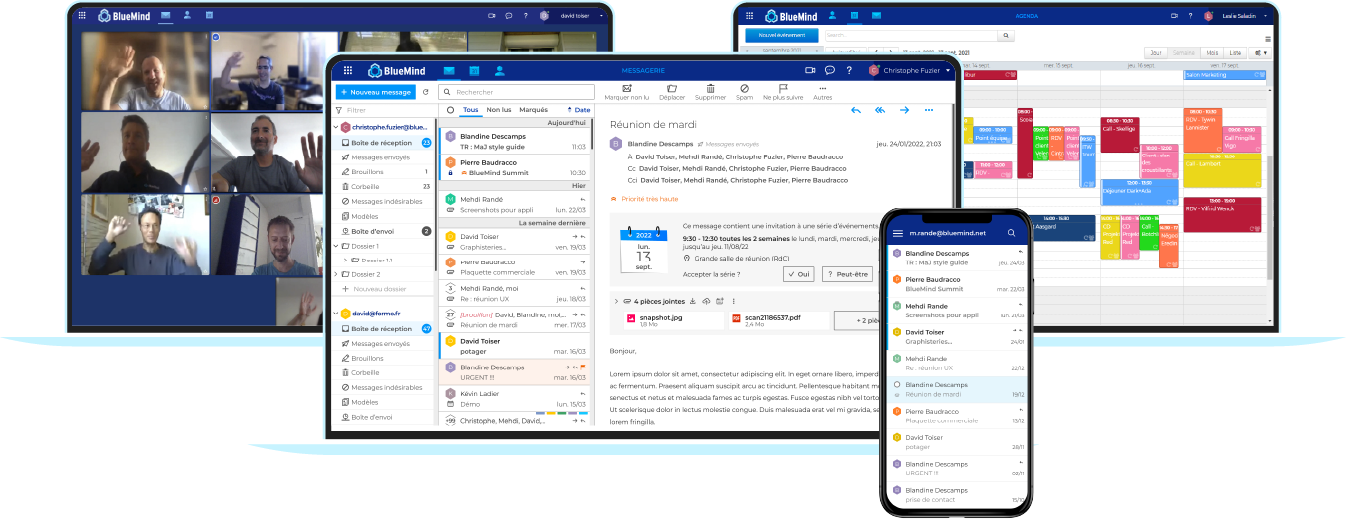
BlueMind is a complete Open Source collaborative messaging solution, built-in with all the functionalities required for daily business : mail, contacts, calendars, tasks, video conferencing, drive, etc.
The BlueMind solution is also 100% web-based. Messaging and all applications are available online. BlueMind's webmail is based on the latest technologies, enabling it to adapt to all major browsers and all screen types, from cell phones to widescreen monitors.
The interface is simple, ergonomic and intuitive. Navigation is fast and fluid, whatever the device.
BlueMind SAS has developed a professional offer, called BlueMind Subscription, based on this Open Source software. Its aim is to enable you to use the BlueMind collaborative mail system with complete peace of mind, over the long term. For more information on content, subscription types and how to subscribe, visit BlueMind Subscription.
Connect to BlueMind
Access to BlueMind is via a compatible browser: once on the page at the address given by the administrators, enter the account's username and password:
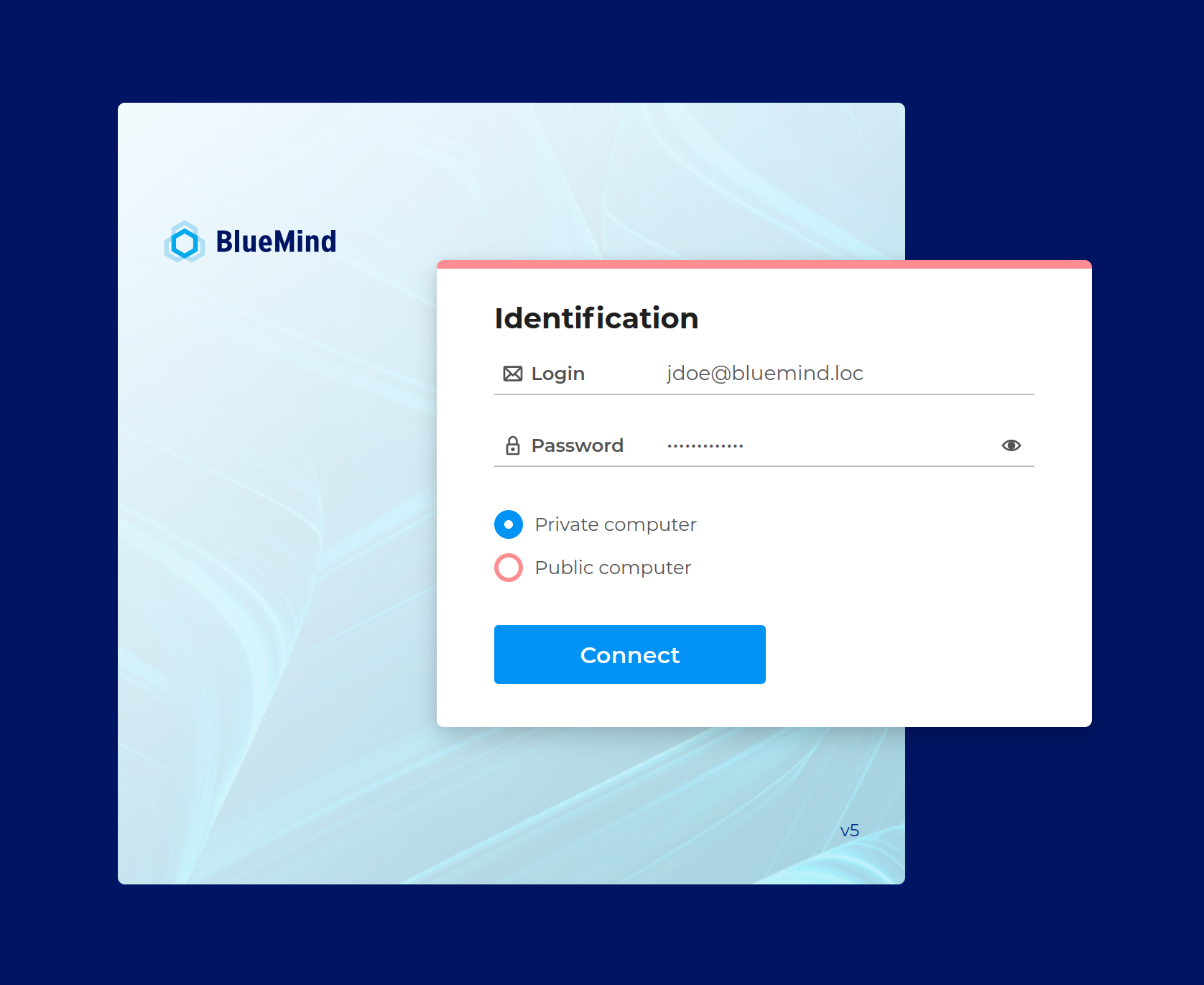
Select connection type :
- Private computer: user settings and application data are cached to reduce loading times for future connections.
- Public computer: user settings and application data are not stored. This option is intended for use on public or shared workstations. Loading times may be longer on connection, as the application must be downloaded in its entirety.
↳ See Securing connection with OTP for more information on dual-factor authentication.
↳ Visit Setting up Thick Clients to find out how to connect a client software to the account in the software of your choice.
↳ See Configuring mobile devices to find out how to connect a mobile application to the account.
Accessing applications and settings
The main ribbon at the top of the window is used to navigate the app.

The bento menu icon in the top right corner gives you access to the Mail, Contacts, Calendar and Tasks apps.
Access to Videoconference and online help is on the right-hand side of the banner.
To set up your account, open the menu under the user's name and click on Preferences.
By default, the interface opens in Mail, but can also be opened in Calendar. To do this, go to account settings : Preferences - General - Default application
To find out which version of BlueMind you have installed, go to About to open the information panel.

Using the search box
BlueMind has a new powerful search mode which can be used to make full-text searches in messages, contacts or events.
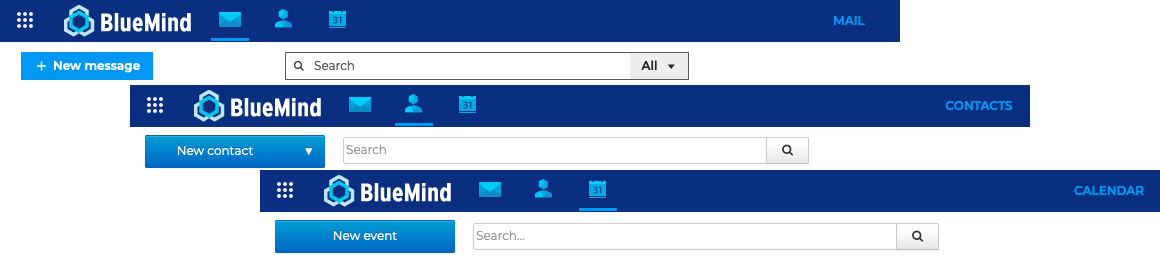
For contacts and calendar, the search is based on the content of contact and event records, including tags. You can use * truncation to replace part of a word in a search. For example:
-
invit*: searches for words beginning withinvitand finds, for example,invitesorinvitation -
inv*ion: searches for words starting withinand ending withion, such asinvitationorinvention.⚠️ response times for searches using the
*character are significantly longer than for a simple search.
For emails, in addition to the full text search on content and attachments, it is possible to refine results using the multi-criteria search. See Searching in messages for more details.
Updating the solution
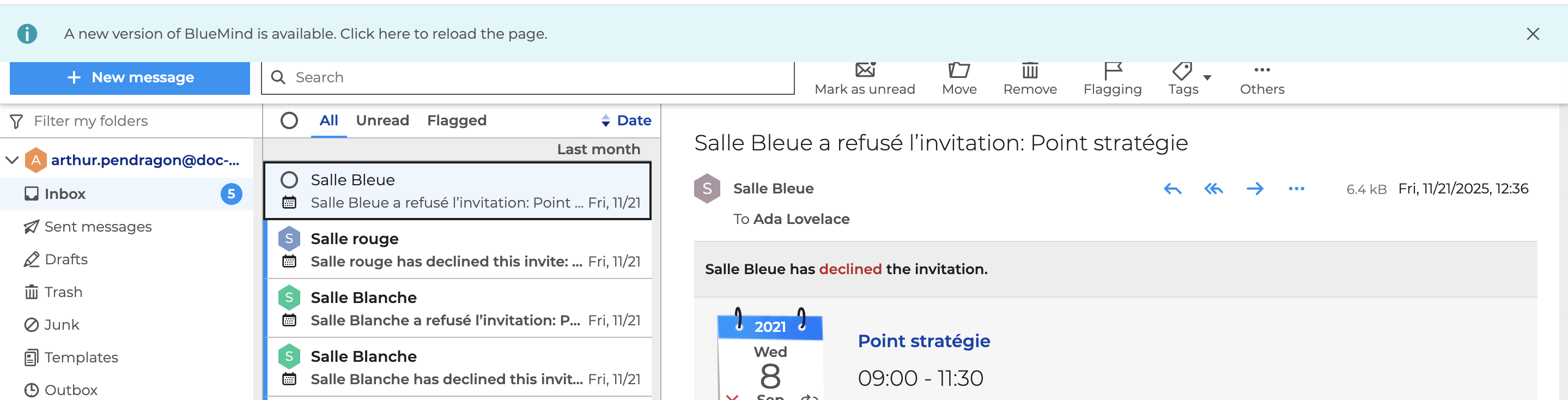
When administrators update the server, an alert appears at the top of the user interface, indicating that a new version of BlueMind is available. Simply click the "Click here to reload the page" link, or reload the page from your browser, to ensure that the latest changes are taken into account :
It's important to keep your BlueMind solution up to date. This improves application performance in the event of a slow or unstable network, and provides an optimal application experience.