Post-installation Configuration
Procedure
Once the Linux distribution has been Installing BlueMind, use your web browser to go to the BlueMind initial configuration page at the Url provided at the end of the installation: https://votre.serveur.mail/setup (be sure to enter https, not just http).
Follow the setup wizard's instructions by clicking "Install":
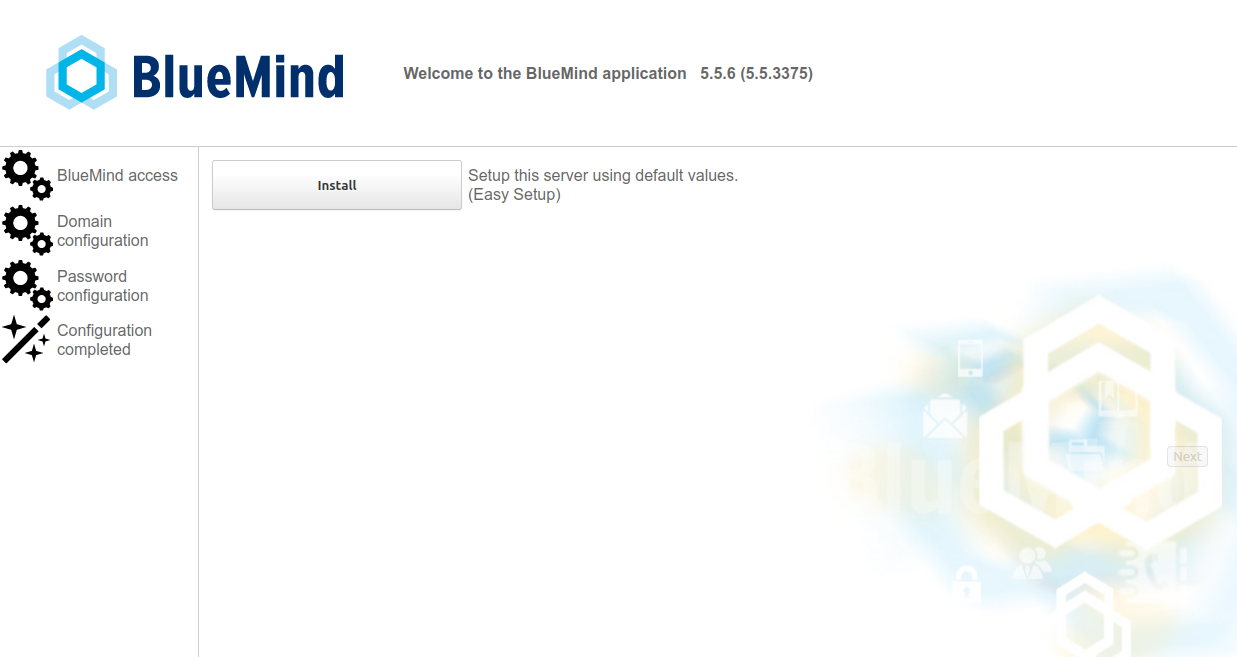
-
Prerequisites check
Warnings and error messages
A warning may appear when the server has been assigned the minimum memory required. This is merely a non-blocking warning as a result of memory calculation, setup can go on regardless. If a problem blocks installation, an error email appears in red and the "Continue" button is unavailable.
-
BlueMind access URL: Enter the public URL for accessing BlueMind and click "Test access". If both tests pass, the "Next" button becomes active:
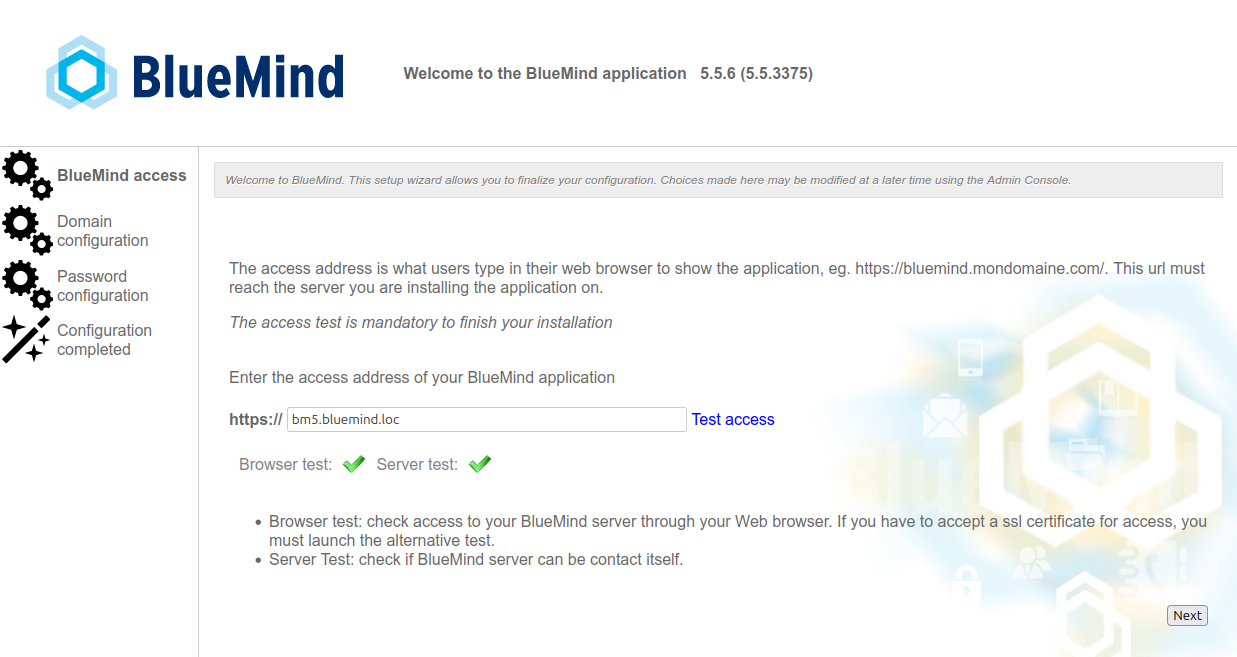
-
Domain name: Check and fix the domain name if necessary, select the default language for the superadministrator, then click "Next":
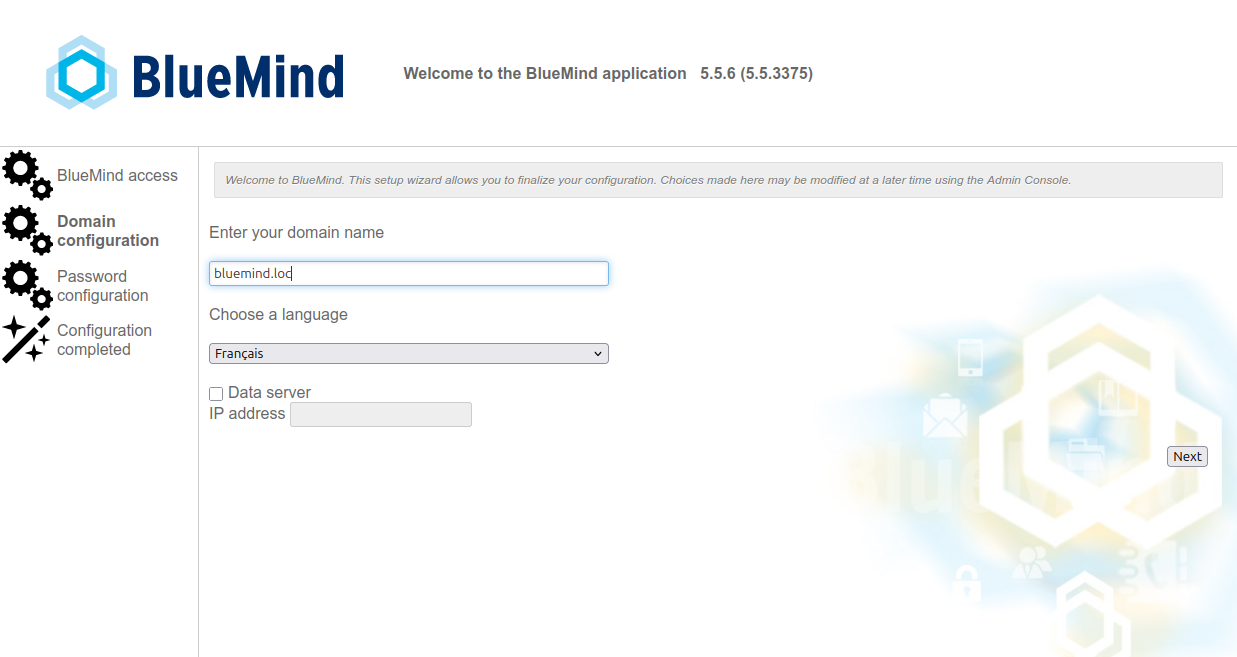
-
Passwords: The system allows you to customize the passwords set by the installer. There's also a safety feature to prevent you from losing them through inattention: as long as the "I have memorized these passwords" box is unchecked, the "Finish the configuration" button is not available:
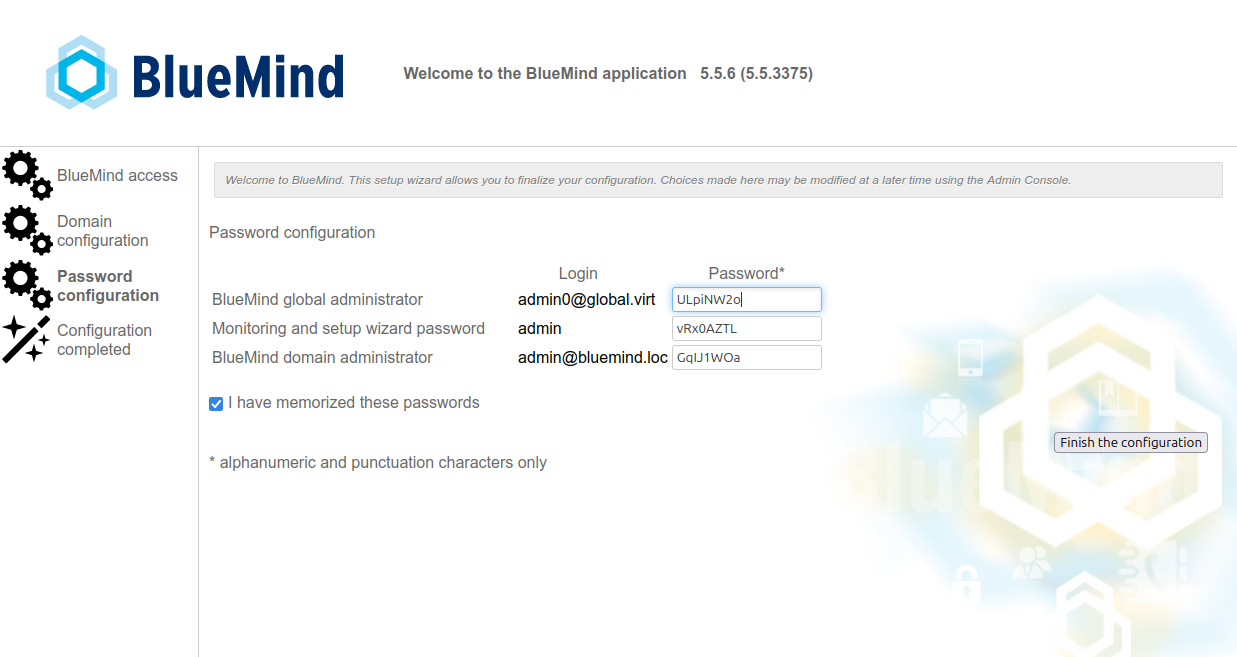
Click "Finish the configuration". -
Installation completes, then displays application connection information:
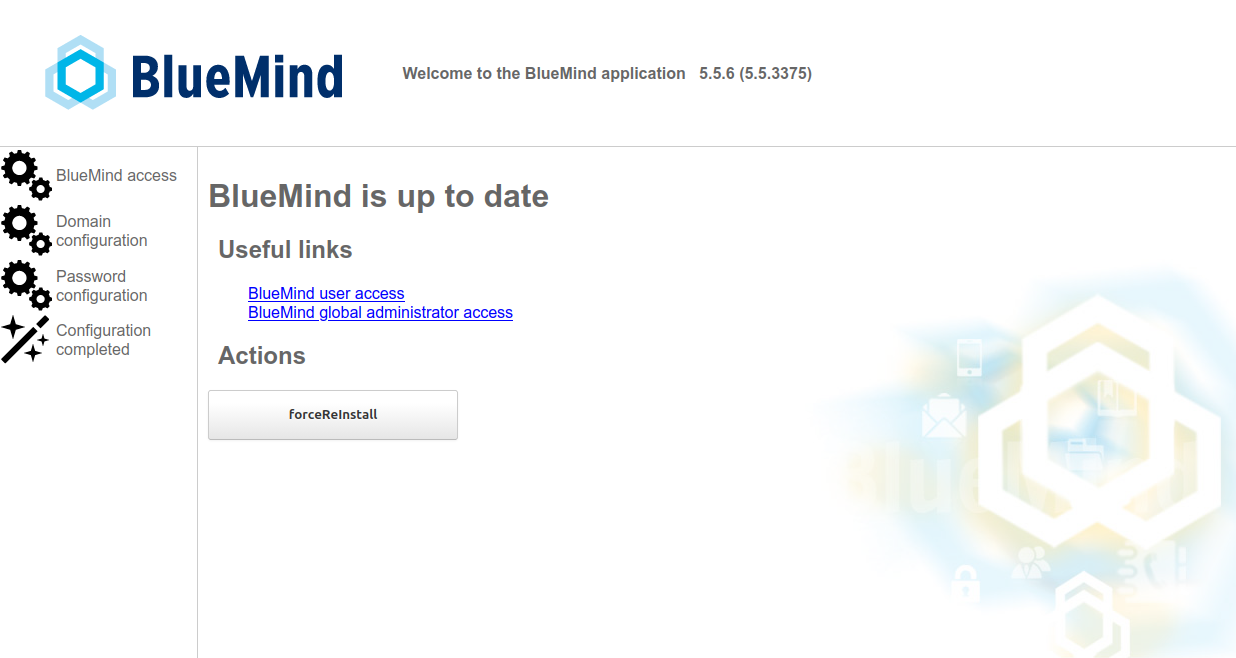
-
Restart the BlueMind service from the command line:
bmctl restart
The application is now available. Use one of the provided administrator accounts (global or domain) to log in, access the console, and create your first users!
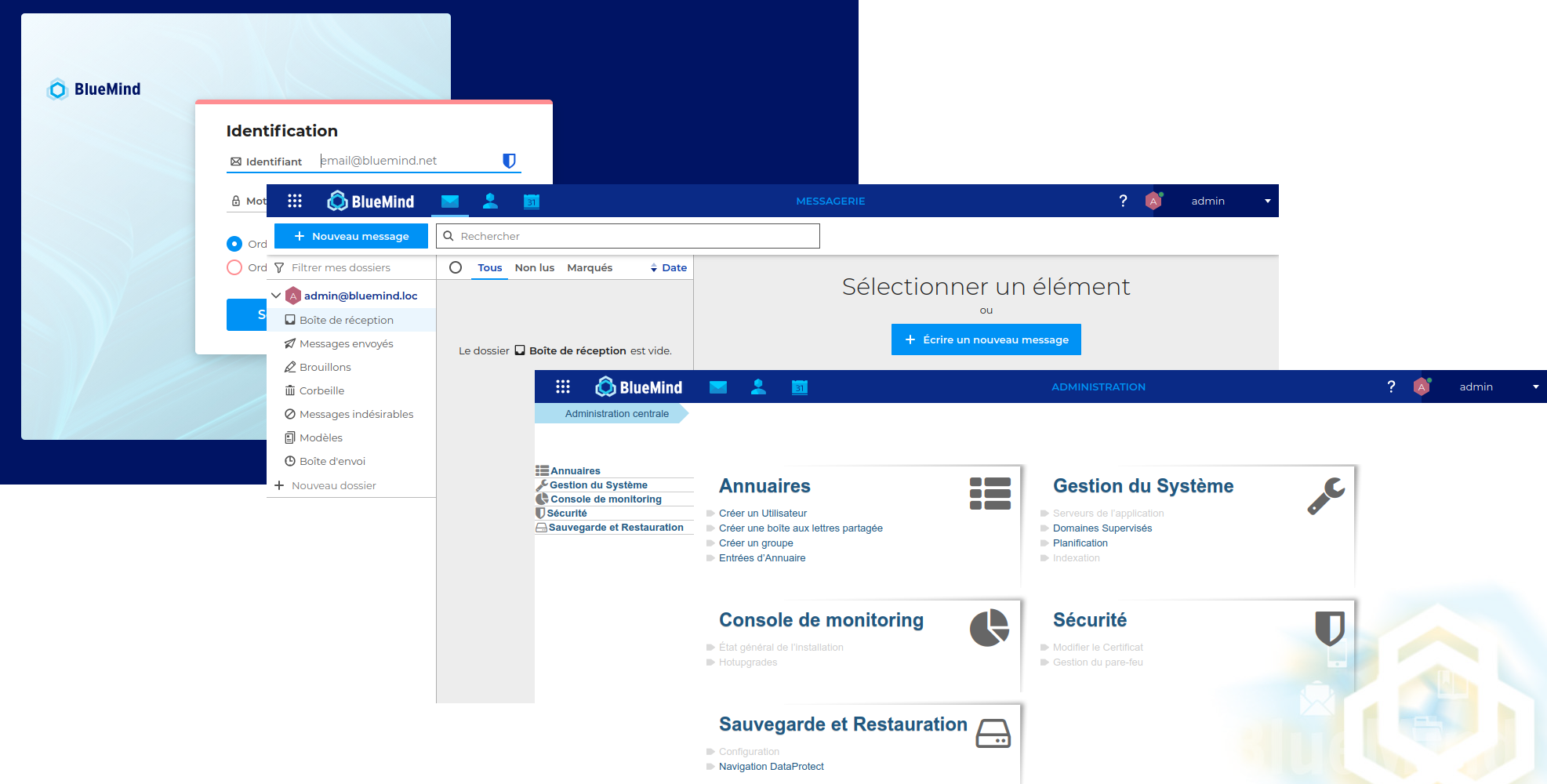
Subscriptions
If you already have a BlueMind subscription, install it now by following the procedure on Setting up the subscription to benefit from the associated tools and Outlook workstation connection.
If you want dedicated people to be able to see when the number of users has been exceeded or when the subscription expiry date is approaching, don't forget to assign them the appropriate management role.
For more information, please see the pages:
- BlueMind Subscription
- Setting up the subscription
- Implementing MAPI for Outlook
- Roles: access and administration rights
Additional Components
Some additional components are not included by default in the BlueMind installation and require the installation of additional packages.
Linked attachments
BlueMind offers the option of linking attachments from emails to present them as download links to recipients.
See the following pages:
- Filehosting by BlueMind for more information on installation and configuration
- Adding attachments for its use
LDAP Import
To implement the import of users and groups from an LDAP directory, go to LDAP Synchronization.
Subscription-based Components
The BlueMind subscription gives you access to additional tools and functions:
- the ActiveDirectory import tool.
For further information, see pages BlueMind Subscription and Setting up the subscription.
Storage space sizing
Once installed, to optimize BlueMind's operation, you need to set certain parameters according to your hardware and the number of users, in particular :
- the number of nginx workers: this is set in the admin console, see the page dedicated to the System configuration
- chapter 2: Proxy server
Data migration
To ensure complete and successful data recovery, data recovery must be carried out from server to server, using export/import and data recovery tools.
Any data transfer by users or from thick clients (Outlook, Thunderbird) can be problematic in terms of the volume of data manipulated by these thick clients, and can lead to inconsistencies in user data on the new BlueMind instance.
We therefore recommend :
- Contacts: VCard exports and imports
- Events: ICS imports/exports
- Emails: depending on the source server, imapSync, Exchange or Domino migration tool.
Contact BlueMind or your BlueMind partner for assistance with data recovery.
Reminder: data transfer by PST import from Outlook should be avoided at all costs.