LDAP Synchronization
The BlueMind professional subscription gives you access to tools that make it easier to integrate BlueMind into an information system.
While the administration console lets you create and manage entities directly in BlueMind, information systems often have a centralized directory, such as LDAP or Active Directory, on which it is preferable to rely.
This section describes the operation and setup of the LDAP directory access module.
How the tool works
Features
With the LDAPadd-on, user management is delegated to a LDAP directory, and account creation is automated thanks to synchronization with BlueMind.
This synchronization enables :
- import users and groups from the directory:
BlueMind imports users and groups from a LDAP system. BlueMind imports each domain incrementally. - authentication of BlueMind users:
When the domain's Authentication type is configured for internal authentication and synchronization LDAP is enabled, users imported from the directory are authenticated using the LDAP directory. Imported user passwords are then validated with the LDAP server. BlueMind does not store any passwords. - logging new users:
A new user can log on to a BlueMind server even if it has not yet been imported. Their BlueMind account will be created upon request automatically if the authentication process is successful.
This tool eliminates the need to manage a user database in BlueMind, and the problems of multiplying passwords. The password is centralized in the LDAP directory and is neither known nor imported by BlueMind.
Synchronization principles
The provisioning (creation or modification) of a user or group from LDAP to BlueMind takes place :
- during server configuration, with the initial import
- periodically during the day, through scheduled jobs
- or automatically when a user logs in.
To achieve this, the LDAP add-on works in 3 complementary ways:
-
Global import
Scans all users and groups from LDAP (taking into account directory root and filters) and imports them into BlueMind. Those that do not exist are created, and existing ones are modified if necessary. Global mode runs automatically on first run, during initial import. Thereafter, it is only by clicking on the "Start global synchronization" button on the administration console (see "Configuration" paragraph below) that it is triggered.⚠️ Depending on the number of directory entries, global synchronization can take a very long time. This action should only be taken in exceptional cases.
-
Incremental import
Scans only users that have changed since the last error-free import. Only data that has been created, deleted or modified in LDAP since the date of the last successful import is imported into BlueMind. Incremental mode runs automatically and regularly via the scheduled jobImportLDAPJobcreated when the add-on is installed.For further information on scheduled job management see at Scheduled Jobs.💡 This system optimizes synchronization.
-
Real-time import
Search for the user in LDAP when he is not known in BlueMind; if found, import and authenticate him on LDAP to give him immediate access to BlueMind.
Installation
To access LDAP directory synchronization functions, you need to install the ldap-import add-on.
To do this, connect to the server and use the following commands to launch the plugin installation:
- Debian/Ubuntu
- RedHat/CentOS
sudo aptitude update
sudo aptitude install bm-plugin-admin-console-ldap-import bm-plugin-core-ldap-import
yum update
yum install bm-plugin-admin-console-ldap-import bm-plugin-core-ldap-import
When installation is complete, restart the bm-core component using the following command:
bmctl restart
Configuration
Only the global administrator is able to configure LDAP synchronization for a domain.
Domain administrators can view the settings and launch the ImportLDAPJob import task in Scheduled Jobs.
To configure the LDAP connection :
- Log in as global administrator admin0@global.virt
- Go to System Management > Supervised Domains > choose domain > LDAP Import tab:
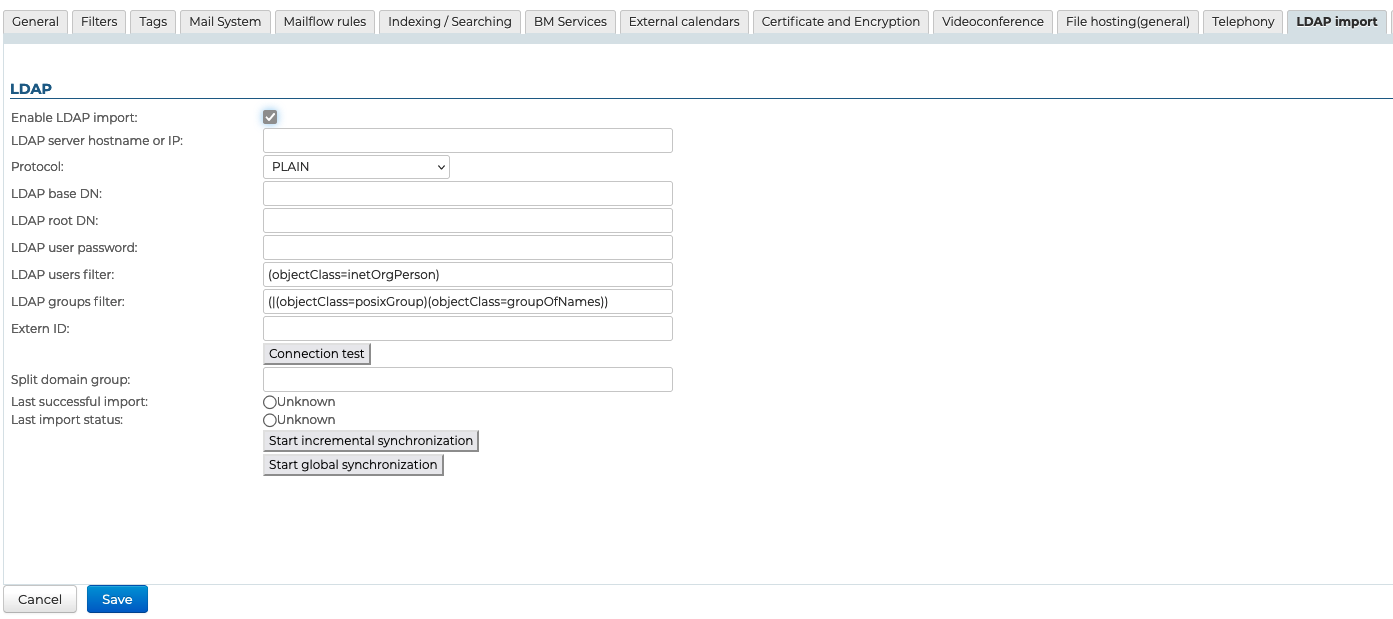
- Check the "Enable LDAP import" box
- Fill in the requested information using the directory parameters:
Field Note LDAP server name or IP address IP or FQDN of LDAP server of the form: ip-ou-fqdn[:port]
If port is not specified, the port used depends on the protocol selected in Protocol.Protocol Choose the protocol to use:
- PLAIN, default port1: 389
- SSL, default port1: 636
- SSL/accept all certificates, default port1: 636
- TLS, default port1: 389
- TLS/accept all certificates, default port1: 389
1: the port specified in the field Name or IP of the LDAP server is used first. If the port is not specified in the field Name or IP of the LDAP server, the default port corresponding to Protocol is used.Directory root Specify LDAP root (ReadOnly access is a prerequisite) User DN DN of the root user used to connect to the LDAP server Password The user password used to connect to the LDAP server LDAP filter for users Only users matching the applied filter are imported into BlueMind. The syntax of LDAP filters is described by RFC 4515. For example:
- to display all persons who have their telephone number entered in the database:(&(objectclass=person)(telephoneNumber=\*))
- to display all accounts with "MAIL" accountStatus that are not in the MAILSHARE branch of the directory:(&(!(ou:dn:=MAILSHARE))(&(objectClass=posixAccount)(accountStatus=MAIL)))LDAP filter for groups Only groups corresponding to the applied filter are imported into BlueMind. The syntax of LDAP filters is described by RFC 4515. For example:
- to display groups in branches whose dn contains cn=system or cn=users:
(&(objectClass=group)((cn:dn:=System)(cn:dn:=Users)))
- to display groups with a description:(&(objectCategory=group)(description=\*))External ID Attribute of an invariant and unique LDAP entry identifier used to bind an LDAP entry to a BlueMind entry. Used to link an LDAP entry to a BlueMind entry Split domain group This field can be empty.
This field will be ignored if the split domain feature is not configured for BlueMind.
Mail intended for users in this group is redirected to another mail server in the same domain (configured via domain split domain).Last execution successful Date of last import run without errors.
The incremental import mode takes into account changes made in LDAP since that date.Last import status Date and status of the last LDAP import.
In the event of errors, the logs of the LDAP import scheduled job for this domain provide further information in Scheduled JobsStart incremental synchronization Force LDAP import to run in incremental mode.
Only changes made since the date of Last successful execution are taken into account in LDAP.
This operation corresponds to the execution of the LDAP import scheduled job for this domain, which can be viewed in Scheduled JobsStart global synchronization Force LDAP import to run in global mode.
In this mode, the Last successful execution date is not taken into account. All entries corresponding to the import parameters are processed.
This may take some time, depending on the number of LDAP entries to be processed.
Login method
LDAP synchronization is designed to rely on a directory schema of type InetOrgPerson.
By default, all users and groups are retrieved from LDAP. Filters for querying part of the directory can be configured with the following information:
- directory root
- filters to use for user and group synchronization - to restrict imported data
Finally, you can specify the split domain group.
The "Test connection" button allows you to check directly whether the directory is accessible and access is correctly configured.
For security reasons, it is necessary to re-enter the LDAP directory access password before each connection test, even if it has already been entered and saved.
LDAP-BlueMind mapping
User attributes
| BlueMind | Attribut LDAP | Note |
|---|---|---|
| login | uid | Values are mapped on import for compatibility reasons: - accented letters are replaced by their non-accented equivalent - all letters are changed to lowercase - spaces are replaced by '_' |
| firstname | givenName | |
| lastname | sn | |
| formatedName | displayName | If the displayName attribute is absent, the field will be generated by BlueMind by concatenating the various non-empty parts of first name, last name, title, etc. in the same way as the Full Name in contact cards. |
| description | description | |
| mail mailLocalAddress mailAlternateAddress gosaMailAlternateAddress | The default BlueMind address is determined by the first value found in the following fields (in this order):
The remaining addresses are used as aliases. ⚠️ If none of these attributes are provided or are invalid, an address in the following format will be assigned: login@<default-domain> | |
| user mail quota | mailQuotaSize mailQuota gosaMailQuota | Must be expressed in bytes in LDAP. The first LDAP attribute found is used: mailQuotaSize > mailQuota > gosaMailQuota |
| work phones | telephoneNumber | |
| home phones | homePhone | |
| mobile phones | mobile | |
| fax | facsimileTelephoneNumber | |
| pager | pager | |
| memberOf | memberOf | List of groups the user belongs to. The BlueMind user can only be added to LDAP groups that have already been imported |
| photoID | jpegPhoto | Profile picture: attribute content is imported as profile picture for related account |
| user.value.contactInfos.organizational.title | title | |
| user.value.contactInfos.organizational.org.company | o | |
| user.value.contactInfos.organizational.org.division | or | |
| user.value.contactInfos.organizational.org.department | departmentNumber | |
| address.locality | l | |
| address.postalCode | postalCode | |
| address.countryName | st | |
| address.streetAddress | postalAddress | |
| address.postOfficeBox | postOfficeBox |
Group attributes
| BlueMind | Attribut LDAP | Note |
|---|---|---|
| name | cn | |
| description | description | |
| If this field is left blank, the group will not have a BlueMind mailbox. | ||
| member | memberUid (Unix method) | The group in the directory contains as many memberUid attributes as it has members. Unlike the member attribute in AD directories, it contains the user's unix uid. With this mode of operation, memberOf is not possible.Only users and groups that have already been imported into BlueMind are added to the group members |
| member | member (method of Active Directory Synchronization) | The group in the directory contains as many member attributes as it has members. Optionally, the directory can provide the memberOf. This attribute is stored in the user's account and points to all the groups to which the user belongs.Only synchronized groups and users are added to BlueMind groups |
BlueMind supports three group management modes, listed in order of priority:
member+memberOfmemberwithoutmemberOfmemberUid
The import task identifies the type of member representation as soon as it is launched and thus determines the mode used for importing groups. The detected mode is displayed at the beginning of the scheduled job logs.
An import can use only one mode. You cannot mix modes within a single import.
For example, if the directory contains:
- 1 group (grp1) with its members represented by
member+memberOf - 1 group (grp2) with its members represented by
memberUid
=> The import will switch to member+memberOf mode, and the members of grp2 will be ignored.
Note that it is possible to have two separate domains on a single BlueMind instance, each with its own specific LDAP import.
=> Domain 1 uses the member+memberOf representation, and Domain 2 uses memberUid.
Account management
Giving access to applications
Access to applications is via the roles assigned to users. As the LDAP import does not manage roles, users have none once they have been imported, and cannot access applications (webmail, contacts, calendar).
The easiest and most effective way of handling this is through groups:
- in LDAP, assign a common group to users (or several, if desired)
- launch 1st import: group(s) and users are imported into BlueMind
- go to the BlueMind administration console and assign the desired roles to the group(s)
During subsequent imports and synchronizations, the roles will be retained.
Subsequently, for new users, simply assign them to these group(s) and assign them the desired roles.
When new versions are released, BlueMind regularly adds new roles.
To ensure that the new right is activated for existing users during the upgrade, you should designate the group(s) into which you have placed users coming from LDAP as default groups.
Suspend an account
Accounts imported from a LDAP directory respecting the configured filter are automatically activated.
Conversely, they can be suspended or deleted from the LDAP directory to prevent them from accessing mail. A user deleted in LDAP is simply suspended in BlueMind.
Forcing or correcting a UID
A user's UID can be filled in or corrected in the user's admin page in BlueMind.
To do this, go to the administration console > Directories > Directory entries > select the user's file > Maintenance tab: fill in the ExternalID field with the user's UID in LDAP then save.
The user's information will be synchronized with the LDAP directory the next time the task is run. ImportLDAPJobThis can be viewed at Scheduled Jobs.
The ExternalID must be prefixed with "ldap://".
For example:
ldap://5d6b50-399a6-1e6f2-d01267d1f-0fbecb