Working with Outlook
Mail
Shared mailboxes
BlueMind has three types of mailboxes:
- User mailboxes, which correspond to a user's mailbox: they are nominative and shared by the user himself (or a beneficiary) according to the level of rights he decides.
- Shared mailboxes, which are not named and have no username, but function like user mailboxes: they have the same default folders, must be delegated, and have calendars, address books and to-do lists. They therefore function in client software as user boxes.
- Simple shared mailboxes (older versions), which are simple mailboxes, are not nominative and have no username: one or more users can be attached to them to consult or write on their behalf.
Only shared mailboxes with an e-mail address appear in thick clients. If the mailbox does not appear, contact the domain administrator to request adding an e-mail address.
Using a shared mailbox (new version)
You don't need to subscribe to a shared mailbox to have it appear in Outlook. However, the procedure differs from that for adding a simple shared mailbox or a user mailbox: you need to add an account, using the details of the entitled user.
To display a user mailbox in Outlook:
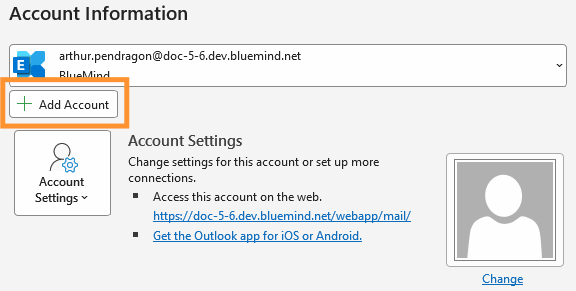
- from the File menu, click Add an account:
- enter shared mailbox address and click Connect:

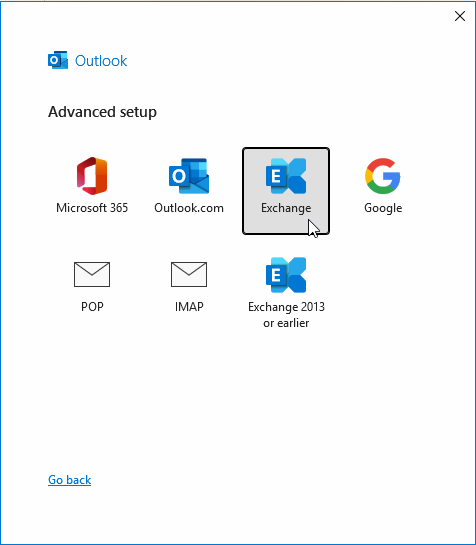
- select the Exchange configuration type:
- then fill in the username of the user entitled to the box:
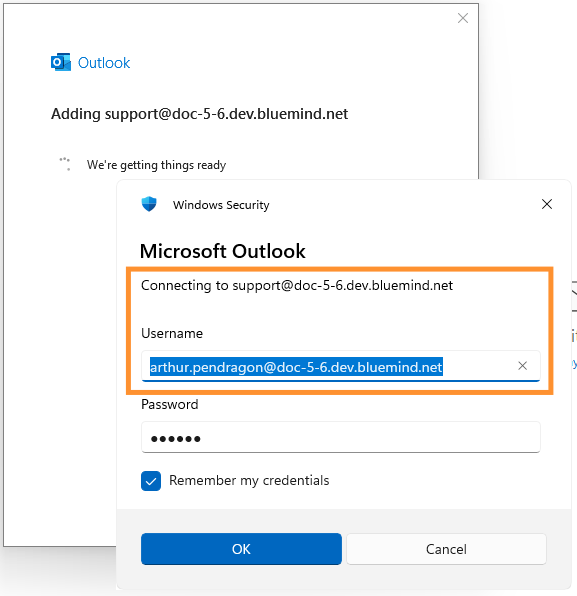
⚠️ Shared mailboxes don't have login details, so you need to enter the login information of a right holder here.
- Outlook then asks you to restart, click on Terminated:

After restart, the mailbox is visible in its own tree:

In other parts of the application, the box's default elements are also added:
- the mailbox calendar :

- address books:

- to-do list:

Sent emails folder
Setting up the "Sent Messages" folder via an identity is not necessary here: the folder will automatically be the one from the mailbox used to send the messages. i.e. if an email is sent on behalf of a shared mailbox, Outlook will place it in the shared mailbox's "Sent" folder.
Delegation level
Depending on the level of delegation assigned on the shared mailbox, sending emails may not work.
A new version of shared mailbox can also be mounted by following the same procedure as for simple shared mailboxes (see below), but it will then appear as a simple mailbox: the options specific to shared mailboxes will not be available (access to settings such as filters, automatic choice of sent mail folder, calendar display, etc.) and performance may be degraded. For a new version of shared mailbox, it is therefore preferable to use the above procedure.
Using a simple shared mailbox (old version)
BlueMind's subscription feature (see Subscribing to a shared mailbox) makes it possible to display shared mailboxes on Outlook.
All you have to do is log in to your BlueMind account from a browser, then go to your account's Preferences > Mail > Other mailboxes section:

Once the subscription is active, the boxes are visible in Outlook, after restarting it, under the user's mailbox:

For further information, see:
Set up the "Sent messages" folder of the mailbox
By default, messages sent on behalf of a shared mailbox are automatically copied to its "Sent Messages" folder. In this way, the email sent will be present in the user's "Sent messages" folder AND in the shared mailbox folder.
Registry keys allow to modify this default behavior. To find out more, contact your administrator or consult the dedicated administrator documentation:
Use a mailbox or folder shared by a user
This also applies if a user has shared only certain folders in his mailbox.
For further information, see Sharing a folder.
In the case of user mailboxes, subscription from BlueMind is not necessary; the addition is done through the Outlook mailbox addition procedure.
To display a user mailbox in Outlook:
- from the File menu, go to Account settings:

- in the window that opens, go to "Data files" > "Parameters" > "Advanced" tab
- using the "Add" button, search for the desired mailbox using the user's username or name:

- back in the settings window, check that the "Use cached mode" and "Download shared folders" boxes are checked:

- click on OK and quit the settings
The mailbox is now visible in the mail:

Corporate signatures
If a company signature is set and applicable, it will be automatically added to the end of the email by the server after it has been sent.
Signature placement
By default, the company signature is placed at the very end of an email, after any quotes and replies, and cannot be modified. However, if the administrator has chosen to activate the appropriate option, users can choose the placement.
This can be done by inserting placement markers.
To facilitate this insertion, the user can set the markers as the default signature in Outlook, by going to the menu File > Options > Mail > Signatures > Create a new signature:

Select the signature as default and write it surrounded by the character strings indicated in the link above:

When drafting or replying to an email, the markers are automatically placed in the message:

It is also possible to manually insert the signature in the composer if you don't want to set it by default:

Even in the case of placement by Outlook, markers can still be moved manually by the user by cut/paste if he wishes to temporarily place the signature in another location.
The signature is then inserted by the server at the location of the markers:

Using a personal signature
Unlike webmail, BlueMind cannot detect an unmarked personal signature when using Outlook. Thus, if a personal signature is used in Outlook, the company's signature will be added to it.
It is therefore advisable not to use a personal signature when a corporate signature is present, unless it provides additional relevant and desired information, or to use placement markers (see previous section) as a signature.
Calendar
Shared calendars
Individual calendars
To display a calendar shared by a user or resource calendar, the process is that of the classic Outlook work:
- Use the Open Calendar menu > From the address book:

- Search the calendar in the list or use the advanced search :

- Double-click on a calendar in the list to add it, then click OK once you've selected the calendar(s).
- Calendars are now added to the view. Check or uncheck the corresponding box to show or hide a calendar:

- user calendars appear under the "Shared calendars" tree structure
- resources appear in the "Rooms" tree structure
- if a group is added, its members appear individually in a tree structure with the group's name:

Domain calendars
The domain calendars are special entities. To view them, you need to connect to BlueMind via a browser and subscribe to the desired calendar.
Just follow the usual subscription procedure: Creating and Editing Calendars > Subscribing to a shared calendar. Once subscribed, the calendar can be viewed in Outlook's public folders:

Videoconferencing
The BlueMind add-in for Outlook lets you add people to meetings.
From the new meeting creation window, click "Add a video conference" and choose the desired service from those available:

Note: available services depend on the work environment, they are installed and made available to users by IT administrators
The video conference is then added to the message:

- A video conference room is added to the participants.
- A link allowing all guests, internal or external, to access the video conference is added to the description, with accompanying text if set by administrators.
Delegations
Delegations set up in BlueMind preferences are fully compatible with Outlook.
Delegations can also be set up from within Outlook. For more information on setting up and using delegations from Outlook, please refer to Microsoft documentation.
BlueMind's configurable rights are identical to those offered by Outlook. Depending on the options chosen, the delegate:
- Write from me
-
Write as me
Note: unlike using an Exchange server, BlueMind allows users to set this option themselves, without the need for administrator intervention.
For further information see Go to Resolving known issues with Outlook > § "My delegate can't write as me". - Can see my private events
Doc Team has appointed June Osborne as a delegate with the right to "Writes on my behalf" and "Receives and responds to invitation related messages":

June Osborne thus receives the invitation sent to Doc Team on her mailbox and can respond to it:

The organizer Black Panther sees that the reply has been sent by the Doc Team delegate:

Settings made in BlueMind preferences are immediately reflected in Outlook, and vice versa.
Known limitations
E-mail categories
Outlook limits the number of colors to a choice of 24, so if a color not included in this selection is assigned to a category in BlueMind, it will appear gray in Outlook.
In addition, domain categories are not synchronized by Outlook. Domain categories assigned from BlueMind webmail are visible on the e-mails concerned, but are not visible in category management and therefore cannot be assigned from Outlook.
Mail filters and rules
BlueMind's mail filters are applied by the server when emails arrive. Outlook rules, on the other hand, are applied locally by Outlook, when it reads the emails on the server. Consequently, filter rules created in Outlook are not visible and effective in BlueMind, and conversely filters created from webmail or the BlueMind admin console are not visible in Outlook.
For further information, see Applying sorting and action filters.