Synchronizing Address Books
By synchronizing a BlueMind address book, you can easily view and use the contacts it contains via other clients, such as Thunderbird, Outlook, macOS, iOS or Android.
Consulting a synchronized address book
The differences between a synchronized and a non-synchronized address book are summarized below. Under certain conditions, it may be possible to consult a contact even if the address book is not synchronized.
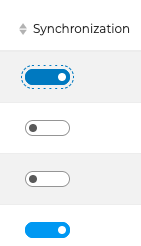
- Synchronisation activée
- Synchronisation désactivée
✅ The address book and all its contacts are copied to the thick client or mobile client
✅ Changes are automatically reflected in the BlueMind Contacts app and in the thick client or mobile client app — provided you are in online mode
✅ Contact records can be viewed in the thick client or mobile client app, both online and offline
❌ The address book and all its contacts are not copied to the thick client or mobile client
✅ Contact records are accessible via search or autocomplete — provided you are subscribed to the address book and are in online mode
❌ You cannot browse all the records in the address book
❌ Offline, the address book’s contact records are not accessible
When an address book contains a large amount of data (more than 1,000 contacts), you will receive a message warning you of possible synchronization issues.
Please note that some differences may appear depending on the synchronization protocol and the client:
-
EAS Sync (Android): Android mobile devices do not have a concept of an address book (except Samsung), all cards are available in the same contact book.
-
cardDAV synchronization (macOS): only the "My Contacts" book can be synchronized
-
MAPI Sync (Outlook): It's possible to subscribe to an address book from Outlook. In this case, the calendar is automatically added to BlueMind, with synchronization enabled.
-
Thunderbird: An address book is visible, with a different icon, even if synchronization is disabled.
For more information on compatible features and applications for each customer, please visit Compatibility.
Activating synchronization
Address book synchronization is performed in the contact settings, by going to Preferences > Contact > My address books or Other address books:
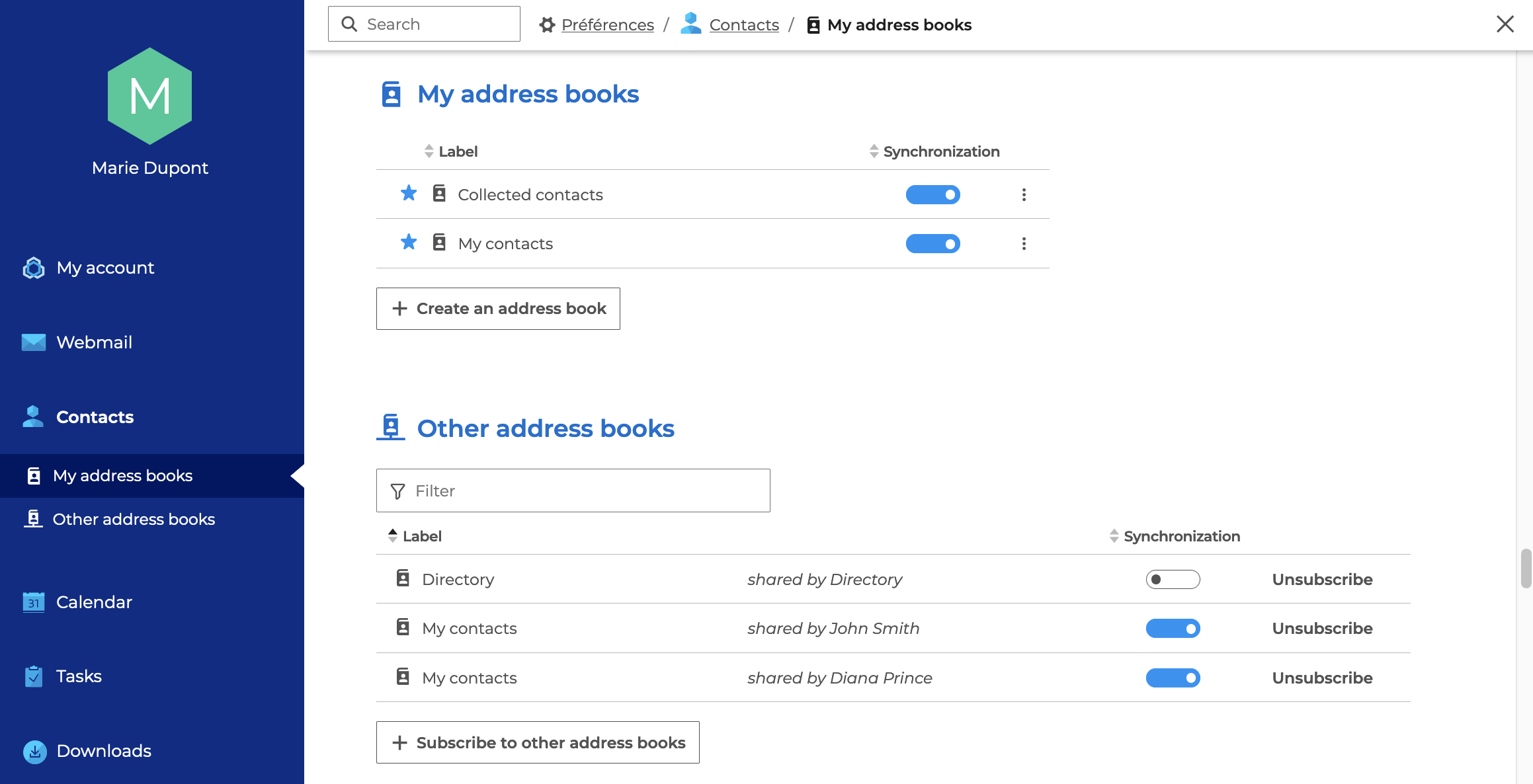
Then activate the Synchronization button for the desired address books :