Setting up SSO with an external OpenID authentication server
This document describes the operation and configuration of BlueMind with an external OpenID authentication server.
Prerequisites
- Have an OpenID server up and running
- Have authorized the BlueMind authentication client with the OpenID server.
After configuration, note the following information, which will be used to configure BlueMind:
- third-party OpenID server URL
- OpenId client identifier (sometimes called Application ID)
- **OpenId customer secret
How OpenID authentication works
For initial authentication :
- The user tries to connect to BlueMind, which he opens in his browser.
- As it has not yet been authenticated, the BlueMind server redirects it to the OpenID server for authentication.
- Once authenticated, an openID cookie is placed in the user's browser, and the user is redirected to BlueMind with a ticket to validate.
- The BlueMind server :
- sees this ticket,
- asks the openID server if it is valid,
- if this is the case, authorizes the connection and sets a cookie BlueMind in the browser.
On next authentication:
- The customer requests access to the BlueMind server again.
- As it has the BlueMind cookie, it is automatically authenticated as long as this cookie is valid.
OpenID configuration for a single or primary domain
-
In the administration console, go to System management > Supervised domains > choose domain > Security tab.
ℹ️ Administrator account
The procedure concerns domain configuration, so it is possible and preferable to use a domain administrator account rather than the admin0 superuser. -
Select the OpenID authentication mode from the drop-down menu and fill in the associated fields:
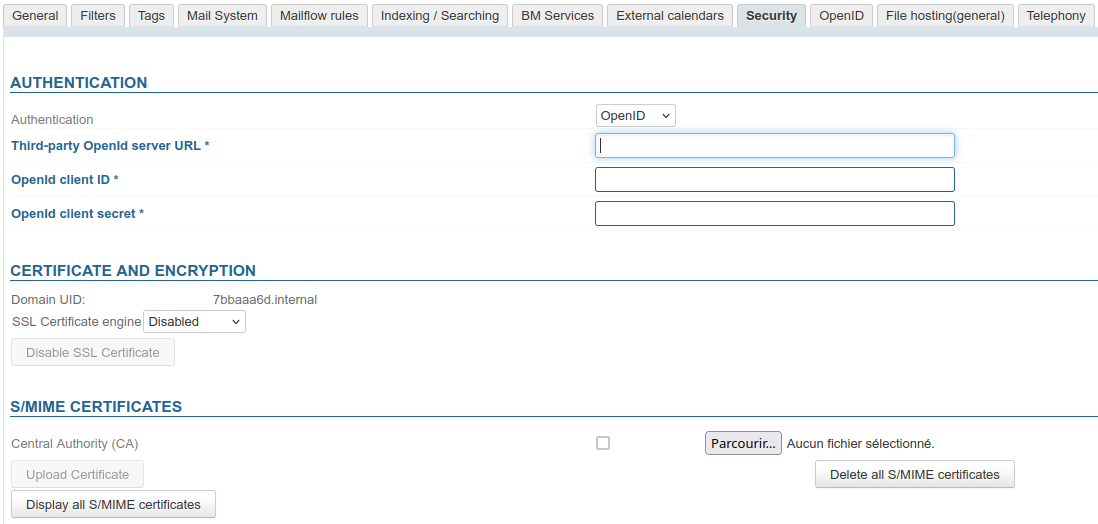
- third-party OpenID server URL: indicate the URL of the OpenID server used to retrieve the list of endpoints.
For example, on Keycloak, it's a URL of the form:
https://{openid-server}/realms/{realm}/.well-known/openid-configuration
Replace:{openid-server}by OpenID server hostname{realm}by the realm configured on the server
- OpenId customer identifier
- **OpenId customer secret
- third-party OpenID server URL: indicate the URL of the OpenID server used to retrieve the list of endpoints.
For example, on Keycloak, it's a URL of the form:
-
Click on "Save" to save your changes.
Users will then be automatically redirected to the OpenID server when accessing the authentication page.
OpenID configuration in a shared Environment
To use a single authentication server with multiple domains, you configure the server for a primary domain, to which the other domains are linked.
-
Set up your first domain using the method described above; it will then be considered the primary domain.
-
Enter an external URL for the primary domain (see External URL Configuration).\
Configuring the external URL is required for authentication to work properly with all domains. -
Note the username(s) of the subdomain(s) (Domain UID) from the list of domains or their management page.
-
Go to the management page for the primary domain > Security tab. Below the OpenID configuration form, there is now an "Add" link:
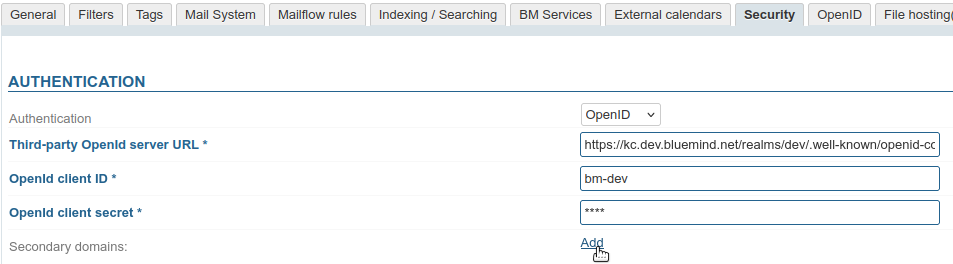
→ Click to add as many subdomains as you like. -
In the fields provided, enter the UIDs of the domains you want to link:

-
Click "Save" to confirm.
-
In the subdomain management page, under the Security tab, the form has been replaced with a field displaying the primary domain's UID:
