System configuration
Log on to the admin console with an account that has sufficient rights to manage system configuration, go to System management > System configuration.
For more information on administration rights, see the page Roles: access and administration rights.
Settings
This first tab allows you to choose the language of the admin console.

Mail
This tab allows you to set postfix parameters as well as system retention and storage.
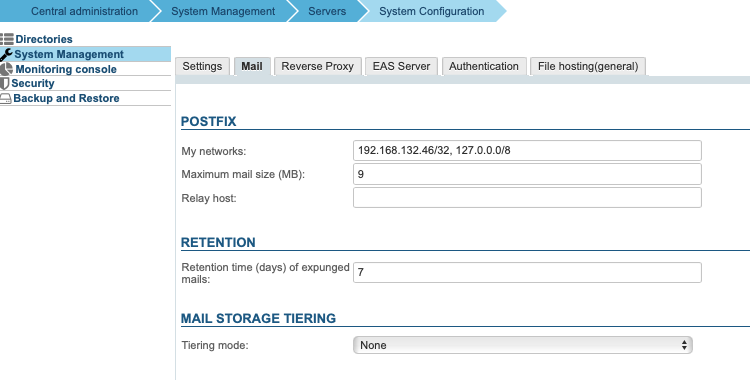
Postfix
-
My networks: The list of "trusted" SMTP clients that have more privileges than "strangers". Specify a list of network/mask expressions, separated by commas and/or spaces, e.g. :
127.0.0.0/8, 192.168.198.0/24For more information see http://postfix.traduc.org/index.php/postconf.5.html#mynetworks
-
Maximum message size : Maximum size in MiB1 of messages that users are allowed to send.
⚠️ This concerns the messages size and not the attachments they contain. After being converted for inclusion in an email, the size of an attachment increases, so approximately 50% more than desired should be taken into account. For example, if you want to allow attachments up to 10MB, you must set maximum message size to 15MB.
The maximum size of emails supported by BlueMind cannot exceed 100 MB.
-
Relay : Indicate here the address of the relay through which outgoing messages should pass.
The Postfix configuration can be modified manually to meet specific needs.
Certain restrictions apply, which you should be aware of:
- Some settings are still managed through the administration console:
relayhost,mynetworks,message_size_limit,mailbox_size_limit - The instructions provided with the installation must not be removed
- It is possible to add options after those already present in multi-valued directives
Mail retention
The field Mail retention purge time (days) allows to define the number of days messages are kept on the server after deletion by the user (complete deletion or emptied trash). During this period, emails deleted by the user can still be restored:
- by the user themselves
- from its BlueMind messaging system: see Deleting and recovering messages
- from an Outlook connected via MAPI (see product documentation)
- by the administrator directly on the server: see Restoring messages deleted by a user.
Hierarchical storage
This tab allows the administrator to define rules for hierarchical e-mail storage.
For more information on the HSM mechanism and its implementation, consult the Hierarchical Storage (HSM) page.
Reverse proxy
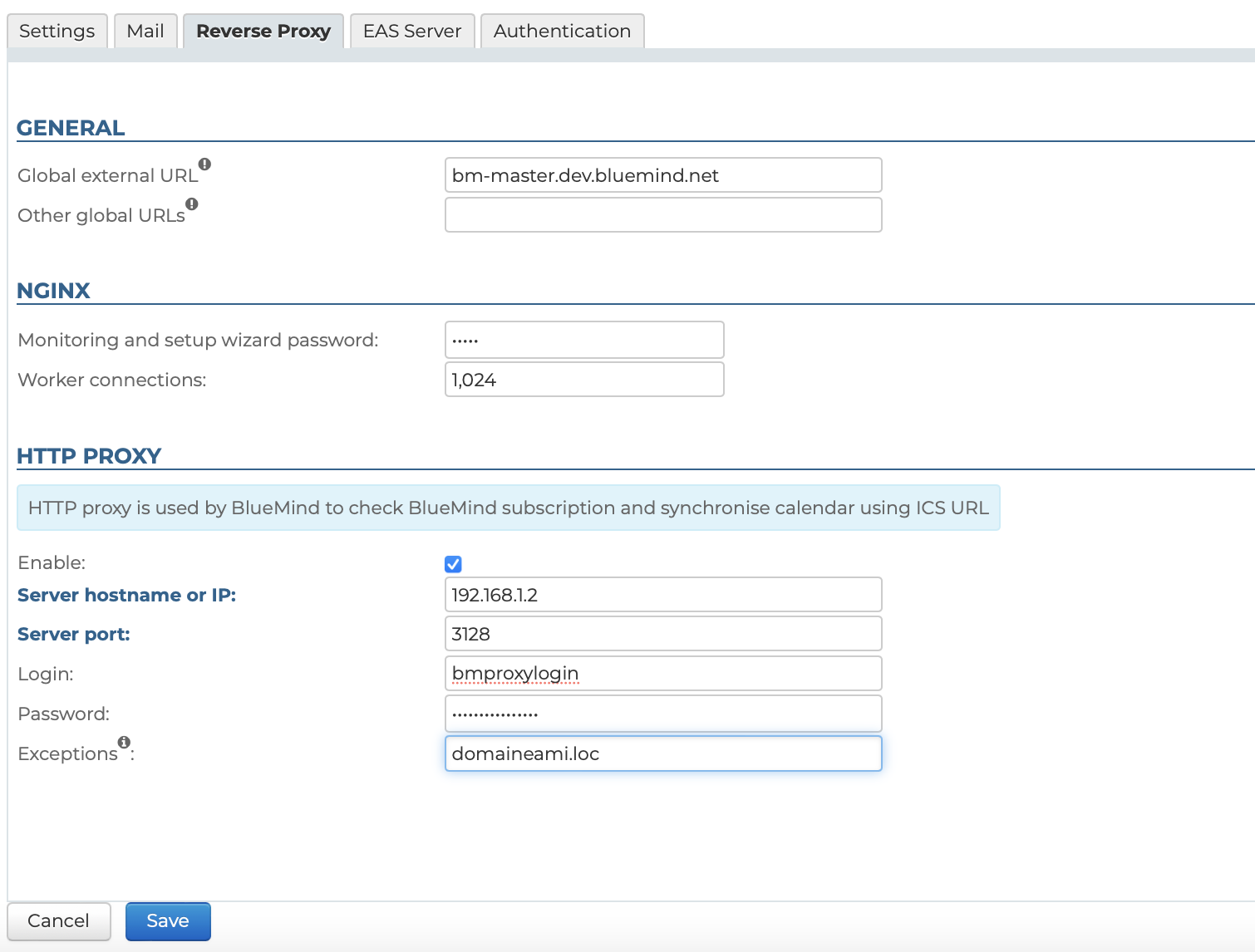
The "Reverse Proxy" tab allows the administrator to set the global external URL, Nginx and a proxy server.
General
Enter the global external URL, valid for the entire system, including server domains that do not have their own external URL configuration.
- Global external URL (Mandatory): url address used to access the server
- other global URLS (optional): secondary access URLs for the server, particularly useful for autodiscover addresses for the Implementing MAPI for Outlook
Changing the external URL affects SSL certificates and links generated by BlueMind.
For further information, see the dedicated pages:
Nginx
-
The password for the monitoring interface and setup wizard: automatically set during the Installing BlueMind process, this is the password used to access the Updating BlueMind interface.
💡 The logged-in administrator is not prompted for his old password, so he can change it here if he loses it.
-
worker connections: the maximum number of connections that can be opened simultaneously by a process. A worker works for one connection, so worker_connections = number of connections active (or likely to be active) at the same time. Usually worker_connections = number of users.
💡 In order to adjust this parameter value properly, one can run the command on the server to know the number of active connections at a specific moment, during the day and week. For example:
root@bm-prod:~# curl 127.1/nginx_statusActive connections: 146server accepts handled requests8947969 8947969 9068528Reading: 0 Writing: 145 Waiting: 1
HTTP Proxy
In various scenarios, such as querying external calendars, some installations require the use of an HTTP proxy server. It is possible to set up a proxy server for external requests to BlueMind.
- Enable: the server can be disabled by clicking the box without the form being emptied. This allows you to enable/disable the proxy server as needed without having to re-enter the details every time.
- Server hostname or IP
- Server Port
- Login
- Password
- Exceptions: the queries passed to these domains will not go through the proxy server but will be queried directly by BlueMind. Enter the field as a comma-separated list of names and/or IPs. Note: the "*" character is supported as a prefix only
EAS Server
The "EAS Server" tab gives access to the configuration options for the Exchange Active Sync server used to synchronize mobile devices.
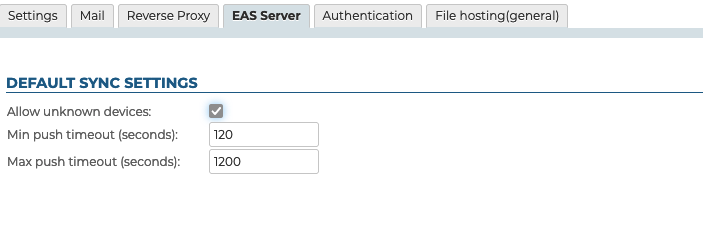
If communication problems persist, you can use Microsoft's online diagnostic tool to ensure that the server is correctly configured and reachable: https://testconnectivity.microsoft.com/tests/exchange and, more specifically, the "Outlook connectivity" test: https://testconnectivity.microsoft.com/tests/Ola/input.
Authentication
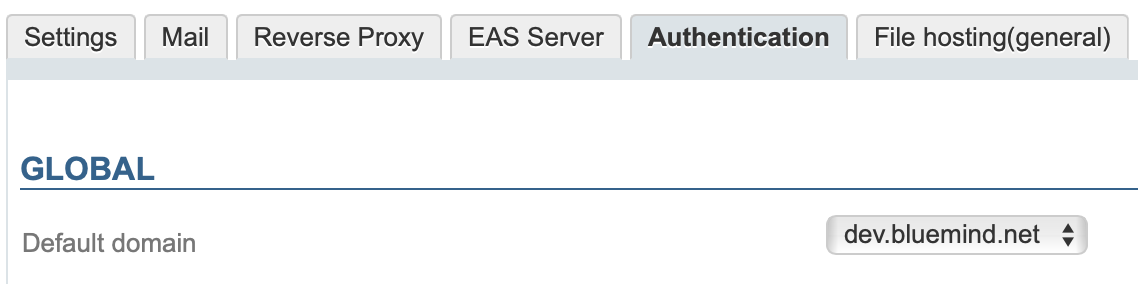
This tab allows defining the default domain, in the case of a multi-domain installation. This notably allows users to use a simplified connection identifier
The user authentication method is defined on a per-domain basis. For more information, see Domain management > Authentication type.
Filehosting
This tab sets the default values for **newly created domains **– it does not set or override the values for all domains.
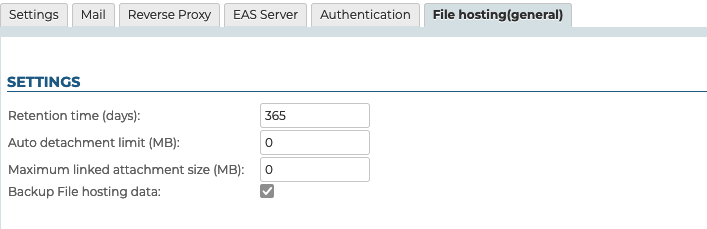
- Retention time (days): number of days files will be kept on the server, from the original sent date
- Auto detachment limit (MiB): size for which email attachments are automatically added as links.
- Maximum linked attachment size (MiB1): maximum allowed file size This is the size allowed per file, multiple files whose total size exceeds the limit can therefore be added and detached to a single message as long as each of them respects the limit. The default maximum size allowed is 5MiB1.
- Backup File hosting data: if this box is checked, the storage folder on the server will be included in BlueMind backup tasks