Videoconferences with BlueMind.Video
BlueMind Video is a SAAS videoconferencing service based on Jitsi and integrated with BlueMind.
Installation
This feature is integrated into BlueMind, and does not require the installation of additional packages.
However, access to this service requires a subscription. For more information on this service, visit BlueMind Subscription or contact BlueMind sales team for rates.
To check whether a subscription entitles you to the service, go to the administration console > System management > Manage subscription :
- The value for the row "Maximum number of full video conferencing accounts" must be more than 0
- The value for the row "End of BlueMind.Video subscription validity" must show a current date (not expired)
For more information on subscription management, visit Managing subscription.
Configuration
Activation and content template
Activating videoconferencing for domain users is as simple as setting up an invitation template for the associated resource.
To do this, go to the administration console > System management > Supervised domains > select the desired domain > Videoconferencing tab:
Fill out the invitation template, for example:
${Organizer} invites you to a conference, join us at:
${URL}
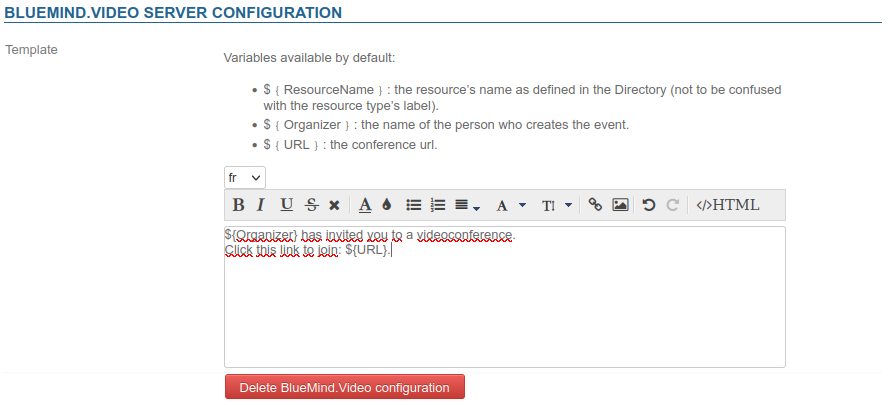
This template can be declined in several languages using the drop-down list.
⇒ A resource named "BlueMind.Video" is automatically created and appears in the directory. This is how users will be able to create videoconferences automatically.
When a user adds a videoconference to their event, the pattern will be automatically added to the event and the invitation email sent to the participants:
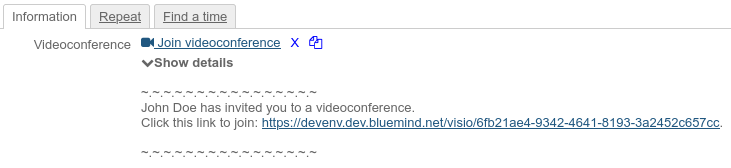
By default, the resource is shared with a basic right to book, all users are allowed to link a videoconference.
For more information, see :
- the following paragraph Accessing the videoconference
- the dedicated page in the user guide: Creating Videoconferences
User profile configuration
Video conferencing usage limitations depend on the type of user account:
- A videoconference initiated by a "Collaborative" user (the usual type of account) is limited to 45 minutes and two participants.
- A videoconference involving a "Collaborative + Visio" user is not time-limited and allows up to 100 participants: as soon as such a user creates or connects to the videoconference, the parameters are applied.
Domain settings
As the subscription allows a certain number of users with the "Full account + video conferencing" profile, the maximum number of users authorized with this profile must be set for each domain in its General configuration. To do this, go to the administration console > System management > Supervised domains > select the desired domain > General tab and enter the desired limit in the "Maximum number of advanced video accounts:" field.
If the field is empty, then no "Collaborative + Visio" profile user is authorized for the domain. It is therefore necessary to enter a value in this field to be able to assign the profile to users.
Profile assignment
The "Collaborative + Visio" profile can be assigned to domain users if the domain settings allow this (see above), either when they are created or by accessing their management file in the administration console > General tab > section "Account information":
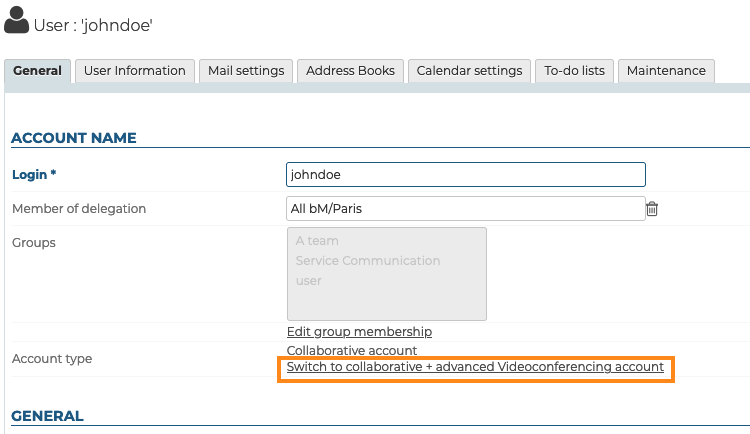
The Manage BlueMind Subscription role is required to have the right to make such a change.
Accessing the videoconference
Once the invitation template has been filled in (see above), the videoconference is available to domain users.
Access rights (optional)
This resource is administered like any other, with sharing rights opening the way to reservation and, de facto, to the generation of videoconferencing links. Therefore, you must grant a reservation right (a "can book this resource" sharing right or higher) to the desired users or groups so that they can create video conferences for their events.
↳
As a resource, it can be assigned working hours or a reservation policy. However, as the link generated is unique, this will not affect the availability of the videoconference itself: the link will still be active and available outside these times.
Using the resource
The resource must not (and cannot) be invited to an event from BlueMind: once configured, a button is available in the BlueMind navigation banner, as well as in the event creation interface of rights holders:
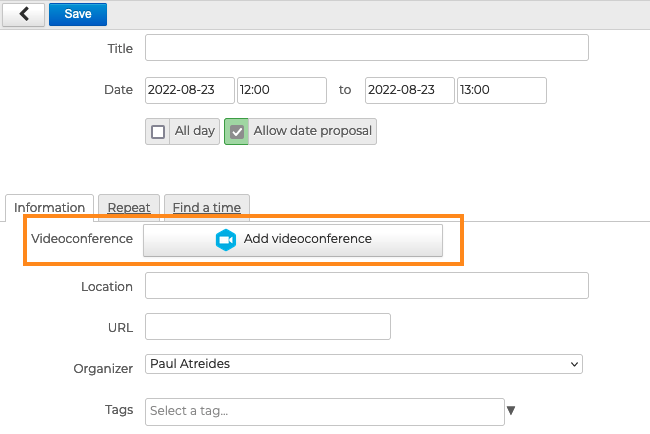
- Organizing Meetings > Adding videoconferences
- Managing Resource Bookings
- Creating Videoconferences
- Working with Outlook > Videoconferencing
Technical configuration
The following accesses must be open:
-
Between the BlueMind server hosting the installation and the BlueMind Video server :
Requirement Address Port Protocol Description Required video.bluemind.net443 TCP API + WEBSOCKET Required video-turn.bluemind.net443 TCP TURN -
Between each client workstation and the BlueMind Video server :
Requirement Address Port Protocol Description Required video.bluemind.net 443 TCP API + WEBSOCKET Optional
Highly recommendedvideo.bluemind.net10000 UDP VIDEO BRIDGE Optional
Highly recommendedvideo.bluemind.net11000 UDP VIDEO BRIDGE Optional video.bluemind.net3478, 5349 TCP STUN
Although ports 10000 and 11000 are optional, they are highly recommended to ensure good audio/video quality. Passing through a STUN port 443 tunnel is functional, but quality will be poor.
To guarantee a quality connection, we recommend that you do not use a VPN to access BlueMind Video.