Videoconferences with Jitsi
BlueMind can be connected to a Jitsi server so that users can easily create videoconferences and link them to their calendar meetings.
Installation
To make the new features available to users, install the following packages on the server and then restart BlueMind:
- Debian/Ubuntu
- RedHat/CentOS
aptitude install bm-plugin-core-videoconferencing-jitsi bm-plugin-admin-console-videoconferencing-jitsi
bmctl restart
yum install bm-plugin-core-videoconferencing-jitsi bm-plugin-admin-console-videoconferencing-jitsi
bmctl restart
Administration
Configuring the server
Go to the administration console in System management > Supervised domains > choose the desired domain > Videoconferencing tab: 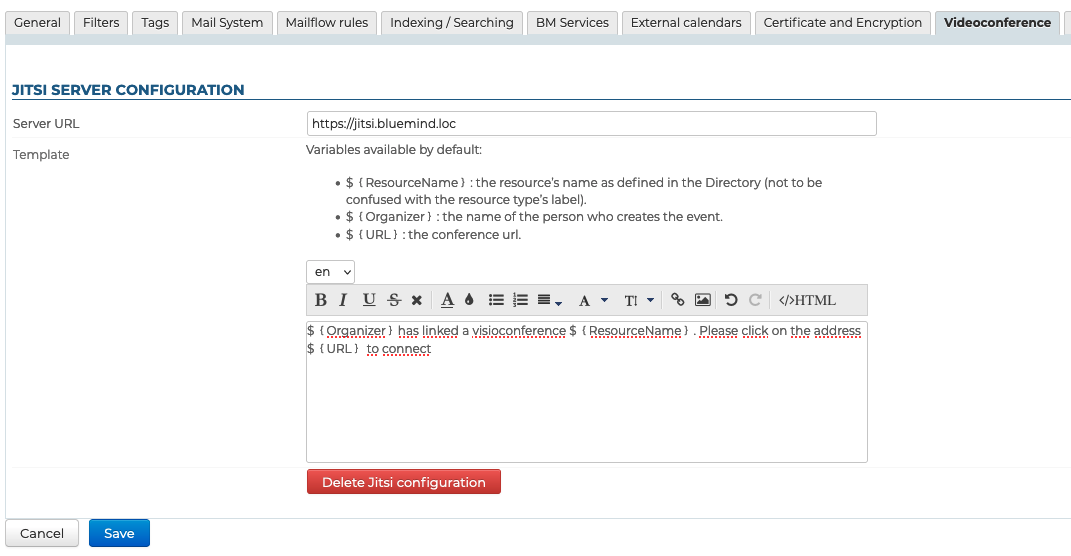
Fill in the general server information :
- Server URL
- Template (optional): The content entered here will be added to the link used to join the meeting (see below)
Note: The template can be displayed in multiple languages using the dropdown menu. - Click "Save"
⇒ a resource named "Jitsi" is created automatically and shown in the directory. This is how users will be able to create videoconferences automatically. When a user adds a video conference to their event, the manager will be automatically added to the event and to the invitation email sent to attendees.
For more information, see the section on Access Rights
By default, the resource is shared with a basic right to book, all users are allowed to link a videoconference.
Unlinking a Jitsi videoconferencing installation
To unlink a Jitsi server from the domain:
- as for configuration, go to System management > Supervised domains > select the desired domain > Videoconferencing tab
- Click "Delete Jitsi configuration"
- Save
⇒ The associated resource is automatically deleted and shares cleaned up, it no longer appears in entity management and users can no longer reserve it.
Content template
Videoconference links can come with a text. This text can be added using the content template:
A link will always be offered to participants, even there is no template.
- Select the desired language from the drop-down list
Multilingual
The content from the previous language(s) is saved, so you can switch between them and create as many templates as there are languages available in the interface without having to save between each one.
When creating an event, the content will be added to the invitation based on the organizer's language.
- Fill in the content:
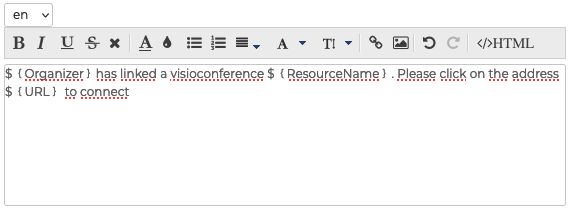
The template can contain variables, which will be automatically replaced in the template by the system:${ResourceName}: the name of the resource as defined in the directory (default "Jitsi")${Organizer}: the name of the person creating the event in the Calendar${URL}: the conference access URL
- Click Save.
Deleting a language
To delete a language template :
- select the language in the dropdown
- empty the text field (select the text and delete)
- Click "Save" to confirm the changes.
Accessing the videoconference
Give users rights
You can access the new feature via the Jitsi resource created during server setup:
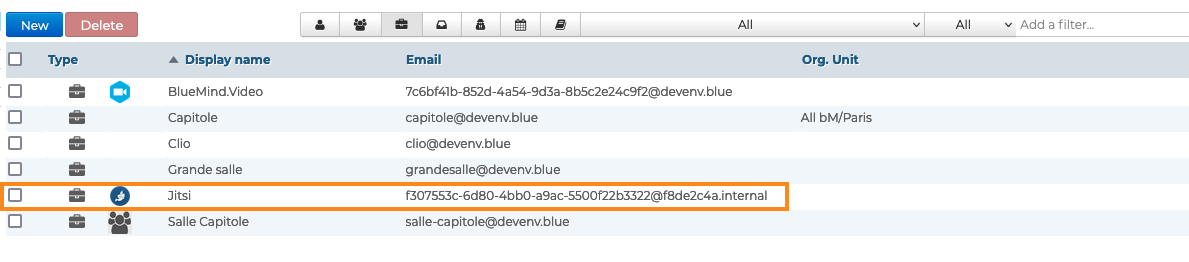
This resource is administered like any other, with sharing rights opening the way to reservation and, de facto, to the generation of videoconferencing links. Therefore, you must grant a reservation sharing right (a "can book this resource" sharing right or higher) to the desired users or groups so that they can create video conferences for their events:
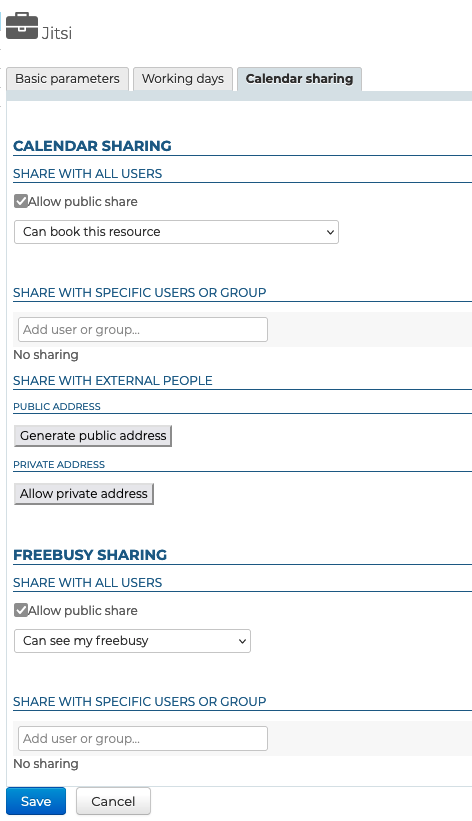
↳
As a resource, it can be assigned working hours or a reservation policy. However, as the link generated is unique, this will not affect the availability of the videoconference itself: the link will still be active and available outside these times.
Using the resource
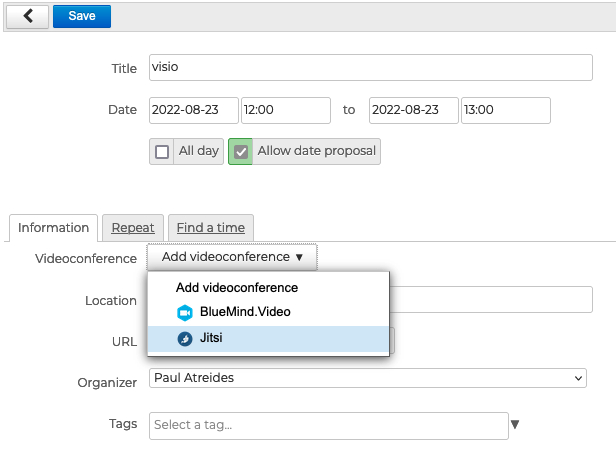
As soon as users have reservation rights for the resource (see previous paragraph), a button is available in the event creation interface: