Videoconferences with Zoom
BlueMind can be connected to the Zoom conferencing system to enable users to easily create conferences and link them to their agenda meetings.
Installation
To make the new features available to users, install the following packages on the server and then restart BlueMind:
- Debian/Ubuntu
- RedHat/CentOS
aptitude install bm-plugin-admin-console-videoconferencing-zoom bm-plugin-core-videoconferencing-zoomzoom
bmctl restart
yum install bm-plugin-admin-console-videoconferencing-zoom bm-plugin-core-videoconferencing-zoom
bmctl restart
Administration
Zoom configuration in BlueMind requires OpenID authentication. This requires configuration from the Zoom administration console to give BlueMind authorization to query the Zoom server for the user authentication needed to access videoconferences.
Zoom instance configuration
Configuration requires Zoom instance administration rights.
- The integration saved with Zoom requires the following OpenID scope:
meeting:write - The Redirect URL for OAuth and OAuth allow list parameters must match the URL
https://\<external-url-bluemind>/bm-openid/auth/videoconferencing-zoom. - Retrieve the following two parameters, which will be needed for the BlueMind configuration (see below):
- Application ID
- Application Secret
Configuring OpenID authentication
Go to the BlueMind administration console in System management > Supervised domains > choose the desired domain > OpenID tab:

Use the following values to fill in OpenID authentication data:
- OpenID Endpoint URL:
https://zoom.us/oauth/authorize - Application ID: provided by Zoom, obtained during Zoom setup
- Secret: provided by Zoom, retrieved during Zoom setup
- Token Endpoint URL:
https://zoom.us/oauth/token
BlueMind Configuration
In the BlueMind administration console, go to System management > Supervised domains > select the desired domain > Videoconferencing tab:
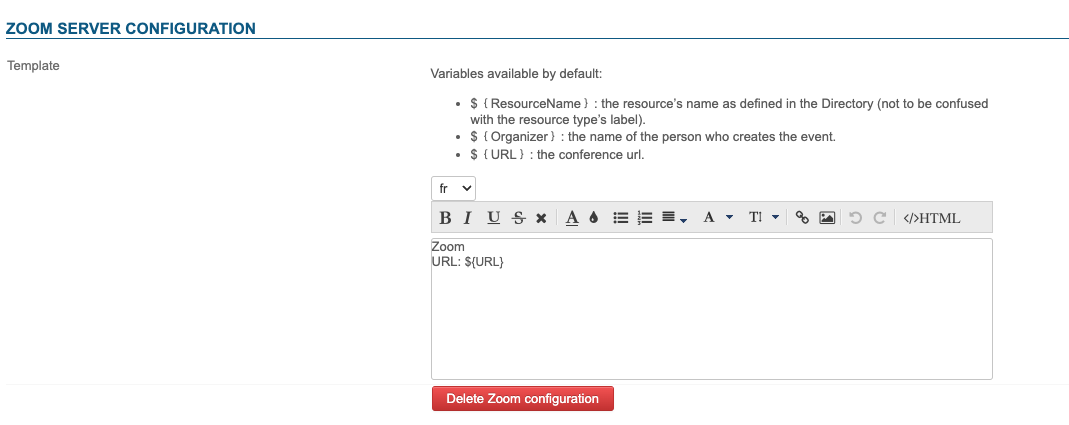
Enter the template of a videoconference invitation, for example :
${Organizer} has invited you to a videoconference.
Click this link to join: ${URL}.
This template can be declined in several languages using the drop-down list.
⇒ Once the template has been saved, a resource named "Zoom" is automatically created and made visible in the directory. This will enable users to create videoconferences automatically.
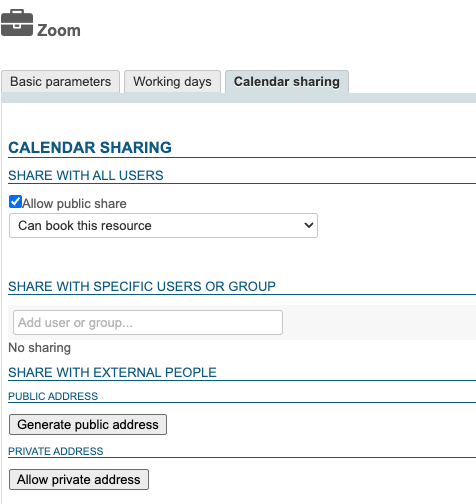
By default, the resource is not shared, so users cannot link videoconferences.
For users to have access, they must be assigned sharing rights to the resource.
To learn more, see the following paragraph Granting access rights to users
Unlink a Zoom installation
To disassociate a Zoom server from the domain :
- go to System management > Supervised domains > choose the desired domain > Videoconferencing tab
- click on the "Delete Zoom configuration" button
- validate the confirmation request
There's no need to click the "Save" button at the bottom of the page: the request is effective as soon as you confirm it.
⇒ The associated resource is automatically deleted, along with any shares granted to users; it no longer appears in entity management and users can no longer reserve it.
Content template
Content template configuration is carried out on the Zoom server itself.
Accessing the videoconference
When a user uses Zoom videoconferencing for the first time, the OpenID protocol (see above) is used to authenticate the user to the Zoom server, and BlueMind will retrieve a secret key authorizing it to create videoconferences on the user's behalf.
Give users rights
The new feature is accessed via the Zoom resource created during BlueMind configuration (see above):

This resource is administered like any other, with sharing rights opening the way to reservation and, de facto, to the generation of videoconferencing links. Therefore, you must grant a reservation sharing right (a "can book this resource" sharing right or higher) to the desired users or groups so that they can create video conferences for their events:
↳
As a resource, it can be assigned working hours or a reservation policy. However, as the link generated is unique, this will not affect the availability of the videoconference itself: the link will still be active and available outside these times.
Using the resource
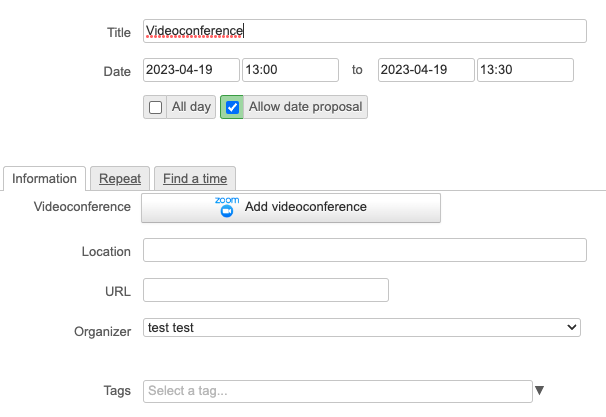
As soon as users have reservation rights for the resource (see previous paragraph), a button is available in the event creation interface: