Configuring Outlook
You can now use all Outlook features while using BlueMind mail.
As with all BlueMind versions, the use of Outlook is made possible by subscription. Please contact your administrator if the guide below does not allow you to synchronize your BlueMind account.
Client workstation prerequisites
- OS : Windows 10 or 11 up to date
- Software: Outlook must be installed and up to date
To take full advantage of the new features, be sure to install a version supported by BlueMind. To find out which versions are supported, see the dedicated page: Compatibility.
Configuring User Account
To date, the online configuration of all or part of Outlook is not supported, as on-the-fly data transformation from BlueMind formats to the formats expected by Outlook has too much impact on the Outlook client and BlueMind server side.
In fact, requires Outlook to be configured in "full cached mode" (step 6 below).
- Open Outlook
- Create a new Outlook profile : the account must not be added to an existing profile, including the default profile when the software is launched.
Note: creating a new profile is also necessary when the user's default login or e-mail address is changed.
To create a profile :-
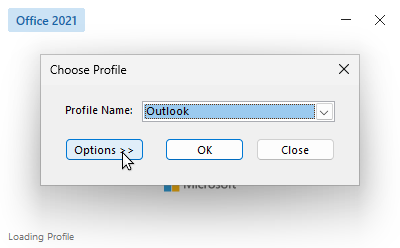
Click the "Options" button in the profile selection window:
-
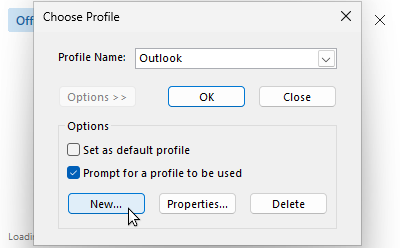
In the options area, click "New" to create a new profile:
-
Name the profile and click OK:
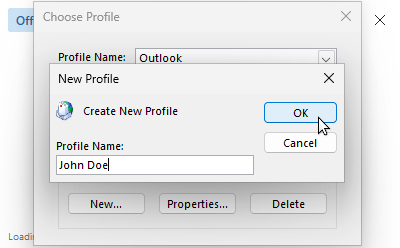
💡 Depending on workstation configuration, step 3 may be proposed directly by the software.
If the profile selection window is not available, see Microsoft's online help: Turn Outlook profile prompt on or off.
-
The interface then takes you to the next step in creating an e-mail account:
-
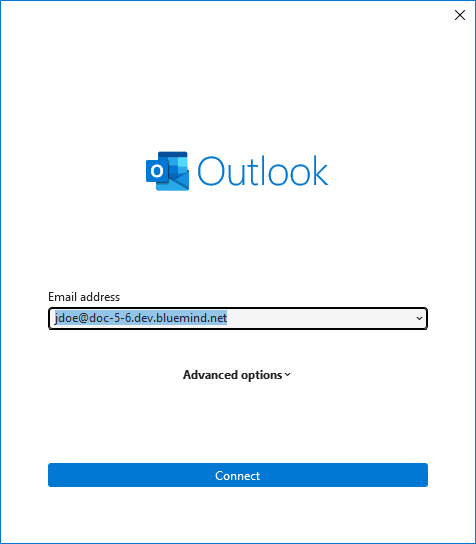
Enter the user's email address:
⚠️ Email address
It's important to use the user's default address: aliases are not correctly taken into account.
-
Outlook searches for server information and, if found, requests the account type. Select "Exchange" type:
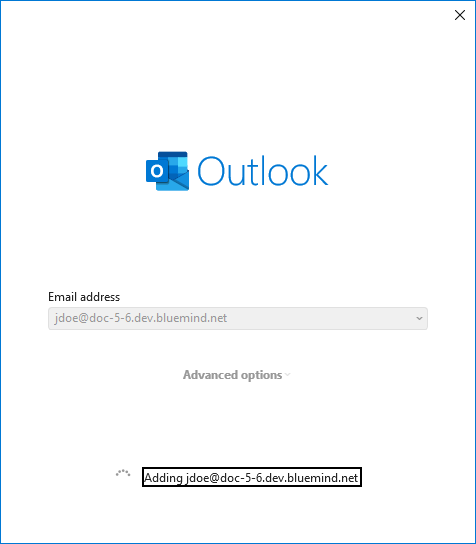
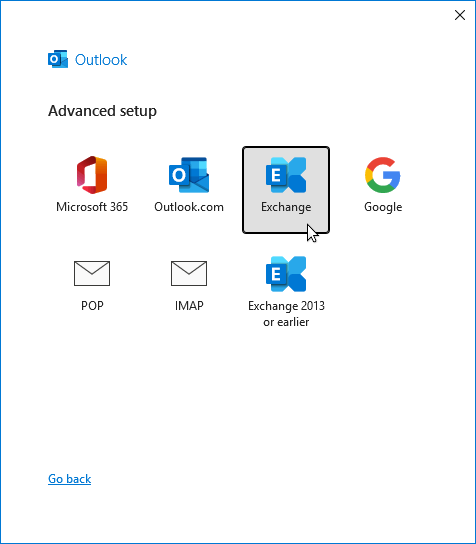
⚠️
If the server refuses to connect, check with the administrator to ensure that a ban on connecting without double authentication has not been set up. For further information, see: Editing users > Password. -
Enter the password, check "Remember my credentials" so that you don't have to enter the password every time you receive an email, and click "OK":
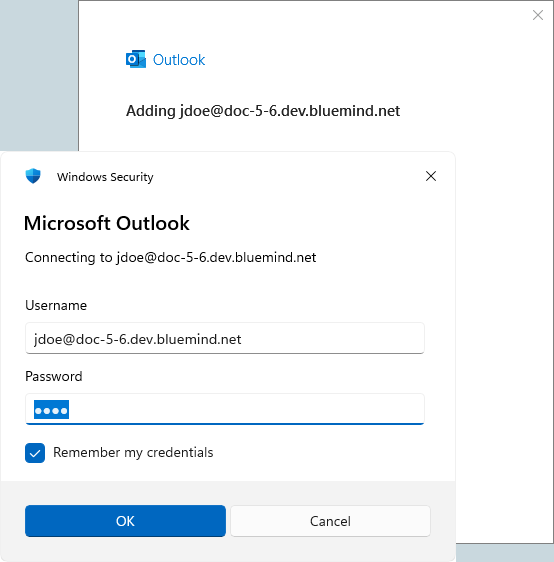
-
Outlook confirms that the account has been created. Click "Done":
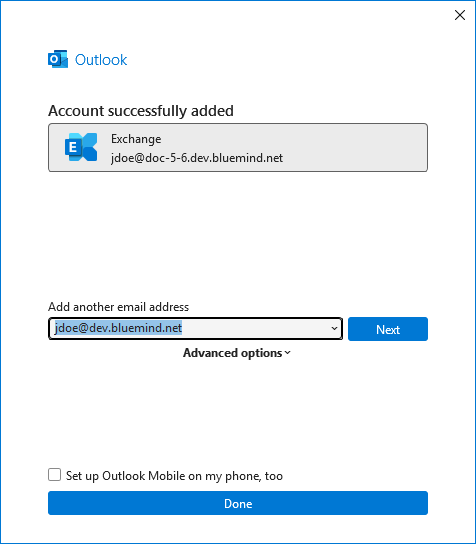
⚠️ Multiple accounts: Do not add another email address
At the current stage of MAPI protocol implementation in BlueMind, the created Outlook profile cannot be used to connect to another Exchange account.
The interface takes you back to the profile selection window:
- Check that the profile created is selected and click OK:
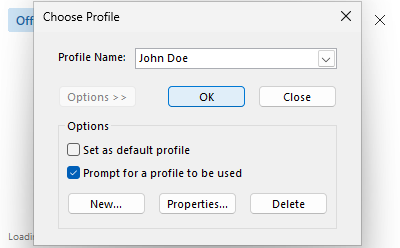
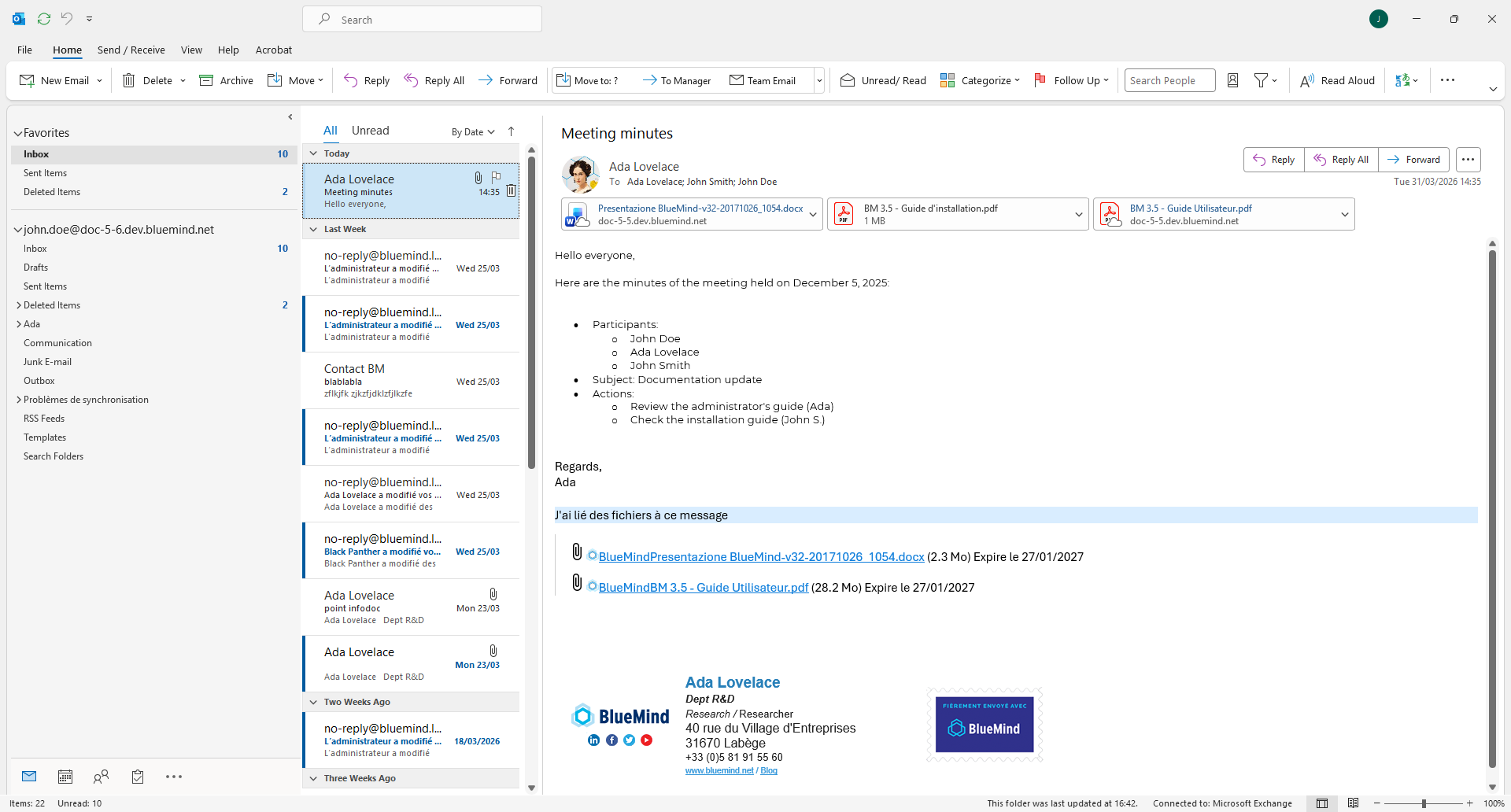
And that's it! Outlook now communicates with BlueMind!
The BlueMind add-on
The add-in (or plugin) bringing BlueMind functions into Outlook does not require installation, neither from the user nor from the administrators: its installation is automatically pushed by connecting to the BlueMind server.
The BlueMind add-in provides the following functions :
- Videoconferencing add videoconferencing to calendar events
Note: this list is not exhaustive and may evolve as the add-in is enriched