Organizing Meetings
The BlueMind Calendar lets you organize meetings - one-off or recurring - book rooms and equipment, and add videoconferences.
Adding users and resources to a meeting
Once the event has been created, go to the right side of the form, and type the first letters of the users, shared boxes or groups to be invited - autocomplete will suggest the corresponding contacts who can be invited.

An invitation can only be sent to the default calendar of the user or shared mailbox. When a user has several personal calendars, you cannot specify which calendar the invitation should be sent to. Similarly, a domain calendar cannot be invited; only entities (users, shared mailboxes, groups, etc.) can be invited.
The reservation of a resource, i.e. a resource (meeting room, vehicle, overhead projector, etc.) made available to users, is carried out in the same way as inviting participants: go to the right-hand side of the page and type the first few letters of the resource - autocompletion will propose all the resources shared by the administrator.
To indicate whether the user's presence is mandatory (default value) or optional, click on the icon (!) or (+) in front of its name.
Checking availability
When a guest is not available in the chosen time slot, an alert message appears at the top of the form.
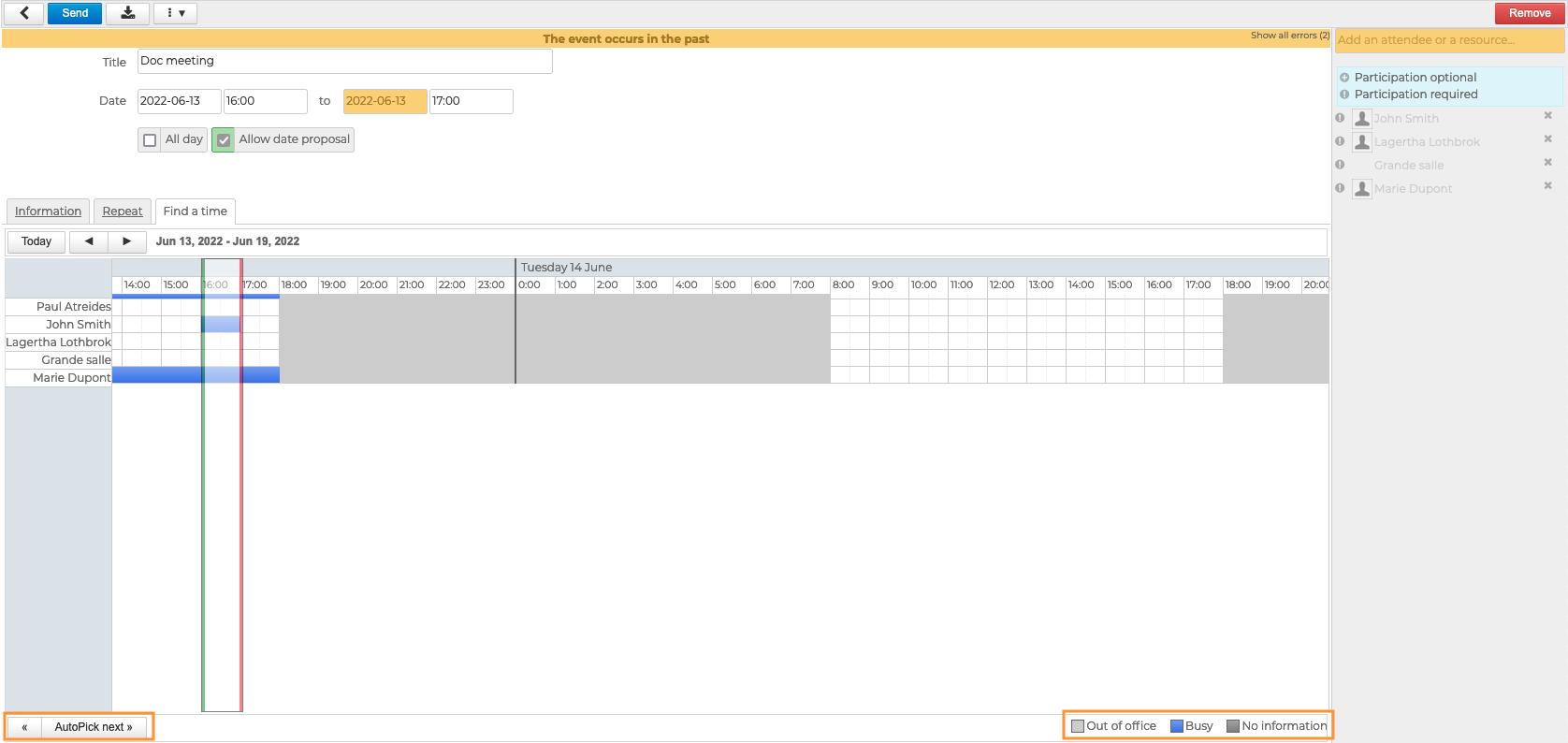
To search for a time slot in which all guests are available, go to the "Availability search" tab.
BlueMind automatically suggests the first available time slot - between a green and a red line - based on the date entered in the event details page. To automatically go to the next slot, click on "Autopick next" at bottom left.
You can also use your mouse to move the whole slot using drag-and-drop and/or extend or reduce it by clicking either line and sliding it.
As indicated in the legend, the light grey areas correspond to the non-working time slots as defined by the user in the calendar settings. The blue zones correspond to events where the user is noted as "busy". The blue indicators under the times at the top of the column indicate slots where at least one participant is busy, so times without a blue indicator are free for all guests.
Adding videoconferences
BlueMind offers several solutions for linking videoconferences to events:
- via the integrated solution BlueMind Video (based on Jitsi Meet)
- via a connection to one of the external solutions supported :
This feature must first be installed by administrators, who then make it available to users.
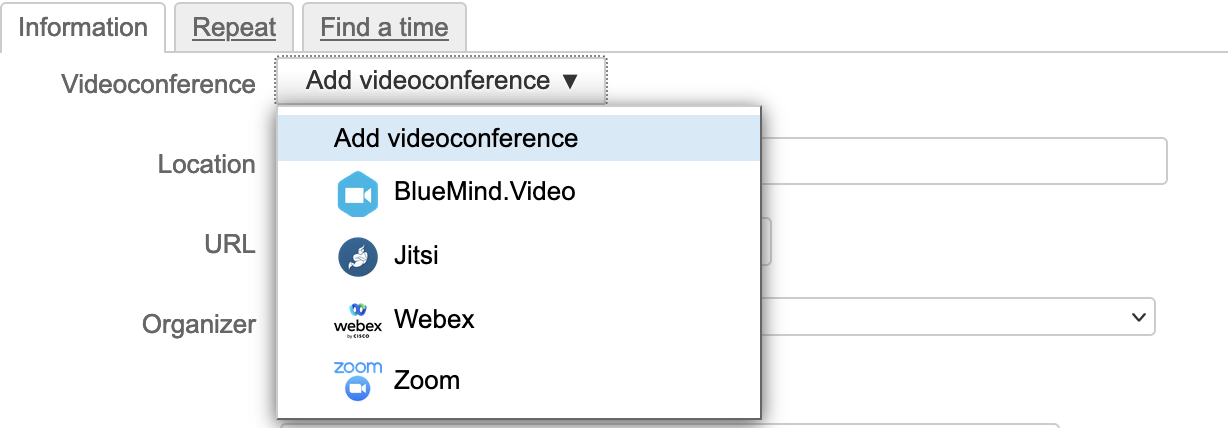
To link a videoconference to a meeting, go to "Add a videoconference". If an external service is installed by the administrator in addition to the BlueMind Visio service, the button offers a drop-down list to choose the service to be used:
A link is added automatically to the event, with accompanying text if set by administrators:
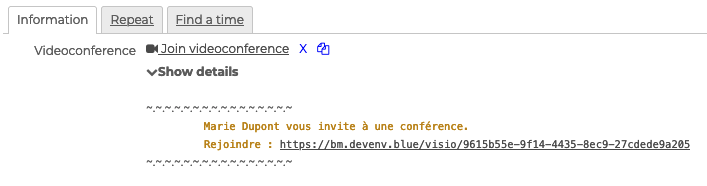
The two icons next to the event are used to:
 delete the videoconference
 copy the address to your computer's clipboard
When adding a Webex videoconference, a popup appears, asking you to connect with an e-mail address :
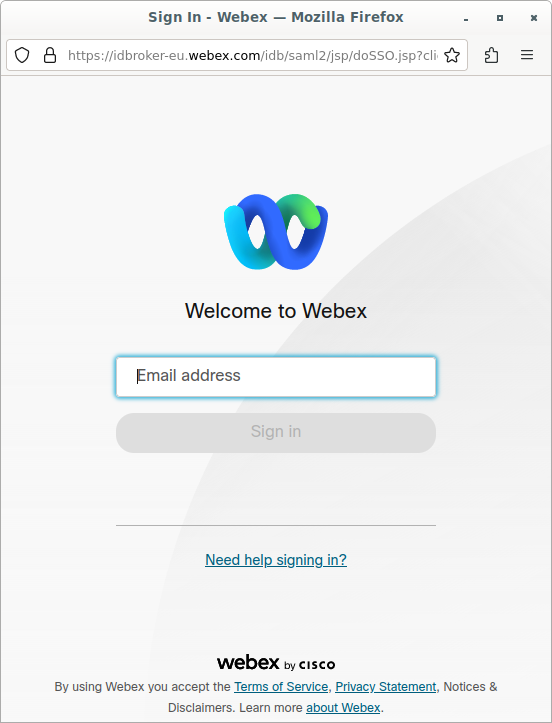
This is the e-mail address of your Webex user account. If you don't have a Webex account, please contact your administrators.
⚠️ If no popup appears, check that your browser and/or an extension are not blocking it or that it hasn't been opened in the background.
Creating a recurring meeting
Like any event, the BlueMind agenda lets you repeat a meeting at regular intervals.
To set the recurrence of a meeting, see Configure the recurrence of an event
Sending invitations
Once your meeting details are complete, click  to save and send the invitations.
For each user, the meeting is added to their calendar and they receive an email notification. He can then validate his participation via Calendar or Mail.
↳
For a shared mailbox, the meeting is added to its calendar, and the invitation is sent to users with a delegation or to the mailbox itself if no delegation has been assigned.
↳
For resources, there are two possibilities depending on your system's booking policy:
- automatic booking is enabled: depending on its availability, the booking is confirmed or declined. The organizer receives an email notification from the resource
- automatic booking isn't enabled: the resource's manager receives a booking request. Once they confirm or decline it, the organizer receives an email notification from the resource's manager.
↳
For further information see the page Resources.
Managing attendees
The organizer, or his delegate (see Managing delegations), receives replies to invitations by e-mail.
He can also consult the answers directly in the Agenda by clicking on the event:
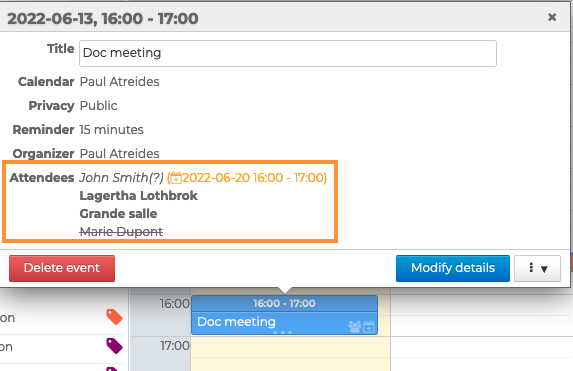
- Users who have accepted the invitation are shown in black
- Users whose response is pending (or have replied tentatively) are grayed out
- Users who have declined the invitation are shown in gray and struck out
- users who have proposed a new schedule appear in italics, along with the proposed new schedule
Participants invited through an invitation forwarding are automatically added to the list, with the status of their response.
It should also be noted that in this case, unlike editing a meeting, the option to send the new list of participants to all guests is not possible. In this way, new guests only appear in the organizer's calendar and their own.
Managing new schedule proposals
When a user submits a new schedule, the organizer—or their delegate—can accept or reject the proposal via :
-
the notification received by email
💡
For further information see the page Managing invitation notifications -
the action bar in his Calendar:

Click on the appropriate icon to accept or decline the invitation. -
the "Proposals" tab that appears when you edit the event details:
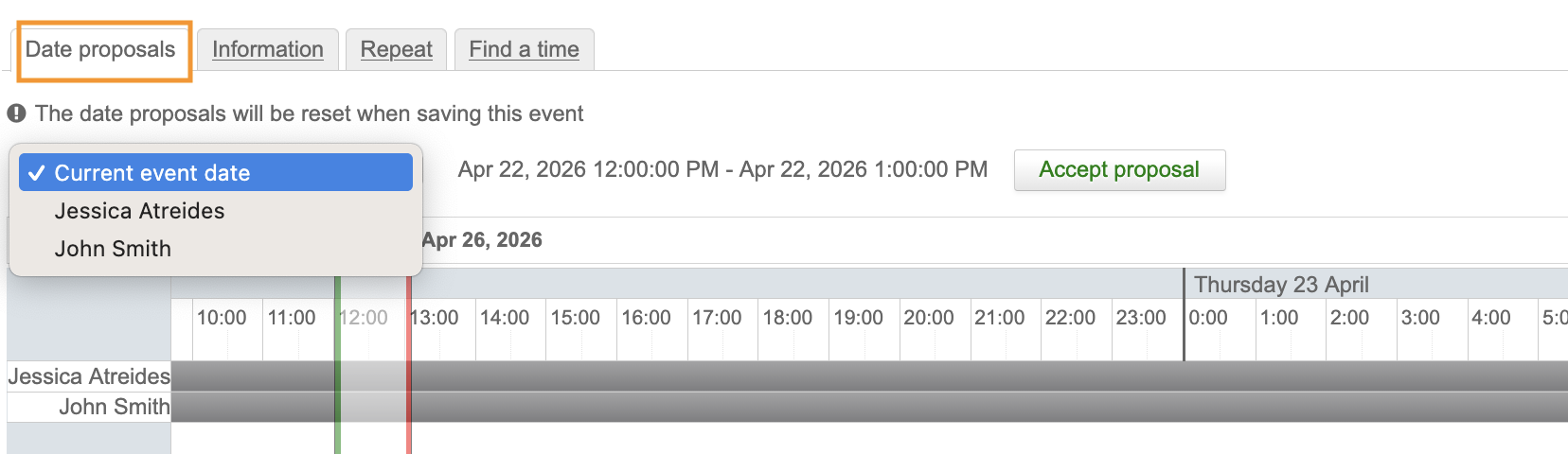
After selecting the desired proposal, click "Update the date with this proposal" and then "Send".Recurring events- If the guest suggests a new schedule for the entire series, the "Proposals" tab will only appear if the organizer edits "all future events" or "all events in the series."
- If the guest suggests a new time for a single event, select the event in question and choose to edit "only this event" to view the "Suggestions" tab.
If the organizer accepts the new proposed time:
- the meeting is changed
- all attendees receive an email with the changes.
If the organizer rejects the proposed new time:
- the meeting isn't changed
- the attendee who made the proposal receives an email notifying them of the organizer's refusal
- the proposal disappears from the pop-up in the calendars where it was shown
- other attendees do not receive anything
💡 Additional Information
For further information regarding the proposed new schedule, recurring events, and delegation, see the following pages and sections:
Editing a meeting
The organizer can modify, duplicate or delete a meeting at any time. For further details, see Editing a meeting as the organizer
Guests can also modify their own view of a meeting. However, the organizer's modifications take precedence. For further details, see Editing events as a guest.
Find out more
Related BlueMind documentation pages
- Creating Events
- Editing a calendar event
- Managing invitation notifications
- Managing resource reservations
- Responding to event invitations
- Creating Videoconferences
- Installing a videoconference service