Introducing BlueMind Mail
Accessing the Mail application
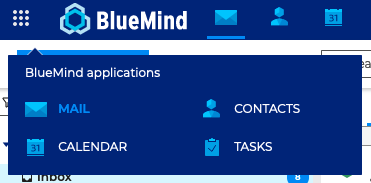
To access the Mail application, use the bento menu in the main navigation ribbon.
Default application
By default, the interface opens on the mailbox, but it can also open on the calendar. To do this, Adjusting your Account Settings: Preferences - General - Default application
Navigating through Mail
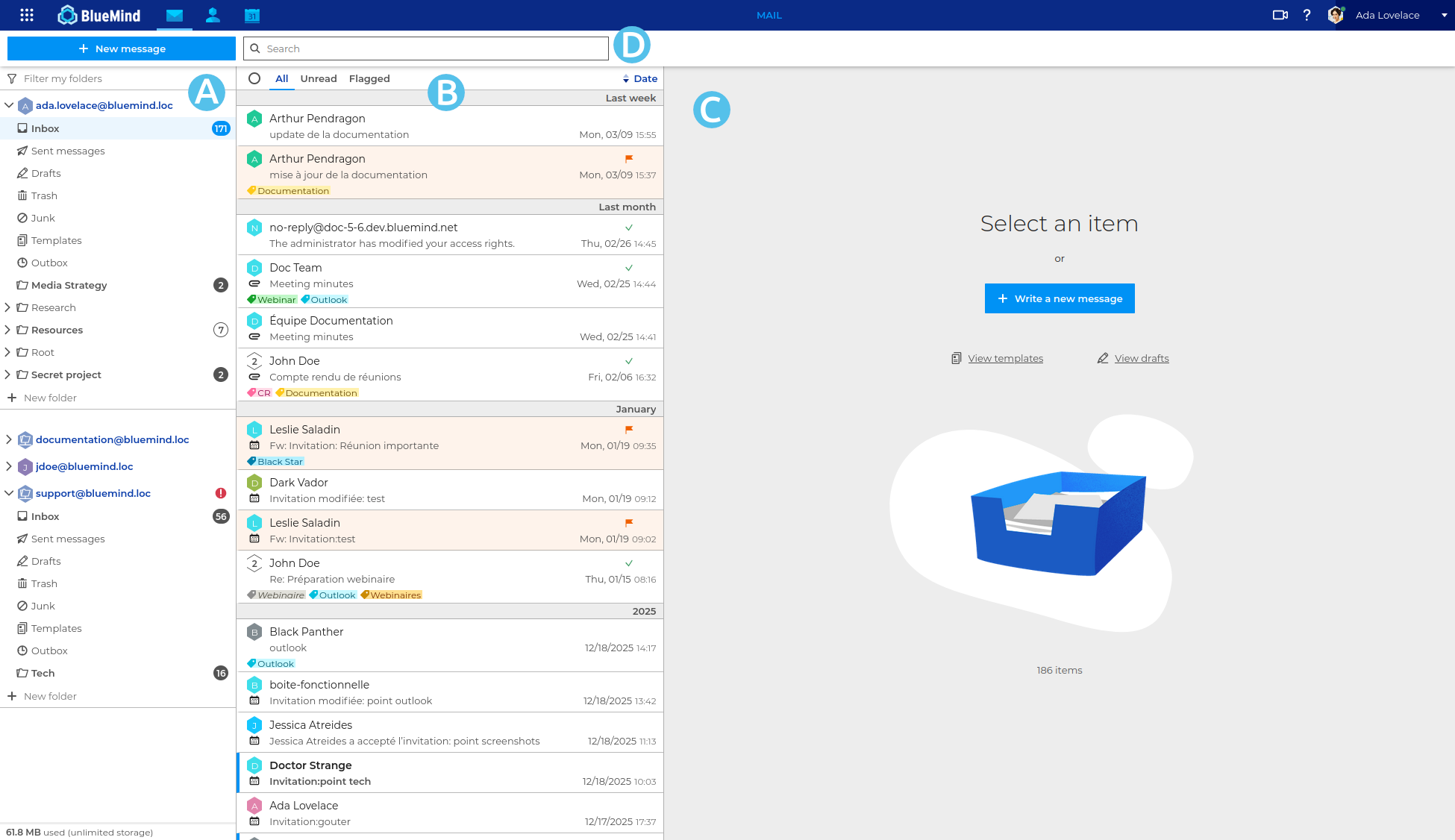
The main Mail view has 3 columns:
 : Folder list. It offers folders in separate, collapsible box trees.
*For further information, see Using the folder list and Subscribing and using shared mailboxes
: Folder list. It offers folders in separate, collapsible box trees.
*For further information, see Using the folder list and Subscribing and using shared mailboxes : the list of messages contained in the folder selected in column A. You can use the filters at the top of the list to select the types of messages you want to display. Details and possible actions appear when you hover over a message.
For further information, see Managing the Message List.
: the list of messages contained in the folder selected in column A. You can use the filters at the top of the list to select the types of messages you want to display. Details and possible actions appear when you hover over a message.
For further information, see Managing the Message List. : main display area. The homepage shows possible actions or a message is one is selected.
 : it includes the new message creation button, the search box and the buttons for possible actions depending on the current display (actions on a message when it is displayed or possible grouped actions when multiple messages are selected)
column width
The width of columns A and B can be manually modified to adapt to the folder tree, topic length or message previews, depending on the screen used. The set size is retrieved at the next connection, even in another browser.