Choosing the sender
BlueMind lets you send a message from different e-mail addresses or with different signatures without changing user accounts. To do this, simply display the "sender" field and select the desired identity.
For more information on creating e-mail identities, visit Managing Account Identities.
Select identity
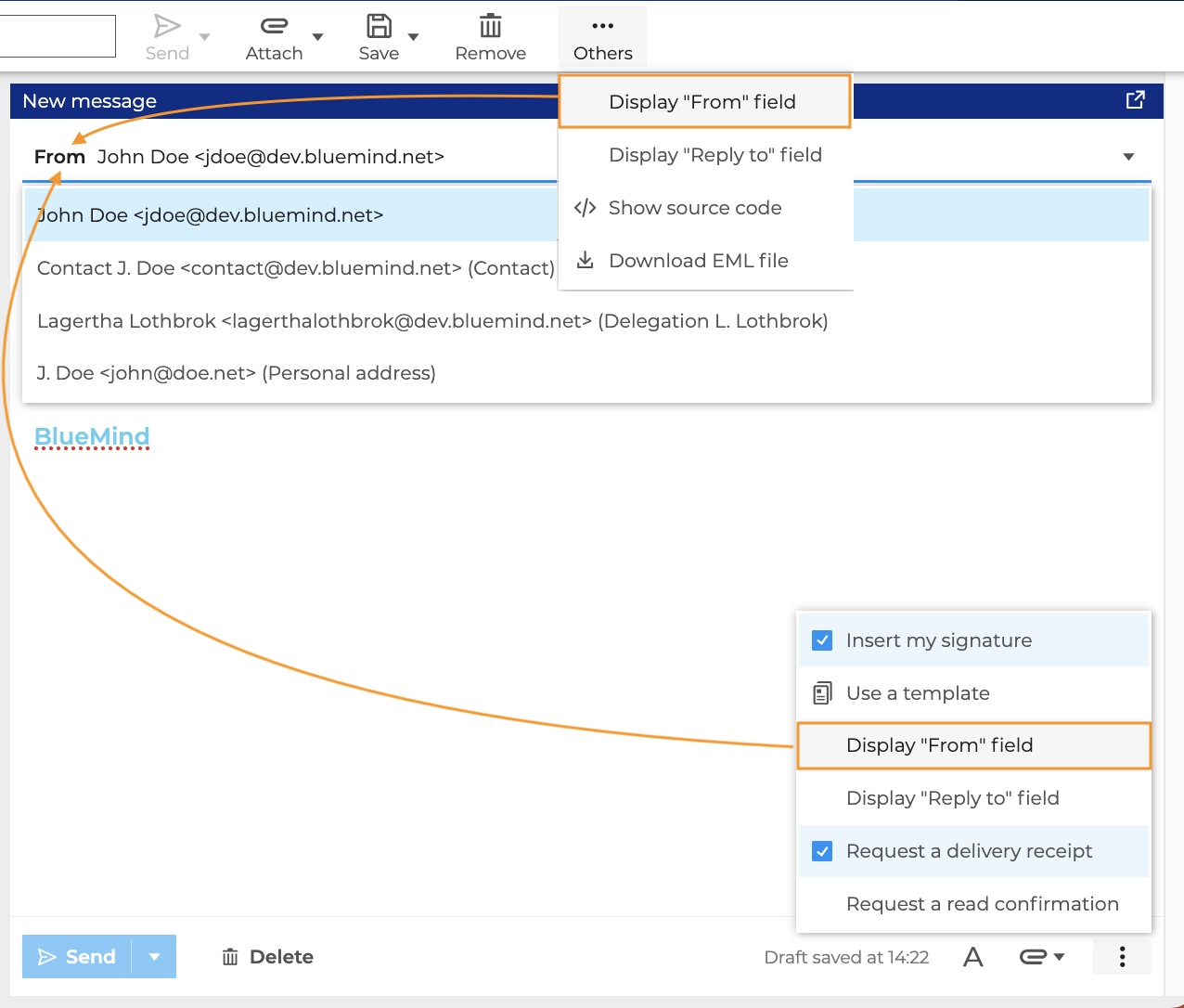
The choice of sender is made in the "From" field. It can be displayed in two ways:
- To display the sender field of a message, select the option "Display "From " field" in the "Others" menu.
- To display the "From" field all the time, go to Preferences > Mail > Composing messages
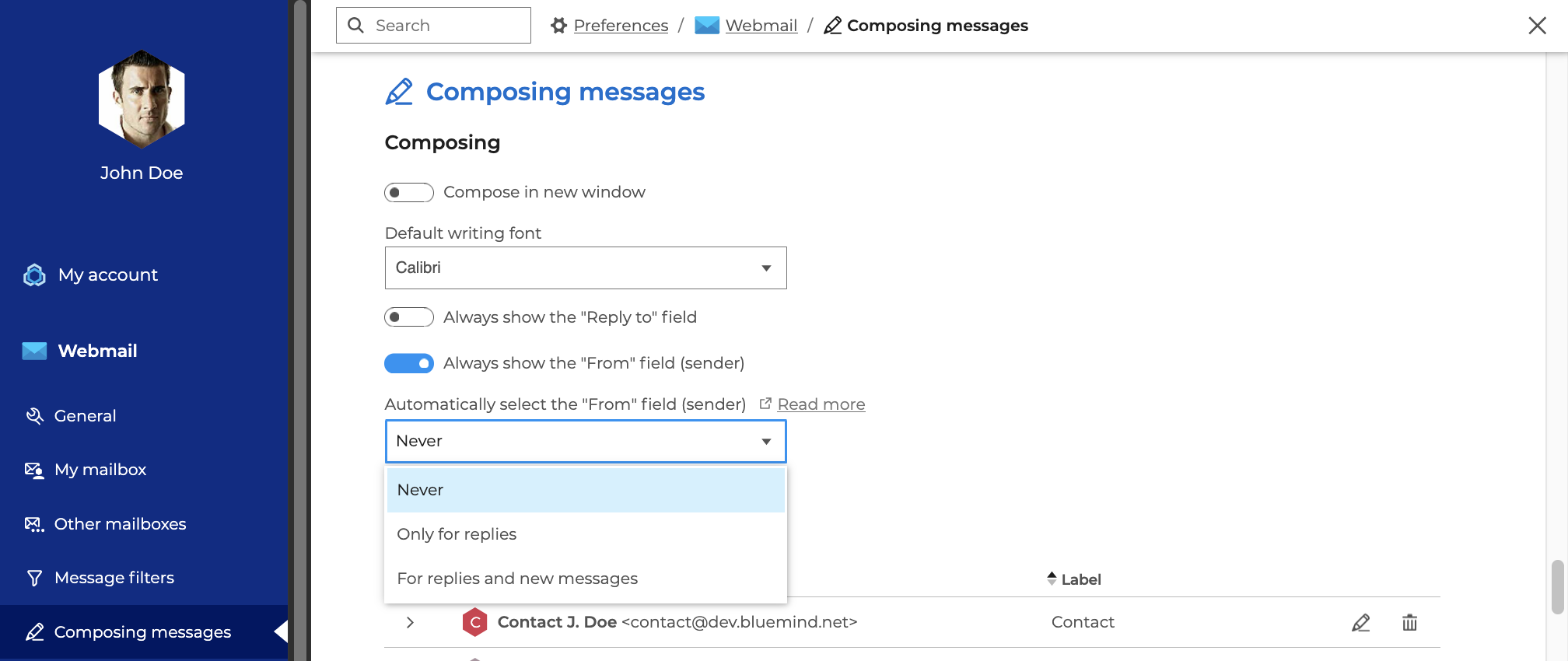
- activate the "Always show the "From" field" option.
- select the option to specify the context in which the application will automatically choose the most suitable identity: never, only for replies, or for replies and new messages.
When the "From" field is displayed, unfold the list to select an identity from those created in the Mail preferences. For further information, see Managing Account Identities.
Write on behalf of a shared box
Necessary rights
To write to a shared mailbox, you need :
- have write permissions on the shared mailbox
- subscribe to the shared mailbox (see Subscribing to a shared mailbox)
- create an identity with the shared mailbox's e-mail address (see Managing Account Identities)
Implementation procedure
Once the necessary rights have been set up, to send an email with the e-mail address of a shared mailbox :
- create an identity with the relevant e-mail address (see Managing Account Identities)
- Select identity in the "From" field
- Creating and Sending a message
Consequences for messages
- The email sender corresponds to the "Display name" field of the identity
- Sent messages can be stored in the user's "Sent messages" folder or in the shared mailbox, depending on the option selected in the identity
Writing on behalf of a group
Necessary rights
To write on behalf of a group, you must :
- have management rights on the group mailbox
- subscribe to the group mailbox (see Subscribing to a shared mailbox)
- create an identity with the group mailbox mail address (see Managing Account Identities)
For a user to write on behalf of a group, the group must have a mail address. Contact your administrator to set it up if necessary.
Implementation procedure
Once the necessary rights have been set up, to send an email with a group e-mail address :
- create an identity with the relevant e-mail address (see Managing Account Identities)
- Select identity in the "From" field
- Creating and Sending a message
Consequences for messages
- The email sender corresponds to the "Display name" field of the identity
- Sent messages are stored in the user's "Sent messages" folder
Writing as a delegate
A user can be appointed delegate of another user by that user or of a shared box by an administrator. He can then write from or on behalf of the mailbox that has been delegated to him.
To delegate a shared mailbox, see the dedicated page in the administrator's guide: Editing shared mailboxes > Sharing and delegation
Write "on behalf of".
Necessary rights
To write on behalf of a delegating user, you must :
- be named as a delegate by the user with the "Write from me" option
To write from a shared mailbox, you need :
- the administrator activates delegation with the "Send on behalf of" option
*↳For further information see Editing shared mailboxes > Sharing and delegation *
Optional (not mandatory but strongly recommended) :
- have read or write rights on the delegated mailbox
- be a subscriber, if applicable (see Subscribing to a shared mailbox)
Implementation procedure
Once the necessary rights have been set up, to send an email from the delegated mailbox :
- create an identity with the relevant e-mail address (see Managing Account Identities)
- Select identity in the "From" field
- Creating and Sending a message
Consequences for messages
- The sender of the email sent by the delegate corresponds to the name of the delegator, as written in the "Name displayed" field of the identity and also indicates the name of the delegate with the mention "sent by":

- The emails sent by the delegate are stored in the "Sent" folder of the delegator's mailbox (user or shared mailbox) or the delegate's mailbox, depending on the rights granted to the delegate:
- if the delegate has no editing rights on the delegator's mailbox, the emails sent are stored in the delegate's "Sent messages" folder.
- if the delegate has editing rights on the delegator's mailbox, sent emails can be stored in the delegate's or delegator's "Sent messages" folder depending on the option chosen in the identity.
- The messages received by the delegating user are stored in its receiving box - including the answers to a message sent by a delegate. It is therefore advisable to give the delegate at least read rights to the delegator's mailbox so that the delegator can Viewing messages and reply.
Write "in the name of".
Necessary rights
To write on behalf of a delegating user, you must :
- be named as a delegate by the delegating user with the "Write as me" option
To write on behalf of a shared mailbox, you must :
- the administrator activates delegation with the "Send as (total impersonation)" option
↳For further information see paragraph Editing shared mailboxes > Sharing and delegation
Optional (not mandatory but strongly recommended) :
- have read or write rights on the delegated mailbox
- be a subscriber, if applicable (see Subscribing to a shared mailbox)
Implementation procedure
Once the necessary rights have been set up, to send an email as another user or as a shared mailbox :
- create an identity with the relevant e-mail address (see Managing Account Identities)
- Select identity in the "From" field
- Creating and Sending a message
Consequences for messages
- The sender of the email sent by the delegate corresponds to the name of the delegator (user or shared mailbox), as written in the "Name displayed" field of the identity. The delegate's name is not displayed, so the recipient cannot see that the email was sent by a delegate:

- Storage of messages sent by the delegate :
- if the delegate has no editing rights on the delegator's mailbox, sent messages are stored in the delegate's own "Sent messages" folder.
- if the delegate has editing rights on the delegator's mailbox, sent emails can be stored in the delegate's or delegator's "Sent messages" folder depending on the option chosen in the identity.
- The messages received by the delegating user are stored in its receiving box - including the answers to a message sent by a delegate. That is why it is recommended that the delegate be granted at least read access to the delegator's mailbox so that the delegator can Viewing messages and reply to messages there.
Writing to an external e-mail address
Necessary rights
To write to an external e-mail address (e.g. a personal address), you must :
- have the "External identity" role (see Mail roles)
- create an identity with the external address (see Managing Account Identities)
Implementation procedure
Once the necessary rights have been set up, to send an email with an external address :
- create an identity with the relevant e-mail address (see Managing Account Identities)
- Select identity in the "From" field
- Creating and Sending a message
Consequences for messages
- The email sender corresponds to the "Display name" field of the identity.
- Any replies to messages sent are not received in BlueMind, but in the external mailbox corresponding to the address set.
Find out more
Related BlueMind documentation pages
- Adjusting your Account Settings
- Managing Account Identities
- Subscribing and using shared mailboxes
- Adding a signature