Introducing Contacts
BlueMind uses address books to manage contacts.
These address books can be synchronized with mail software (Outlook, Thunderbird) and smartphones (iPhone, Android, etc. depending on device possibilities) are organized in 2 categories:
It is also possible to send a message or call a contact directly from their record, index contacts with tags, create distribution lists, share contacts between groups or users and access a company address book.
Accessing the Contacts application
You can access the Contacts application from the main BlueMind navigation ribbon.
Navigating the Tasks application
-
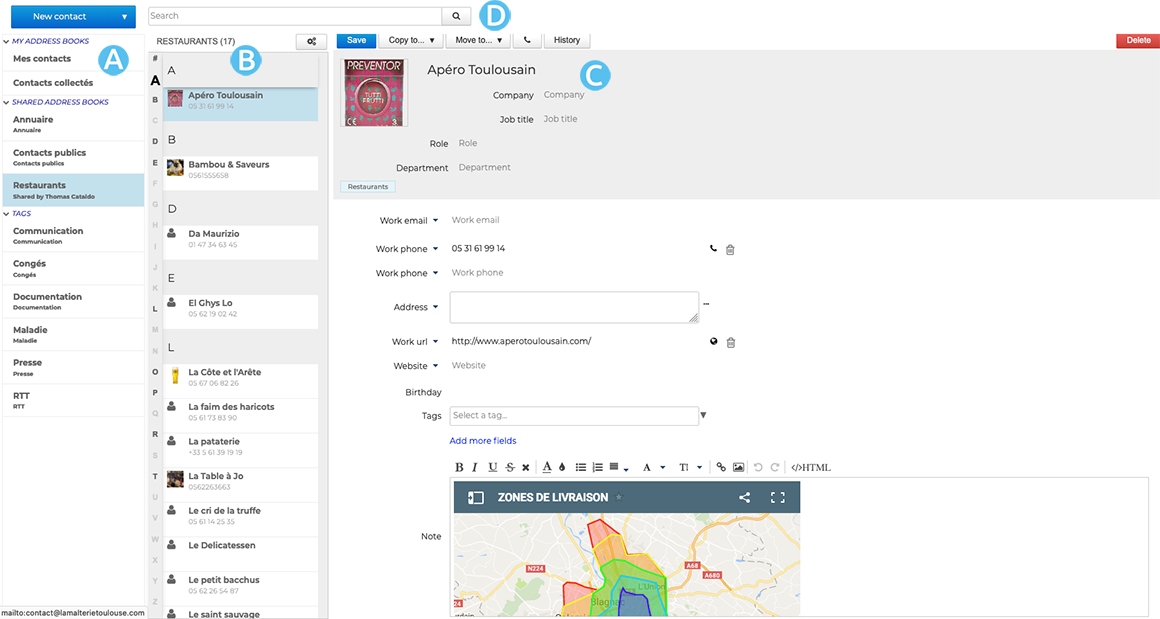
 : in the 1st column, under the "New contact" button, you'll find the list of address books accessible by the user (personal address books and those to which he/she has subscribed), as well as the list of tags, enabling you to quickly find indexed contacts (see below)
 -
 : The second column shows the contacts from the address book selected in the first column
💡 The vertical alphabet on the left-hand side of the area makes it easier to navigate through contacts, and letters with contacts are highlighted in bold black for greater visibility.
-
 : The third column, the main display area, shows the contact card for the contact selected in the second column.
 :
: Identifying contact types
BlueMind has different types of contacts: personal or group, personal or shared. Their functionalities and address book membership vary according to their nature.
| Contact Type | Usage |
|---|---|
| INTERNAL USERS Members of your organization 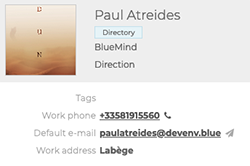 | Address book : Internal users are created by the administrator and are part of the Directory You can: - Creating and Sending a message to the contact - see Email alerts - Organizing Meetings with or without videoconferencing and send an invitation to the contact - include the contact in a distribution list You cannot: - edit the contact's file. They are created and managed by your administrator |
| EXTERNAL USERS Users outside your organization, e. g. service providers. 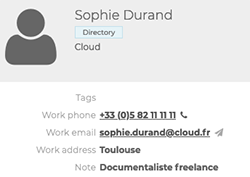 | Address book: - External users created by the administrator are part of the Directory - External users created by the user are part of the Personal addressbooks We can : - Creating and Sending a message to the contact - Organizing Meetings with or without videoconference and send an invitation to the contact - create and edit the contact's card from the personal addressbooks - integrate the contact to a distribution list We cannot: - edit the contact's card from the directory. They are created and managed by your administrator |
| DISTRIBUTION LISTS Lists with several users with common needs or objectives 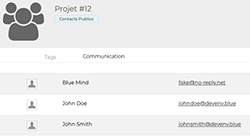 | Address book : Distribution lists are created by the user and are part of personal address books You can: - Creating and Sending a message to all list members - Organizing Meetings with or without videoconferencing and send an invitation to all list members - create and edit a distribution list You cannot: - display the agenda of list members |
| USER GROUPS A group brings together several users with common needs or objectives. 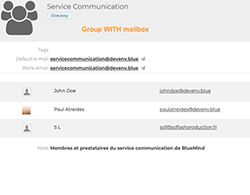 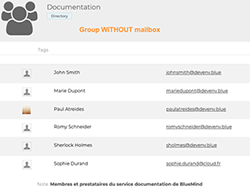 | Address book : Groups are created by the administrator and are part of the Directory You can: - Organizing Meetings with or without videoconferencing and send an invitation to all group members - display the agenda of all group members - Creating and Sending a message to all group members with an e-mail address, who will then receive messages on their own e-mail address. Cannot: - send e-mail to members of a group without an e-mail address. |
| SHARED MAILBOXES These are mailboxes shared by multiple users or user groups, which also have their own address books and calendars. 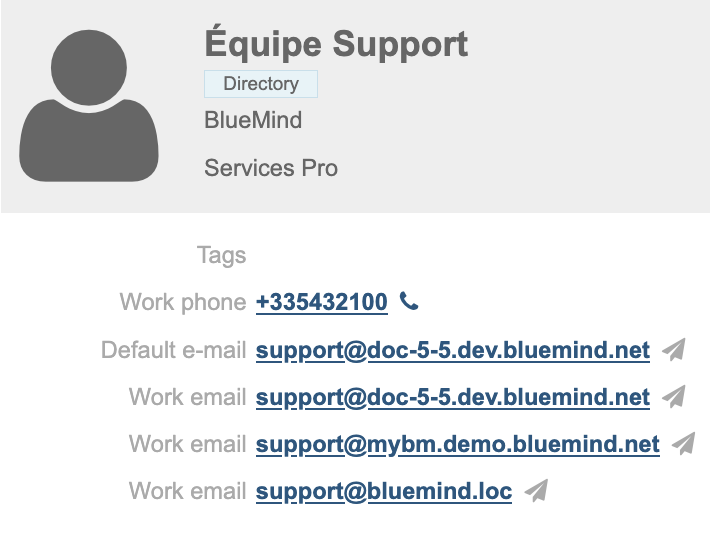 | Address book: Shared mailboxes are created by the administrator and are part of the Directory You can : - Creating and Sending a message to all users of the mailbox - users can receive, view (and even manage) messages and folders in the mailbox - users (with extended rights) can write on behalf of the shared mailbox (see Using Shared Mailboxes) - Organizing Meetings with or without videoconferencing and send an invitation - display the agenda of the shared mailbox You cannot : - edit the directory contact record, which is managed by the administrator |
| RESOURCES Organization facilities or tools available to users, e.g. meeting rooms. 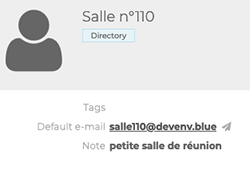 | Address book : Resources are created by the administrator and are part of the Directory You can: - reserve the resource (see Organizing Meetings) - the administrator and/or manager can Managing Resource Bookings You cannot: - edit the resource's contact details. They are created and managed by your administrator |
Searching or filtering contacts
The search engine
The search engine allows you to search for contacts by keyword: enter a word and validate with the Enter key or the magnifier button :
:
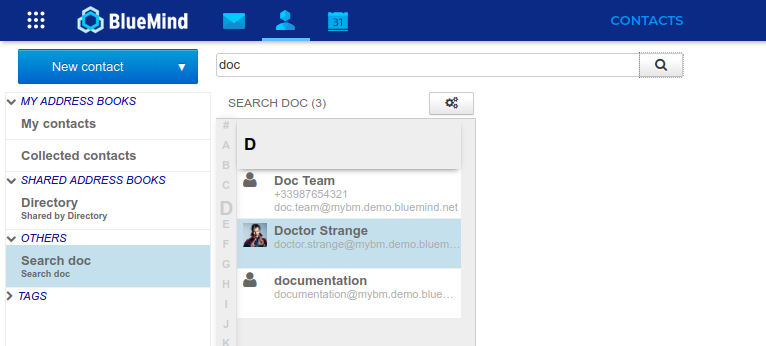
To quit the search, click on a notebook to return to it.
The search engine :
- in all the notebooks currently displayed, and in these only
- in all contact form fields
Filtering by tag
It is possible to associate keywords with contacts: tags.
To search for records associated with a category, click on it in the left-hand column (see above):
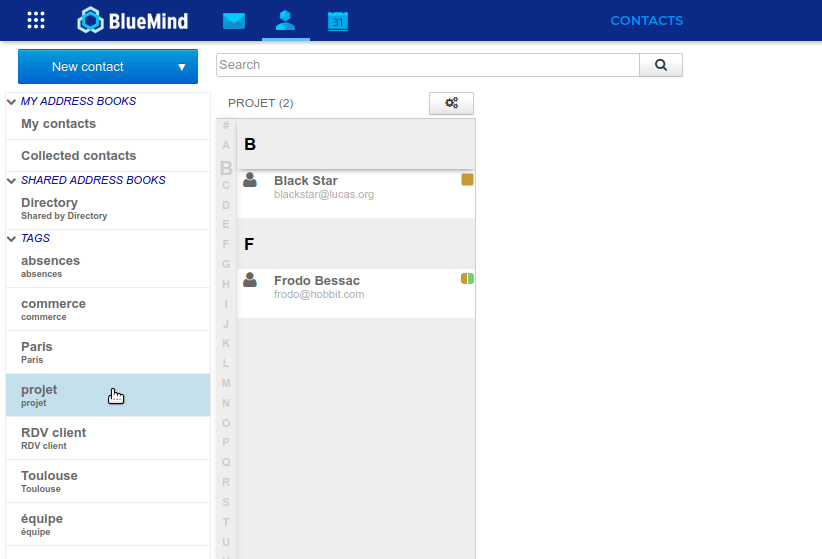
↳ The corresponding records are then searched in all the notebooks currently displayed in the application.
To quit the search, click on a notebook or another category.