Sharing To-do Lists
You can share your to-do lists with others and give them different permission levels.
Managing to-do list shares
The management of access rights to task lists is done in the task settings, by going to Preferences > Tasks > My Task Lists
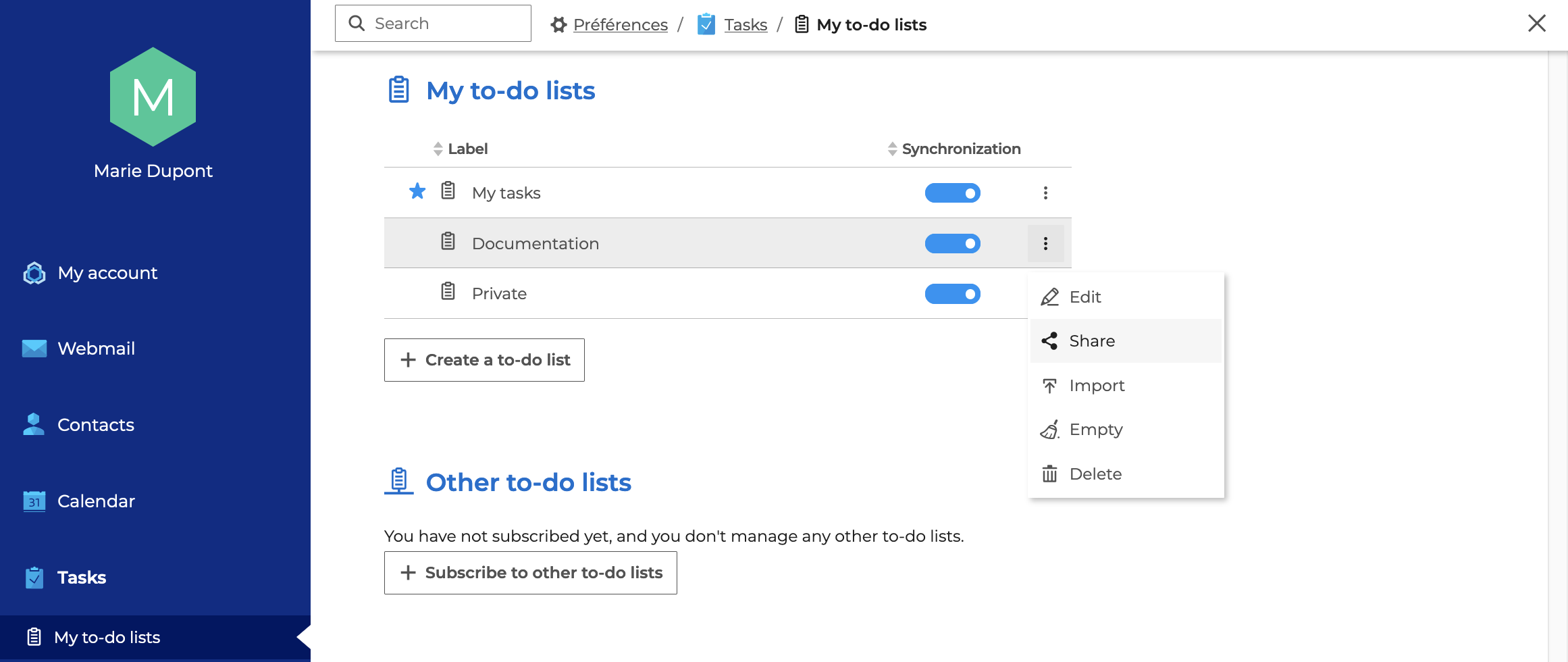
To share a to-do list with one or more members of the organization, position yourself on the list then click on "Share" in the menu to open the pop-up window.
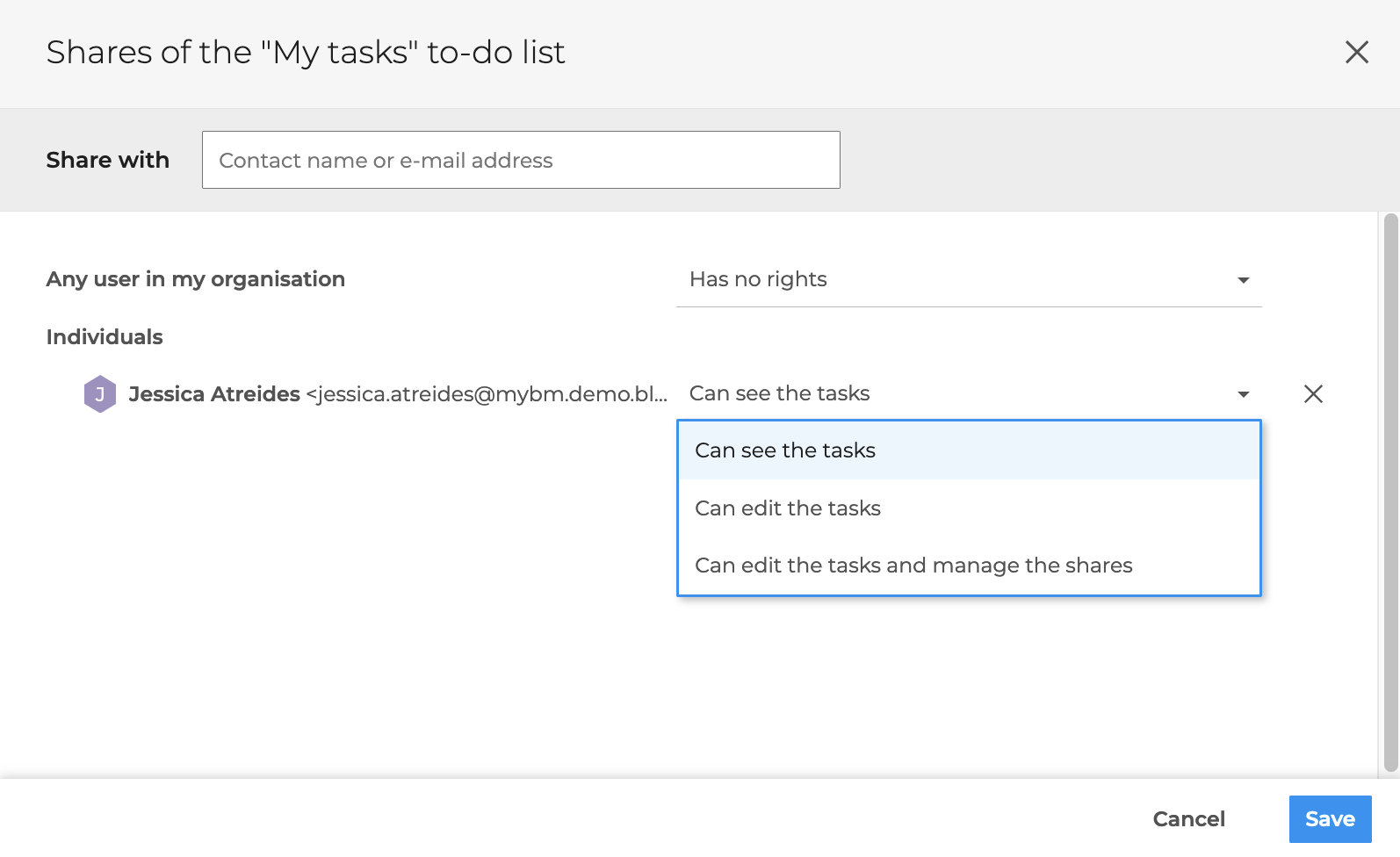
In the share popup window :
- search for user or user group in the search bar by typing the first few letters - autocomplete will suggest all available users
- select sharing level desired
- click Save
Setting the sharing level
Public Share
"Any user in my organization" corresponds to the public share of the to-do list.
The chosen level of rights determines the minimum level that will be applied to all users in the domain.
No user can be assigned a lower level than this. If necessary, a warning message appears.

Modify the user rights levels indicated by the icon  or click on "Delete rights with no effect" to remove them from the list and assign them the public sharing rights level.
To delete the public share, select the minimum right level :
- Has no rights : Organization users have no access to the task list.
Sharing with groups and individuals
The levels of sharing rights are :
- Can see the tasks ⇒ share with read rights After subscribing, the task list will be added to the user's shared task lists. They will be able to view the lists' tasks in their Calendar or in the Tasks application.
- Can edit the tasks ⇒ share with write access In addition to read access, the user can modify, copy, move or delete tasks in the list
- Can edit the tasks and manage the shares ⇒ share with management rights In addition to read and write rights, the user can add or remove access rights to the task list
To remove rights from a user or group, click on the cross. The latter is then removed from the list and assigned public share rights.
When a delegation is created, the level of access rights to the "My tasks" list assigned to the delegate can also be modified in the "Delegations" tab of the preferences.