Getting Started with Mail
Finding your way around the Webmail app
The main Mail view has 3 columns:
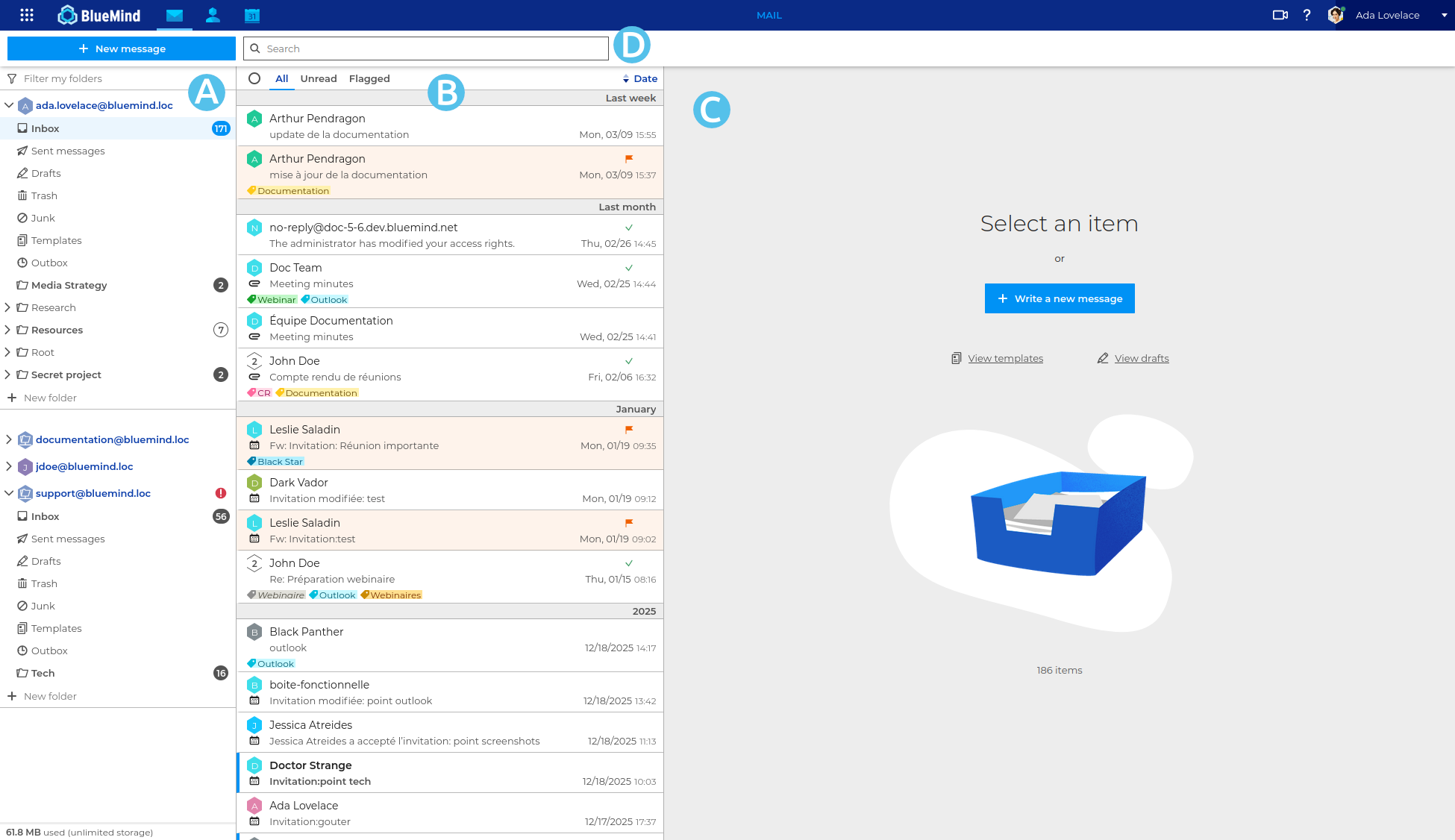
 : Folder list. It offers folders in separate, collapsible box trees.
*For further information, see Using the folder list and Subscribing and using shared mailboxes
: Folder list. It offers folders in separate, collapsible box trees.
*For further information, see Using the folder list and Subscribing and using shared mailboxes : the list of messages contained in the folder selected in column A. You can use the filters at the top of the list to select the types of messages you want to display. Details and possible actions appear when you hover over a message.
For further information, see Managing the Message List.
: the list of messages contained in the folder selected in column A. You can use the filters at the top of the list to select the types of messages you want to display. Details and possible actions appear when you hover over a message.
For further information, see Managing the Message List. : main display area. The homepage shows possible actions or a message is one is selected.
 : it includes the new message creation button, the search box and the buttons for possible actions depending on the current display (actions on a message when it is displayed or possible grouped actions when multiple messages are selected)
The width of columns A and B can be manually modified to adapt to the folder tree, topic length or message previews, depending on the screen used. The set size is retrieved at the next connection, even in another browser.
Viewing messages
Messages arrive in the Inbox folder. All emails in the inbox are displayed in the message list column (For further information, see Managing the Message List).
Messages are shown as unread (in bold) as long as they are not opened. A bullet shows the number of unread emails in the inbox, including sub-folders where applicable.
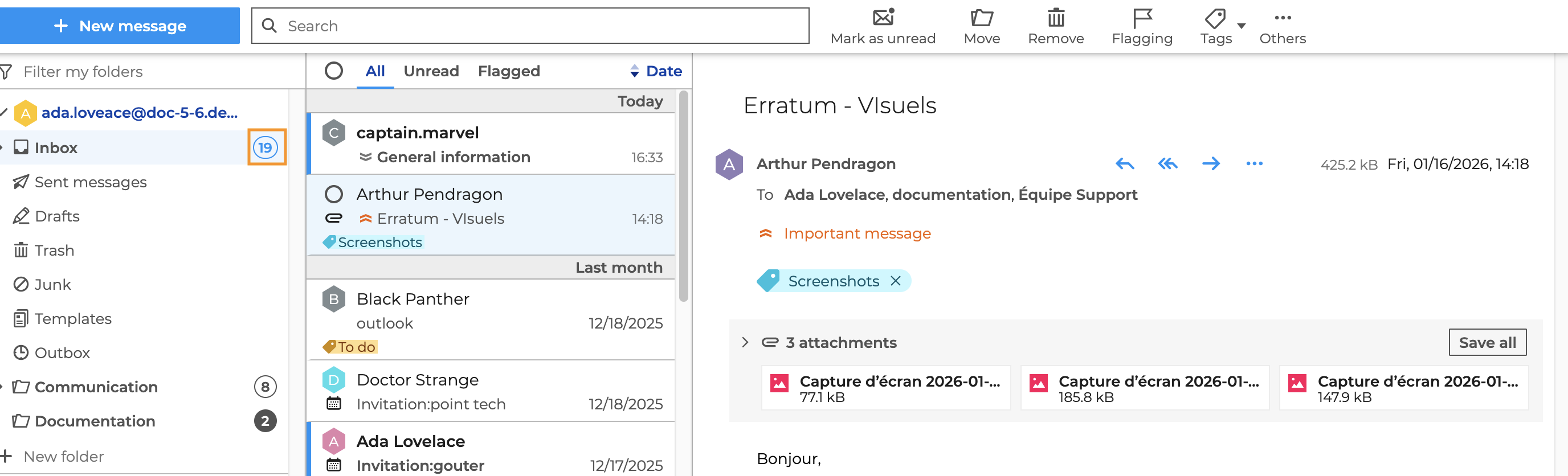
The content of the selected message appears in the main display area.
Hold down the SHIFT key (new window) or the CTRL key (new tab) to display the dedicated button in the email shortcuts, and click on it:

Attachments are shown in a collapsible box under the message header.
Click  for a preview of images and click
  to download attachments.
Accessing folders
-
The user's folders and the mailboxes and shared folders to which he or she is subscribed are listed in the sidebar.
-
The default folders in each mailbox are :
- Inbox
- Sent messages
- Drafts
- Trash
- Unwanted messages
- Models
- Outbox These folders cannot be renamed, deleted or moved.
-
Users can create folders and subfolders directly from the folder list in their own mailbox, or in a shared mailbox with write access.
Creating and composing new messages
Click on  to open the email composition window:
-
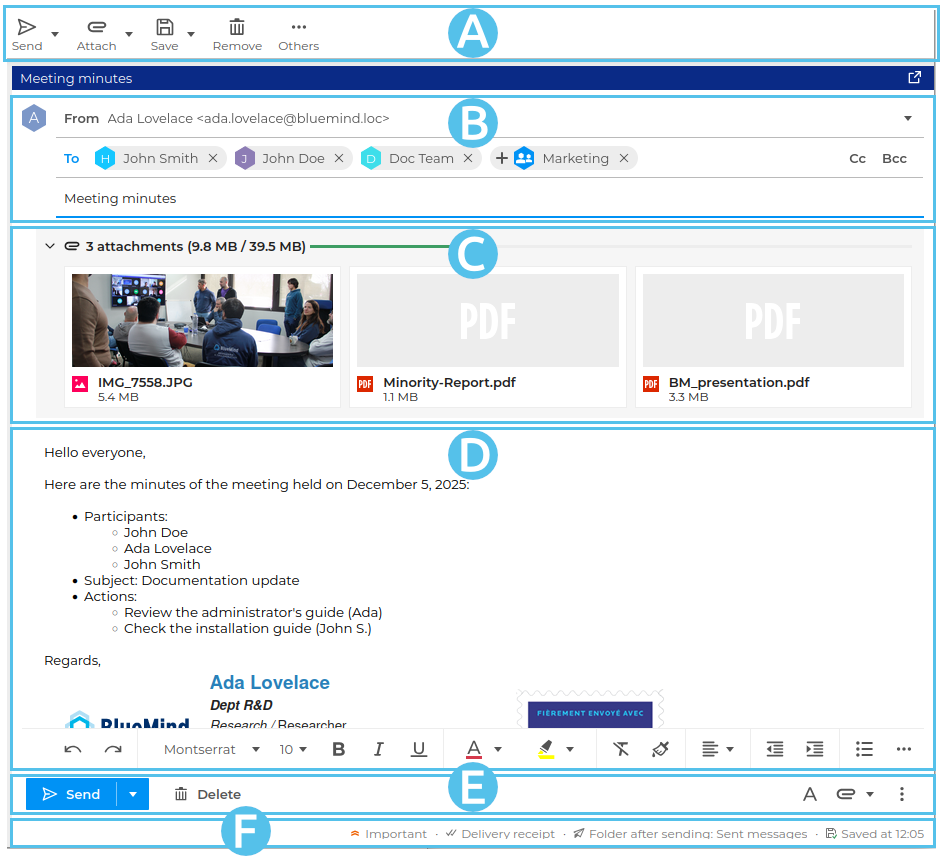
: the main toolbar offers you the actions available for the message currently being written: send it, attach a file, save it as a template or draft, and delete it. Additional actions are available in the "Other" menu: display the "From" and "Reply to" fields, mark the message as "important", choose a folder for filing after sending, display its source code or download it.
-
: address fields (sender and recipients) and message subject.
💡 Address fields
The "To" text box is used to enter the main recipient(s) of the email
The "CC" ("Carbon Copy") text box is used to add carbon copy recipients
The "CCi" ("Invisible Carbon Copy") button is used to add hidden carbon copy recipients
The optional "Reply to" text box is used to Mandating a third party to manage answers -
: attachments to the message. It can be expanded or collapsed to show more or less file information.
-
: the writing area of the message.
NB: the formatting bar shown in the screenshot above can be hidden or displayed.
For further information see Editing text. -
 : this zone features a repetition of the main action buttons for easy, intuitive access: on the left are the buttons for sending and deleting the message, on the right access to formatting, adding attachments and a menu for accessing additional actions: adding a signature, using a template, displaying "From" and "Reply To" fields, requesting acknowledgement of receipt/reading, important message.
 -
 : status bar indicating whether any options have been activated, the folder in which the sent message will be saved, and the time at which the draft was saved.