FAQ
General
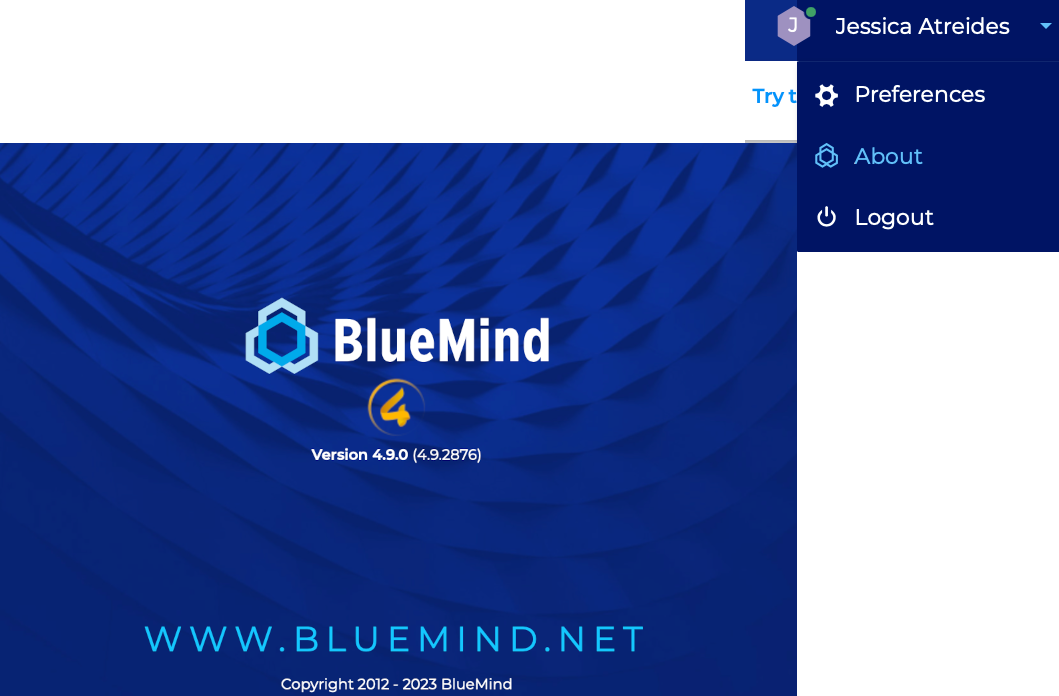
How can I find out which version of BlueMind I'm using ?
The BlueMind version is shown in the application's homepage. Hover over the version number and the technical version number will pop up.

Once connected to BlueMind, go to the menu on the right of the banner and click About to open the information panel.
What web browsers and versions does BlueMind support?
The documentation's Compatibility page shows a list of compatible browsers, thick clients and mobile devices, etc. as well as known limitations.
What characters are allowed in passwords?
Passwords can include upper and lower case letters, numbers and special characters. Accented characters may not be used.
ASCII characters can be used, excluding control characters.
How does offline mode work?
What is offline mode?
Offline mode allows you to continue working with BlueMind when your internet connection is lost either voluntarily (using your internet browser's offline mode if allowed or by disconnecting your computer's internet connection) or involuntarily (network disruption, cable unplugged, etc.). New inputs (new contacts, appointments, meeting acceptances, etc.) are saved in the browser and when you are connected again, the data is synchronized with the server and saved in BlueMind.
What applications are supported in offline mode?
Currently, the Contacts, Calendar and Tasks applications are supported.
How do I enable offline mode?
Offline mode is enabled automatically when your browser's internet connection is lost, whether voluntarily or not.
When you're offline, your navigation bar's personal menu is grayed out and its links are disabled:

What web browsers are compatible?
Offline mode is available in Firefox, Chrome and Safari.
Offline mode being reliant on the browser's data storage capacity, some browsers or browser versions do not support his technology (Firefox in Private Mode, Internet Explorer, Edge).
A large number of items to synchronize will trigger a warning
When the user accesses their preferences, or when the administrator accesses the user management record, a warning notifies that a large number of items will be synchronized on the devices, which could lead to issues:
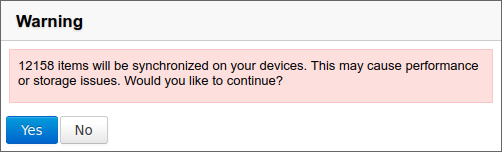
This means that the user is subscribed with active synchronization to an item containing a large amount of data. This item can be either an address book or a calendar. You then need to consult the dedicated sections of the preferences (or tabs in the case of the admin console) to find out which item it is and disable (if desired) synchronization.
Mail
Editing as new message
This option allows you to open a message in the composer, without being shown as a reply or forwarded.
To do this, select the message in the list and click the menu "More" above the message list, then "Edit as new".
To find out more, go to the page on Sending messages
I'd like to use different signatures depending on the recipient
To do this you must create several "Identities" and set up a signature for each. When you send a message, all you will need to do is select the identity you want from the sender box and the corresponding signature will be added.
Identities are also used to customize the display name as well as the email alias used.
To learn more, visit the page Identities
I have reached my mailbox quota but I can't delete messages to reduce its size
This is because when you delete a message using the "delete" button or the "Del" key, it is moved to the trash, and to do this it needs to be copied in a temporary directory. This operation is therefore impossible if the space quota has been reached.
To free up space in a mailbox whose size quota has been reached, you must delete files directly: select the message(s) you want to delete and type "Shift-Del". You should then be prompted to confirm deletion.
What's remote content in messages and why doesn't BlueMind download it?
Remote content in messages is content that isn't integrated into a message but downloaded from the internet. There are several types of remote content: images, videos, style sheets or scripts.
By default, BlueMind doesn't download this content from unknown senders to protect your privacy. This is because this content may be used by its author to access information directly related to your email address– whether the message has been read (e.g. the time and date it was read but also how many times), about your IT environment (OS, email software, etc.), or about your location through your IP address. This content can also be used to give away the seemingly harmless yet invaluable information that your email address exists and is active by indicating that the image (and therefore the message), has been downloaded.
By default, however, BlueMind trusts the senders in your address book – remote content from these addresses is automatically displayed when the message is opened.
A button at the top of a message whose content has been blocked is used to download that message's content only. If you want to enable downloading remote content for all messages, regardless of the sender, go to: Preferences > Mail > General > Remote images and activate "Always trust content".
For more information, see the chapter Managing remote images
Instant messaging
I can't see the instant messaging icon in BlueMind
This means that instant messaging hasn't been enabled on your domain, or the administrator has chosen to restrict this service to certain users only.
Contact your administrator or, if you're an administrator, go to the domain management documentation for information on enabling instant messaging.
I don't know how to clear my conversations history
This is because this feature isn't available in BlueMind's instant messaging application yet.
I get an SSL error when I try to connect to the XMPP server with Thunderbird
This is because since version 38.0, Thunderbird uses DHE keys
Manual fix
In Thunderbird Preferences > Advanced > Config Editor, set the following settings to 'true':
security.ssl3.dhe_rsa_aes_128_sha
security.ssl3.dhe_rsa_aes_256_sha
A message "The peer's certificate issuing authority is not recognized." A message "Certificate is not trusted because it hasn't been verified by a recognized authority using a secure signature" may appear during connection, this is because BlueMind's SSL certificate is self-signed. Confirm that you want to use this certificate despite this warning. Confirm that you want to use this certificate despite this warning.
Plugin fix
Install the following add-on which disables DHE keys https://addons.mozilla.org/en-US/firefox/addon/disable-dhe/
Mobility
When I try to create an account I get the message "Incorrect username or password"
The server and user information entered is correct, and yet this message appears: this means that your administrator has not authorized connection to external devices.
To fix this there are two options:
- the global administrator can authorize synchronizations for the whole domain in the admin console > System management > System configuration > "EAS server" tab
- the domain administrator can authorize user-specific synchronizations in the admin console > Directory browser > select the user > "Devices" tab
In order to connect to BlueMind, you need to get help from an administrator.
To find out more, please go to the Administrator's guide > Users or EAS Server Configuration.
I can't see directory contacts
This is because with the Exchange ActiveSync synchronization protocol, only personal address books are synchronized with smartphone contacts. However, addresses from other address books (Directory, Collected contacts...) are accessible via the smartphone's search functions (contacts, e-mails...)
To learn more, check the page corresponding to your device in the Synchronizing with external devices section.
I can't see one of my secondary calendars or a shared calendar on my Android mobile phone
Android does not allow viewing several color-coded calendars simultaneously. As a result, only your calendar is shown and works.
You can enable this feature and couple it to a third-party application: Multiple calendars on smartphones (see known limitations on that page). When administrators enable this feature, users can see their secondary calendars on their Android phone. Shared calendars (user or domain calendars) cannot be viewed on smartphones.
I can't see a shared folder on my mobile device
To access mailshares from a phone, you must first subscribe to the folders. On Android devices, however, they may sometimes not be shown immediately.
To display them, you have to force synchronize them first:
- go to the device's settings (not the mail application settings)
- Go to Account Management.
NB: The name of this section may vary from one device to another: "Accounts", "Accounts and users", etc. - choose the account for BlueMind syncing
- Go to sync settings
- tap "Sync now"
Note: Depending on the device, this action may be accessed directly or through a hamburger menu (three dots or bars)
Wait until the syncing process finishes. The folders you are subscribed to should now be shown in the Mail app, under Public folder for shared folders.
Calendar
I can't see a calendar that has been shared with me
By default, you are only able to see:
- your calendar
- domain calendars
To see another calendar, you must subscribe to it:
- go to the account settings management : Preferences > Calendar > Other calendars tab
- look for the calendar you want using the "Add a calendar" text box
- select the calendar proposed by autocomplete
- click "Save" to confirm
For more details, please go to Using Shared Calendars and Displaying Multiple Calendars
I can only see two colors in the summary even though my appointment has several tags
For readability reasons, calendar appointments only show two colors at the most. However, if you hover over it with your mouse, all tags are listed in the tooltip.
For more details go to Adding tags
Resources
General
Can a resource have several simultaneous reservations?
In fact, if the manager(s) validate several reservation requests for the same time slot, the resource will have several simultaneous reservations.
At the time of reservation, the user is warned that the resource is not available, but can still make a request.
Double booking (overbooking) can be prevented by automatic resource management : if a resource is available, then its participation is automatically validated; if it is not, then the event is automatically refused. The resource manager retains control, however, and can still modify allocations as well as create and modify resource calendar events directly.
For more information, please visit Managing resource reservations and Editing resources.
I am a user
The resource is not suggested by autocomplete when I search for it
Check with your administrator or resource manager that you have been assigned reservation rights
I'm a manager
Reservation request alert does not appear
Check in the left-hand section of your calendar that the resource's calendar is present in the list of calendars currently displayed.
I have a reservation alert but I don't see the event or any other in my view
On the left-hand side of your calendar, check that the resource's calendar is not grayed out: if it is, this means that it is present (so the alert appears) but not displayed (appointments are hidden)
I wish to leave the management of a resource
You can unsubscribe from the resource calendar by going to the calendar settings: Preferences > Calendar > Other calendars
- select the resource from the drop-down list
- click on the delete icon
 to unsubscribe from the calendar
To remove or modify your resource management rights, contact an administrator or another resource manager (with resource share management rights).
For further information, see the Using a shared calendar page and the Editing a resource page in the administrator's guide.
Contacts
I can only see two colors in the summary even though my contact has several tags
For readability reasons, summary contact cards only show two colors at the most. However, if you hover over it with your mouse, all tags are listed in the tooltip.
For more details, see the chapter Add categories to a contact
Administration
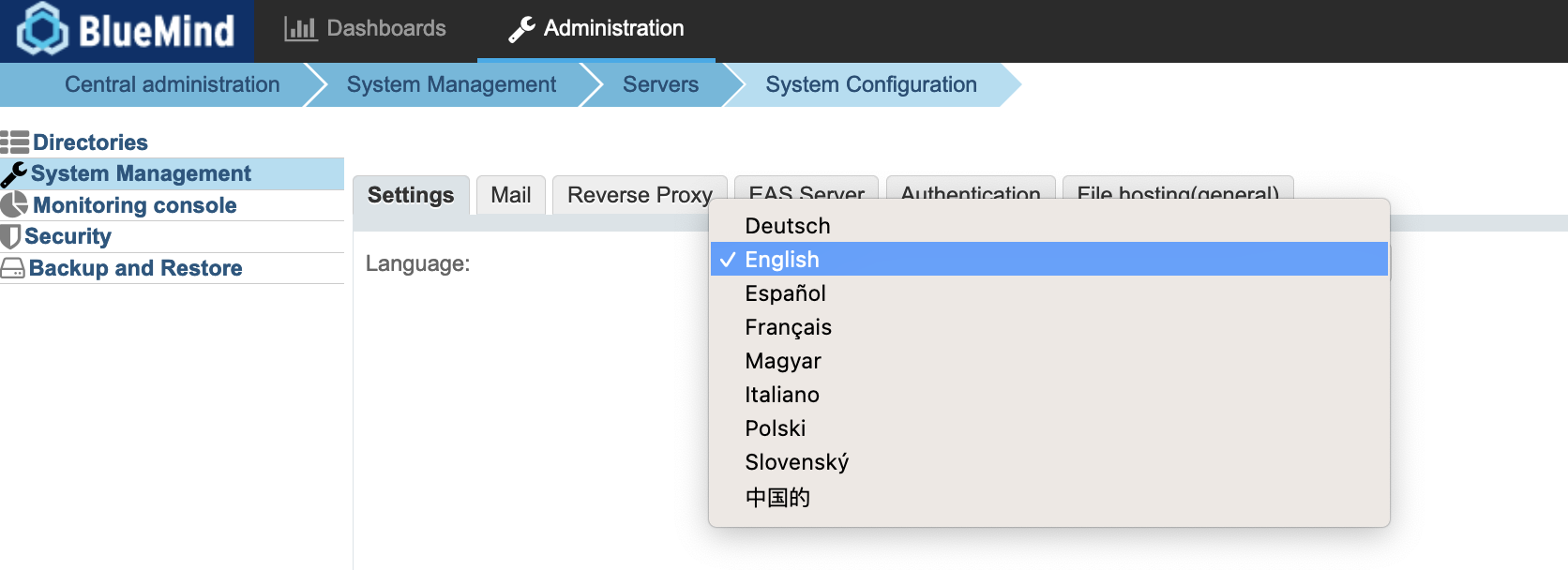
I want to change the language of the admin console
The superadministrator (admin0) can choose the language of the admin console.
For this, go to System Management > System Configuration and choose the desired language in the Settings tab
I've lost the setup wizard password
This password is among other things necessary to update BlueMind via the installation assistant (url http://"votre.serveur.com"/setup) for which the password was provided during the installation of BlueMind.
You can change the setup wizard's password either through the admin console or in command line, even if you do not know the old password:
- If you access the administration console as global administrator admin0 go to System management > System configuration > "Reverse proxy" tab: enter the new password and save.
- If you no longer access to the administration console (after BlueMind upgrade, for example), use command line in console mode:
- connect to the BlueMind server as root and type the following command:
rm -f /etc/nginx/sw.htpasswd; htpasswd -b -c /etc/nginx/sw.htpasswd admin admin
- log in to the URL /setup and use the login and password admin/admin This step is imperative, even if you are not yet at the BlueMind update stage.
I've lost the password for superadministrator admin0
The command line administration (CLI) tool lets you set a password without necessarily knowing the admin0 password.
To do this, once the tool has been installed, type the following command:
bm-cli user update admin0@global.virt --password "NewPassword"
Scheduled jobs are no longer running
This issue typically occurs after an update during which the bm-setup-wizard package was uninstalled.
To check this, the command below should not return anything:
dpkg -l | grep bm-setup
If the package does not appear, install it.
If the package is present, contact BlueMind support or ask for help on the forum.
A new user ID is invalid
New login IDs for new users must comply with the following rules:
- Maximum length: 64 characters
- Authorized characters are:
- lowercase letters from a to z
- numbers from 0 to 9
- the following special characters: . (fullstop), - (dash), _ (underscore)
- Special characters cannot be placed in first position
Thunderbird
I want to empty Thunderbird's browser cache
When restarting the connector fails to resolve display issues, in particular if an error is visible in logs, you can reset the cache manually:
- close Thunderbird's calendar tab
- go to Tools > Clear recent history
- select "Everything" in the drop-down menu and check all the boxes
- Click "Clear now"
- in Thunderbird, open the calendar tab
Outlook
For further investigations and resolving Outlook-related issues, please refer to our dedicated guide Resolving issues with Outlook > Know Issues
I need to retrieve Outlook logs
On the client software side, you may find messages in Outlook itself, in the "Sync Issues" folder.
On the server side, there are 2 files you should look at:
- the general log
/var/log/bm-mapi/mapi.log - the activity log
/var/log/bm-mapi/activities.log
I can't see my shared mailboxes in Outlook. Should I subscribe?
BlueMind uses the same subscription functionality as for calendars and address books to display shared mailboxes in Outlook clients connected via MAPI.
To view a shared mailbox in Outlook, you must first :
- connect to BlueMind online
- go to the account settings : Preferences > Mail > Other mailboxes
- search for the shared mailbox using the input field and add it to your subscriptions :
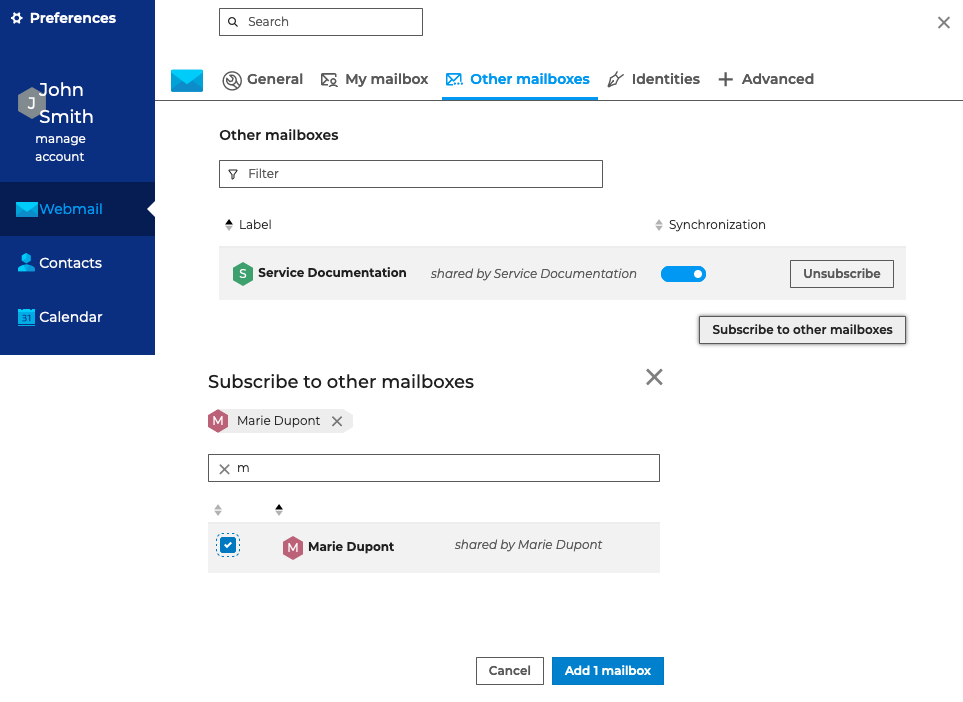
For more details, see the dedicated paragraph onUsing a shared messaging system
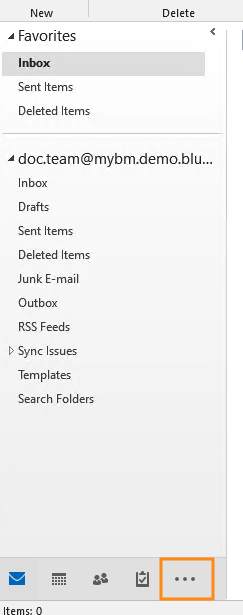
Public folders can be found by clicking the three dots at the bottom of the Outlook navigation pane: