Rolling out BlueMind 4: what to watch out for
BlueMind's version 4.0 incorporates major upgrades in terms of architecture including on the one hand, native Outlook support and on the other hand data replication to prepare the mail system's data for Outlook and other uses (new webmail, mobiles devices in particular).
Replication
Replication—one instance per mail shard (i.e., one per mailbox role)—allows Cyrus to forward a copy of emails to the bm-core service. The bm-core service uses replication to retrieve the necessary message metadata for bm-eas, bm-mapi and ElasticSearch. This metadata is stored as a database (like Exchange does) and in ElasticSearch.
As a result, you may have migrated an entire mail spool (on the Cyrus side), as messages are visible in webmail and Thunderbird, while replication fails. Under those circumstances, some – or all – messages are not available:
- in Outlook
- via EAS (smartphones)
- in the search engine (webmail, smartphones)
- to create filters in user settings or the admin console (the folders are not shown)
Data migration and replication
Given current BlueMind-Outlook stability with the MAPI protocol, migrating data through a PST upload in Outlook is not an option. As a whole, server-side data migration is safer and the result will be more consistent.
BlueMind strongly recommends data recovery through a structured server-side process. These recoveries will be safer and more effective, and the tools will enable better monitoring of them. Our teams are developing migration tools for this purpose.
Recommended data migration solutions include:
- the bm-migrator migration tool, which supports the migration of Exchange, Microsoft 365 (with limitations), Zimbra, and Kerio mail apps
- Exchange migration tool
- server-side PST migration
- IMAP synchronization tools with imapsync (see recommendations below)
- Domino migration tool
Replication extracts and stores mail spool information into BlueMind objects that must exist beforehand. Therefore, to ensure that replication works properly, only data known to BlueMind should be entered into Cyrus: domains and mailboxes must therefore be created in advance in the administration console (or via the API), before populating the mailboxes.
Currently, as admin0 (BlueMind super-administrator), you can migrate BlueMind data without worrying about BlueMind objects and mail storage rules. With admin0 privileges, mail data can be stored on the Cyrus server without undergoing any rights or consistency checks. This is why BlueMind may see the data as inconsistent and may cause the replication to fail. We therefore advise you against importing data through imapsync as the admin0 user.
To avoid this, if you plan to synchronize BlueMind data using imapsync, it is important that imapsync be run using the user's own login credentials. By performing operations as the user themselves, you can be assured that an account exists, with the correct partition, etc.
To generate an API token for a specific user:
This link shows an example of data migration which you can adapt depending on the source server and the accounts/data you want to transfer:
https://forge.bluemind.net/stash/projects/BA/repos/bluemind-samples/browse/migration/4.0/kerio
As a whole, and in particular for version 4.0, we strongly recommend that you test data migration on a test server, which will be re-installed or destroyed later. The migration process, once verified, can be done on a blank server (or domain), with no trace of the operations carried out during testing. The LDAP/AD connection, imapsync or Exchange data migration, once prototyped successfully, can be replayed on the production server.
BlueMind archiving system redesign
Starting with version 4, email archiving (HSM) is natively supported by Cyrus (see the dedicated page: Archiving).
If you installation already used archiving in version 3.5, you must retrieve the 3.5 archives to re-introduce them into Cyrus (which will then manage it autonomously and transparently according to the policy).
This has significant impact on mail storage spaces and typically entails lengthy migration operations, to be organized according to version 4 upgrade operations.
The detailed upgrade to version 4 procedure describes the operations required for archive migration. It is available in the Partner Area: Procedure for Upgrading from BlueMind 3.5 to BlueMind 4. Please make sure that you read it carefully.
Storage space sizing
Several architecture reorganization and changes to how BlueMind works affects BlueMind server storage space sizing. You must be extremely careful to avoid "full disks" which can interfere, block or cause the upgrade to fail. These are the storage changes that can impact your BlueMind install:
- /var/spool/bm-replication: Expect a significant increase in disk space usage. You must have free space equal to 25% of /var/spool/cyrus/data
- /var/spool/bm-elasticsearch: 20 to 25% of the total email volume in the two folders /var/spool/cyrus/data and /var/spool/bm-hsm
- /var/lib/postgresql: The database must be able to grow by 10% of the volume of emails (/var/spool/cyrus/data and /var/spool/bm-hsm)
- /var/log/bm/replication.log can grow very large. The corresponding partition must have at least 1Gb of available space.
In terms of memory resources, to allow the ElasticSearch service to work during the upgrade, it must be allocated an additional 1.5Go.
These additional disk space requirements are explained in the procedure for upgrading to version 4: Procedure for Upgrading from BlueMind 3.5 to BlueMind 4.
BlueMind without MAPI
This option has limitations BlueMind isn't able to override. This is why BlueMind has developed a native connection with Outlook, which provides a better implementation of Outlook features.
If your users are used to the Outlook connector and happy with it, it can be left as is. Otherwise, we recommend that you progressively move to Outlook via MAPI.
Outlook
Without the MAPI service, Outlook continues to work with the connector just as it did in version 3.5. Administrators must follow the same procedure for Provisioning Users to the Outlook Connector so that users can download and install it on their computers.
Folder mapping is not supported or translated by Outlook. Default folders such as Inbox, Sent, etc. are shown in English because they are picked up via the IMAP protocol without being translated. This doesn't interfere with syncing from a technical point of view but may be disturbing for some users. You should note that MAPI handles mapping correctly.
Cyrus
From version 4.1, the Cyrus folder structure is checked on BlueMind startup and an alert – a warning in logs – is sent if an inconsistency is found.
BlueMind with MAPI
Autodiscover
An autodiscover check is carried out on all installation domains and aliases. If no autodiscover works, then MAPI service will not start. If at least one autodiscover works, then the service starts in order to serve accessible domains. If at least one autodiscover is ok, then the service starts to serve the accessible domains.
As a result, for each domain and alias, the MAPI server attempts a query to domain.loc/autodiscover and autodiscover.domain.loc/autodiscover and checks that itself receives the query.
A test is also carried out on the DNS server to check the recording service _autodiscover._tcp.domain.loc and _autodiscover.<all aliases>.
To make sure that the server is configured properly and can be reached at these urls, you can use Microsoft's online troubleshooting tool: https://testconnectivity.microsoft.com/
Cyrus
The Cyrus folder structure is checked on BlueMind startup and an alert – a warning in logs – is sent if an inconsistency is found.
Outlook
Recommendations and best practice
To work in its current version, Outlook must not be polluted by "objects" that do not come from BlueMind. This is why a blank Outlook profile must be created and no other Exchange/Office365 should be configured on the same profile.
In addition, registry keys must be applied, among other things to avoid network configuration conflicts (DNS, ActiveDirectory). These registry keys can be found in the dedicated documentation: Implementing mapi for Outlook > Configuring workstations using registry keys
Creating a blank Outlook profile
To enable connector-free Outlook, first make sure you follow the server-side implementation steps described in our documentation:
In particular, make sure you read the section about server communications prerequisites: autodiscover must work properly for Outlook to be able to communicate with BlueMind.
Then, for each workstation, follow our instructions on creating an Outlook profile:
Here, too, be sure to verify in advance that the URLs are accessible from the workstation.
Limitations of Outlook with BlueMind
Known limitations with Outlook are listed in our page on BlueMind's compatibility with client software and devices
If you encounter issues
BlueMind Version
Many improvements have been made to BlueMind since version 4.0, whether the replication, the implementation of advanced MAPI protocol functions or the MailApp (new webmail). All BlueMind versions earlier than 4.5 must be updated quickly to benefit from all the latest updates.
Checking that replication works properly
Replication is now largely stabilized. Replication problems are rare. These verification instructions are therefore no longer necessary as a general rule.
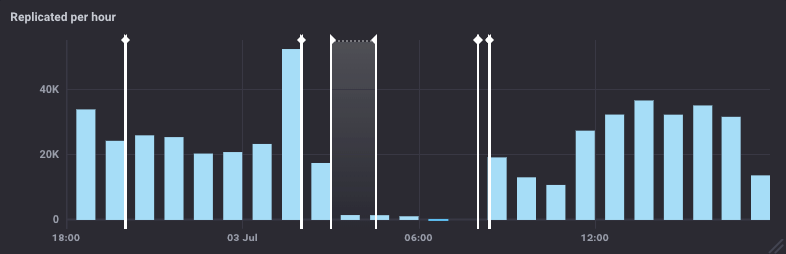
In the bm-tick supervision console you can monitor the "Mailspool & Replication" dashboard. Two graphs are particularly relevant:
Number of replicated emails per hour:
Number of active replications:
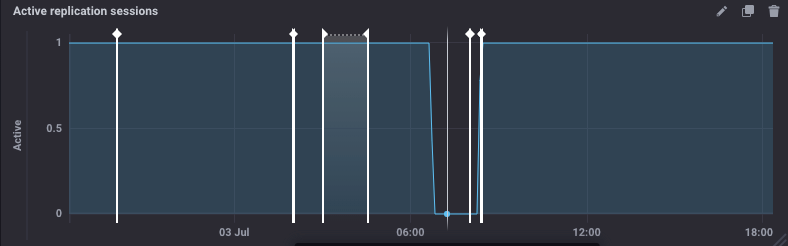
This number must be 1 per server with the mailbox role and therefore with the bm-cyrus-imapd service. If this number drops, this means that replication is no longer working.
Conversely, if this number exceeds the number of IMAP backends, it usually means that the role has been assigned to one (or more) separate storage servers, but the service is still running on the main server. In that case you need to force-disable them by creating the following files on the bm-core and then stop the services:
touch /etc/bm/bm-cyrus-imapd.disabled
touch /etc/bm/bm-lmtpd.disabled
systemctl stop bm-cyrus-imapd ; systemctl stop bm-lmtpd
At any time, to see if replication is working, you can perform an operation on an e-mail (e.g. set it to unread) and check with a tail command whether, at the same time, a line of this type is added to the /var/log/bm/replication.log log file:
{{APPLY MAILBOX (.... loginUser ) }}
Replication progress
We are planning tick improvements in future versions which will allow you to check the replication process's progress.
In the meantime, you can compare the number of messages in the mail spool and archives with the number of entries in the message storage table. They won't match exactly, but it gives a pretty good idea of progress.
To find out the number of emails to be synchronized:
# Number of spool emails:
find /var/spool/cyrus/data/ -type f|wc -l

# Number of archives emails:
find /var/spool/bm-hsm/cyrus-archives -type f|wc -l
The sum of the two should be close to the result from the query on the bj-data database:
select count(\*) from t_message_body;
Note that the standard replication flow only watches "live" mailboxes. This means that if the replication delta is significant, then the replication has almost stopped, all active users have been properly replicated and have access to related features (webmail search, EAS, etc.). Also note that the count is approximate: if an email is sent to N users, it will be counted once in t_message_body but it will be present N times in the spool.
To start replication on the passive (unused) mailboxes, you must place all mailboxes in the replication queue using the following command, after clearing certain Cyrus logs:
#cyrus cleaning
service bm-cyrus-imapd stop
rm /var/lib/cyrus/sync/core/log\*
service bm-cyrus-imapd start
#launch of replication
bm-cli maintenance repair --ops replication.parentUid $DOMAIN_UID$
where $DOMAIN_UID$ is the domain name, for example: bluemind.net
Known limitations
You can find a list of known limitations in our page on BlueMind compatibility.
Updating from BlueMind 4.0 to 4.x
Inbox subfolders
In BlueMind versions 4.0.x, folders created in the inbox by Outlook are not mailbox folders but virtual folders.
BlueMind 4.1 adds support for subfolders in the inbox.
When upgrading BlueMind 4.0.x to 4.1 or later, virtual folders will not be migrated and will be deleted.
To prevent this from happening, you can move these virtual folders out of the Inbox before the upgrade so that they are preserved; they can then be moved back, and they will be recreated as email folders.