Updating BlueMind
:::caution Full system backup
BlueMind makes every effort to provide reliable updates. In some special untested cases or due to external factors, however, data may be lost unexpectedly. BlueMind may not be held responsible for any possible update failure leading to system corruption.
It is your responsibility to prevent this risk by performing a complete system backup.
:::
:::caution Updating Linux distribution
Major upgrades of Linux distributions (Debian 7 to Debian 8, etc.) must not be performed using automatic distribution update mechanisms (changing package sources and using the aptitude dist-upgrade command) because this may change BlueMind dependencies which may impact BlueMind services. Indeed, BlueMind dependencies can be modified and BlueMind services may be impacted.
To perform major distribution upgrades, please contact your integrator service provider or contact us via our ticket platform.
:::
:::info Preparing for updates
You must prepare for updates in the admin console (System Management > Update BlueMind) before you update packages with aptitude. This extra step is designed for administrators to update their system easily without updating BlueMind.
For more information, administrators should read Preparing for updates below.
:::
:::tip cli
Update operations can be carried out entirely on the command line by advanced administrators using the bm-clitool.
To find out more about how to install it, please visit CLI client for administration.
:::
Introduction
The BlueMind subscription includes a simplified, tried and tested update system.
Updating BlueMind to a corrective or adaptive version is made easier, safer and faster thanks to the graphical admin tool.
:::info Major version change
Upgrading BlueMind during a major version change (for example, from v2.x to v3.x or from v3.0.x to v3.5.x) requires changing the software repositories. The subscription file must therefore be updated for you to perform the version upgrade.
:::
Prerequisites
Subscriptions
To access BlueMind update tools, you must have a valid and current subscription installed.
Access to setup wizard
Updates require access to the setup wizard (https://"your.server.com"/setup) for which you were provided a password at the end of the post-installation process.
In case you lost this password, there are two ways of recovering it:
⇒ via the administration console:
- Access the administration console as global administrator admin0
- go to System management > System configuration > "Reverse proxy" tab
- enter the new password and save
OR
⇒ from the command line (see the dedicated page for installing the bm-cli tool):
- Log into the BlueMind server as root and type the following command:
rm -f /etc/nginx/sw.htpasswd; htpasswd -b -c /etc/nginx/sw.htpasswd admin admin
- Log in to the URL /setup using the username and password admin/admin
This step is mandatory, even if you haven't reached the BlueMind upgrade stage yet.
Repository signatures
Repositories are now signed for all supported Ubuntu/Debian distributions.
Repository signature is required for Ubuntu 18.04 and Debian 9 which are supported by BlueMind 3.5.9.
You may, if you need or want to, manually import the key on all our supported distributions using the following command:
curl https://pkg.bluemind.net/bluemind-deb.asc -o /etc/apt/trusted.gpg.d/bluemind.gpg
You may get a warning message about repository signature during earlier version updates. This does not disrupt the update, it is a mere warning.
Points of Caution
Just as before installing BlueMind 4, we recommend that you carefully read the page BlueMind 4 Deployment: Important Considerations before performing a major upgrade.
Procedure
Repositories are registered as soon as the subscription is installed, as a result, BlueMind will be updated automatically when the system is updated.
If you've made changes to configuration files manually, make sure you back them up. For more information, see the Appendix: note on configuration files
Preparing for the update
To update a BlueMind already in version 4.1 or higher, the update process must be initiated. This gives you greater control over versions and reduces the risk of errors: the target version can now be left open to allow updates to the latest published version or, on the contrary, it can be frozen to prevent unintentional updates. This also helps ensure that the server's major version as well as additional packages are conformed to.
This preparation can be done in 2 ways:
⇒ via the administration console:
- go to System management > Update BlueMind
- Click "Setup": the latest available version will be installed.
OR
⇒ from the command line (see the dedicated page for installing the bm-cli tool):
- type the following command to update to the latest available version:
bm-cli setup version latest
- to update a specific version, specify the version number
bm-cli setup version 4.8.1
Using a higher version number is equivalent to using "latest": the latest minor version available will be installed.
- to freeze a version and prevent upgrades from previous versions
bm-cli setup version current
BlueMind quick update
You can perform the BlueMind upgrade entirely via the command line (see the dedicated page for installing the bm-cli tool), without having to run the browser-based setup wizard at :
- Debian/Ubuntu
- Redhat/CentOS
aptitude update
aptitude upgrade && bm-cli setup upgrade
yum update
yum upgrade && bm-cli setup upgrade
Complete BlueMind upgrade
The BlueMind upgrade process begins by updating the packages on all the servers in the installation, using the commands already in use during installation. Steps 1 and 2 therefore must be applied to all the machines concerned. Then, the update itself will have to be played just once, by login into the /setup url:
- Log in as root on each platform server
- Update the packages on each of them:
If you want to minimize service downtime, you can pass the update command with the "download-only" option, which enables you to download all the packages ahead of the update.
This does not interrupt or slow down services, which means it can be done at any time of day or night.
You can then launch the "upgrade" command - which effectively updates the packages and whose impact on downtime is reduced - at a more appropriate time.
- Debian/Ubuntu
- Redhat/CentOS
aptitude update
aptitude --download-only upgrade
aptitude upgrade
yum makecache
yum --downloadonly upgrade
yum upgrade
Repeat these commands on each platform server.
Otherwise, a warning may come up during earlier version updates. This does not prevent the upgrade; it is simply a warning. However, you can resolve the issue: see the section above titled Repository Signatures.
-
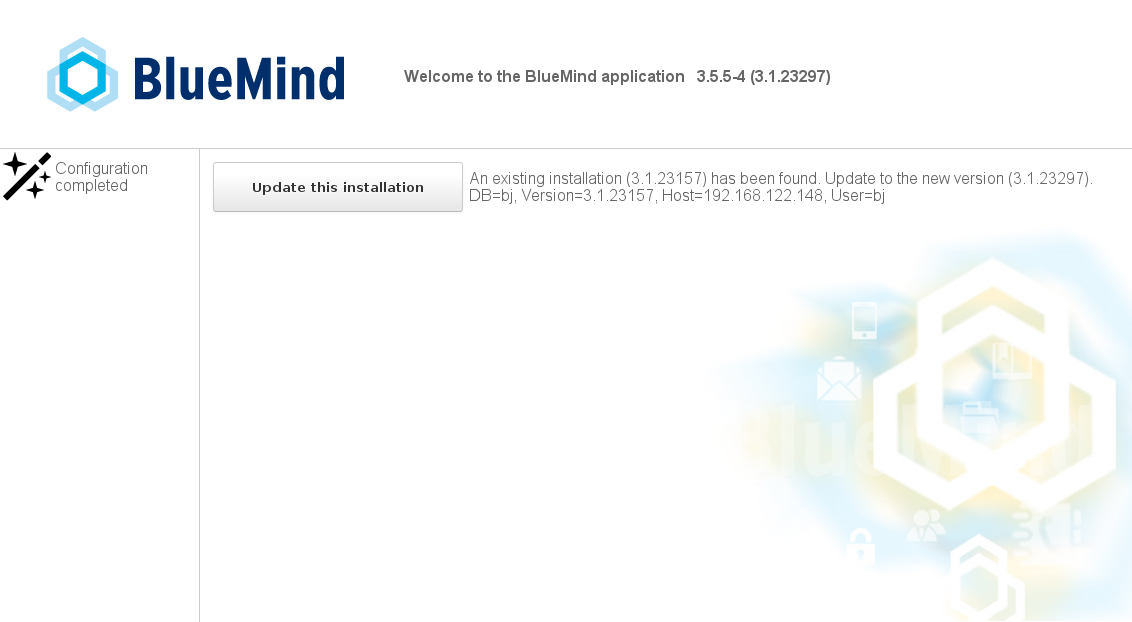
Go to the setup wizard https://"your.server.com"/setup
 tip
tipThis step requires the setup wizard's password - see Access to the setup Wizard above.
-
Click "Update" to start the automatic update process.
-
Once this process is complete, an email will inform you that it was successful:
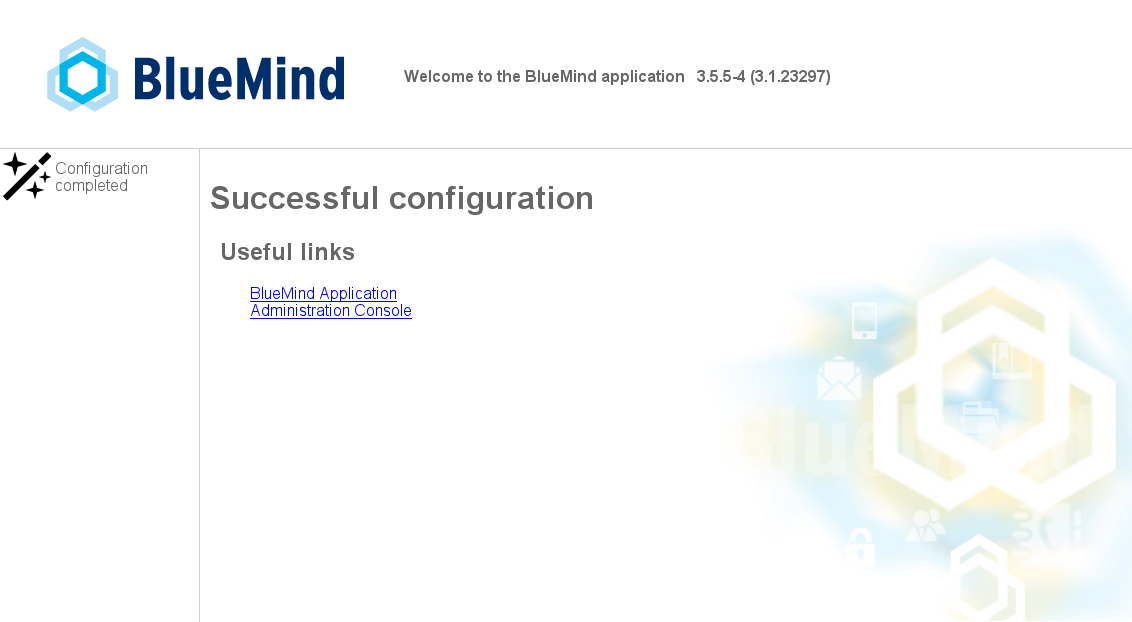 => You can now access BlueMind at its usual URL
In the event of a problem, errors are logged into the bm-core and bm-webserver files.
Appendices
Note on configuration files
The postfix configuration is overwritten during the installation phase only. From then on, this configuration can be updated using the command postconf.
Configuration files can be customized as required, except for:
- deleting BlueMind maps: maps can however be added.
- editing mynetwork: mynetwork must be edited in the admin console.
- editing relayhost: relayhost must be edited in the admin console.
Regarding NGinx, the virtual host is overwritten with every upgrade.
All VHosts are disabled during updates. Only BlueMind VHosts (bm-client-access and bm-webmail) are enabled again afterwards. Others can be reactivated later, but this must be part of the update procedure, which complements the one provided by BlueMind.
BlueMind's virtual host can also be extended through the /etc/nginx/bm-local.d/*.conf files.