Setting up the subscription
The subscription
BlueMind's software is Open Source. The BlueMind subscription is a professional offering designed to simplify and ensure production use and provide better connectivity with Outlook and ActiveDirectory.
Subscription file
The BlueMind subscription comes as a readable text file, which provides a unique key that integrates the subscriber's characteristics, including:
- number of users (for SAAS offerings, the notion of user profiles is also included)
- subscription type:
- production (Prod and Host)
- evaluation (Eval)
- individuals and OpenSource associations (Free)
- expiry date.
The subscription file is valid for all supported host systems (see for supported systems).
This file is readable and signed.
The information about the subscription is visible.
The file is signed in the headings with the subscriber's details, as a result it must not be modified (except for url repositories), otherwise it risks being invalidated.
If you're using an evaluation subscription, you can modify repository access urls to change distributions.
If you're using a Prod, Pre-Prod or Free subscription, do not edit the subscription file. You must request it from us in advance, e.g. You must request it from us in advance, e.g. if you want to change server distributions. We will provide you with a new subscription valid for your new environment. Furthermore, a Prod or Free subscription can only be installed on a single server.
Do not distribute or give this file to any third parties; access to repositories are subscriber-specific and tracked.
System updates and migration
The subscription file contains the addresses of BlueMind's repositories and can be accessed by the system depending on its version. The file must therefore be updated when the system or BlueMind is updated in order to install the corresponding versions of BlueMind packages as well as the new additional packages.
The process is the same as for installation, it is not a simple file update.
Installing subscriptions
BlueMind must be installed before installing your install the subscription using the installer available for download on the BlueMind website.
To activate a subscription and additional components, proceed as follows:
- install the subscription file
- upgrade packages to include new components
- configure BlueMind via the new upgrade tool
:::info Perform a full system backup
BlueMind makes every effort to provide reliable updates. In some special untested cases or due to external factors, however, data may be lost unexpectedly. BlueMind may not be held responsible for any possible update failure leading to system corruption.
It is your responsibility to prevent this risk by performing a complete system backup.
:::
Installing the subscription file
Automated installation
- Log into the BlueMind admin console as admin0 (user login:
admin0@global.virt) - go to System management > Manage subscription
- Using the "Update Subscription" button, search your computer for the subscription archive and open it. BlueMind installs the subscription. The effect is immediate and doesn't require a service restart.
Even when a subscription is installed, the form remains active in order to allow replacements, e.g. when the subscription expires.
Manual installation
- Extract from the archive the file corresponding to the distribution you are using
- Rename file to
bm.list - As root, place the file on the server in the folder
/etc/apt/sources.list.d/ - En cas d'utilisation de serveurs secondaires (edge, archivage, etc.) déposer aussi le fichier sur ces serveurs-là dans le même dossier
- Restart BlueMind to have the new subscription taken into account
Updating software packages
The subscription file contains the addresses of BlueMind repositories and allows them to access the system. As a result, it must be updated in order to install the latest package versions as well as additional packages.
To do this, connect to the server and type in the following commands:
This operation must be performed on every BlueMind server related to the subscription (production, test or evaluation).
- Debian/Ubuntu
- Redhat/CentOS
sudo aptitude update
sudo aptitude upgrade
yum makecache
yum upgrade
Install new packages
The following packages are now available:
- bm-setup-wizard¹ : special version of the installation and update wizard
- bm-add-on-cli-setup¹
- bm-mapi² : connecting Outlook workstations
- bm-plugin-core-ad-import² : ActiveDirectory import tool
¹ Required packages; ² Optional packages; install as needed
On the core server (the one where the BlueMind installation has been performed), install the new packages and restart BlueMind:
- Debian/Ubuntu
- Redhat/CentOS
sudo aptitude install bm-setup-wizard bm-add-on-cli-setup bm-mapi bm-add-on-admin-console-ad-import bm-add-on-core-ad-import
sudo bmctl restart
rpm -e --nodeps bm-installation-wizard
yum install bm-setup-wizard bm-add-on-cli-setup bm-mapi
bm-add-on-admin-console-ad-import bm-add-on-core-ad-import
bmctl restart
Post-update setup
The update manager tool – Setup Wizard – is now available.
Log in using a browser by going to https://[your_server_ip]/setup
The Setup wizard loads up and displays the prerequisite status checklist
- If the Setup Wizard blocks installation, correct the prerequisite and start the installation again
- If the Setup Wizard displays warnings:
- Resolve the alerts, then reload the /setup page in your browser (go back to https://
your_server_ip/setup) - or click "Continuer en ignorant les problèmes" ("Keep ignoring problems"). (This choice isn't recommended, unless you know exactly what you are doing).
- Resolve the alerts, then reload the /setup page in your browser (go back to https://
If the packages were already up to date, a message indicating that the system is ready for use is displayed. Otherwise, go on to the step below:
Click "Mise à jour" ("Update"). Next to this button the current version of the data and the new version to which the update will be performed is displayed.
During the update process, access to the BlueMind application is no longer possible and a warning page informs any users who might try to access it.
The update is executed and when it is complete, the Setup Wizard displays a page "Configuration réussie" ("Setup successful") with links to BlueMind.
Checking installation
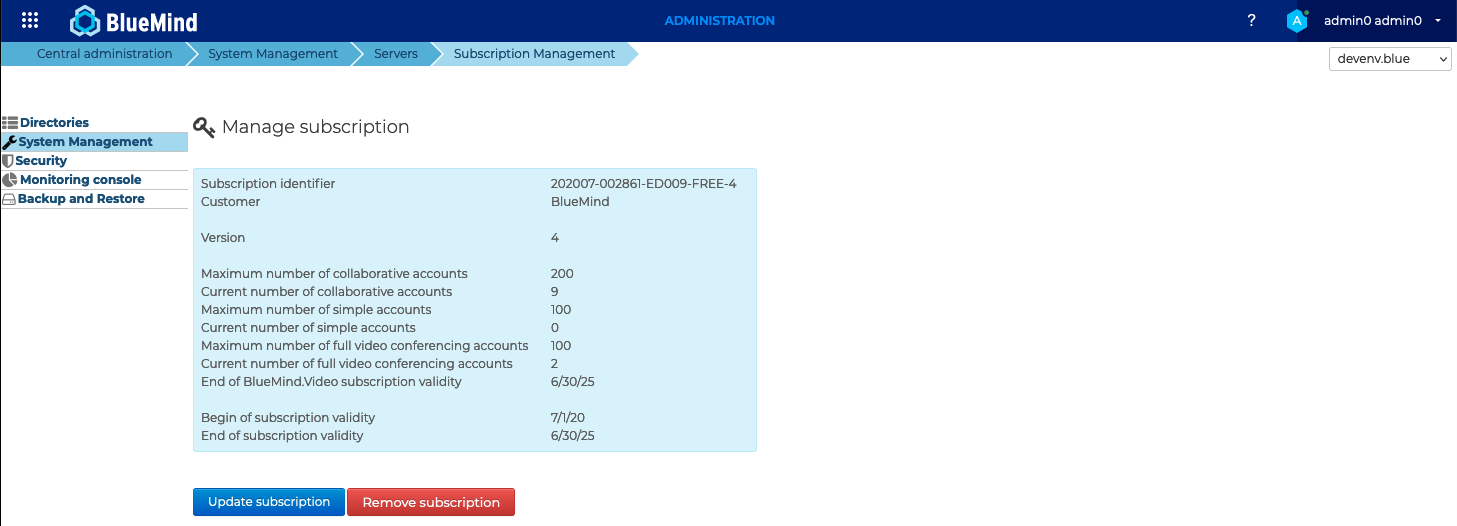
Go back to the administration console in order to check that the information contained in the subscription appears correctly:
:::tip Update notifications
As your subscription allows you to update BlueMind, don't forget to subscribe to our dedicated newsletter to receive information on new versions, upgrades and fixes: https://lists.bluemind.net/mailman/listinfo/bluemind
:::
Assign the management role
When the subscription's maximum number of users has been reached (or is close to) or when the subscription's expiry date approaches, information banners will appear in the admin console as well as the BlueMind application and emails will be sent.
To see these banners, a user must have the role dedicated to subscription management role, as well as access to the administration console. To do this, go to the user's administration record and assign the roles Manage subscription and Administration Console to them.
Users may encounter two situations:
- they do not have access to the admin console, they will receive notification emails
- they do have access to the admin console, they will receive notification emails and access the to the administration page that enables them to install and update the subscription
To receive email alerts, addresses must be added on the subscription management screen.
For more information about this, go to the dedicated page: BlueMind Subscription
Connecting Outlook
Once the subscription and packages are installed, you can implement MAPI for Outlook to allow users to use their software with their BlueMind account.
ActiveDirectory Import
If you've installed the package, you can also use the AD import feature. Please go to ActiveDirectory Synchronization for further details.
Updating subscriptions
Outside system or BlueMind version updates, once a subscription is installed and effective, there is no need to install new packages. Only the new subscription file needs to be installed.
Updating the new subscription file
Automated update
- Log into the BlueMind admin console as admin0 (user login:
admin0@global.virt) - go to System management > Manage subscription
- Using the "Update Subscription" button, search your computer for the subscription archive and open it. BlueMind installs the subscription. The effect is immediate and doesn't require a service restart.
Manual update
- Extract from the archive the file corresponding to the distribution you are using
- Rename file to
bm.list - As root, place the file on the server in the folder
/etc/apt.sources.list.d/in place of the old subscription file. - En cas d'utilisation de serveurs secondaires (edge, archivage, etc.) déposer aussi le fichier sur ces serveurs-là dans le même dossier
- Restart BlueMind to have the new subscription taken into account
Deleting a subscription
When a subscription expires or for any other reason, you can delete subscriptions and go back to using BlueMind subscription-free:
- Log into the BlueMind admin console as admin0 (user login:
admin0@global.virt) - go to System management > Manage subscription
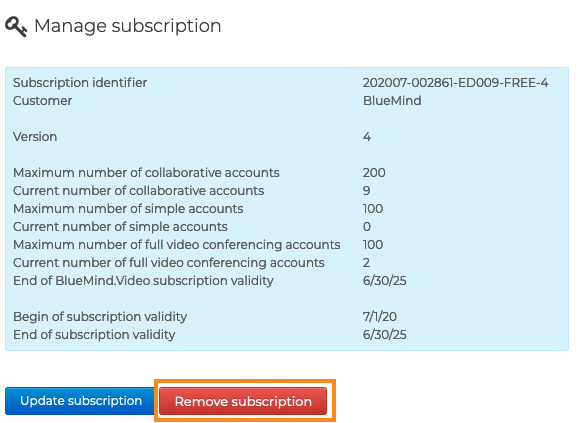
- Click "Remove subscription":
- Confirm when prompted after having read the terms and conditions
- Restart BlueMind:
bmctl restart