Domain management
The domain administration section of the admin console gives you access to technical domain settings (server addresses, domain aliases, etc.) as well as default user settings (address books, message filters, storage quotas, archiving, etc.).
Log in to the admin console with an account with sufficient permission to manage domains, go to System Management > Supervised Domains and choose domain to administer.

Implementing MAPI
Setting up MAPI (native Outlook) on a domain requires a specific configuration that may affect all server domains.
In this case, you must read the following page: Implementing MAPI for Outlook
General
The General tab shows the information and options for the current domain:
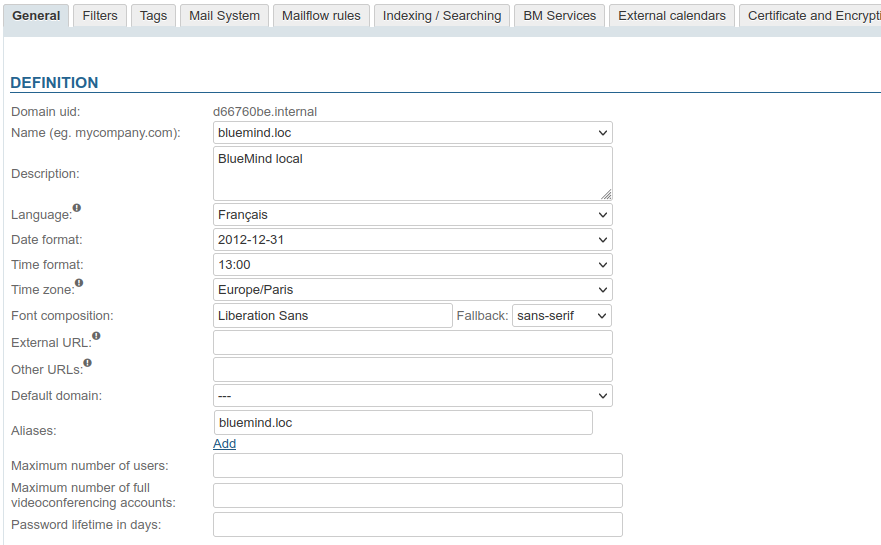
The domain UID (Unique Identifier) cannot be changed, but the following settings can be adjusted:
-
Name : the domain's usual name, to be chosen from its aliases
This name will be the default domain name proposed for new users' e-mail addresses. -
Description : a description of the domain is particularly useful when the installation is made up of several domains, especially when these are similar.
-
Language: the domain users' default language
-
Date format: the default format for administration and domain users
-
Time format : the default format for administration and domain users
-
Time zone: the domain users' default timezone
:::note Changing the language or timezone
Changing the value of the "Language" or "Time zone" fields only affects users using the old value.
For example, if you change "Europe/Paris" to "America/Toronto":- users whose time zone was set to "Europe/Paris" automatically switch to "America/Toronto"
- users who had changed that setting to another will keep that setting
- users created after this change will have their timezone set to "America/Toronto"
:::
-
Font composition : a font to be added to the message composer's default fonts. Enter a font name in the free text field and choose the generic type (fallback) which will be used as a replacement if the font is not installed on the user's workstation.
:::tip Use
Once the font name has been entered and the screen saved, users can use it in the dialer, or choose it as the default font from their preferences management.
To find out more, see the dedicated paragraph in the user guide: Send a message > Edit message content:::
-
External URL (optional field): URL address for accessing the domain.
-
Other URLs (optional field): Secondary access URLs for this domain, particularly useful for theautodiscover addresses used by mapi
:::caution external url
URLs need only be entered for shared server.
To find out more about the external URL and other URLs, visit
When a URL is entered, an SSL certificate must be added.:::
-
Default domain : domain name proposed when the simplified connection identifier is implemented
-
Aliases: you can add as many aliases as you want
- click on "Add" to open a new field and enter a new alias
- click on the trashcan icon in front of an alias to delete it
-
Maximum number of users: the maximum number of users that can be created in this domain. This option is used to distribute and limit the number of accounts authorized by a subscription across domains.
- empty field: no limit
- 0: no account authorized
- X: maximum number of authorized accounts
-
Maximum number of full videoconferencing accounts : number of "Collaborative + Visio" users required for the domain
:::info Availability
This parameter only appears on subscriptions that include Videoconferencing with BlueMind
:::
-
Password lifetime in days: sets the number of days a user password is valid for after it has been assigned or changed. This option is common to all domain users. You can change this value or force-expire a user's password by going into their admin page, to find out more, go to the page: Entities > Users.
:::info AD or LDAP connection
The expiration policy will not apply to users imported from an AD or LDAP directory.
:::
Change language or time zone
Note: when you change the "Language" or "Time zone", it is changed for users that used the previous setting only.
For example, we change the value from "Europe/Paris" to "America/Toronto":
- users whose time zone was set to "Europe/Paris" automatically switch to "America/Toronto"
- users who had changed that setting to another will keep that setting
- users created after this change will have their timezone set to "America/Toronto"
Filters
This tab lets you define filters common to all domain users: the filters present here will apply to the mail of all domain users.
Globally defined filters can be used, for example, to automatically move emails marked as "SPAM" by analyzing the message headers, or to mark as important emails from certain senders or with a keyword in the subject line (e.g. "Memo" or "Scheduled system upgrade").
Domain filters are executed by the server BEFORE user filters, so their actions may prevent a user filter from working (moving to a folder, marking or transferring)
Domain filters are managed in the same way as individual user filters:
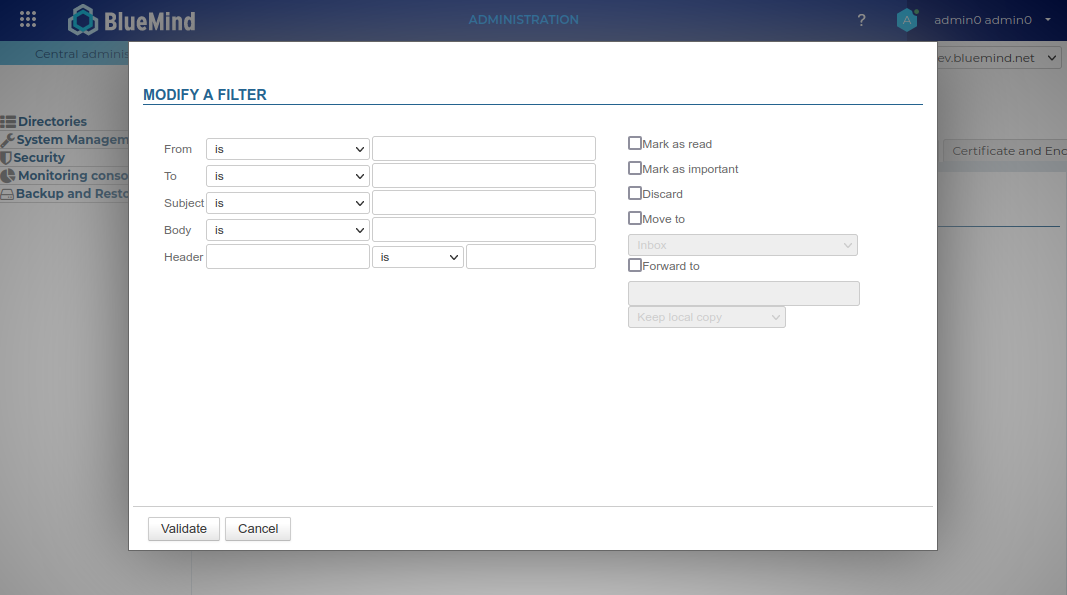
For detailed information on creating and options of the filters, you can consult the page Message filters.
Tags
This tab allows you to manage domain tags, which will be shared by all users:
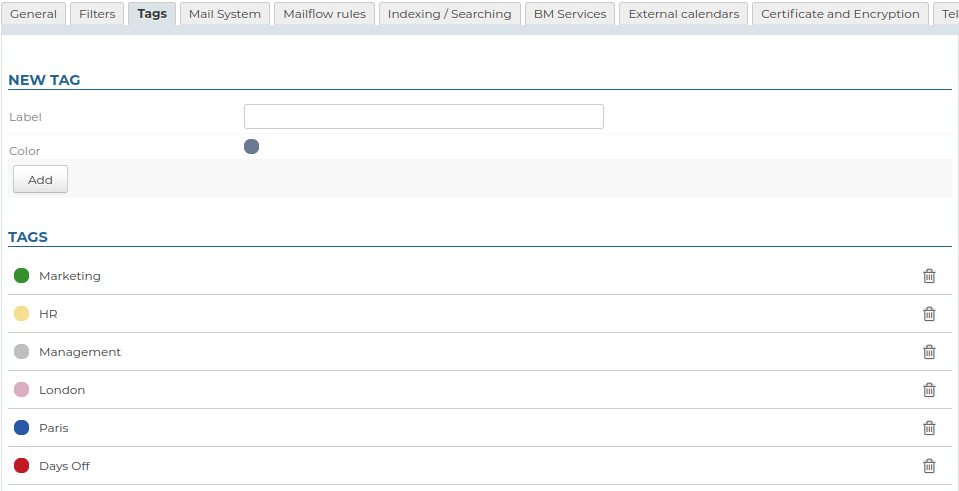
The operation is similar to user tags management.
Mail
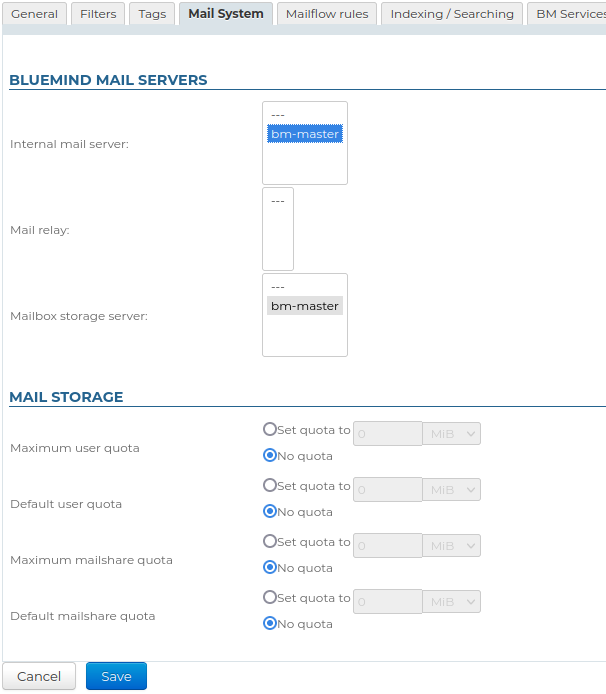
This tab allows you to configure the servers that handle the BlueMind mail system for the domain:
- Internal mail server
- Mail relay
- Mailbox storage server
This is also where imposed quotas for all users of the domain are defined:
- Maximum user quota : maximum quota authorized for a user
- Default user quota : quota assigned by default when a user is created
- Maximum mailshare quota : maximum quota allowed for a shared mailbox
- Default mailshare quota : quota assigned by default when a shared mailbox is created
Email Routing
This section allows you to configure the relay address and set up email forwarding to it in a multi-server architecture.
For more information on these settings, see the dedicated page Routing messages directly to another domain
Mailflow rules
This tab lets you add actions to all incoming and/or outgoing e-mails from the domain. Each action can be configured according to sender, recipient, etc.
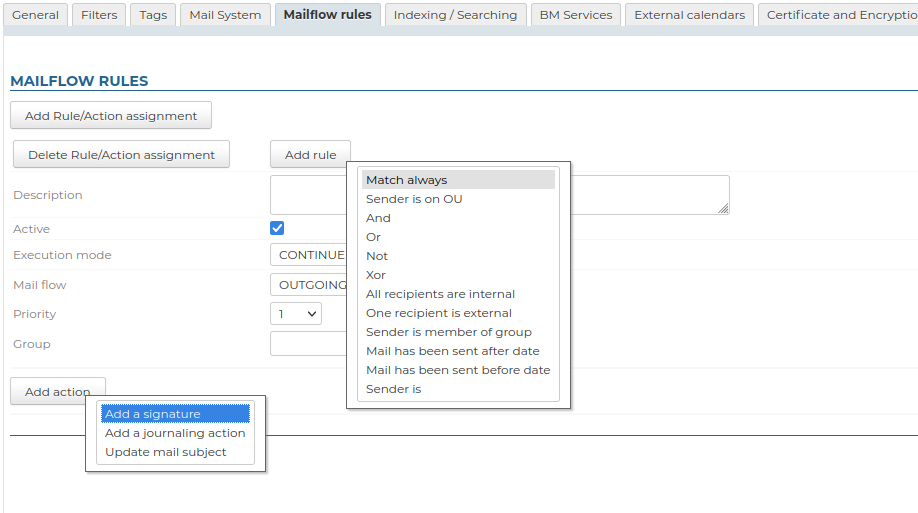
Possible actions are:
-
adding corporate signatures
-
adding a suffix and/or prefix to e-mail subjects
Indexing/Searching
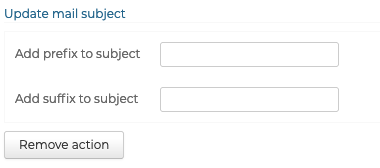
This tab lets you define the address of the indexing server common to all BlueMind applications (mail, contacts, calendar and instant messaging).
BM Services
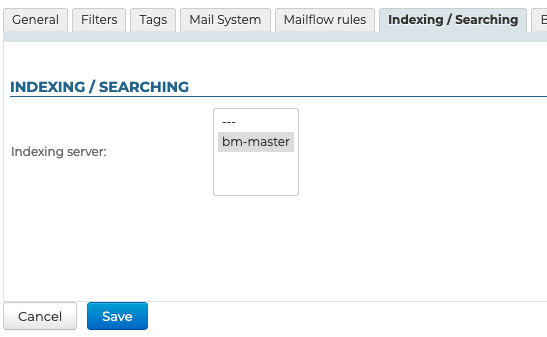
This tab is used to define the server for each BlueMind service in the domain:
- Servers :
- Central
- SSO
- XMPP
- Administration console
- Applications :
- Calendar
- Contact
- Settings (management of personal parameters)
- Redirect to default application
- HTTPS proxy
- Database
- Filehosting
External calendars
This tab is used to define the synchronization delay for the domain's external calendars.
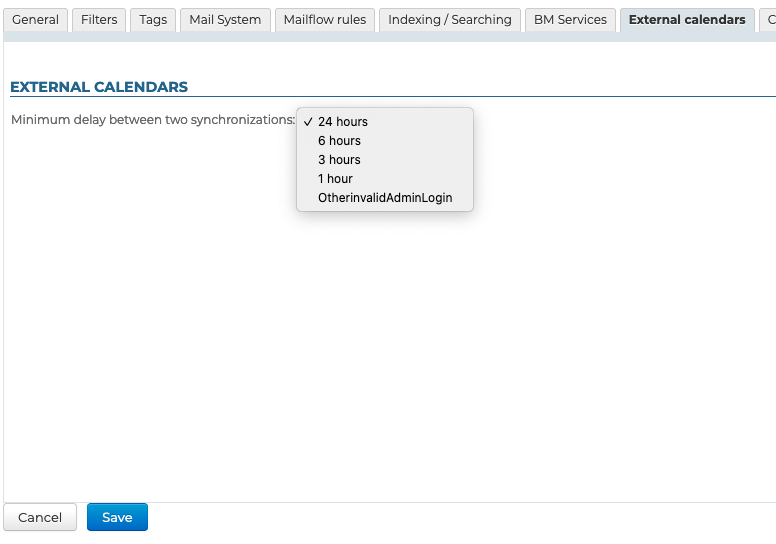
For more information on creating and managing external domain calendars, please go to Entities > Domain calendars.
OpenID
This tab allows you to define OpenID configurations for external systems using this mechanism, such as Webex or Zoom.
- Identifier : The system identifier
- OpenID endpoint URL : The URL of the API endpoint
- Application ID : customer ID for integration with external system
- Application Secret : Integration token on external system
- Token endpoint URL : The URL of the Token endpoint
Certificates and encryption
When an external URL is configured on the "General" tab for the domain, this tab allows you to generate the corresponding SSL certificate.
Select the SSL certificate engine from the drop-down list and follow the appropriate procedure:
- management via files
- by Let's Encrypt
- no certificate management
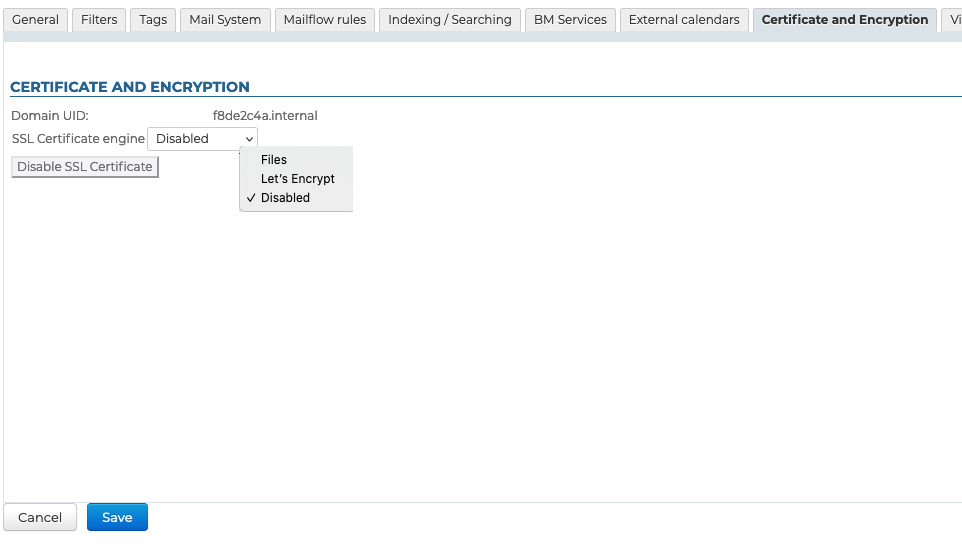
Click on 'Disable SSL certificate' to remove it
For more information, see :
Filehosting
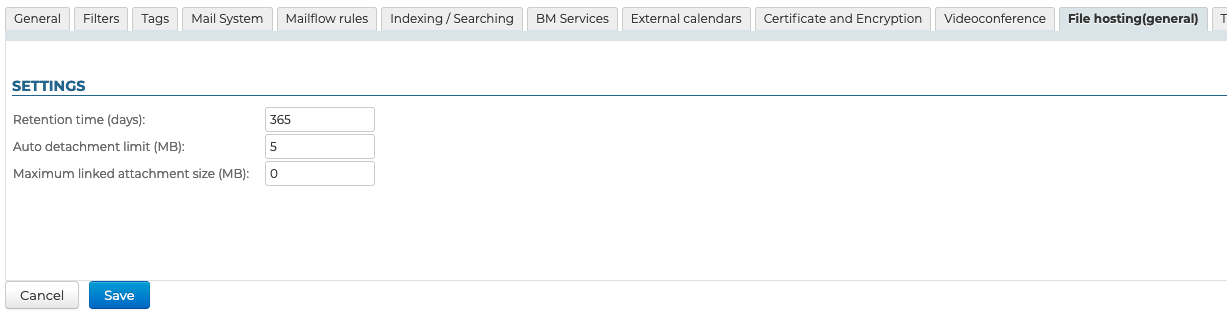
The "Filehosting" tab lets you configure the domain's attachment detachment server:
- Retention time (days) : number of days for which files are retained
- Auto-detach Threshold (MiB): the minimum size above which files are automatically detached when added to an email
- Maximum linked attachment size (MiB) : maximum file size accepted as a detached attachment
For more details on the installation and administration of the file hosting server, refer to the dedicated chapter: Linked Attachment
Videoconferencing
This tab is used to configure the server and/or template of the installed videoconferencing system, in this case BlueMind Video.
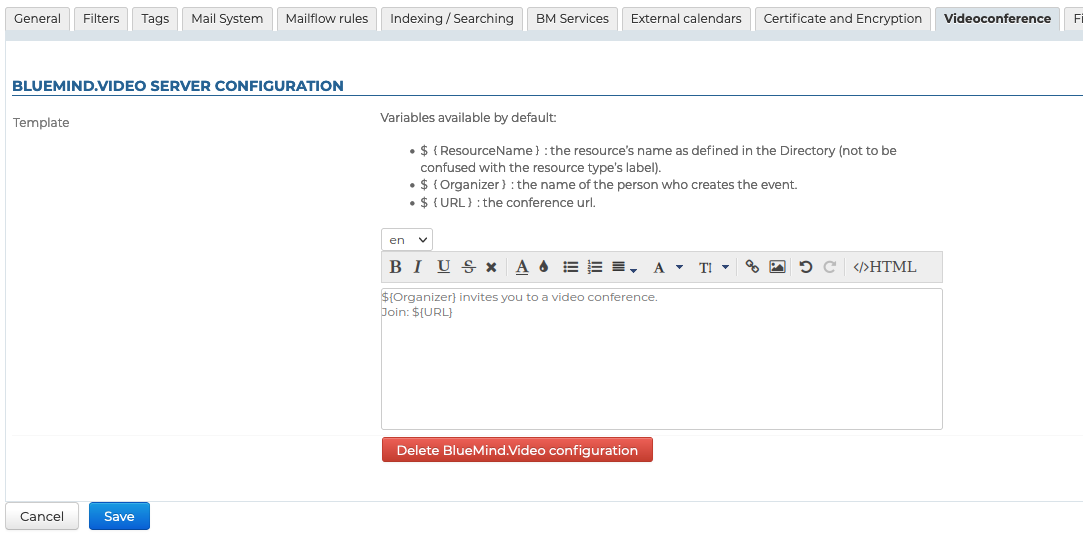
You can also install a Jitsi, Webex or Teams videoconferencing system.
For more information on installation and administration of the various solutions, please refer to the dedicated chapter: Built-in videoconferencing
Telephony
For information on implementing built-in telephony, see the pages dedicated to supported add-ons:
LDAP Import
This tab is optional. Used to administer an external LDAP directory.
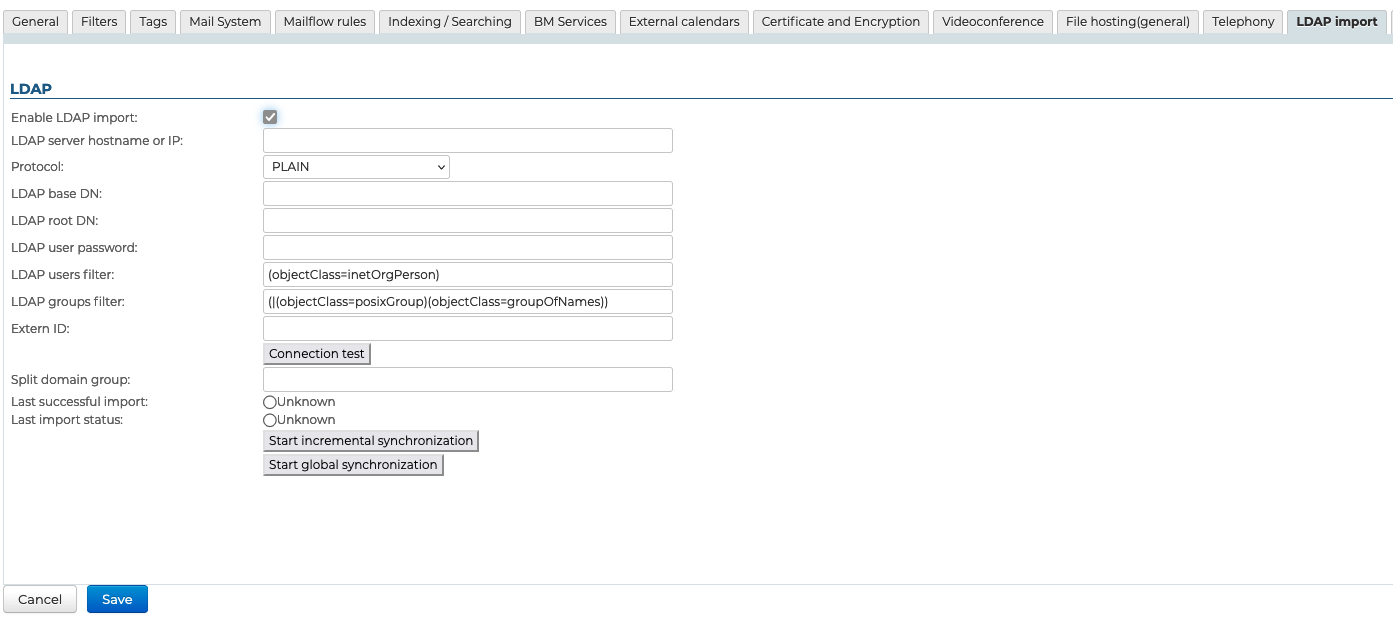
For more information on installing and configuring an LDAP directory, please go to: LDAP Synchronization.
AD Import
This tab is optional. It allows you to administer an external Active Directory.
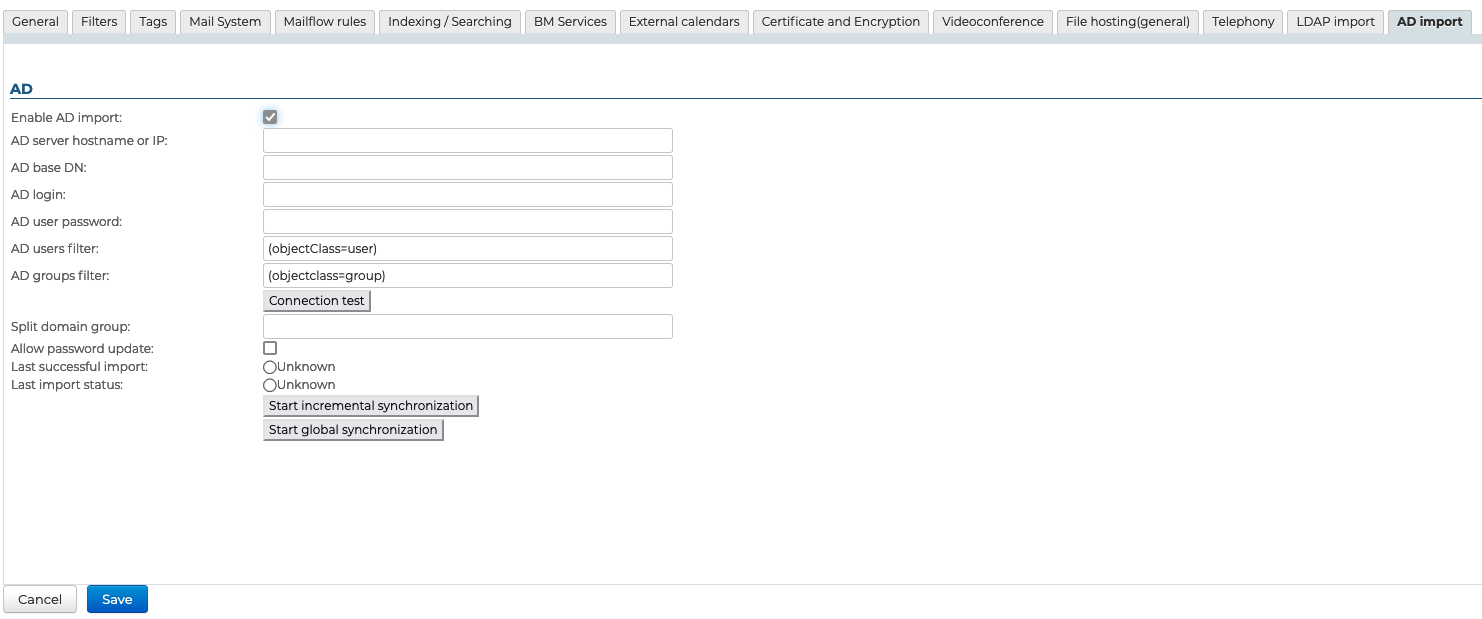
For more information about installing and setting up an AD directory, please refer to the page on AD Directory Synchronization