Connecting with Nextcloud
BlueMind enables you to connect your system to a Nextcloud external drive.
Users can use their Nextcloud personal space to manage the files they send using BlueMind mail and enjoy the advantages of a drive: file structure, moving, deleting, security, synchronization with other apps, etc.
Administrators' capabilities are improved: easier, more detailed disk space management, user-specific management, centralized data, security and back-up monitoring.
Supported versions
BlueMind supports Nextcloud version 11 and above. The files shown in this guide for version 12 are compatible with later versions.
Prerequisites
Install Nextcloud
Nextcloud must be installed and operational.
Nextcloud is an independent product of BlueMind, for more information on obtaining, installing, and operating it, refer to the website https://www.nextcloud.com/
When Nextcloud is running on Apache + PHP-FPM, it is not capable of retrieving file contents. The uploaded file size is 0 bytes and no error is reported to BlueMind or shown in logs.
About this Apache bug: https://bz.apache.org/bugzilla/show_bug.cgi?id=57087
The BlueMind plugin for Nextcloud will therefore not work if Nextcloud is deployed in a PHP-FPM on Apache. You must use mod_php or Nginx+PHP-FPM.
To enable the preview of attachments stored in the Nextcloud system, it might be necessary to set the header "Access-Control-Allow-Origin" for all generated public links. This is usually done in the the webserver configuration. The header value must at least contain the external URL of your Bluemind installation or any wildcard value that includes this URL.
Uninstall BlueMind's file storage
Nextcloud can be used:
- alongside BlueMind's internal storage: if the user doesn't enter a Nextcloud login ID, BlueMind will be used. To do this, install the files as shown in the section below.
- instead of BlueMind's internal storage: if the user doesn't enter a BlueMind login ID, they will not have access to the linked attachments feature. You must therefore uninstall the BlueMind file hosting package:
aptitude remove bm-plugin-core-filehosting-filesystem
bmctl restart
BlueMind must be restarted to complete uninstallation, but it doesn't have to be done immediately. You can install Nextcloud as described below and restart BlueMind later.
Then proceed with installation as described in the next chapter.
Installation
Install the dedicated packages:
- Debian/Ubuntu
- RedHat/CentOS
aptitude install bm-nextcloud-common bm-nextcloudXX
yum install bm-nextcloud-common bm-nextcloudXX
where XX is your version of Nextcloud:
aptitude install bm-nextcloud-common bm-nextcloud12
- up to Nextcloud 11, you must enter the exact version number
- with versions 12 or above, use bm-nextcloud12
For versions prior to BlueMind 4.2, refer to BlueMind Documentation 4
Configuration
Configure WebDav url
:::tip Finding the access URL
Nextcloud WebDAV's default access URL may look like this (depending on the version):
- http(s)://
<server>/nextcloud/remote.php/dav/files - http(s)://
<server>/remote.php/webdav/
Refer to your Nextcloud server's administration settings to find out exactly what its WebDAV access url is.
For more information, please visit https://docs.nextcloud.com/server/latest/user_manual/en/files/access_webdav.html
:::
For all domains
Only the super administrator is able to connect BlueMind to Nextcloud for all domains:
- log into the admin console as admin0
- go to System Management > System Configuration > Nextcloud tab
- enter the Nextcloud WebDAV database's url:

For a specific domain
BlueMind's connection to Nextcloud for a particular domain can be set up by anyone who has been assigned the "Domain administrator" role for the desired domain.
- log into the admin console as domain administrator
- go to System Management > Manage Domain > select the domain > Nextcloud tab
- enter the Nextcloud WebDAV database's url:

Setting thresholds
The automatic detachment threshold and maximum file size can be specified in the file hosting configuration.
The retention time is configured in the Nextcloud installation.
Please refer to the product documentation: https://docs.nextcloud.com/server/latest/admin_manual/configuration_files/file_sharing_configuration.html
Connecting user accounts
Activation
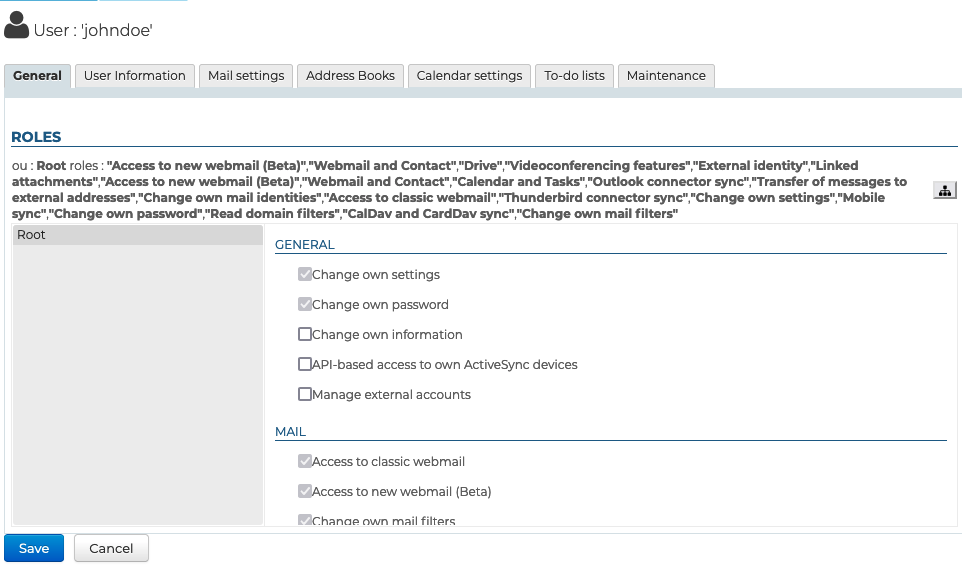
To enable users to access this functionality, they need to be given the corresponding role.
This can be done by group or by user, by going to the administration file of the desired group or user and activating the role "Manage external accounts":
Connection
Once Nextcloud has been properly installed and configured, users can connect their Nextcloud account to their BlueMind account.
To find out more about how to proceed and how to use this feature, please go to the user manual page Add an attachment with Nextcloud