Linked attachments
BlueMind allows you to detach attachments from messages in order to present them as download links to recipients. This reduces the size of messages which lightens the load on servers and communications networks: the file is no longer physically sent with the email message and stored on the incoming network in addition to the outgoing network and thereby duplicated and multiplied as messages are forwarded and replied to.
File storage
Files are stored on the BlueMind server, in the directory /var/spool/bm-filehosting/<domain>/.
:::tip Folder Tree
Files are stored in subfolders organized by user UID; they follow this format: /var/spool/bm-filehosting/<domaine>/**<UID initial>/<UID>**/Attachments
Note that folders for users migrated from BlueMind 3.0 will be shown as /u/user_entity_XXX and folders for users created in version 3.5 will be shown as f/F149E21D-596B-49CF-AECC-AC354139A06B.
:::
Files stored in this way are not accounted for in user quotas (which only apply to emails) whether the Drive feature (the possibility to find folders later on) is enabled or not.
As a result, depending on usage and the install's number of users, this can take a lot of space. In order to prevent disk space overload, we recommend that you create a disk mount that allows you to store data externally and set up a monitoring system.
Implementation
Installing the packages
Packages are installed by default – there is no need for them to be installed manually.
For earlier versions of BlueMind 4.3, see Documentation BlueMind 4.
As things stand, files are stored on the BlueMind server itself. A connection with Nextcloud is also possible.
In the future, BlueMind will enable interconnection with other external file sharing services such as Dropbox, ownCloud, Pydio, etc.
Defining the file hosting server
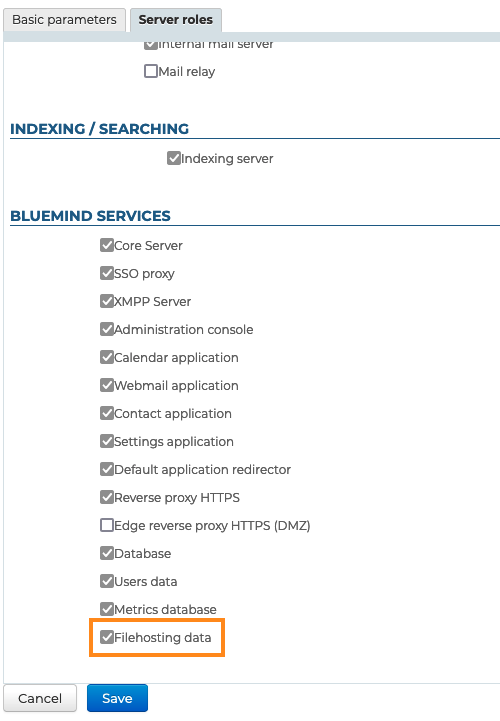
BlueMind must be told which server must be used to store files remotely. To do this, you must give the desired server the "Filehosting data" role, even if you are in a single server architecture.
- log in as admin0
- go to System Management > Application Server > [select server] > "Server roles" tab
- in the "BM services" section, check "Filehosting data":
Enabling the service for the domain
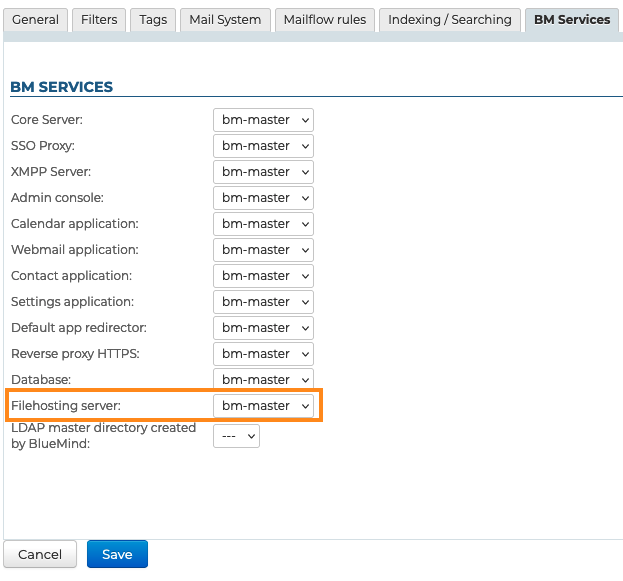
Once the server has been defined, the service must be enabled for the desired domain(s).
To do this, go to System Management > Manage Domains > select a domain > "BM Services" tab and set the server whose role you've enabled before using the drop-down list:
Enabling the features for users
Once the packages have been installed and the server has been configured, the feature must be enabled for users by assigning them the appropriate role ; this allows the feature to be enabled for all users or only certain users, either individually or through groups.
2 complementary roles are now available:
- Remote attachments: allows users to detach and link files to email messages.
- Drive: gives access to BlueMind's file browser. Users can browse previously sent files and link them into new messages.
This saves disk space as the same file is not stored multiple times.
Coupled with a NextCloud installation, this right gives users access to their personal storage space on it.
In the admin console, go to the entities' management section > Directory browser:
- Choose the group or user you want to assign a role to.
- Go to the roles' management section:
- For groups, go to the "Roles" tab
- For users, stay in the "General" tab and scroll down to the "Roles" section
- In the "CLOUD" section, check the features you want to enable:
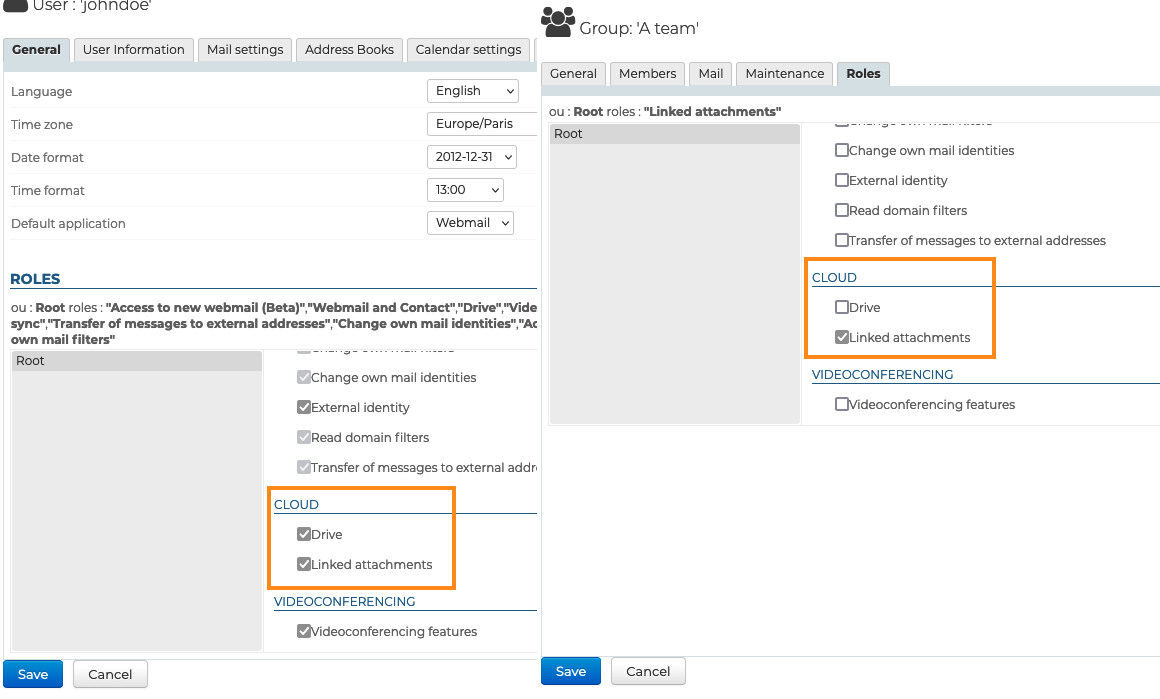
Once the packages are installed, the features must be enabled for users. This is done by assigning them the appropriate role.
Configuration
Global configuration
Go to System Management > System Configuration > Filehosting tab: This tab sets the default values for newly created domains as well as for domains whose configuration has not been specified (see below)
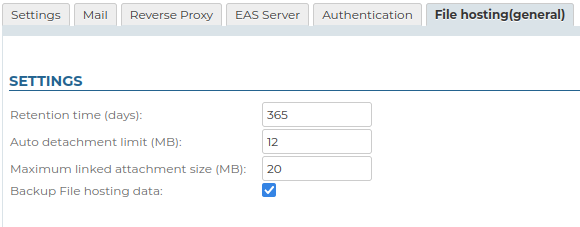
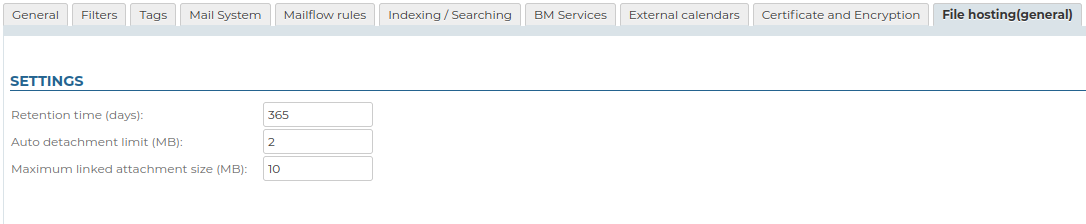
- Retention time (days): number of days files will be kept on the server, from the original sent date
- Auto detachment limit (MiB): size for which email attachments are automatically added as links.
- Maximum size of a detached attachment (MiB1): maximum allowed file size
. This is the limit per file; therefore, multiple files whose total size exceeds the limit can be added to and detached from a single email, as long as each file individually complies with the limit.
The default maximum size allowed is 5MiB1. - Backup File hosting data: if this box is checked, the storage folder on the server will be included in BlueMind backup tasks
Configuration by domain
In System management > Manage Domains > choose a domain> > Filehosting tab: this tab is used to set the default values for the chosen domain.
:::note Backup by domain
File backup cannot be enabled or disabled on a per-domain basis; it can only be configured in the global settings (see the previous paragraph).
:::