Users
Users are individuals who connect to BlueMind. Users have access to BlueMind features depending on their profile.
Two types of users with the following profiles can be created:
- user: access to the Mail, Calendar, Contacts and Settings applications.
- admin: access to user applications plus the admin console.
For more details on roles, please go to the dedicated page Roles: Access and Administration Rights.
Creating a user
To create a new user:
-
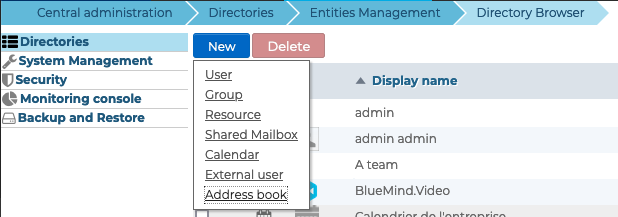
From the directory management homepage, click on "Create a user" or from the directory entries list use the New button > User:
-
Enter the new user's details in the popup window:
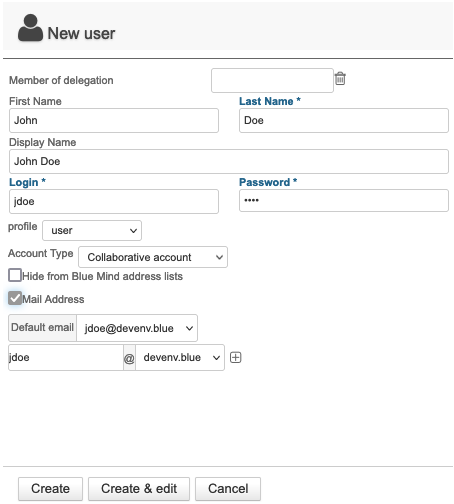
Full name
The full name is generated automatically when you enter your first and last names, and cannot be modified.
-
Select the default group:
userfor users,adminfor administrators, or a default group created by the administrator -
Check the desired options:
-
Hide BlueMind address lists: The user exists but is not visible in autocomplete suggestions (webmail or calendar composer) or in the address book. Its address can still be used by administrators or those who know it.
-
Mail address: the mail account is activated and a default address based on the login is automatically created. To add aliases, click
 at the end of the line.
If the installation includes multiple domain aliases, each additional address can be specified on a specific domain or on all aliases.Maximum number of possible addresses
In BlueMind, you can create as many aliases as you like, on as many domain aliases as you like.
-
-
Click "Create" to create a user quickly and easily, or click "Create & Edit" to create the user and access the configuration options.
The "Create" button allows a quick creation with the information entered in the popup and the following default options:
- server location (time zone, time format, etc.)
- default storage server, with no disk space quota
- no auto-reply or auto-forward
- empty coordinates
- the calendar can be shared with the option "can invite me to a meeting". This means that other domain users cannot view this user's calendar but are able to invite them to an event
- the mailbox is not shared
The user can then be modified via the administration interface.
Editing and managing users
From the Directories page >> Directory Browser, select the user from the list.
General
Account information
The "General" tab displays the user's main information: account details, profile, group(s), password, time settings...
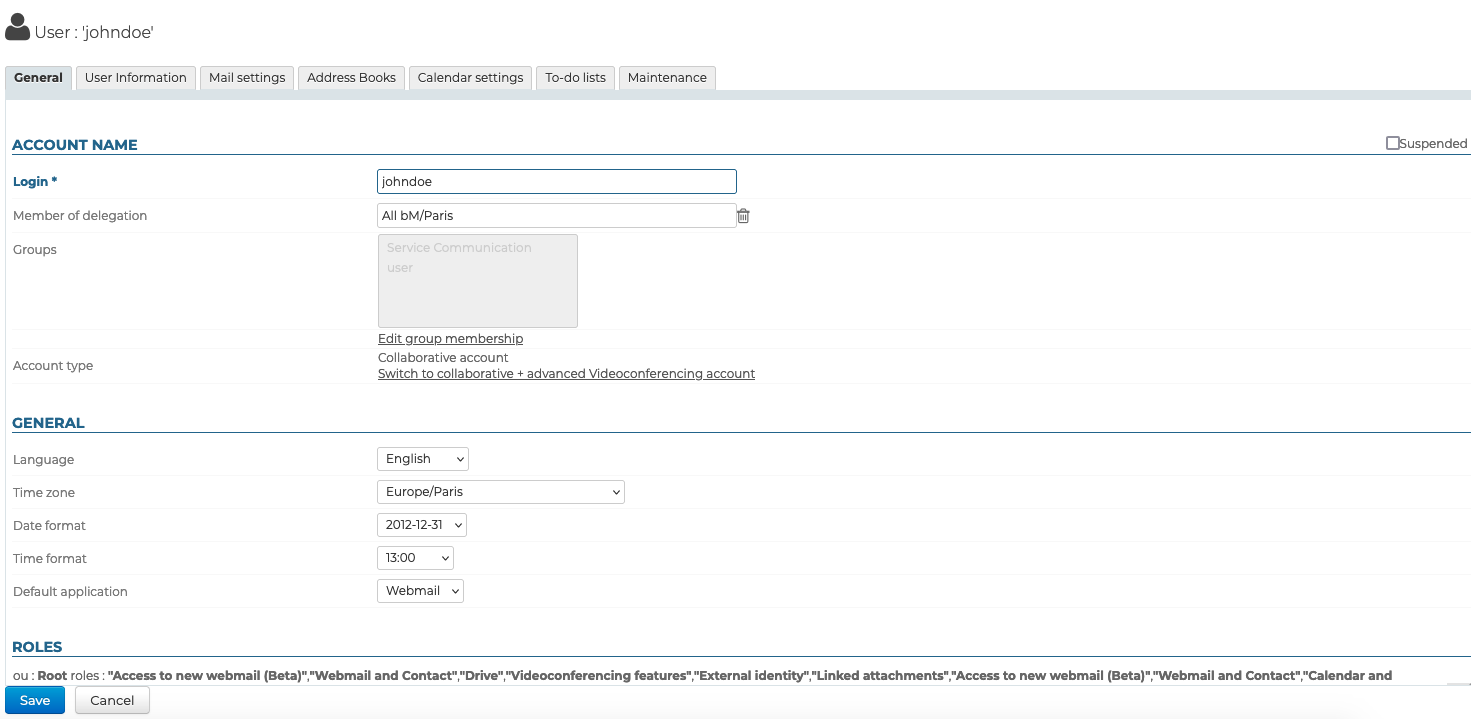
It also allows you to set the user as the member of a group or administrator of a root delegation.
Modification of login
The account username can be changed on this page. Once a modification has been saved, it takes effect immediately.
:::note Changing login and Outlook
If the user whose login is modified works with Outlook connected via MAPI, it is necessary for them to create a new profile with the new information.
The same applies to O365.
For more details, visit https://learn.microsoft.com/en-us/microsoft-365/admin/add-users/change-a-user-name-and-email-address?view=o365-worldwide
:::
Group membership
When you click the "Edit Group Membership" link, a pop-up appears that allows you to view and edit the groups to which the user belongs.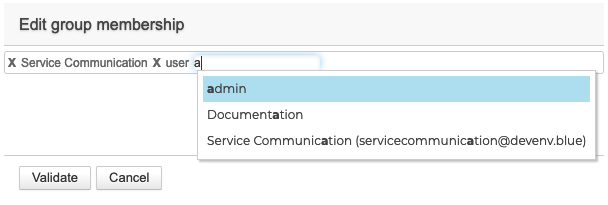
To delete a group, click on the corresponding cross; to add one, enter the first few letters and validate a choice proposed by autocomplete.
:::info Default group and roles
When users are created, they belong to the "user" group which, by default, on a classic blank install, has access rights to the "Calendar and Tasks" and "Mail and Contacts" applications.
:::
Roles: administration rights and access to features
You can manage the permissions granted to a user or a domain administrator.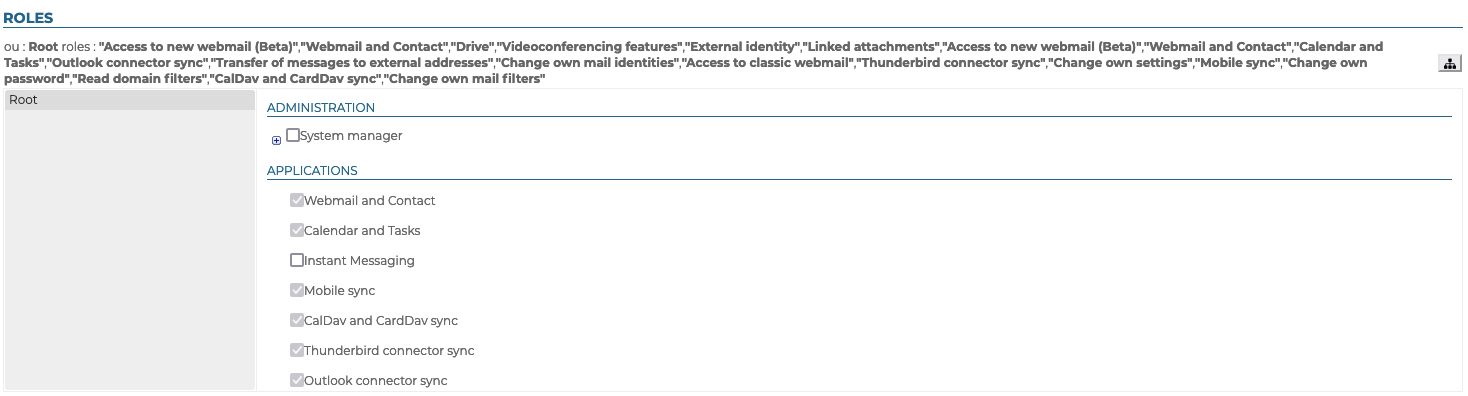
This allows you to customize access to applications, specific functionalities and administration rights for each user.
:::info Inherited rights
The rights granted can only be added to the rights inherited from a group: the rights assigned to a group the user belongs to cannot be unchecked in the user's page.
Applications can therefore appear as unchecked but be accessible to a user regardless: the user belongs to a group for which the application is enabled. In this case, it is advisable to check the user's group membership (see above).
:::
For more details on roles, see Roles: access and administration rights and Delegated administration.
User information
The "User Information" tab allows administrators to complete user contact details.
Administrators can enter information such as telephone numbers, postal addresses or assign pictures that will be used throughout the application Contacts.
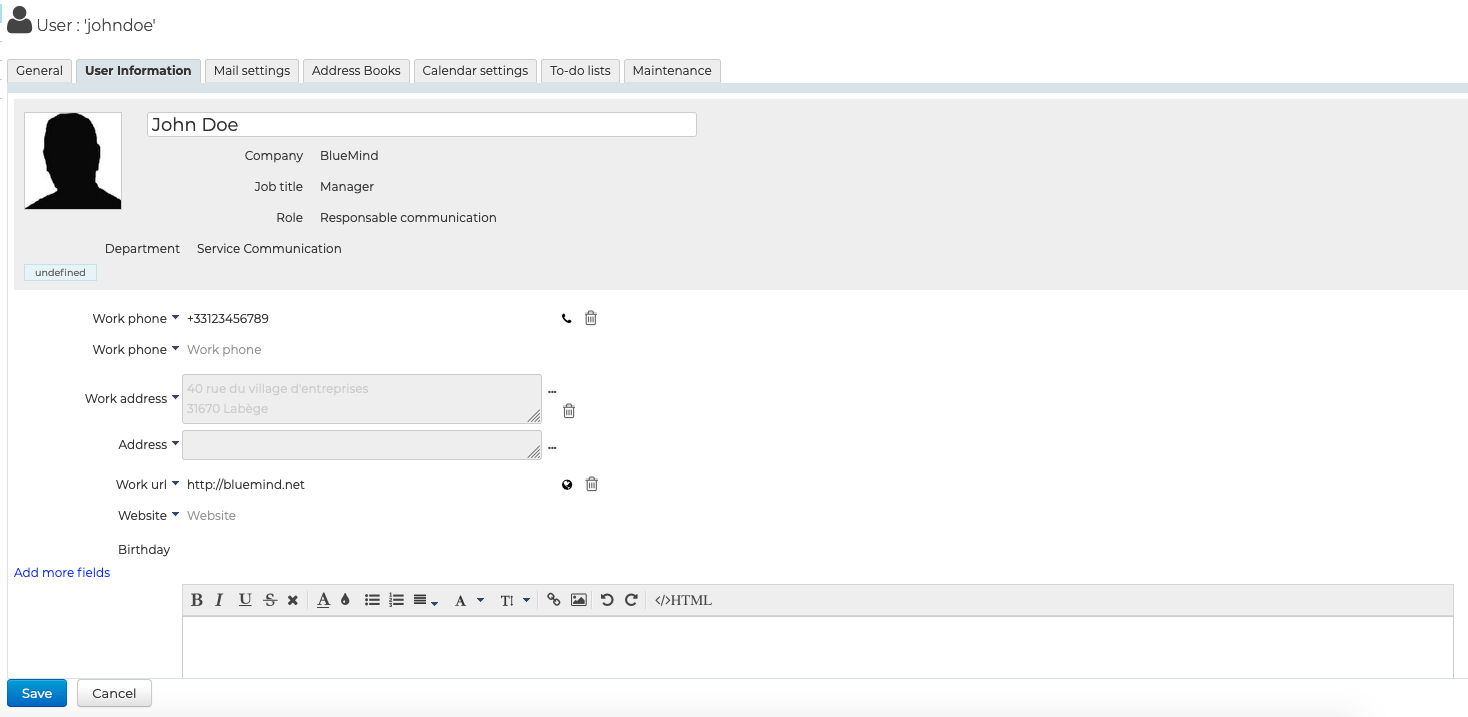
Contact data corresponds to BlueMind's internal directory and is accessible to all users of the solution. Only administrators are allowed to edit this information. Users themselves are unable to access this page or edit it.
The "Change own information" role now allows users to manage their own information details. At present, these modifications can only be made by script via the user's API key, but a management interface via parameters will soon be available.
Mail
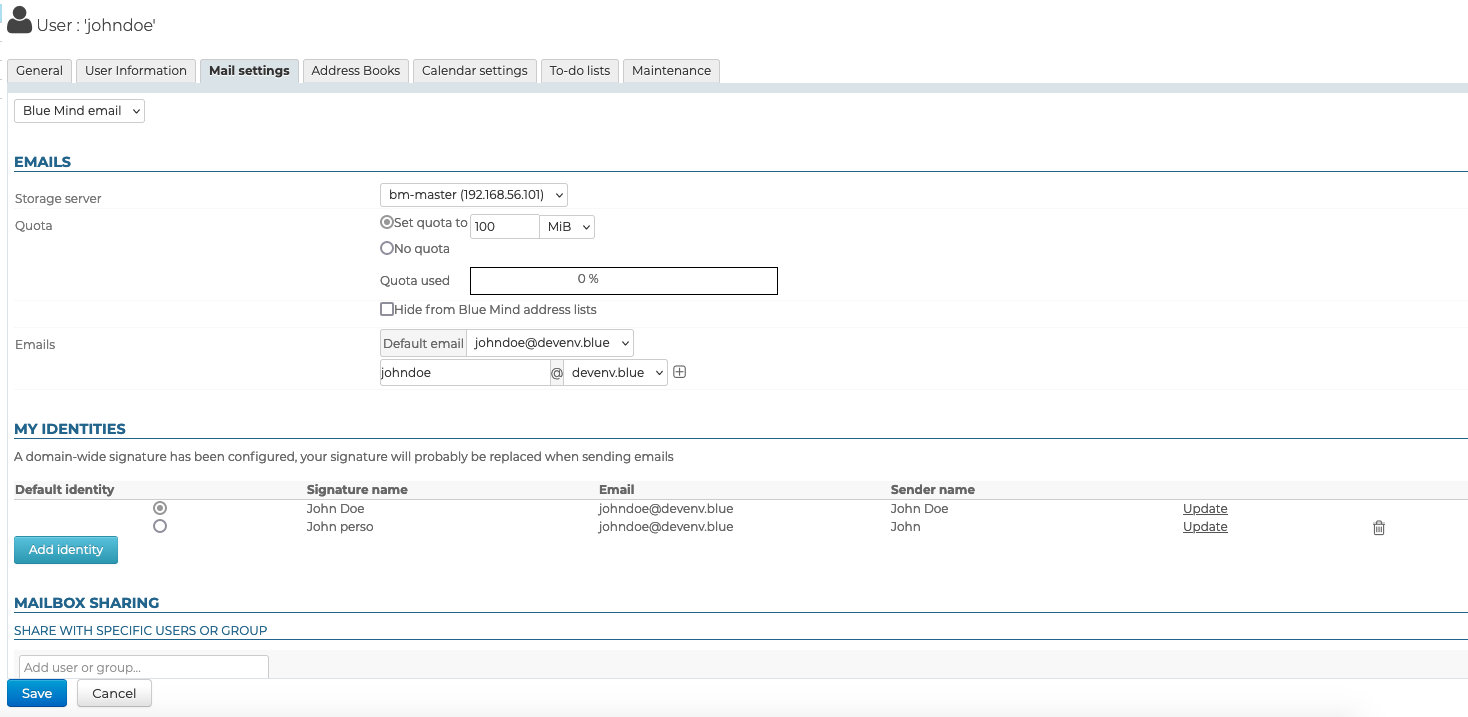
The "Mail" tab shows the user's mailbox settings (space, addresses, identities, sharing, etc.):
Email addresses
- Storage server: server on which this user is managed.
- Quota : maximum storage size for the user's mailbox and amount used.
The space used by the user is indicated by a progress bar visible at the bottom of the folder list (see Show storage capacity for details). - E-mail address and aliases: users can have as many e-mail aliases as they like, on any or all of the available domain aliases.
Change default e-mail address
The default mail address can be set to any of the mail aliases. This address can be modified as many times as required. Once a modification has been saved, it takes effect immediately.
:::note Default address modification and Outlook
If the user whose default address is changed works with Outlook connected via MAPI, it is necessary for them to create a new profile with the new information.
The same applies to O365.
For more details, visit https://learn.microsoft.com/en-us/microsoft-365/admin/add-users/change-a-user-name-and-email-address?view=o365-worldwide
:::
My identities
Identities allow users to write under the name of one of their aliases or shared mailboxes, or to define different signatures that they choose according to the emails they write.
For more information, consult the dedicated page in the user guide: Identities
Mailbox sharing
The sharing section allows you to set up public sharing (with directory members) or custom sharing (with only certain users or groups) of the user's mailbox.
By default, when a user is created, no sharing is activated.
You can define sharing rights for a mailbox:
- by administrators through the UI described here
- by the user, via managing its preferences
For more information on sharing and rights, consult the dedicated page in the user guide: Sharing mailboxes
Automatic message forwarding
It is possible to specify several addresses to which emails can be forwarded.

Autocomplete looks for addresses in all user address books (directory, personal address books, etc.).
It is possible to manually add external addresses, which will not be added to the address book collected during transfers.
Automatic reply
This section allows you to activate or deactivate the user's answering machine.
For more information on setting and sending rules, consult the dedicated page in the user guide: Out of office
My filters
Filters can be used to apply sorting rules and automatic actions to the user's new incoming emails.

For more information on setting up these filters, consult the dedicated page in the user guide: Message filters
Address Books
This tab lets you manage the user's subscriptions to the address books available to him (his personal address books or shared address books), as well as the sharing of his address books with other users or groups.
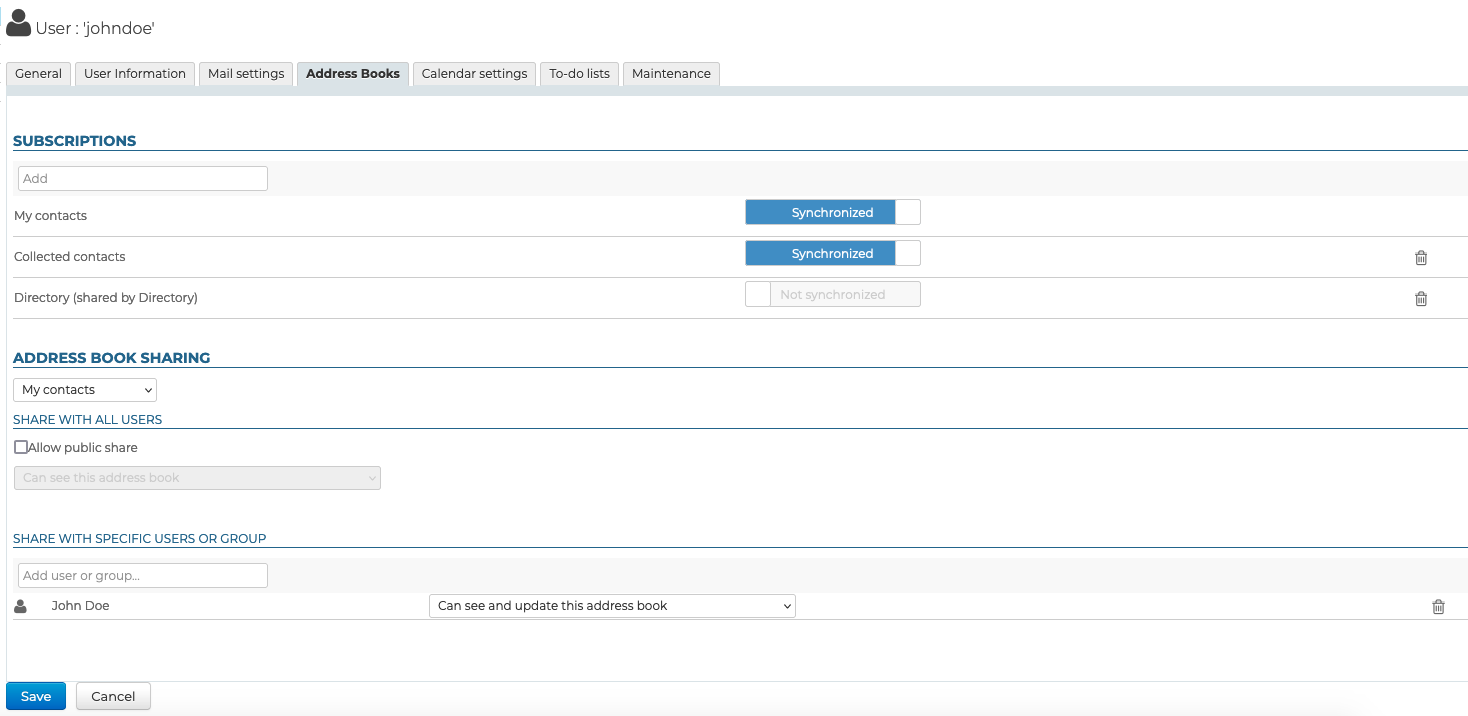
However, it is not possible for the administrator to create user address books.
To find out more, go to the user's guide page: Creating and Editing Personal Address Books and Sharing Address Books
Calendar
The Calendar tab lets you :
-
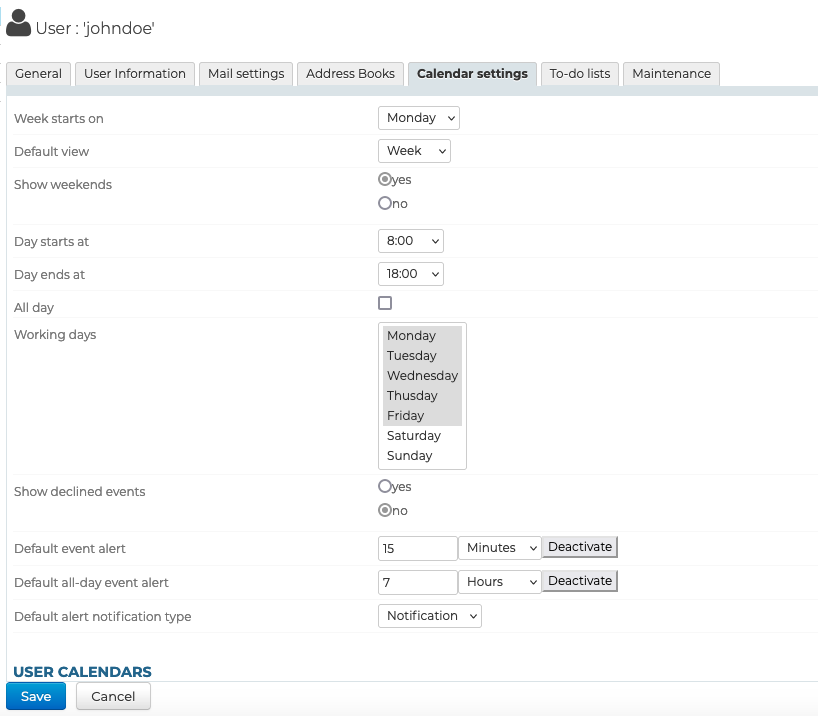
access all user calendar settings (times, working days, items displayed, etc.)
-
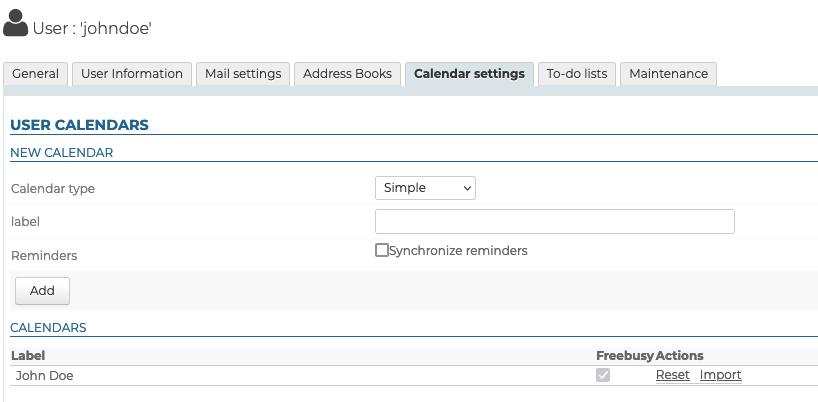
create additional calendars for the user
-
manage the sharing of user calendars
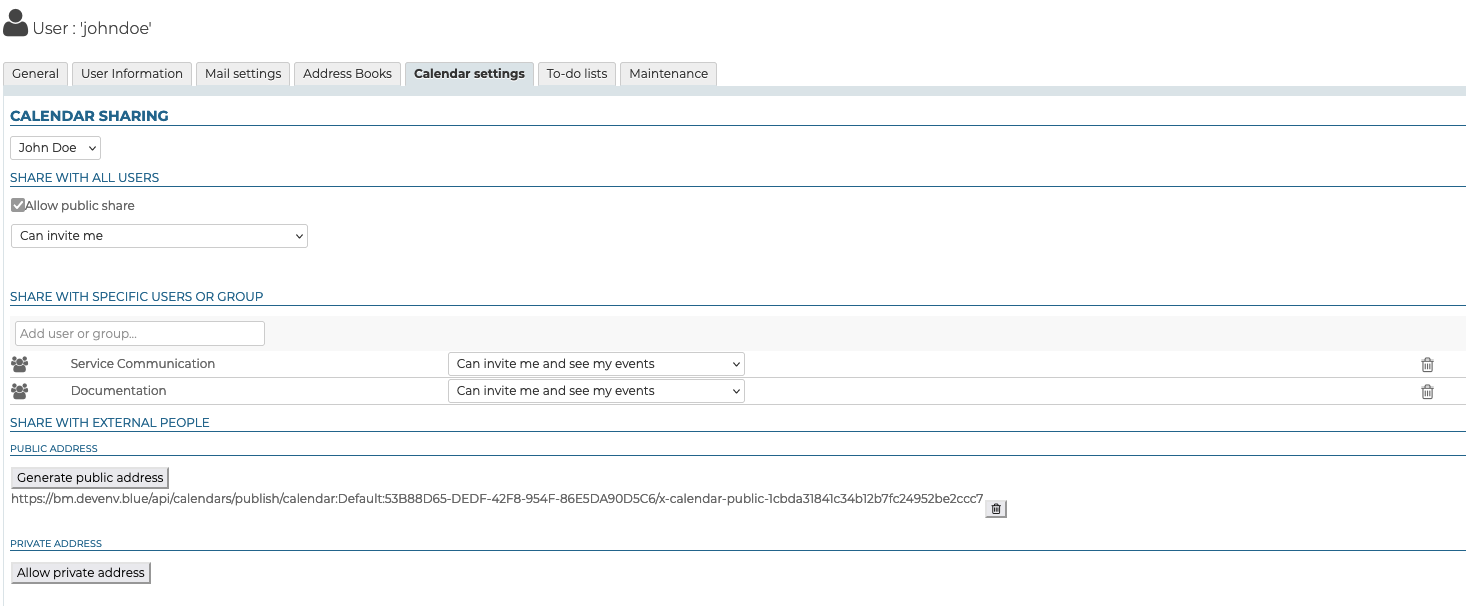
- internally: with all users or specific users and/or groups
- externally: by generating a public or private address
infoFor more details on sharing calendars, see the dedicated page in the user guide Sharing calendars
-
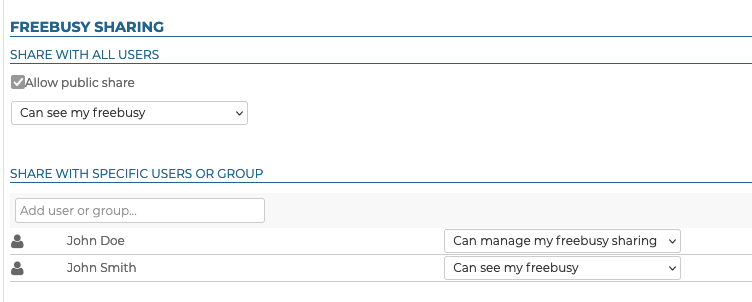
manage user availability sharing
-
manage subscriptions to shared calendars (for users or domains)

To-do lists
This tab lets you manage the user's shared to-do lists and subscriptions to shared lists:
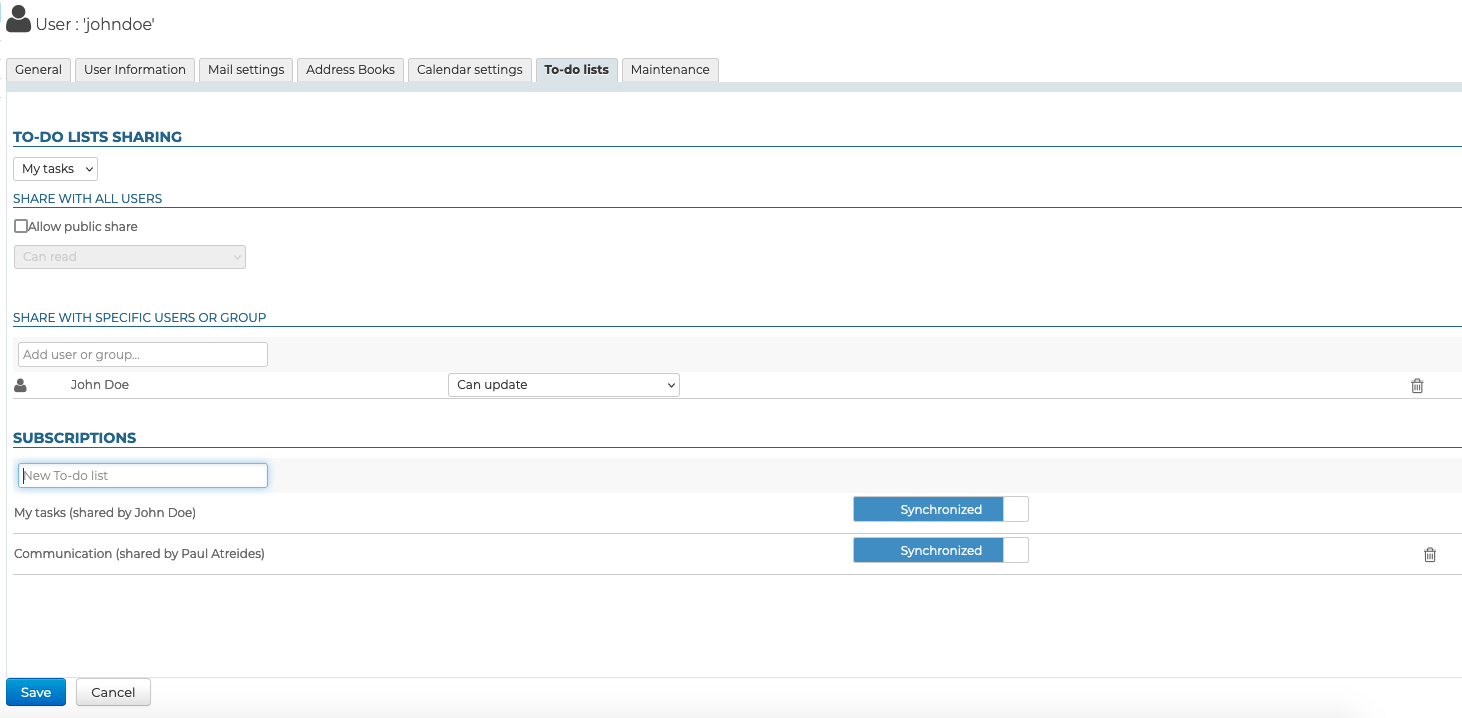
To find out more, go to the user's guide pages on: Sharing To-do Lists and Using Shared To-do Lists.
Maintenance
This tab gives you access to maintenance features and user preferences:
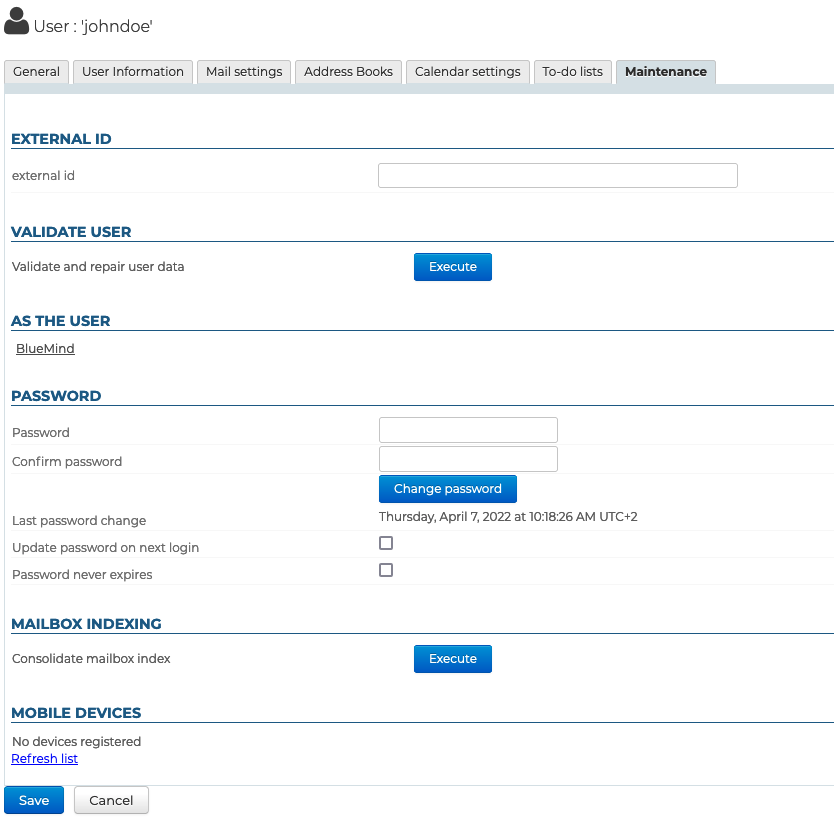
External ID
This box is filled in when the user is synchronized with an AD or LDAP account. It can be filled in or edited to force or correct the user's UID in the AD or LDAP directory.
Validate user
The "Execute" button runs a "Validate and repair" operation on the user's account. This includes a series of operations that verify and correct – if needed – the user's integrity and their data in the BlueMind system – verification of the mailbox in Cyrus, calendar and address books containers, IMAP folders hierarchy, subscriptions, mail filters, etc.
This operation is the same as the following bm-cli command:
bm-cli maintenance repair user@domain.net
As the user
The link in this section is accessible by the super administrator admin0 or another administrator with the "Sudo (elevation of privileges)" role. The link gives access to the user's BlueMind, i.e. logs on to BlueMind in the user's place, without the user having to give his or her password.
Password
In this section, the administrator can change/reset the user's BlueMind login password, without needing to know the user's old password. If the password has been changed, this section now shows the date and time when it was changed and who changed it (an administrator or a user).
You also have two options:
- Update password on next login: the user will be forced to change their password the next time they log in
- Password never expires: this option allows excluding the user from the domain password expiration policy if it has been set up.
To enable either of these options, check the corresponding box and click "Save" at the bottom of the page.
:::info AD or LDAP connection
The password expiry policy does not apply to users imported from an AD or LDAP directory.
:::
Mailbox indexing
This section gives you access to mailbox index consolidation operation for a user's mailbox: this operation completes the mailbox's current indexation by indexing missing items only.
To run the operation, simply click "Execute" next to "Consolidate mailbox index".
Mobile devices
This section lets you manage the user's mobile devices: synchronization authorizations, information on devices known to the system, synchronization reset, remote wiping.

-
Partnership: this box is used to suspend or enable a device's syncing without removing it altogether.
-
Identity: shows the serial number the device signed in under
-
Type: device brand/OS
-
Last Sync: date and time of the device's latest sync with the server
-
Reset sync: resets the device's sync information. The next synchronization will be performed in the same way as an initial synchronization: the device will perform a complete synchronization as if it had never been known to the server.
-
Actions in case of loss or theft of a device :
 Remote Wipe:
:::caution This operation cannot be undone If the phone attempts to resync with BlueMind, it will be wiped again.
:::
- on Android : deletes the EAS account and all its data (messages, contacts, calendar).
For a device to be completely wiped remotely (accounts, photos, SMS, files, etc.), the EAS account must be created using the "Microsoft Exchange ActiveSync" account type. - on iOS : deletes all data on the phone, whether related to the BlueMind account or private (accounts, photos, SMS, files, etc.).
 Cancel device deletion: allows a deleted device to be synchronized again with BlueMind
-
 Trash icon: removes a device from synced devices. When unknown smartphones are not authorized by default, deleting a smartphone from the list will block its synchronization with BlueMind.
For more information, refer to the Administrator Guide > EAS Server Configuration
Deleting users
Suspend
Users can be suspended. This allows you to block access to a user without deleting the data associated with them. As a result, users can be reactivated later and their account returns to its previous state.
To suspend a user:
- go to the user's management page: Directories >Directory entries > select the user.
- in the first tab ("General") check the "Suspended" box on the right-hand side of the page and click "Save" to apply changes
Delete
To delete one or several users completely and permanently, go to the page Directories > Directory Browser.
In the list of users, check the box at the beginning of the row for the user(s) you want to delete and click "Delete". You are then prompted to confirm deletion. Once you confirm, the user(s) and all their data will be deleted permanently.
:::info User restoration
A user can be restored in BlueMind by going back to a previous backup. See the function of restoring data, which enables you to restore all or parts of user's data. Changes made to data since the last backup cannot be recovered.
:::
See also User Departure and Email Redirection
Password security
To make user passwords more secure, you can install the "Password SizeStrength" plugin which lets you set strict password rules.
Installation
The plugin is simply installed by installing 2 packages on the command line, logged in as root on the:
aptitude install bm-plugin-core-password-sizestrength bm-plugin-admin-console-password-sizestrength
To complete installation, you must restart BlueMind:
bmctl restart
Configuration
Password policies are configured in the admin console > System Configuration > Password policy tab.
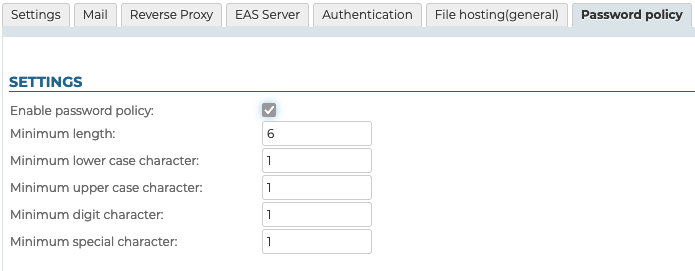
For earlier BlueMind versions, please refer to BlueMind 4 Documentation.
The changes are effective immediately – no restart required.
Changes are not retroactive and only apply to future password changes – users whose current password does not meet newly set rules will not be asked to change it and it will continue to work.
These rules do not apply to administrators (global administrator admin0 or domain administrators) whose choice of password continues to be free.
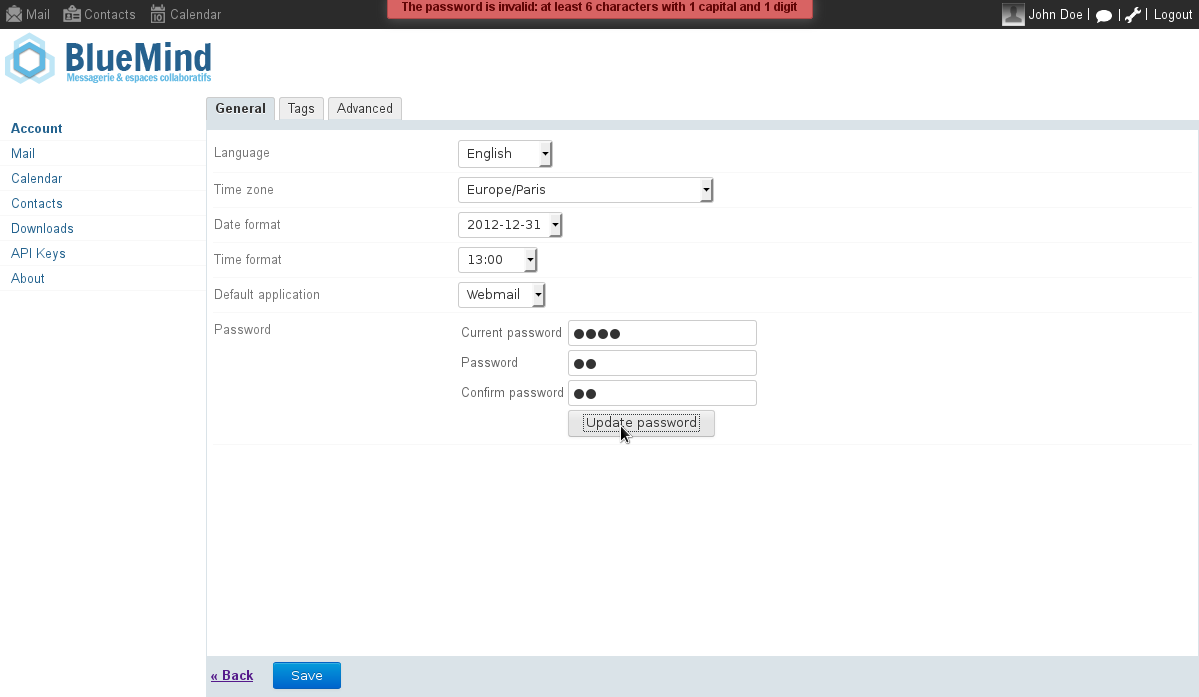
If a user fails to comply with these rules when they attempt to modify their password, an alert will be displayed at the top of their page: