Organizational Units and Delegated Administration
Introduction
When BlueMind handles a large population or has users over multiple sites, you might want to appoint administrators with delegated rights over a sub-segment of this population.
To facilitate this, BlueMind integrates a delegated administration functionality. It allows you to grant limited administration rights to administrators (who become delegated administrators). Delegated administration rights can be given to specific users selected according to certain criteria (job type, industry, geographical area, etc.).
This can be useful, for instance, for members of a regional branch: the main domain administrator appoints a delegated administrator for each branch's users. This delegated administrator will be able to manage users' access to applications and features (such as linked attachments), adjust mail quotas, fill in directory information cards, perform maintenance operations, etc.
Organizational units
You can create organizational structures to enable different levels of delegated administration.
For instance, you can set up delegations:
By geographic area:
- Root
- Americas
- America/North
- Americas/North/Canada
- Americas/North/Alaska
- Americas/Pacific
- Americas/Pacific/Hawaï
- America/North
- Europe
- Europe/France
- Europe/Italy
- Europe/UK
- Europe/UK/England
- Europe/UK/Scotland
- Americas
Depending on company hierarchy :
- Root
- IT
- IT/Technical
- IT/Support
- Administration
- Administration/Managers
- Administration/Assistants
- Administration/Commerce
- Administration/Commerce/Sales
- Administration/Commerce/Marketing
- Production
- Production/Management
- Production/Technical
- IT
In these two examples, administrators and target populations can be set for each delegation level.
Root
The "Root" unit is the parent of all other units : it is the BlueMind domain, it cannot be deleted and enables you to grant permissions for the whole domain. All users belong to this organizational unit by default.
The Root unit holds additional rights relative to other delegations for data that cannot be divided and applies to the whole domain: system configuration, server management, applications to assign to users, etc.
Another consequence is that units in child organizations are tied to the domain, so roles can only be assigned within the user's domain.
:::info Access to administration console
The Root requires the "Admin Console" right which must be enabled for a user you want to grant rights over an organizational unit to. This isn't enabled automatically.
:::
Managing organizational units
Interface
The organizational units interface shows existing units as well as related resources and roles:
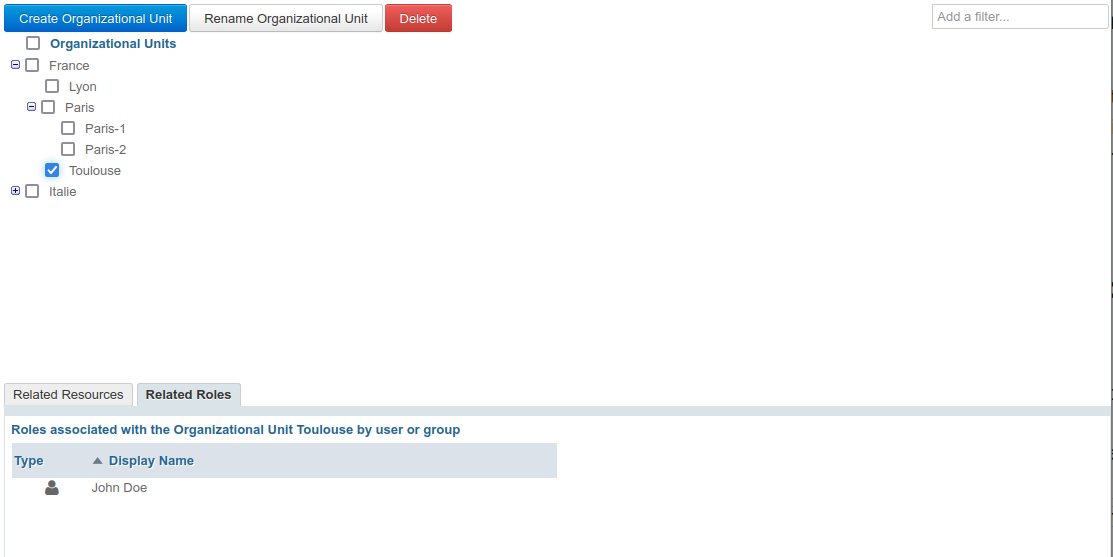
Note: "Organizational Units" is the root unit. It cannot be deleted (see above)
- Related resources: this tab shows the resources the selected unit has been assigned to (see below)

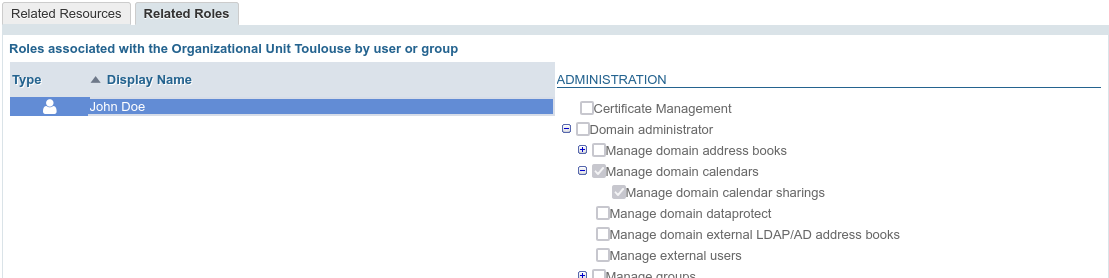
- Related roles: this tab shows the users or group the selected unit has been assigned to (see below). Click a user or a group to see the roles assigned to the unit:
Creating
- Click "Create Organizational Unit" to open the popup window:
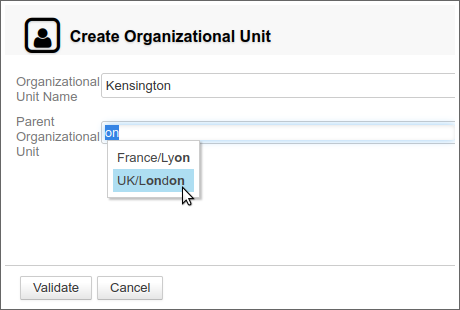
- Enter a name and, if appropriate, a parent unit to create a new branch.
- Click "Validate" to create the Organizational Unit
Renaming
- Select the unit in the list
- Click "Rename Organizational Unit" at the top of the list
- Edit the OU's name in the dialog box:
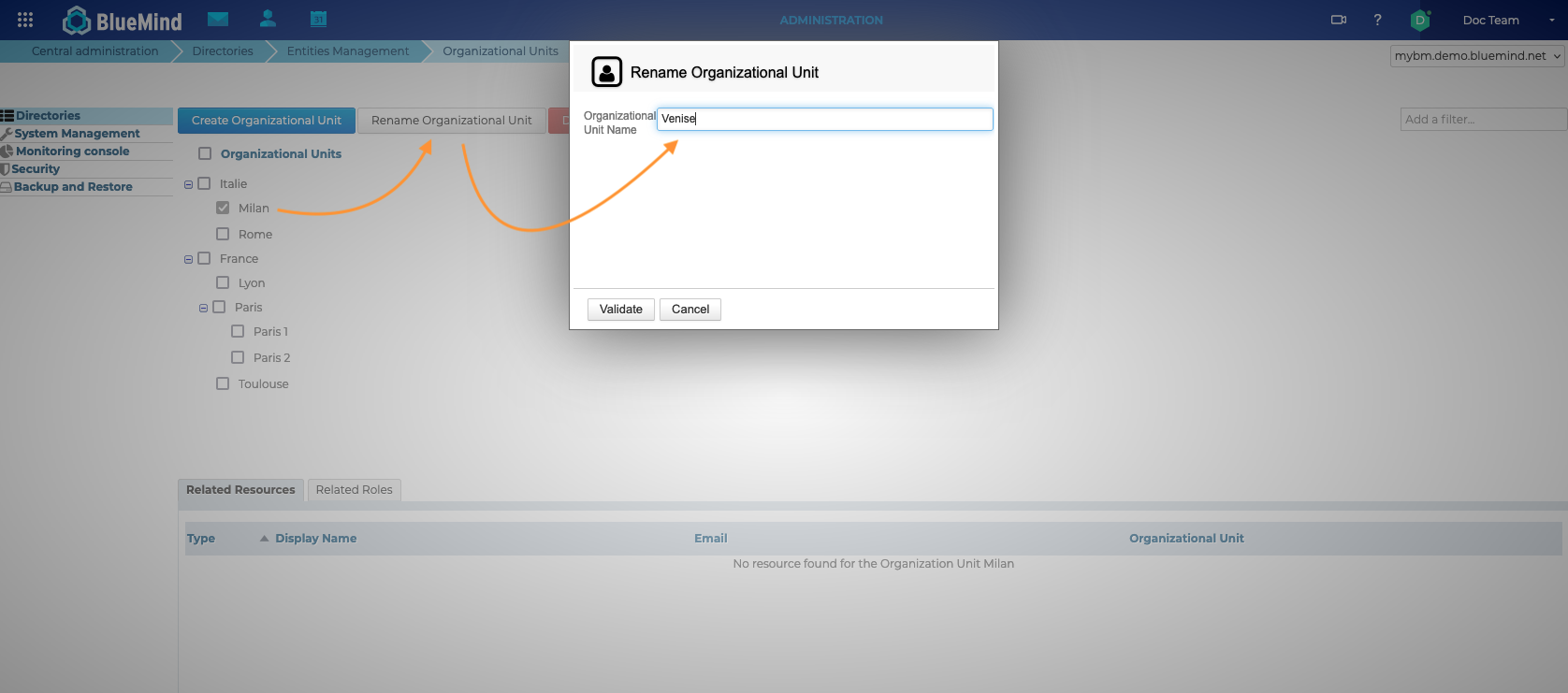
- Click "Validate" to confirm the changes and close the dialog box
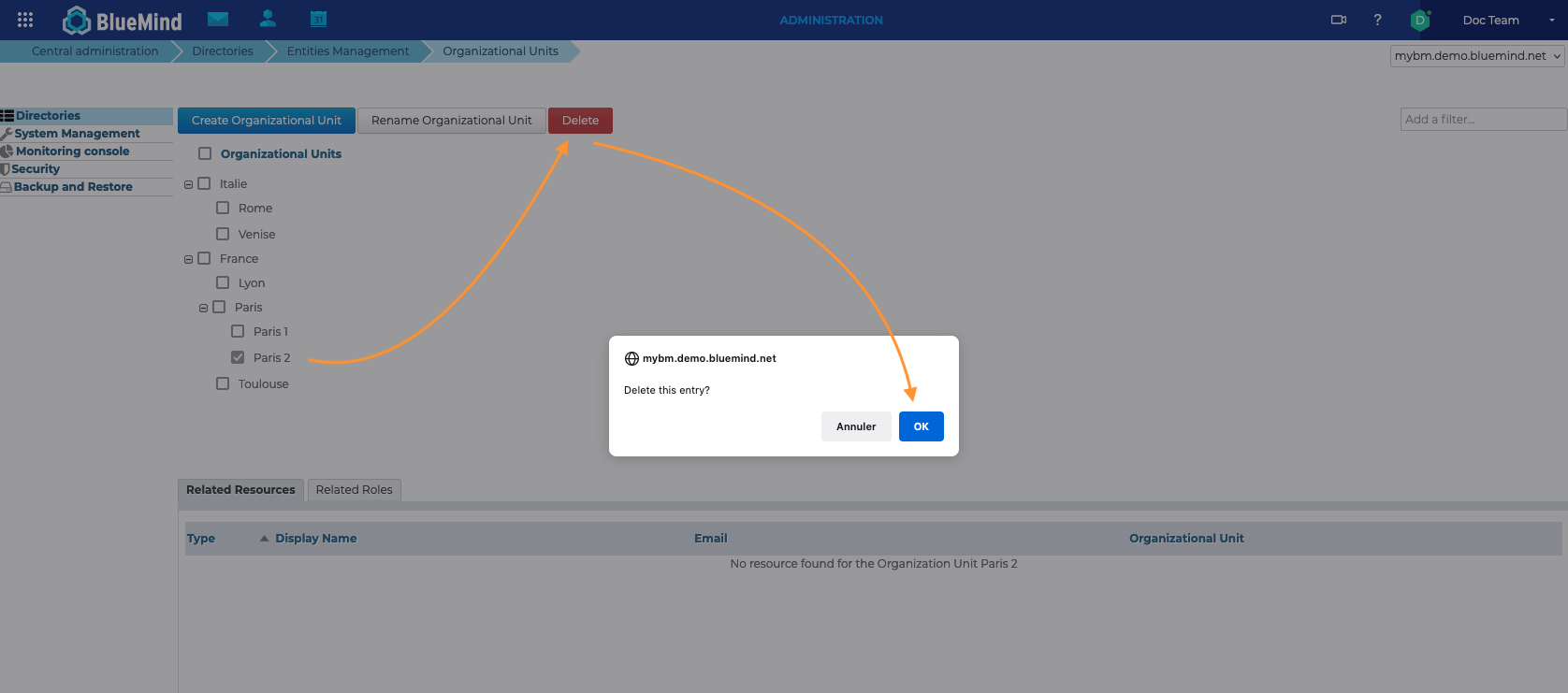
Delete
- select the desired unit(s) by ticking the corresponding box in the tree structure
- click "Delete" at the top of the list
- Validate to confirm the deletion
Assigning a delegation to a member
In the interface, organizational units are also called "delegations".
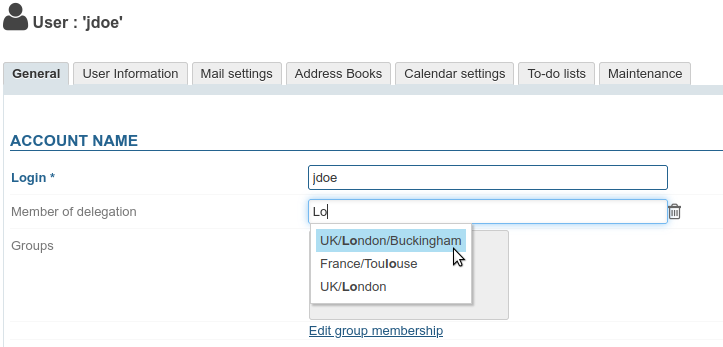
By default, a user is always a member of the Root organizational unit. For a user to be a member of a child organizational unit, go to the user's administration page:
- in the General tab, complete the "Member of delegation" box using autocomplete which lists existing units:
- Save to confirm the changes
A user can be a member of one delegation only.
Delegating administration rights
Delegating roles
Administrators can only delegate the rights they have themselves, with the exception of access to applications or certain functions: for example, even if they don't have e-mail themselves, administrators can activate "Mail and Contacts" for the users they manage; similarly, they can authorize them to create external identities or forward messages if they don't have them themselves.
Delegation membership
An administrator does not need to be a member of an organizational unit to administer it. On the other hand, he can only receive rights to organizational units within his domain.
To a user
To assign administrative rights to a user, go to the General tab of the user's administration. Management is then carried out in the "Roles" section of the tab:
The interface is distributed as follows: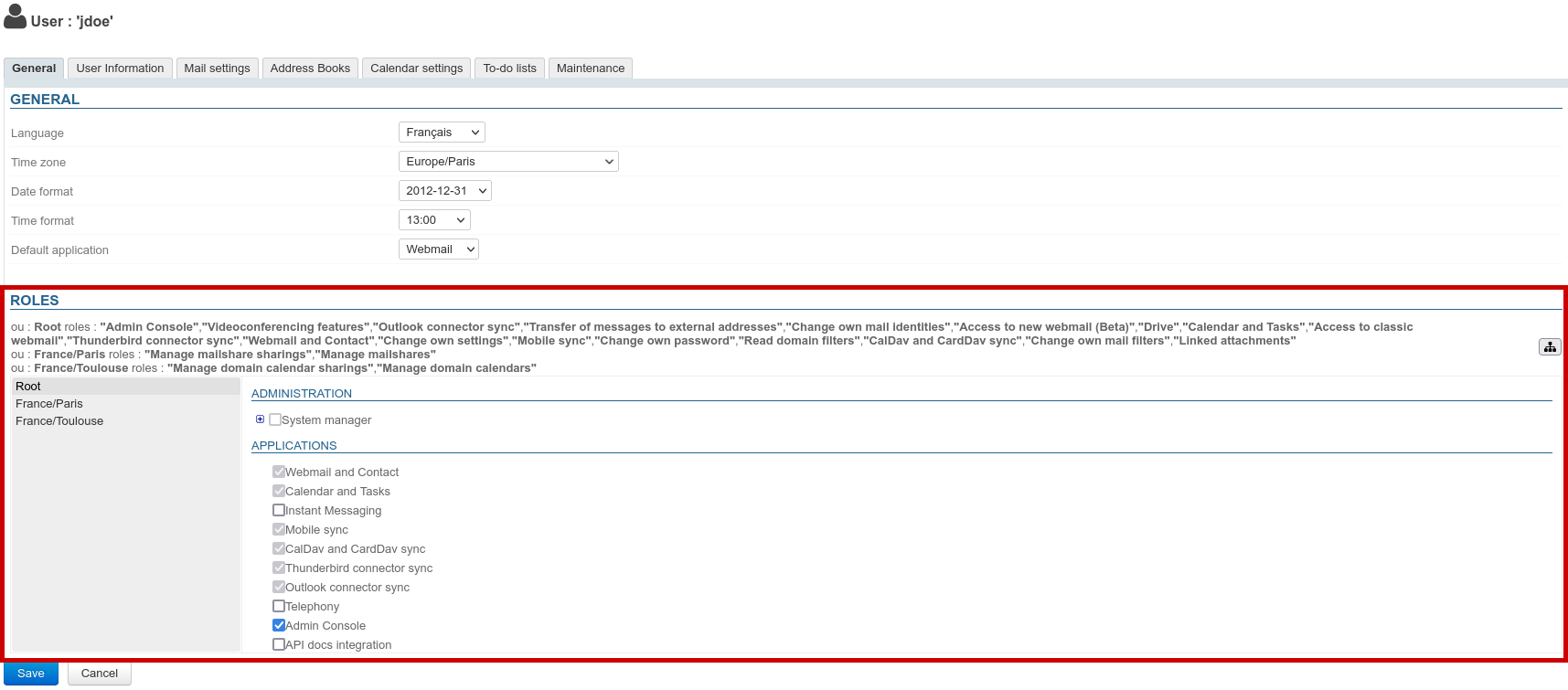
- Top: the rights assigned to the user for each organizational unit – as text
- Left-hand side (gray background): the list of organizational units concerned.
- Right-hand side: the rights for the unit currently selected in the list. The rights inherited from a parent organizational unit or a group are grayed out, they can be deleted for this organizational unit only.
What are roles, and what does each of them do?
For more information on the details of the available roles, please visit the dedicated page: Roles: Access and Administration Rights
To add administration rights for an organizational unit that isn't included in the list:
- Click
 in the right-hand corner of the Roles section and search for the Organizational Unit using autocomplete: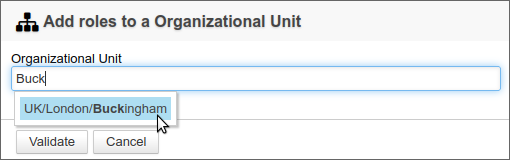
- Select the unit and validate
- The Organizational Unit is added to the list of delegations:
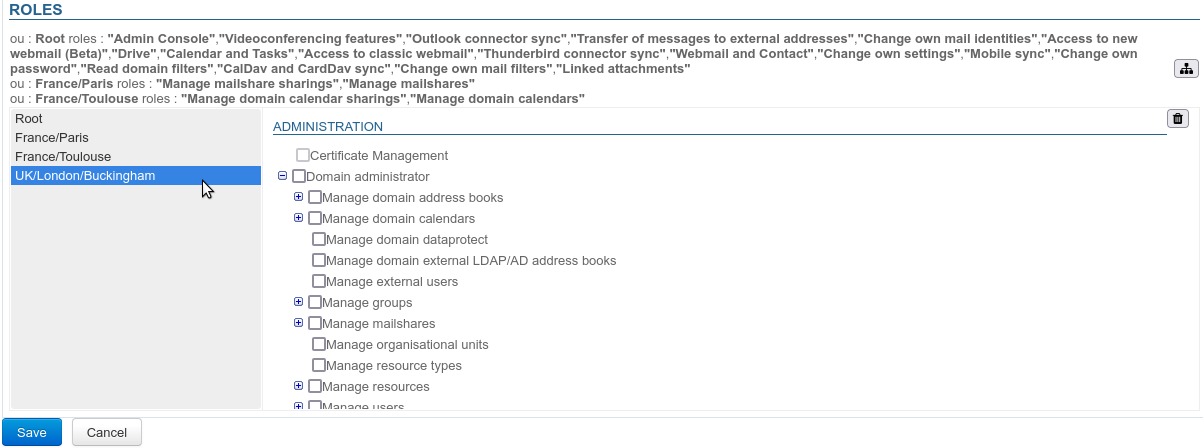
- Check the rights as appropriate (they are gradually added to the list):
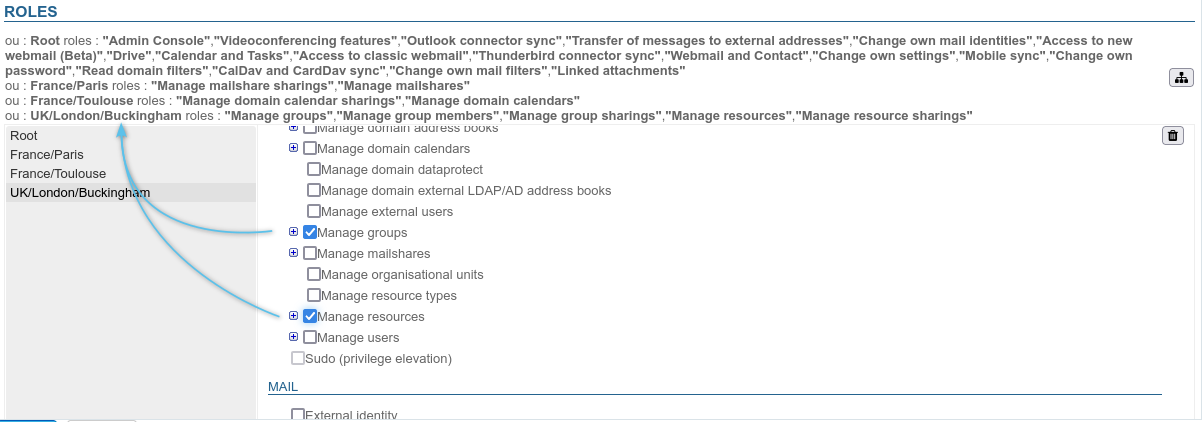
- If the role requires access to the admin console:
- click Root
- in the right part, check the role "Administration Console" For more information, see the tip box at the top of the page.
- Save to confirm the changes
To a group
To assign rights to a group of users, go to the group's page > Roles tab:
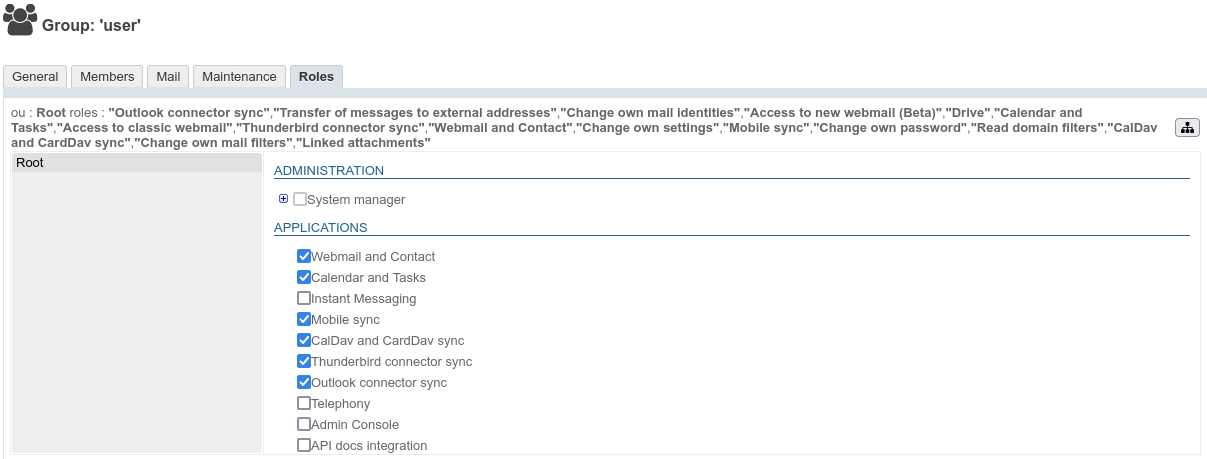
Roles are then managed in the same way as users—see the previous chapter.
Once roles have been defined for the given delegation(s), all users belonging to the group will benefit from them.
In individual users' pages, the roles they are assigned via a group are checked and grayed out – they cannot be unchecked individually. Users who belong to a group automatically enjoy all the rights assigned to that group.
Find out more
For more information on the details of the available roles, please visit the dedicated page: Roles: Access and Administration Rights