Resources
BlueMind allows you to manage calendars for resources (vehicles, rooms, video-projectors, etc.) the same way you would manage user or group calendars.
The administrator can define new resource types and delegate resource management to users.
The free/busy feature allows you to search resource availability like in user calendars.
Creating a resource
To create a new resource:
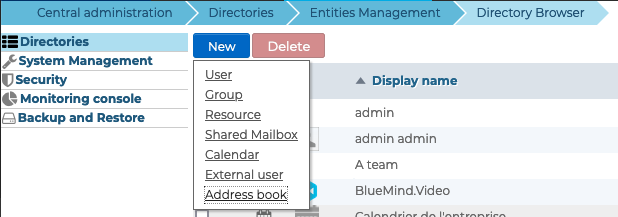
- From the home page of the directory management, click on "Create a resource" or from the directory entries list use the New > Resource button:
- Fill in the information for the new resource in the popup that opens:
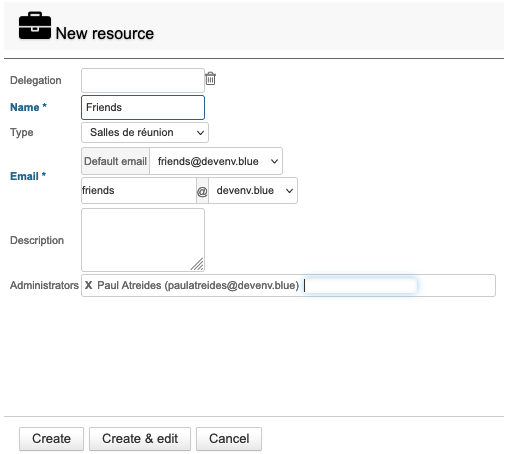
Only the name and address are mandatory.
The address is completed automatically when a name is typed. Before you confirm, make sure it doesn't contain any special characters (uppercase, accents...)
- Select Resource Type
- Designate resource administrator(s)
- Next click "Create" to quickly create a resource or "Create & edit" to create a resource and access further customization options.
Editing a resource
To edit a resource, click on the corresponding line in the list of entries in directory.
General
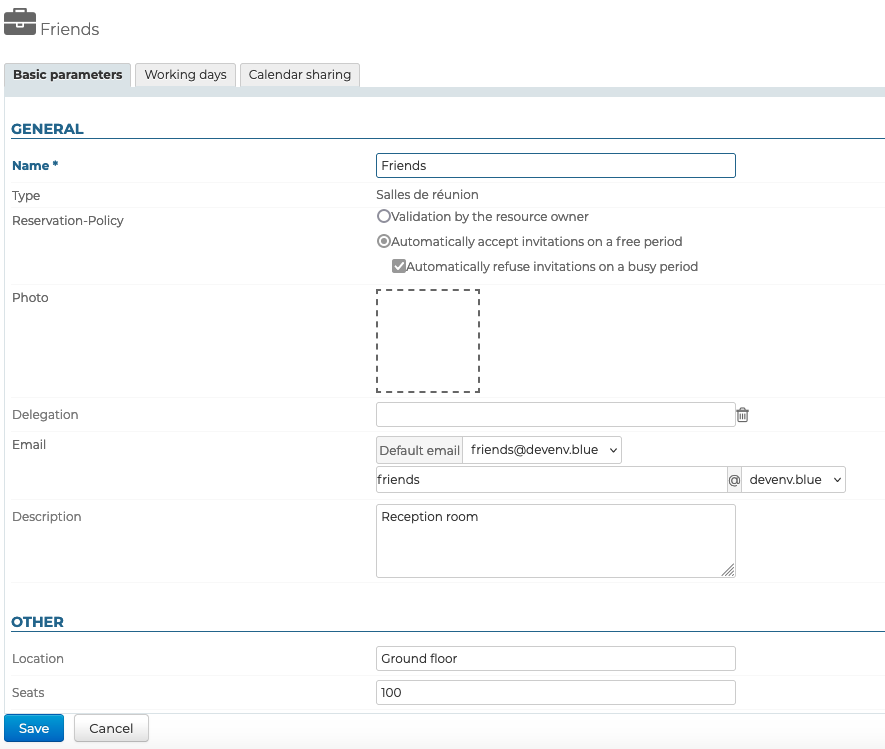
The edit page lets you modify general information about the resource (name, photo, delegation, e-mail address, description):
Booking policy
The field Reservation policy, allows administrators to authorize or prevent multiple reservations (overbooking) for a resource. Two types of operation are therefore possible:
- Validation by the resource owner: the resource's participation status remains "pending" until the manager accepts or rejects the invitation.
Note: This is how BlueMind used to work, and it still applies for old resources and resources migrated from BlueMind 3.0 during the version update. - Automatically accept: the resource manager receives booking requests and participation is confirmed automatically if the resource is available for the requested timeslot (within working hours and no other booking confirmed) This is how bookings now work for newly-created resources.
- Automatically reject: the resource manager receives booking requests and participation is rejected automatically if the resource is not available for the requested time slot. This option cannot be dissociated from automatically accepting. This allows managers to accept bookings automatically when the resource is available while choosing what to do when it is not (to organize a meeting out of working hours, to prioritize a more important request that comes in later, etc.)
Automatic booking can only be applied to one-off events. Recurring events are always subject to a manager's confirmation.
Note that only administrators have access to these settings, resource managers continue to be users who have been given the right to edit a resource calendar (accept/reject/edit events).
Other
The last section allows you to edit fields specific to the resource type, for example, the number of seats for a meeting room or an access code for a teleconference.
Available hours
The "Working days" tab allows you to set resource availability days and times, as well as the minimum duration they can be booked for (1hr, 2hrs, half-day, day) and time zone:
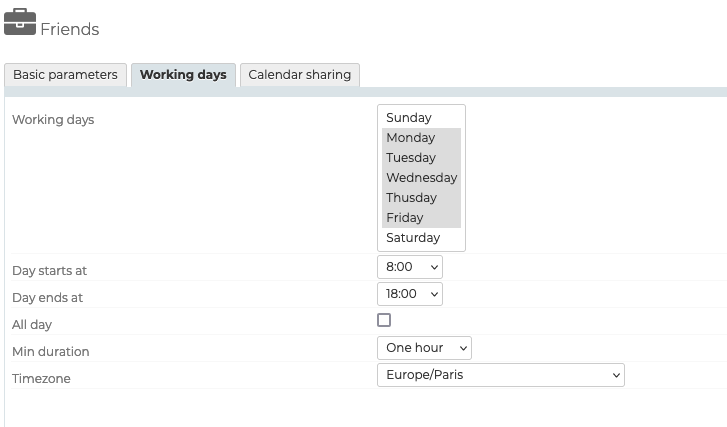
These settings are for information purposes only and will not stop users making reservations outside available hours or for a shorter period.
Sharing a resource
To change public share rights level and/or grant additional rights (to the resource administrator or specific users, for example), click the "Calendar sharing" tab:
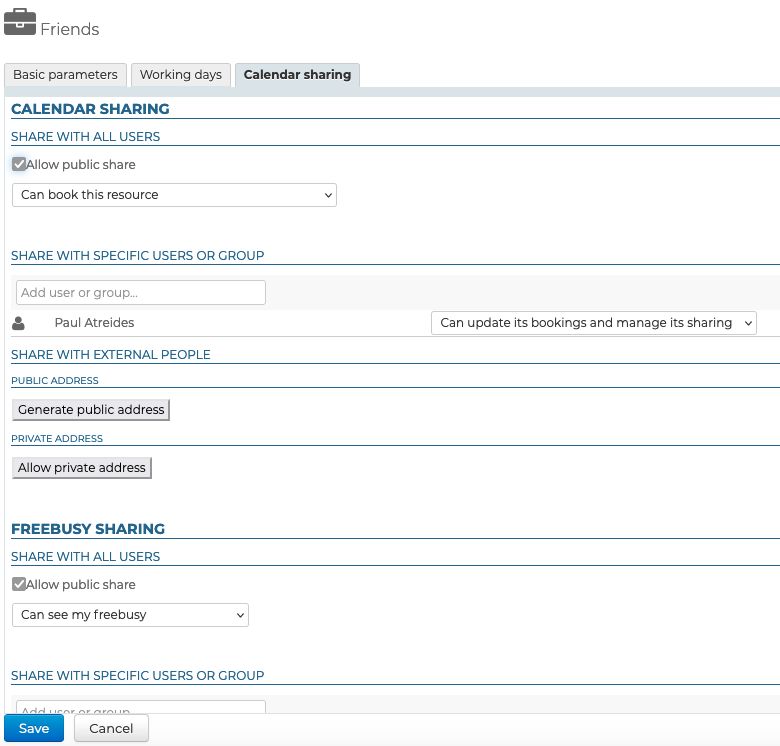
Possible rights are :
- Can book the resource: users can make resource booking requests
- Can book this resource and see its bookings: in addition to the right above, users can see the resource calendar and its availability
- Can update its bookings: users become resource managers, they receive booking request messages, they can accept, reject or edit the event the resource is invited to. They can also write into the resource calendar to create events.
- Can edit its bookings and manage sharing: in addition to the right above, users can access the resource's sharing options and edit the corresponding rights
As with users, this tab also allows you to share your calendar with external users and manage availability sharing. For more information, see the chapter Calendar on the "Edit users" page.
Using a resource
To associate a resource with an event, simply invite it to the event by adding it to the list of participants, like other users. For further details, see the chapter Add users and resources on the "Organize a meeting" page.
Once the event is created, the resource's managers can accept or reject the invitation request through their calendar or the invitation message itself. For further details, see the dedicated page in the user guide: Managing resource booking.