Configuring and Accessing bm-tick
The bm-tick monitoring suite is installed automatically and by default in BlueMind 4, but it still requires a configuration process and the setup of access rights.
Configuration
- Log into the admin console as admin0 (or delegated administrator with the required permissions) and go to System Management > Application servers > select the servers > Server roles tab
- Enable the role "Metrics database":
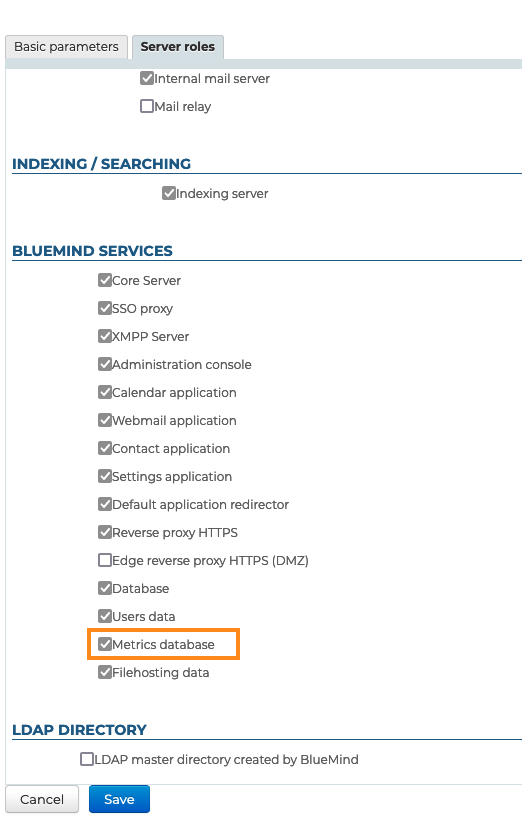
- Save
- Add last packages and restart BlueMind:
aptitude install bm-plugin-admin-console-monitoring bm-plugin-node-monitoring
bmctl restart
- Run a first generation of the alerts' and dashboards' default configuration. To do this, still connected to the server as root, run the following command:
bm-cli tick reconfigure
- Reload the Nginx service:
systemctl reload bm-nginx
Note: this command has no impact on users, you can run it without risking a service break.
Accessing the Tasks application
You can access the application by going to the URL https://<votre bluemind>.tld/tick
The username and password you are asked to enter are those provided to you by the installation wizard when you installed BlueMind, and can be configured in the BlueMind administration.
If you've lost your log in credentials, please refer to our FAQ on this issue: I have lost my password for the setup wizard
Accessing the application is more straightforward but requires a role to be assigned:
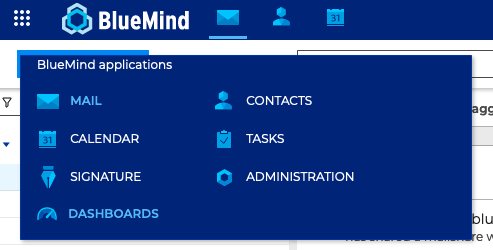
- Assign the "Monitoring Console" role to the people you want (through each individual user's page or through a group)
- These users then have a "Dashboards" link in their ribbon menu giving them access to the console (this may require them to log in again):
Find out more
Check out the other related pages: