Configuring Apple apps
:::info The following guide was produced under a Big Sur OS.
:::
Add an account
To add an account, go to System Preferences :
- Open System Preferences and click on "Internet Accounts".
- Click on "+" then "Add another account"
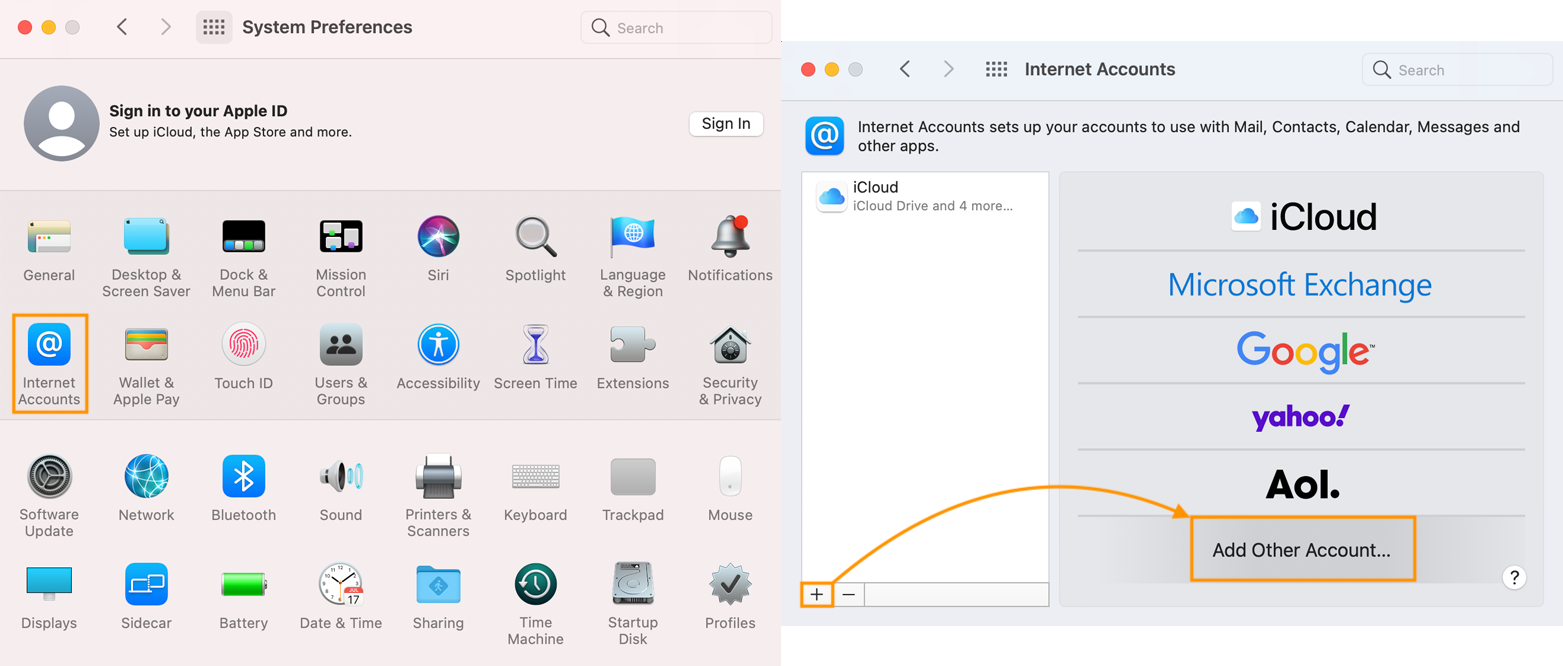
You need to create an account for each application. You need to create an account for each application. To use all BlueMind applications, you need to create 3 accounts: Mail, Calendar and Contacts
Setting up a Mail account
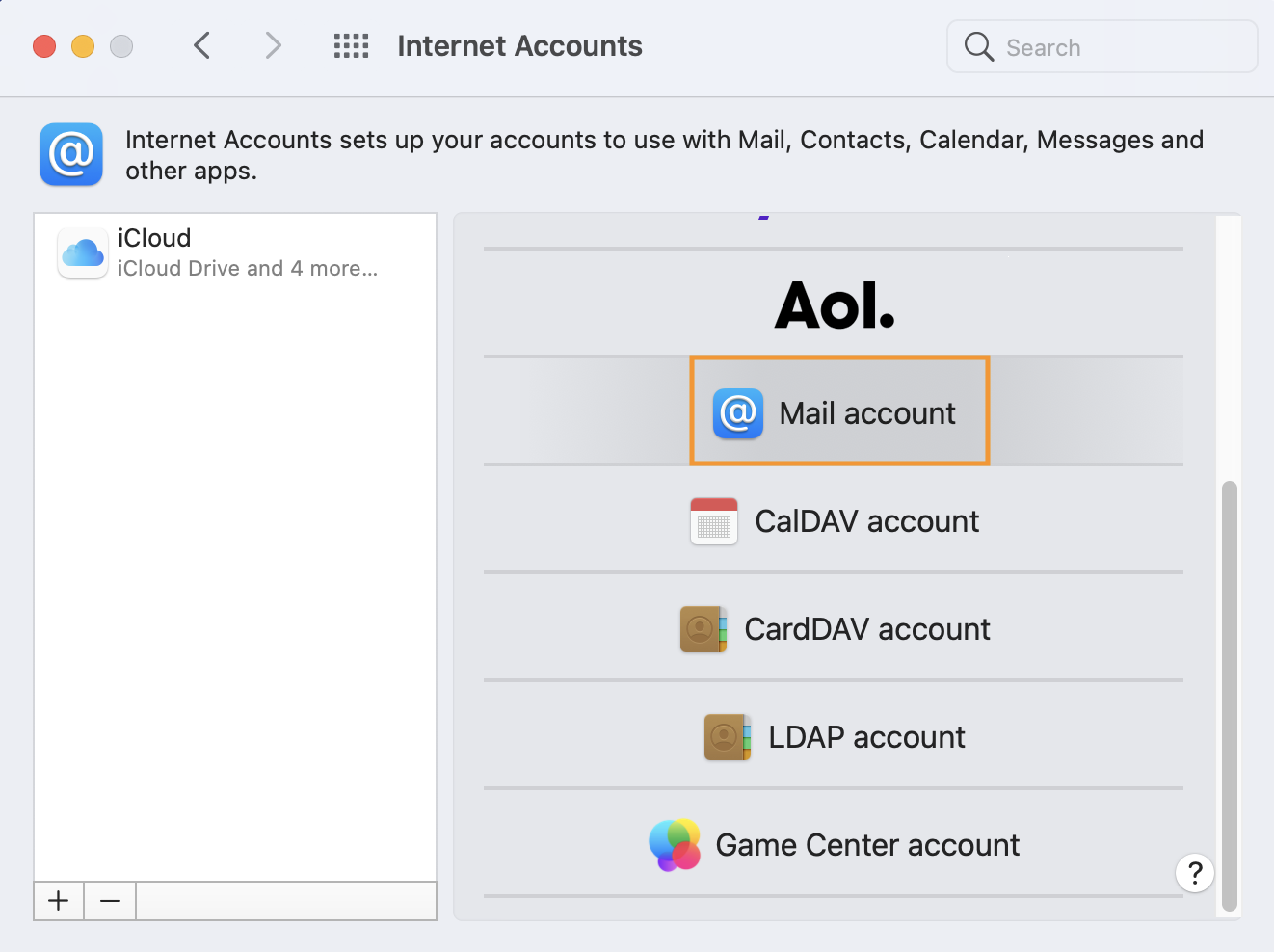
- Follow the procedure to add an account
- Choose "Mail account
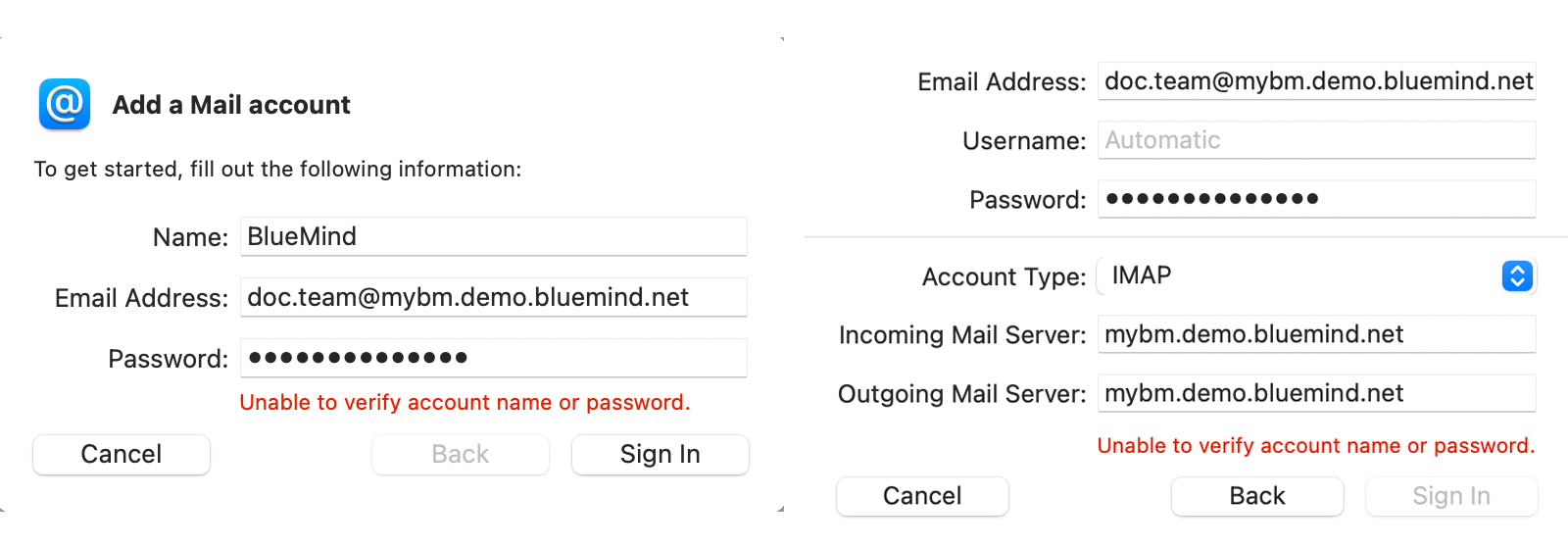
- Enter the requested information, then click "Sign in"
- Check and correct, if necessary, the account login information, then click again on "Sign in"
- E-mail address: e-mail provided by administrator
- Username: full username with domain
- Password: password supplied by the administrator to log in to BlueMind
- Account type: select IMAP
- Receiving server and sending server: server address specified by the administrator, usually in the form of server-name.domain.com
- Select the Mail application
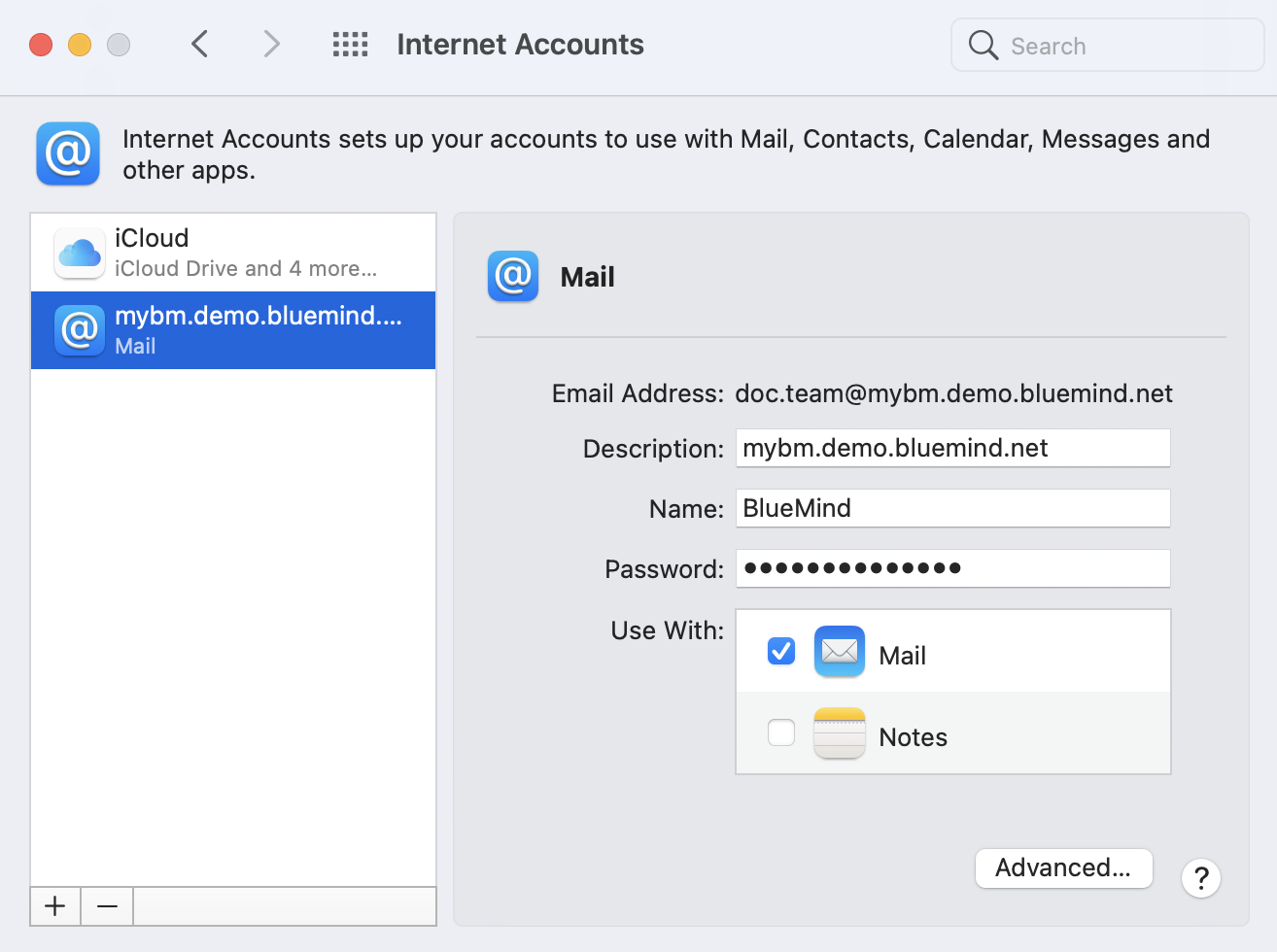
note
The Notes application is not offered by BlueMind, so there's no need to select it
Once the account has been added, open the Mail application
Setting up your Contacts account
- Follow the procedure to add an account
- Choose "Mail account
- Choose "CardDAV Account"
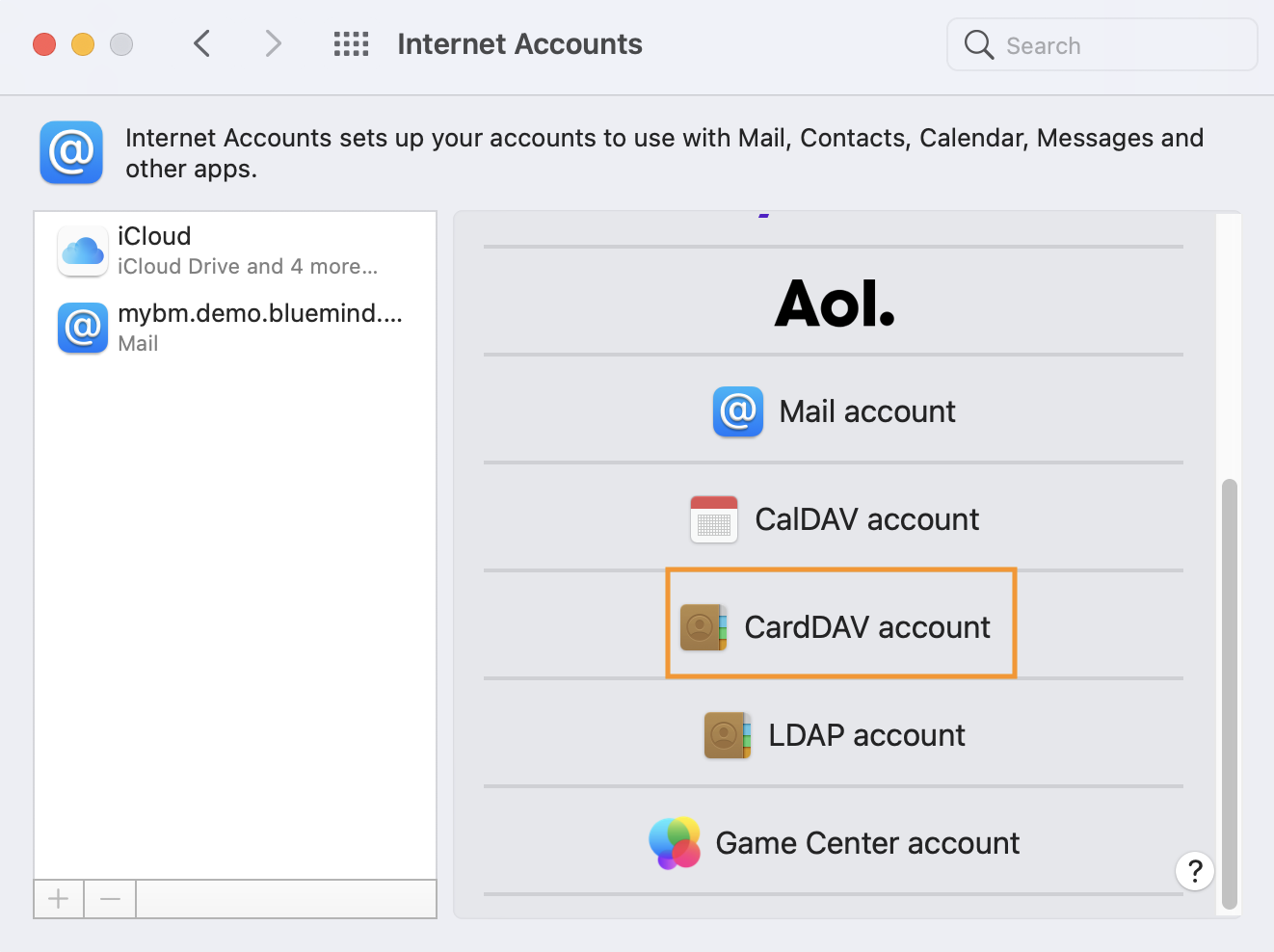
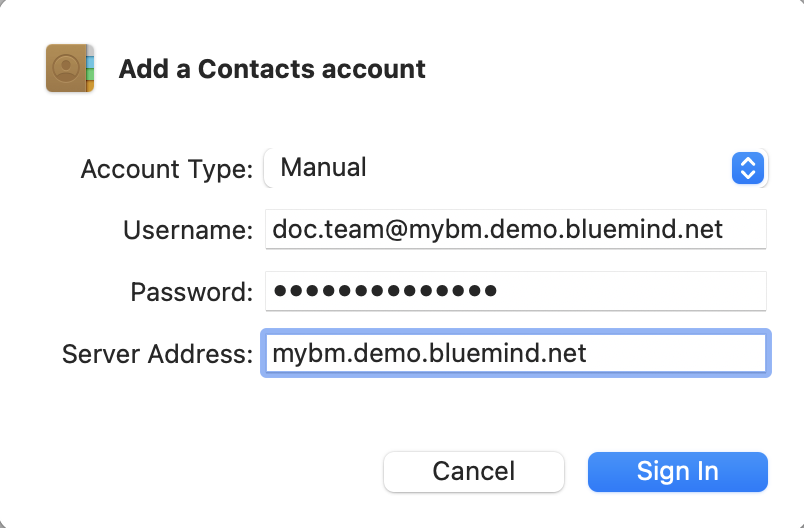
- Enter the required information:
- Account type: choose "Manual".
- Username: full username with domain
- Password: password supplied by the administrator to log in to BlueMind
- Server address: server address specified by the administrator, usually in the form server-name.domain.com
Once the account has been added, open Contacts
Setting up the Calendar account
- Follow the procedure to add an account
- Choose "CalDAV Account"
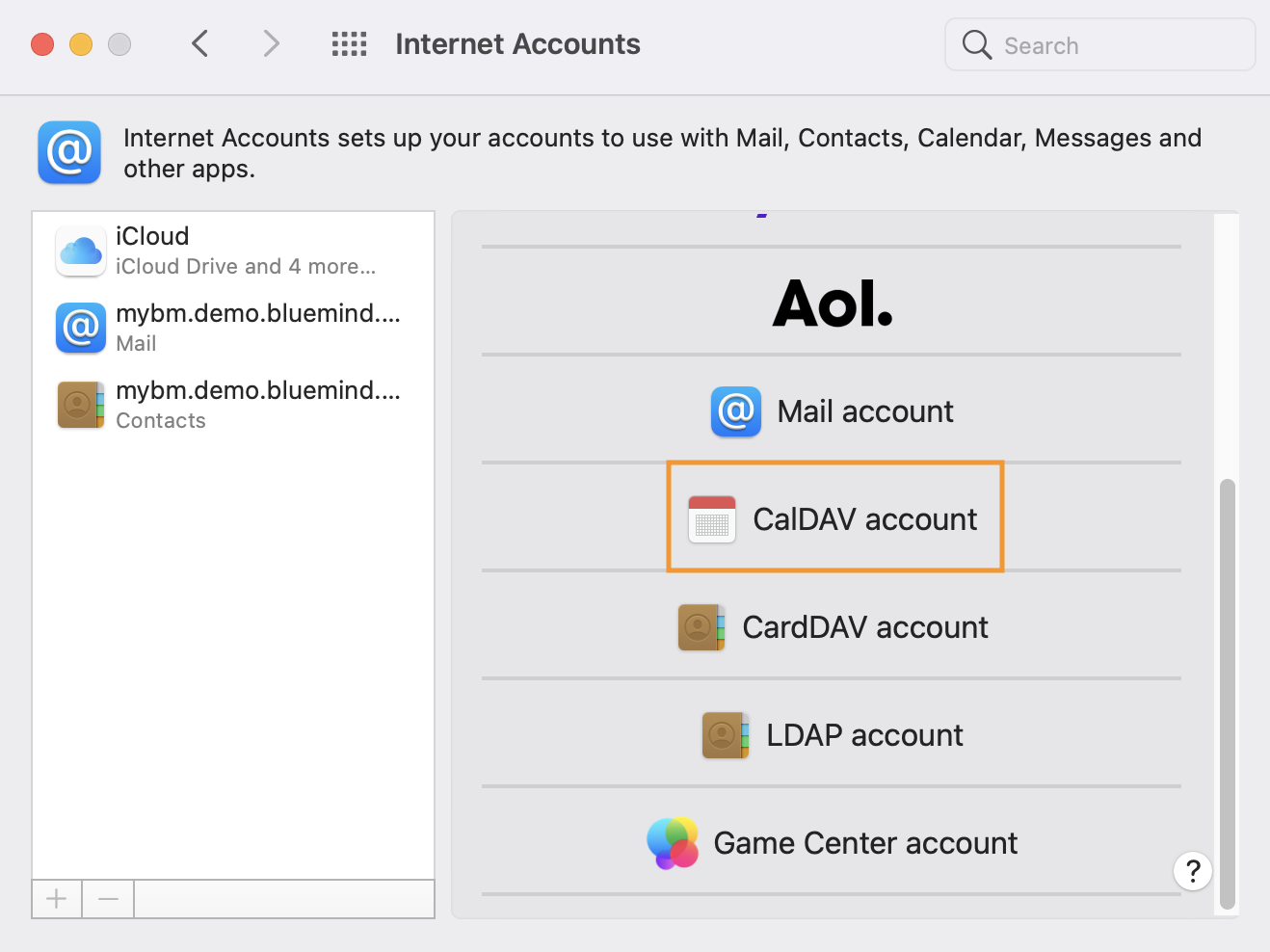
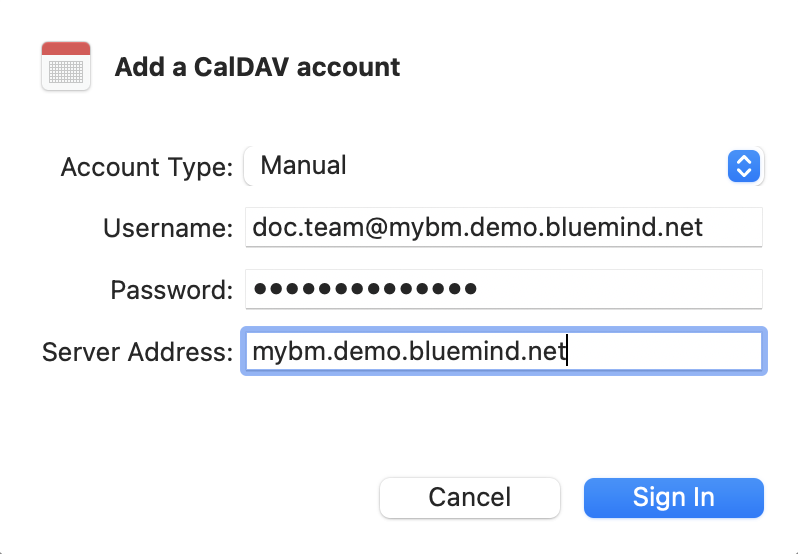
- Enter the required information:
- Account type: choose "Manual".
- Username: full username with domain
- Password: password supplied by the administrator to log in to BlueMind
- Server address: server address specified by the administrator, usually in the form server-name.domain.com
- Select Calendars and Reminders for task management.
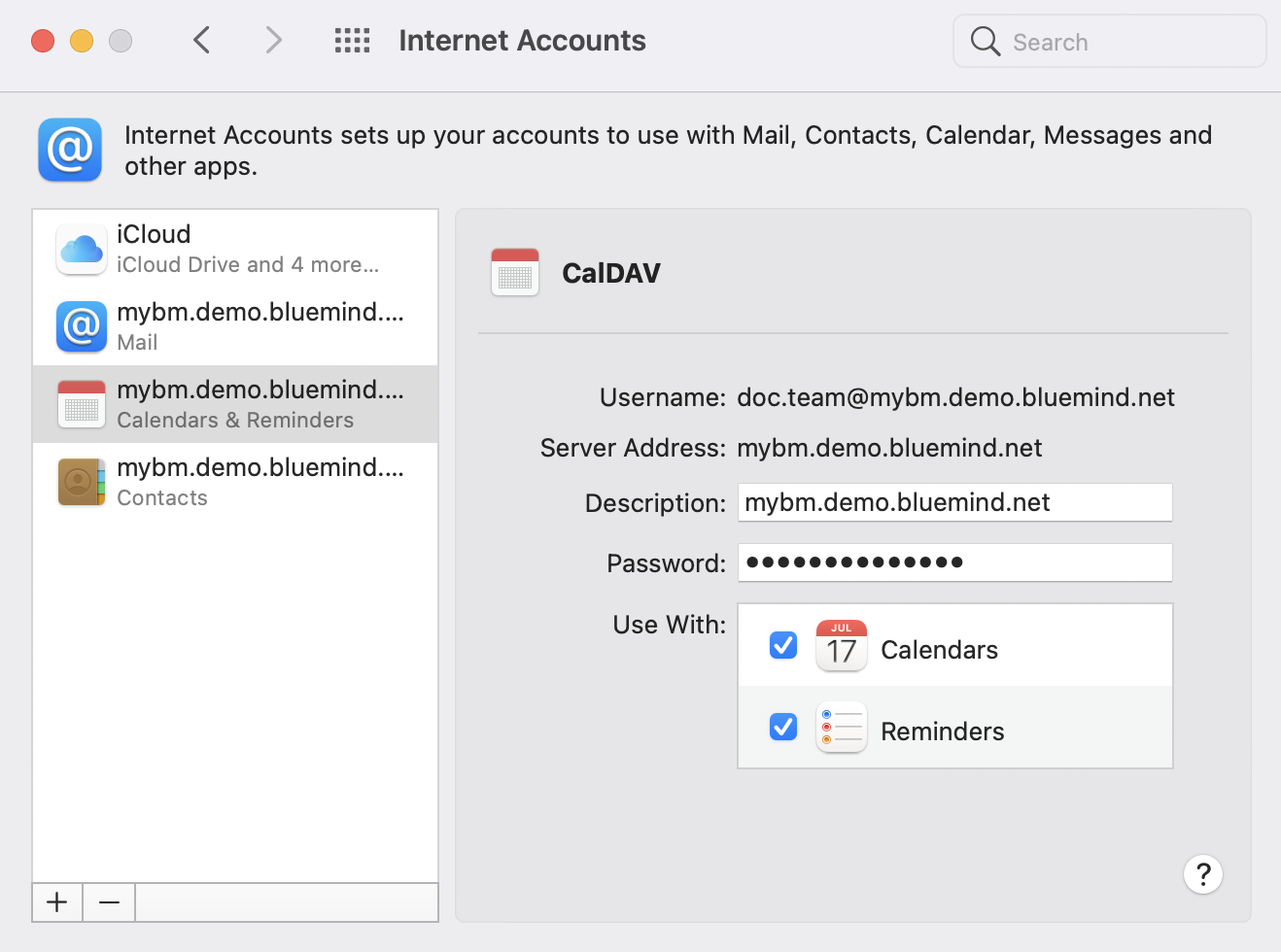
Once the account has been added, open the Calendar and Reminders applications