Configuring Outlook
Introduction
With BlueMind 4.0, synchronizing with Outlook no longer requires a connector for you to be able to access BlueMind features in Outlook. You can now use all Outlook features while using BlueMind mail.
Just like for earlier versions of BlueMind, using Outlook requires a subscription. Please contact our sales teams to get a trial subscription.
Installation requires 3 steps – the first two must be performed by an administrator:
- Server-side installation
- Configuration of the Windows workstation to connect it to the server
- Creating an account in Outlook (chapter below)
Connector-free, MAPI-based Outlook doesn't enable the use of the linked attachments feature (it is built into BlueMind and currently requires the Outlook connector).
Prerequisites
- Versions:
- BlueMind 4.0 with a subscription
- Client workstation:
- Up-to-date Windows 10 or 11
- Outlook version supported by BlueMind
- External and autodiscover urls must be available from the workstation via HTTPS: when entered into a browser, they must bring up the BlueMind login page
Configuring User Account
Outlook: Offline configuration imperative
To date, the online configuration of all or part of Outlook is not supported, as on-the-fly data transformation from BlueMind formats to the formats expected by Outlook has too much impact on the Outlook client and BlueMind server side.
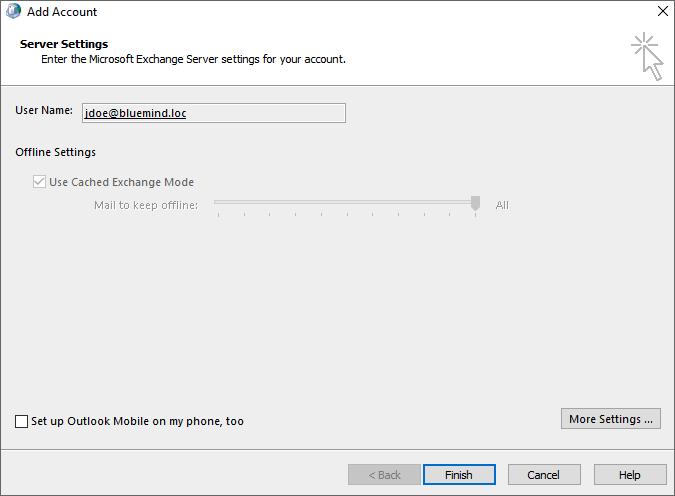
In fact, requires Outlook to be configured in "full cached mode" (step 6 below).
-
Open Outlook
-
Create a new Outlook profile : the account must not be added to an existing profile, including the default profile when the software is launched.
Note: creating a new profile is also necessary when the user's default login or e-mail address is changed.
To create a profile :- go to the Control Panel > User Accounts > Microsoft Outlook Mail (depending on your display configuration, this menu may be shown in the control panel's root menu):

- In the Mail window that opens, click "Add" to create a new blank profile:

- Give a name to this profile:
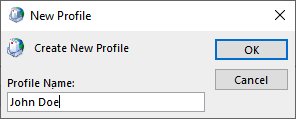
infoAt the current stage of the MAPI protocol implementation in BlueMind, the Outlook profile thus created cannot be used to connect to another Exchange account.
- go to the Control Panel > User Accounts > Microsoft Outlook Mail (depending on your display configuration, this menu may be shown in the control panel's root menu):
The interface then takes you to the next stage of mail account creation :
-
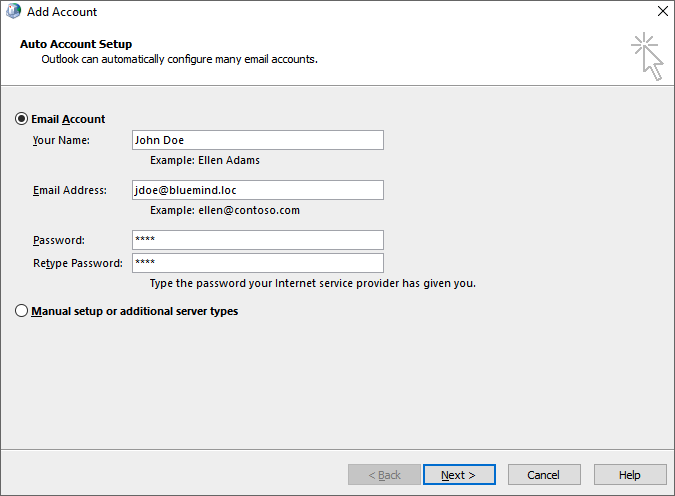
Choose "Add a new email account
:::caution Do not select manual configuration
:::
-
Enter the user's email address and password:
:::info Mail address
It's important to use the user's default address: aliases are not correctly taken into account.
:::
-
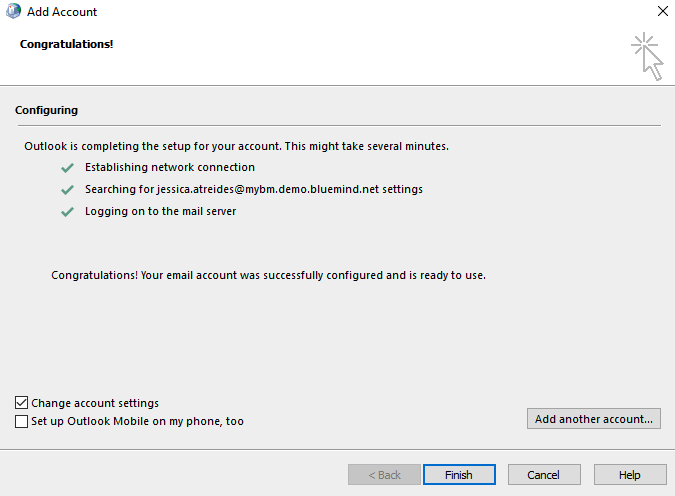
After a few moments, Outlook announces that the account has been successfully configured:
-
Check "Change account settings" and click "Next"
-
Check "Use Cached Exchange Mode" and slide the cursor all the way to the right to "All" :
-
Click on "Finish
You're all set! Your Outlook account now natively communicates with BlueMind!
Find out more
For more details on some of BlueMind's specific features, please visit Using Outlook.
If you have any problems, please consult the dedicated page Outlook: Known problems in the administrator's guide.