Working with Outlook
Shared mailboxes
BlueMind has two types of mailboxes:
- Shared mailboxes, which are not nominative and do not have a connection identifier: one or more users can be attached to them in order to consult them or write on their behalf.
- User mailboxes, which correspond to a user's mailbox: they are nominative and shared by the user himself (or a beneficiary) according to the level of rights he decides.
Consulting a shared mailbox
BlueMind has a mail subscription feature that works the same way as shared calendars and shared address books. This means that you can display shared mailboxes in Outlook with MAPI.
To do this, just log into your BlueMind account and go to your account settings page > Mail section > Subscriptions tab. 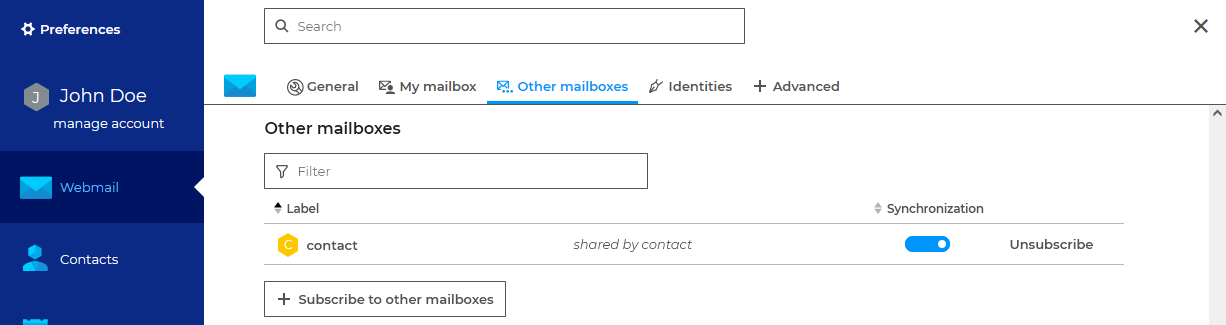
Once the subscription is active, the boxes are visible in Outlook, after restarting it, under the user's mailbox: 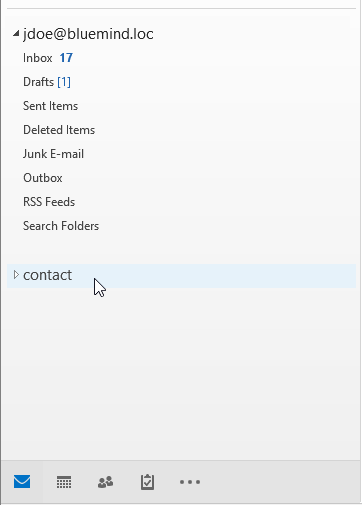
For more details about subscription process and its impact, please go to:
Setting up the "Sent messages" folder in the shared mailbox
By default, messages sent on behalf of a shared mailbox are automatically copied to the shared mailbox's "Sent messages" folder by BlueMind. In this way, the email sent will be present in the user's "Sent messages" folder AND in the shared mailbox folder.
Registry keys can be used to modify default behavior. For more information, contact your administrator or see the dedicated administrator documentation: Implementing mapi for Outlook > Setting up functional folders for shared mailboxes
Shared mailboxes
Access to shared mailboxes by users is not available in the same way as for generic shared mailboxes.
To display user box in Outlook:
- go to Account Settings from the File menu :
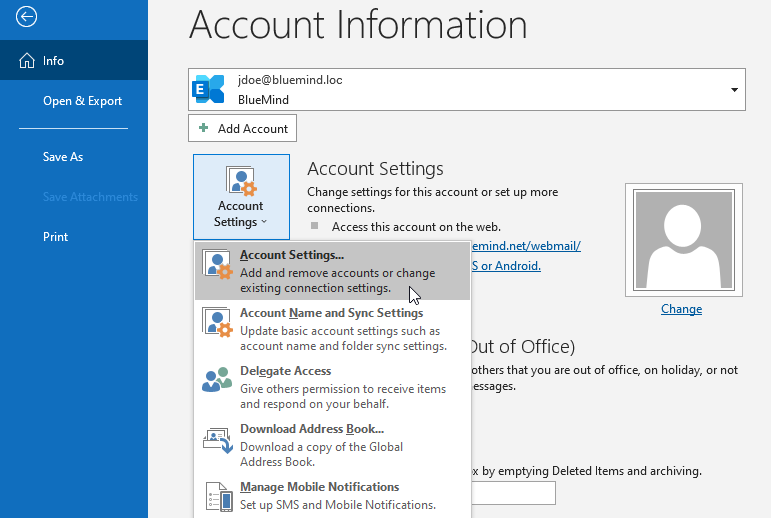
- in the window that opens, go to the "Data files" tab > "Settings" > "Advanced" tab
- using the "Add" button, search for the desired box using the user ID or name:
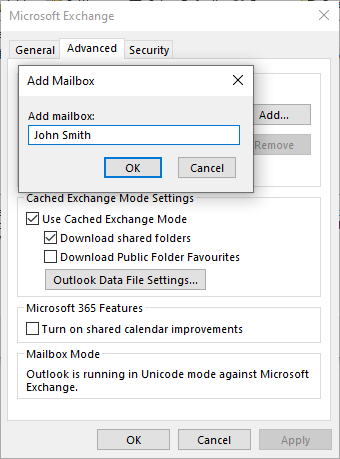
- back in the settings window, check that the "Use cached mode" and "Download shared folders" boxes are ticked:
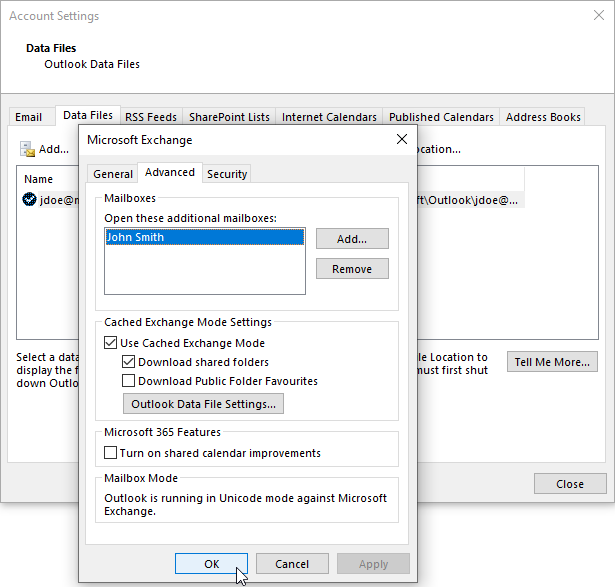
- click on OK and exit the settings
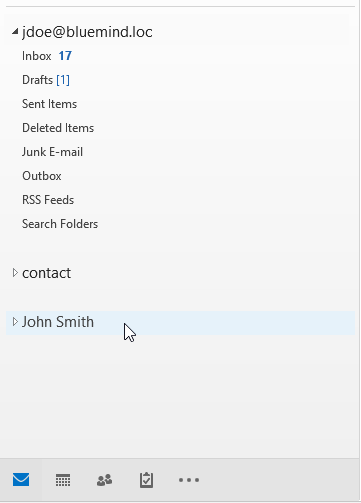
- the box is now visible in the mailbox:
Shared calendars
Individual calendars
To display a calendar shared by a user or resource calendar, the process is that of the classic Outlook work:
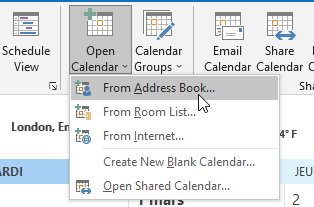
- Use the Open Calendar menu > From the address book:
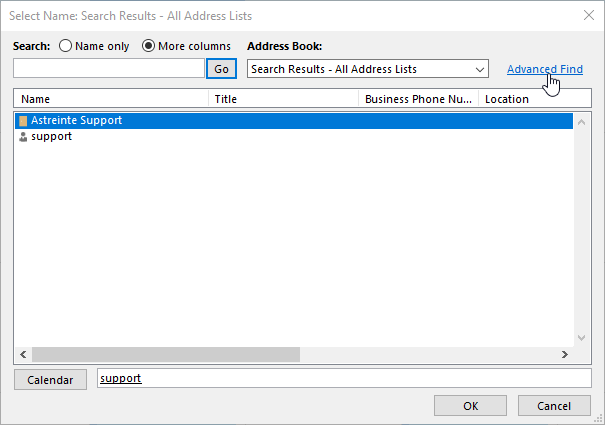
- Search the calendar in the list or use the advanced search :
- Double-click on a calendar in the list to add it, then click OK once you've selected the calendar(s).
- Calendars are now added to the view. Check or uncheck the corresponding box to show or hide a calendar:
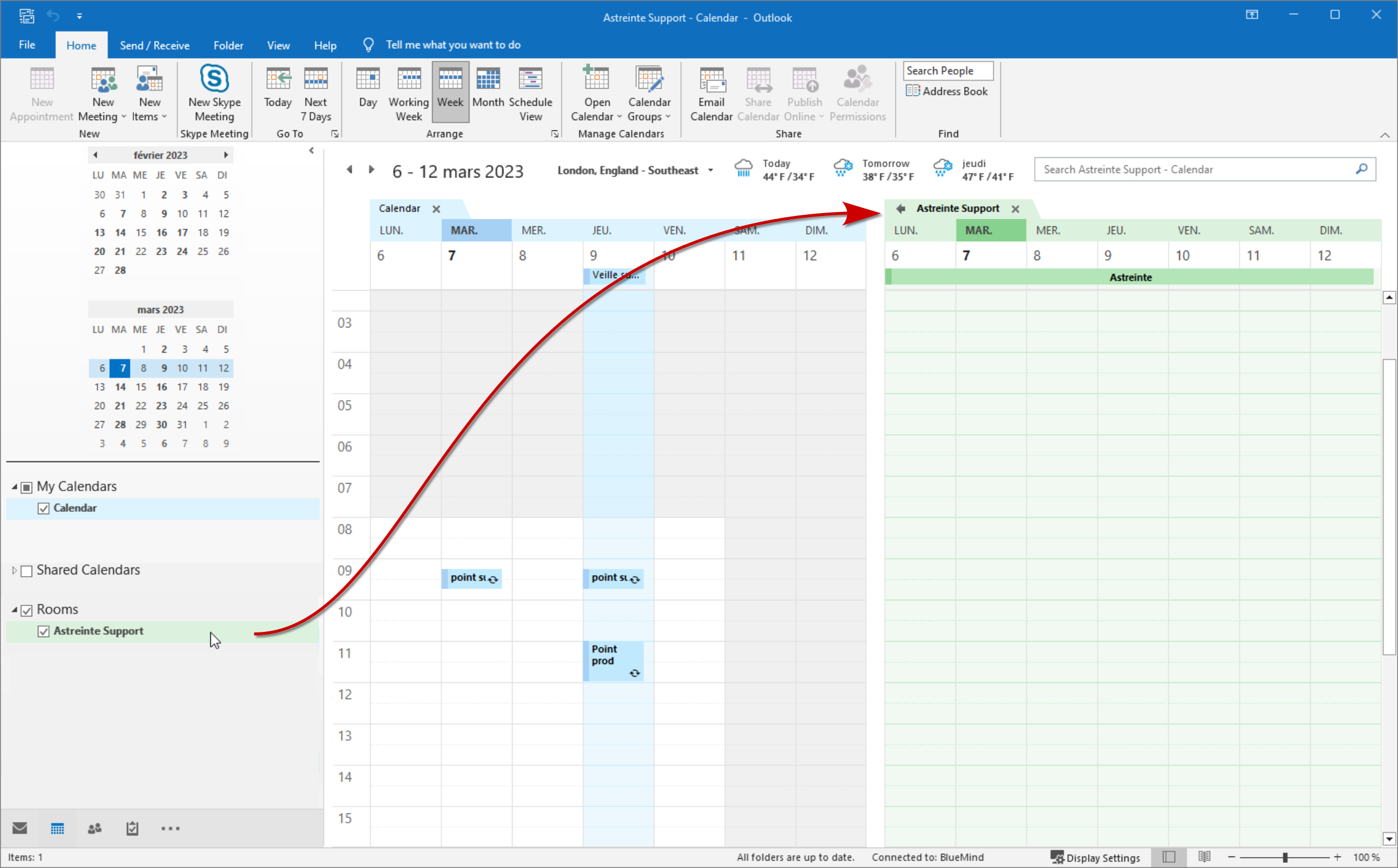
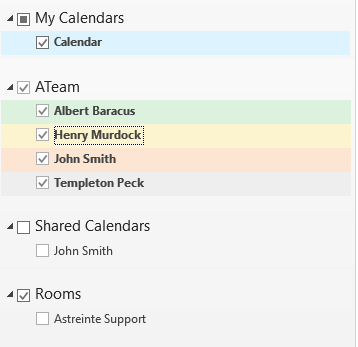
- user calendars appear under the "Shared calendars" tree structure
- resources appear in the "Rooms" tree structure
- if a group is added, its members appear individually in a tree structure under the group's name :
Domain calendars
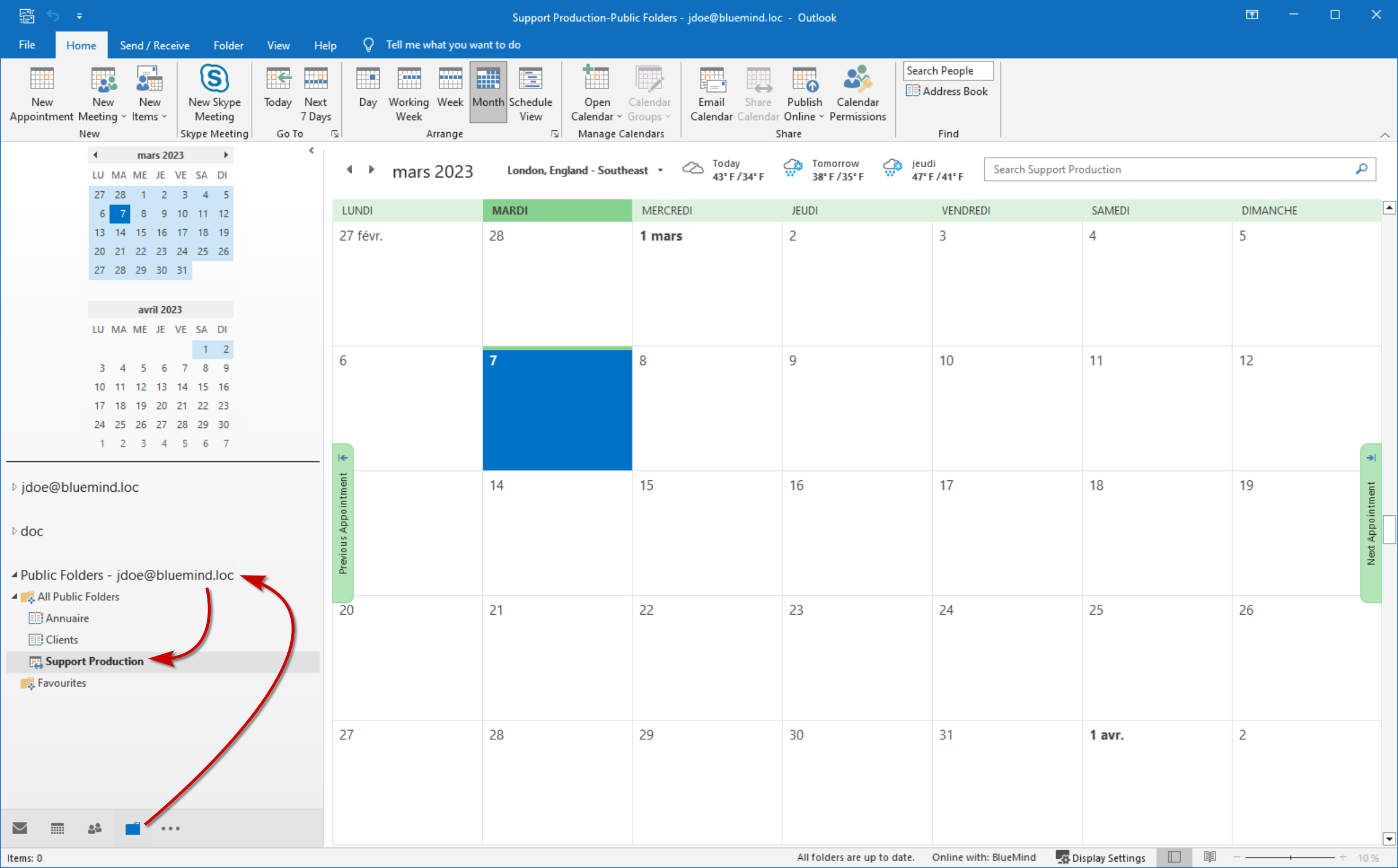
The domain calendars are special entities. To view them, you need to connect to BlueMind via a browser and subscribe to the desired calendar.
To do this, simply follow the usual subscription procedure: Use a shared calendar> Subscribe to a shared calendar.
Once subscribed, the calendar can be viewed in Outlook's public folders:
Signature placement
If a company signature is set, it will be automatically added to the end of the email by the server after it has been sent.
If the administrator has chosen to activate the appropriate option, users can choose the placement of their signature.
To do this, you need to add the following character string (tag or placeholder) to the desired position in the email:
-=+=-=+=-
personal signature
+=-=+=-=+
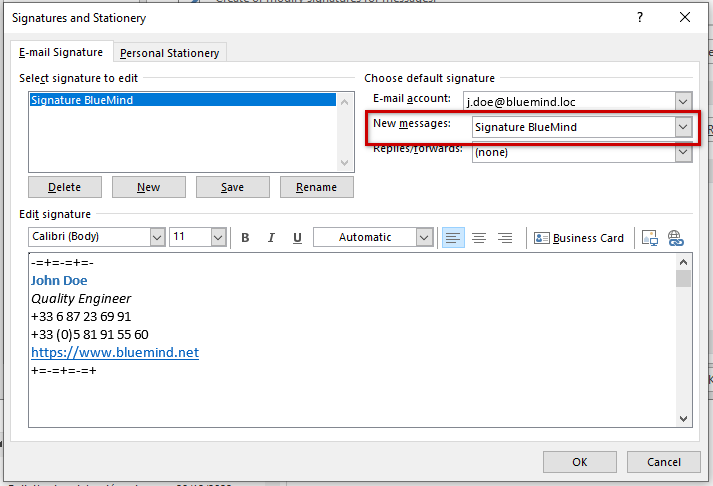
To facilitate this insertion, the user can set this string as the default signature in Outlook, by going to the menu File > Options > Mail > Signatures > Create a new signature :
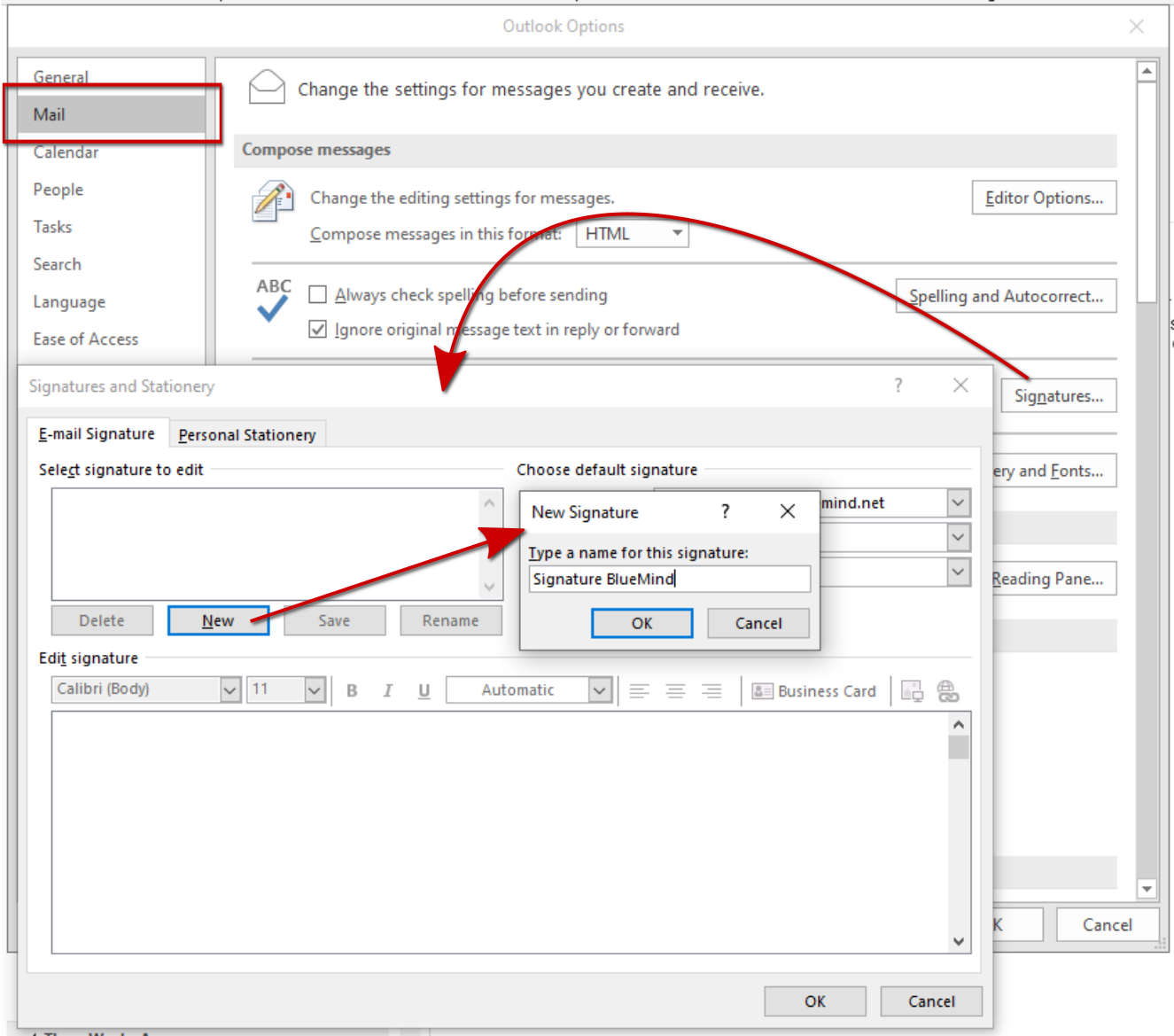
Select the signature as default and write it using the character strings shown above:
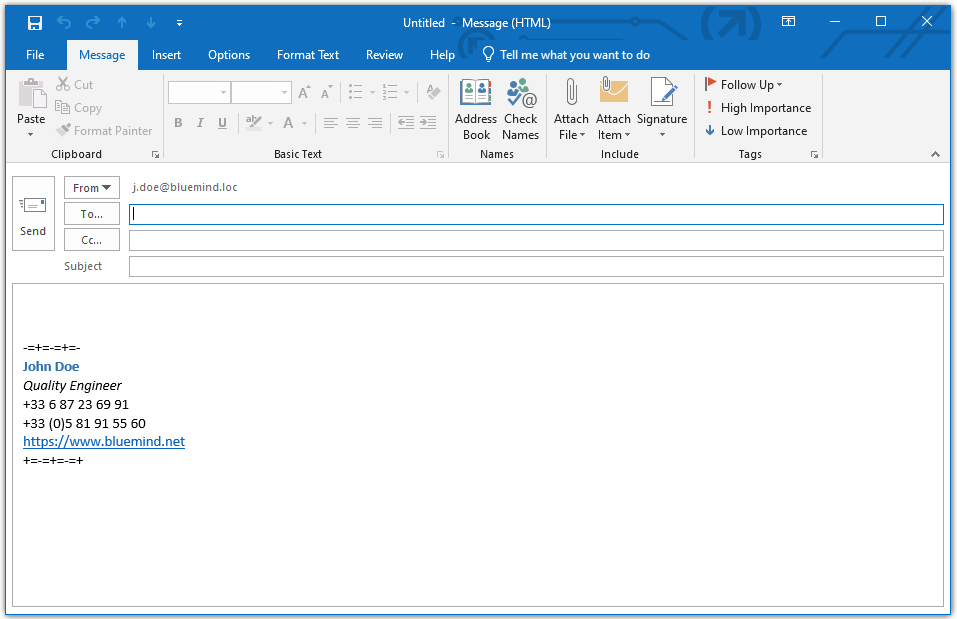
When writing or replying to an email, the tag is automatically placed in the message:
It is also possible to manually insert the signature in the dialer if you don't want to set it by default:

Whether the signature is inserted automatically or manually, the tag can always be moved by the user if he or she wishes to temporarily place the signature elsewhere in the message.
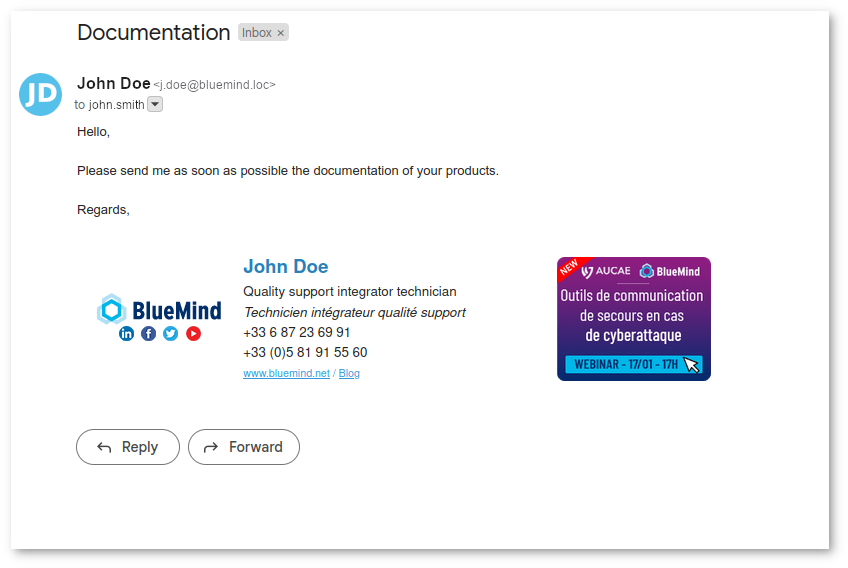
The corporate signature is then inserted by the server where the tag is located, replacing the user's signature:
No tag
If the tag is missing or deleted, the signature will be placed at the very end of the message.
No company signature
When no signature is inserted by the server (the email does not correspond to the criteria defined by the administrator, for example on an internal email when a signature is only defined for external recipients), the signature written and inserted by the user as above will appear in the email.