Creating and Editing Calendars
The BlueMind Calendar lets you create and use as many personal calendars as you like and share them.
When a calendar is created, it does not appear in the user's view, either the current view or the default view. Users are free to display it only when they wish, and to add it to a calendar view if they wish (default view or secondary view of their choice).
For more information, consult the dedicated page: Displaying multiple calendars
Creating a BlueMind calendar
Calendars are created in the calendar settings. Go to Preferences - Calendar - My calendars

Click "+ Create a calendar" to open the pop-up window.
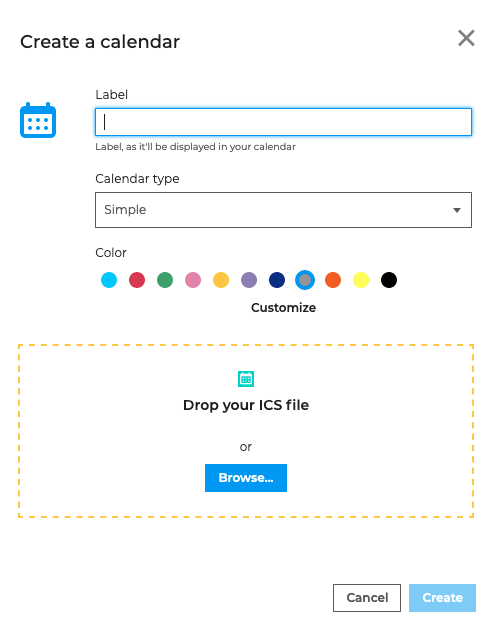
Enter the title and click "Create" to create a new blank calendar.
You can also drop or browse for an iCalendar (.ics) to create a new calendar that contains data from an external calendar.
Adding an external calendar
The BlueMind Calendar lets you view external calendars.
To do this, select "External ICS" in the Calendar type menu.
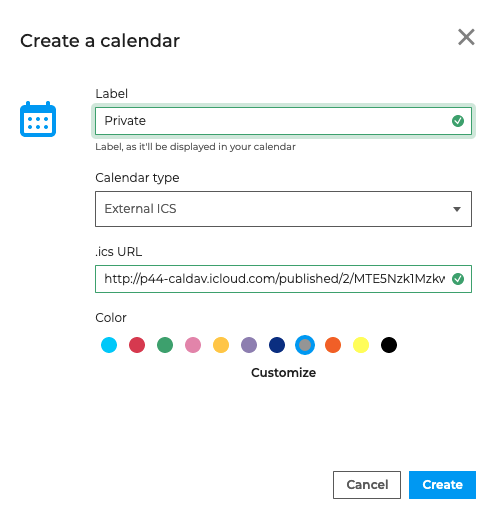
Enter the external calendar's label and url address and click "Create".
The calendar you want to synchronize must be in ics format and have the correct share settings - the calendar must be accessible externally from your calendar provider.
BlueMind doesn't support these urls. They must be edited by replacing 'webcal' with 'http'
External calendars can be viewed only. Changes cannot be saved to the original calendar.
External calendars are refreshed "on demand", i.e. when they are viewed - displaying them in the Calendar application starts a synchronization request. Depending on server and network load, synchronizing may take a few seconds until new events are shown.
Editing personal calendars
To edit, empty or delete a personal calendar, click the kebab menu at the end of the row.
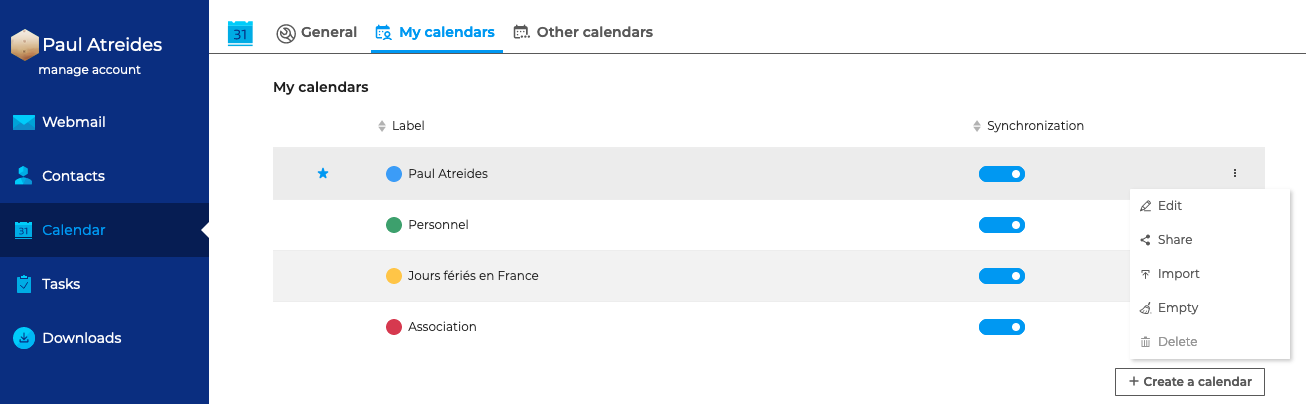
- Edit opens the calendar details window. You can change the label, the calendar type and display color
- Share opens the shares management page
- Import opens the file import pop-up window
- Empty is used to delete all events in the calendar - the calendar still exists but remains empty
- Delete is used to delete events and the calendar permanently