Synchronizing Calendars
Synchronizing a BlueMind calendar allows you to easily view and manage the events it contains through other clients, such as Thunderbird, Outlook, Mac OS, iOS, Android, or Windows Phone.
Viewing a synchronized calendar
The differences between a synchronized and a non-synchronized calendar are summarized below. Under certain conditions, it may be possible to view events even if the calendar is not synchronized.
- Synchronization enabled
- Synchronizing disabled
✅ The calendar and all of its events are synced to the thick client or mobile client
✅ Changes are automatically reflected in the BlueMind calendar app and in the thick client or mobile client app—provided you are online
✅ Events can be viewed in the thick client or mobile client app, both online and offline
❌ The calendar and all its events are not copied to the heavy or mobile client
❌ The calendar cannot be consulted
:::info Data volume warning
When the volume of data contained in a calendar is large (over 9,000 entries), a message warns of possible synchronization problems.
:::
Please note that some differences may appear depending on the synchronization protocol and the client:
-
EAS synchronization (Android and iOS): only personal calendars (default and secondary) can be displayed on Android and iOS mobile devices. Even if synchronization is enabled, shared calendars cannot be viewed.
-
CalDAV synchronization (Mac OS): calendars can be viewed, in connected and offline mode, even if synchronization is not enabled.
-
MAPI synchronization (Outlook): it is possible to subscribe to a shared calendar from Outlook. In this case, the calendar is automatically added to BlueMind, with synchronization enabled.
For more information on the features and compatible applications for each client, consult the Compatibility page.
Activating synchronization
Calendar synchronization is performed in the settings, by going to Preferences > Calendar > My calendars or Other calendars.
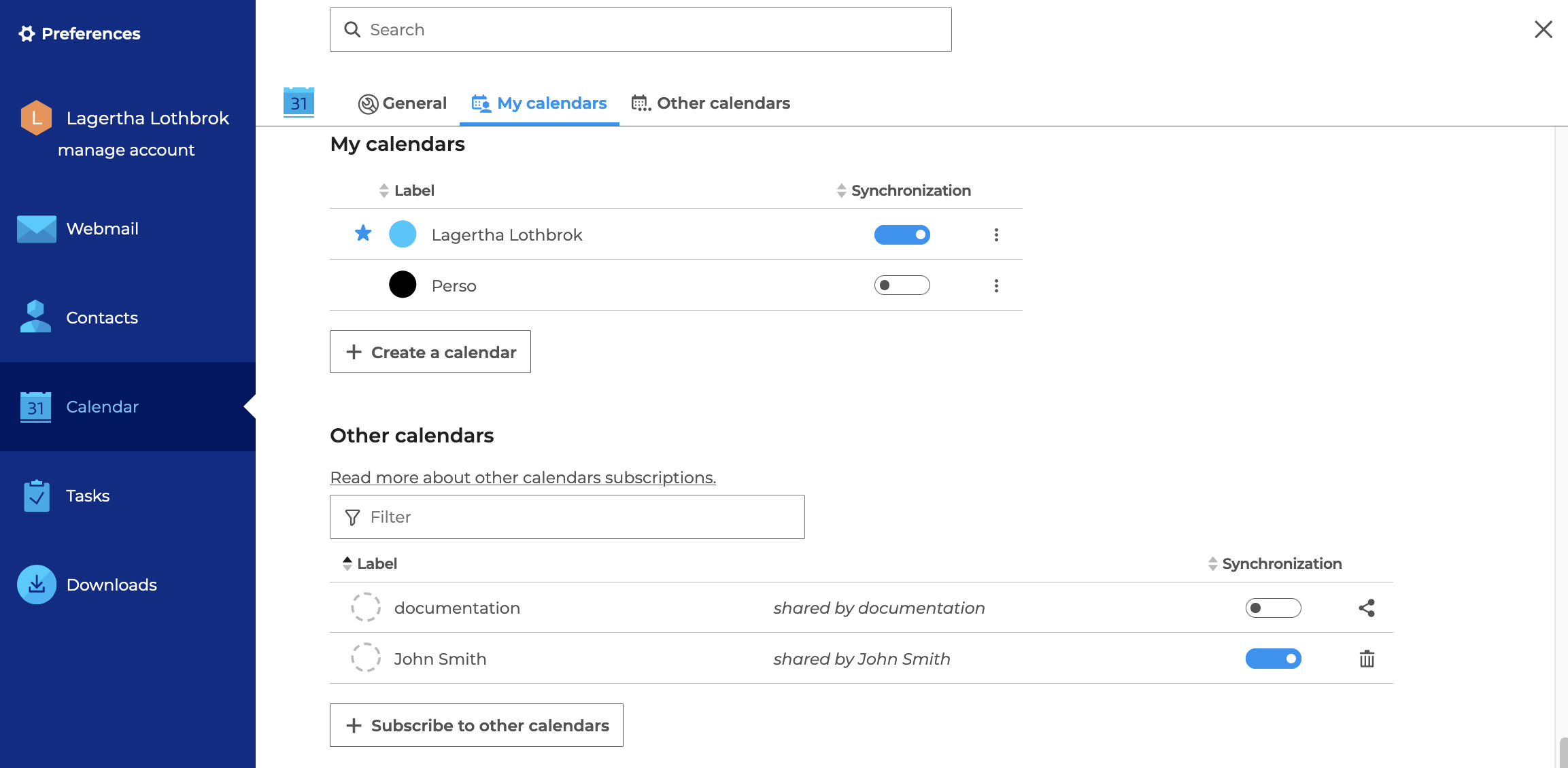
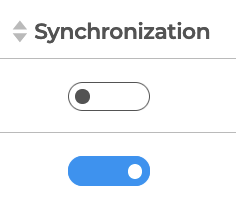
Enable the "Synchronization" button for the desired calendars:
Find out more
Related BlueMind documentation pages: