Out-of-Office Auto-Reply
If you're away from the office or unable to use your email, you may set up an automatic reply or have all messages forwarded automatically.
If using Outlook, consult the Compatibility page to check supported features.
Enabling auto-reply
To set up auto-reply, go to your mail settings: Preferences - Webmail - General - Automatic reply and check the option "Activate automatic reply".
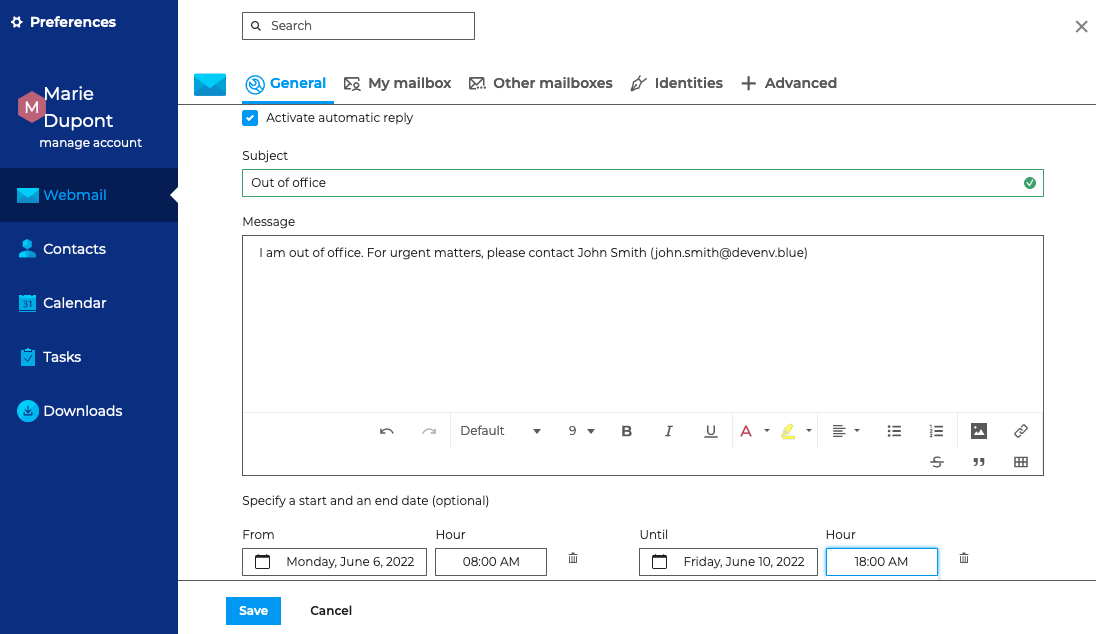
Complete the fields:
- Subject (mandatory): message subject
- Message (optional): message body
- Start and end dates (optional)
- if no start date is specified, auto-reply is enabled as soon as you save the new settings
- if no end date is specified, auto-reply remains enabled until you edit your settings and disable auto-reply
Once your settings are saved, when you receive a message, a reply is sent automatically to the sender.
When you disable auto-reply, the latest settings are saved and can be retrieved when you enable it again.
Just one away message is sent in reply to a single sender (email address) for every 3-day period.
If the user disables and then enables auto-reply again during that time without editing the subject or the message content, the senders who have already received an automatic reply will not receive a new one – the countdown for the period starts again where it was left off.
For example:
- you enable auto-reply
- you get an email from user B on day D. An auto-reply is sent to user B and the 3-day countdown starts
- you disable auto-reply on day D+1
- you receive a new email from user B. No auto-reply is sent
- you enable auto-reply with the same settings on day D+2
- you receive another email from user B: auto-reply considers this to be D+2, therefore no automatic message is sent.
Forwarding incoming messages
This section lets you forward all incoming messages to one or several addresses - internal or external - while keeping a copy in your inbox.
To enable auto-forward go to your mail settings: Preferences - Webmail - General - Email forwardings and check "Forward received messages to"
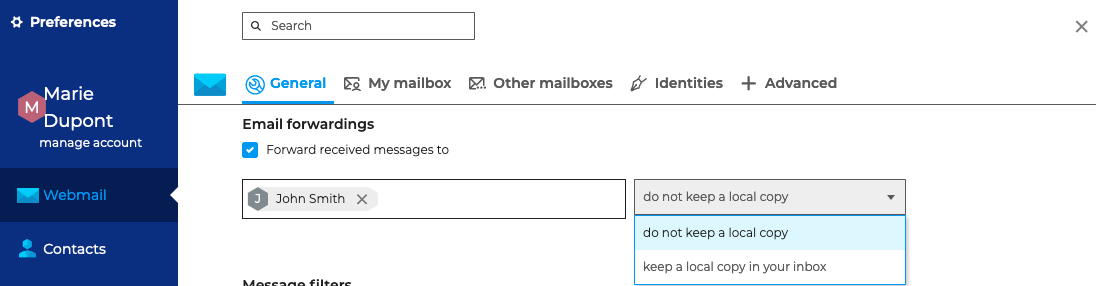
Start typing recipients' addresses - autocomplete will suggest addresses from all your address books (directory, personal address books, etc.) - and choose whether you want to keep copies of the messages received or not.