Adding attachments
Attaching a file
Click the button  on the toolbar or the paperclip icon
  at the bottom of the input field to open your computer's file chooser
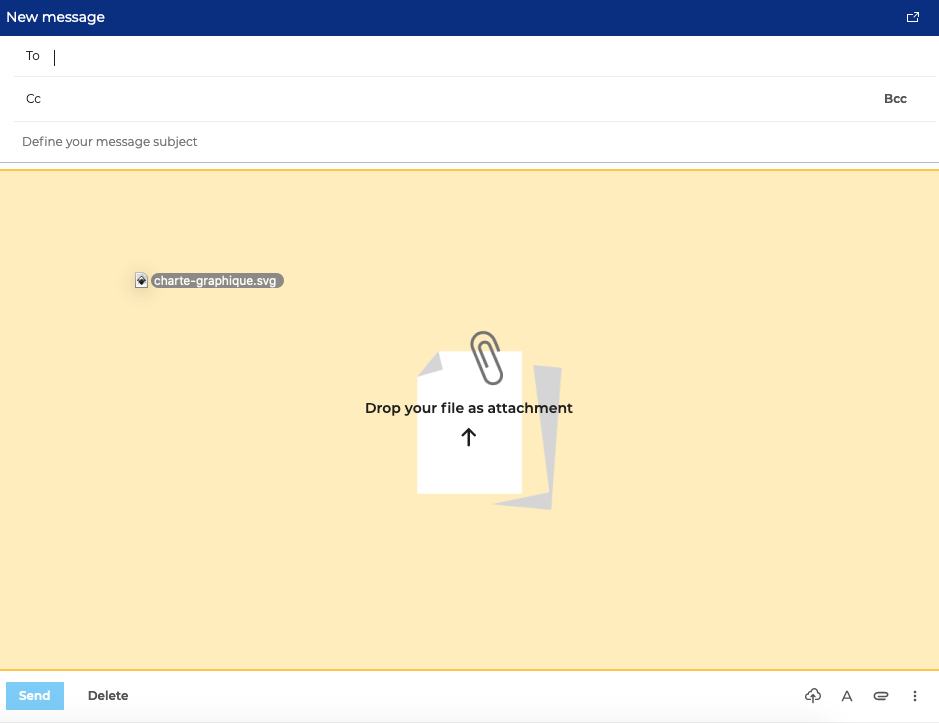
You can also drag and drop a file directly from your file browser:
If the composer detects an image, it offers to include the image in the email:
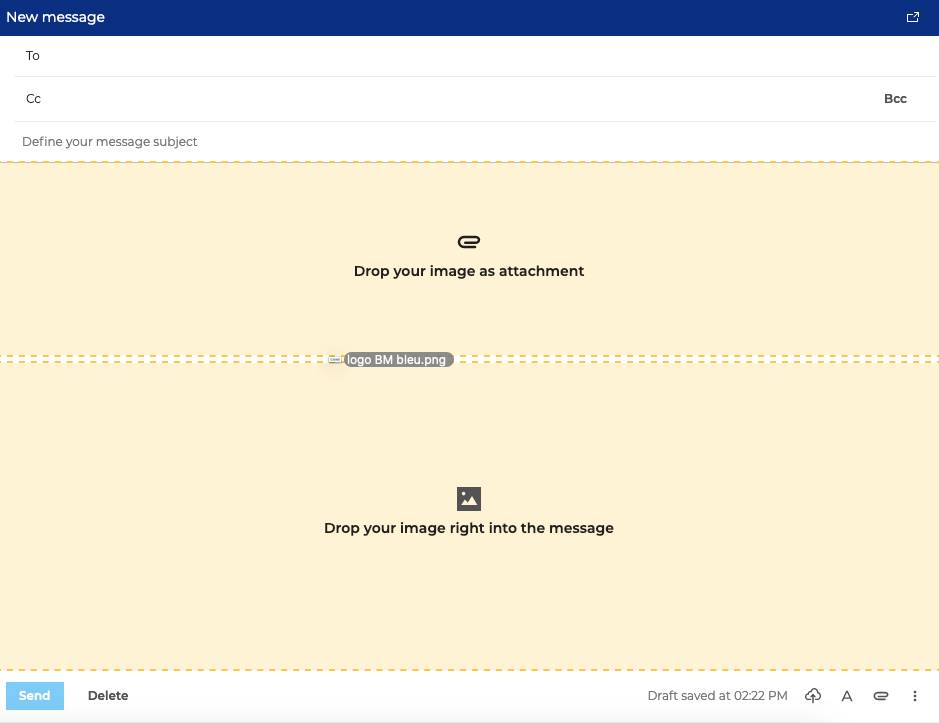
Move the image to the location you want in the message. When you release the mouse button, the image is added. The image can then be moved and resized.
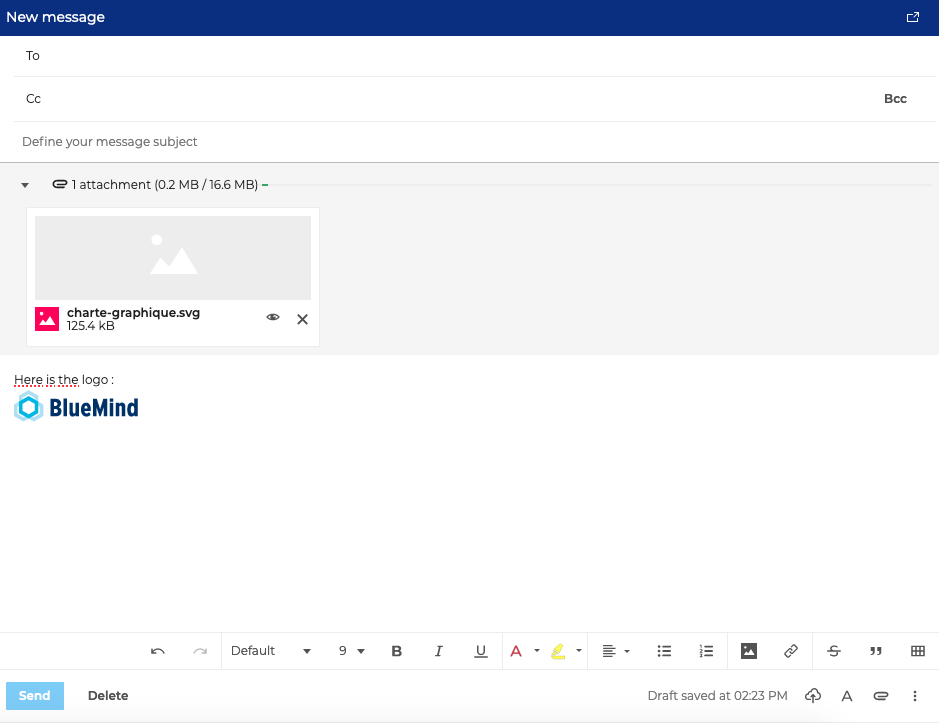
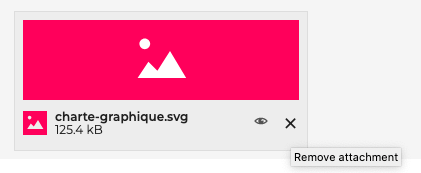
To delete an attachment, click the corresponding X in the box for the file in question:
You can also view an attachment before sending the email
Forwarding a message as an attachment
There are 2 ways of sending a message as an attachment to another message:
Forward a received email
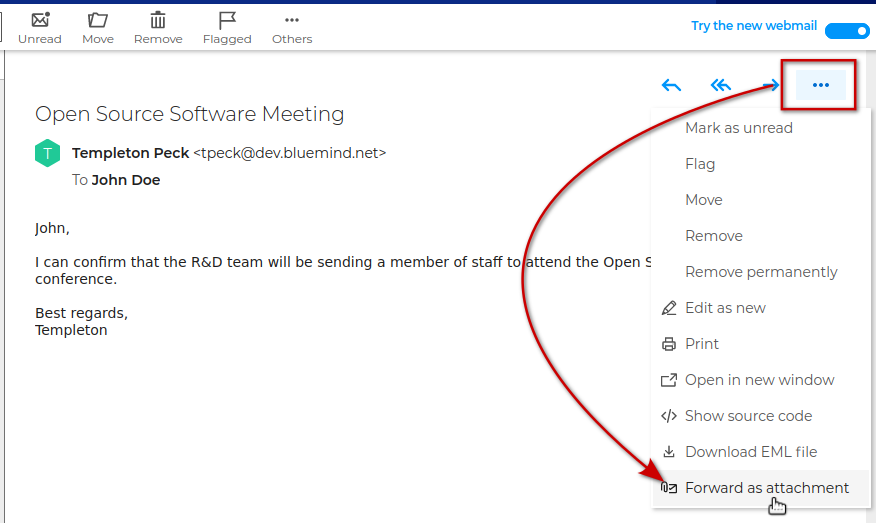
To forward an email as an attachment, open the menu in the upper-right corner of the main display area and click "Forward as Attachment":
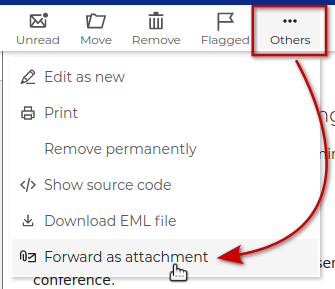
This option is also available in the other actions menu of the main toolbar:
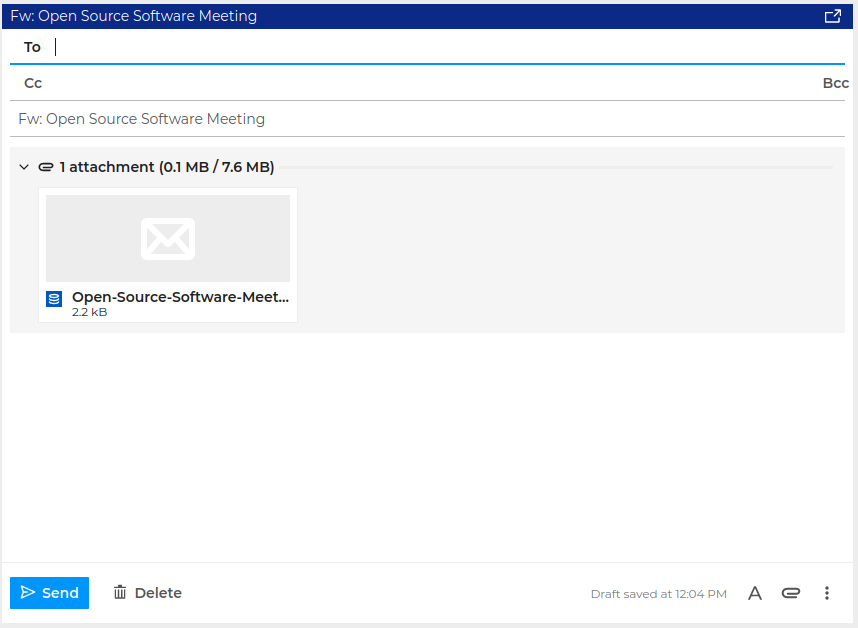
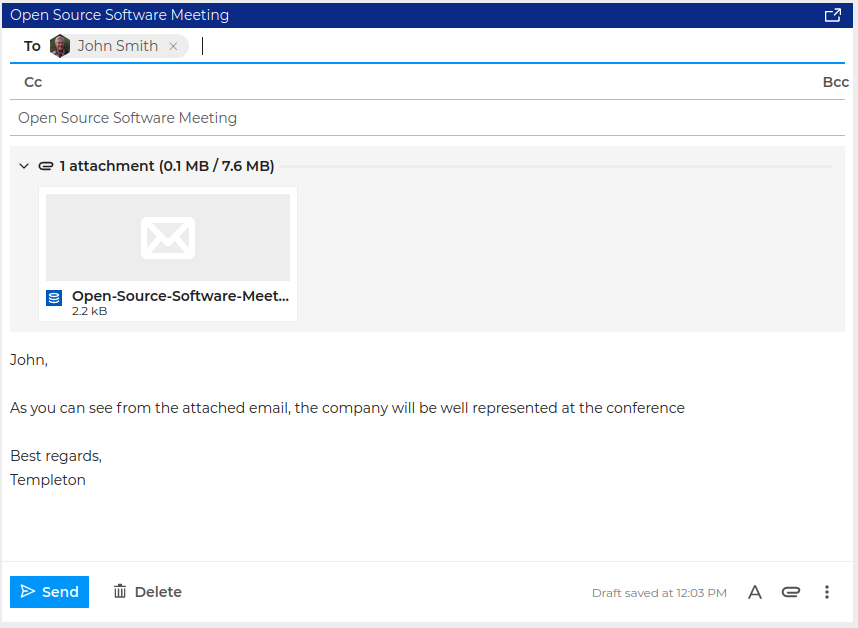
The new email composer then appears with the file exported in EML format already as an attachment:
Drag and drop from the email list
Just as when moving an email to a folder, an email can be dragged and dropped into the composition area of a new email to add it as an attachment:
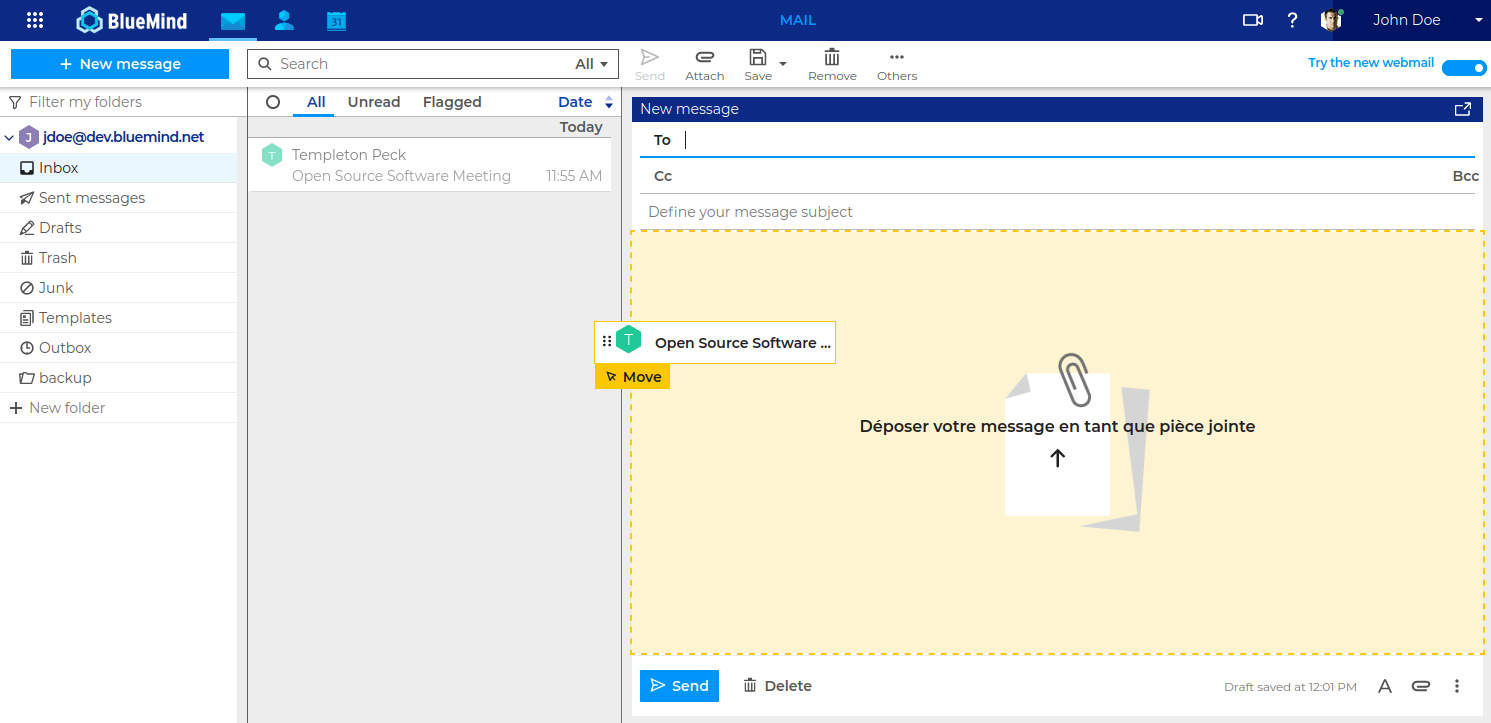
The email is then added as an attachment in the form of an EML file:
Sending large attachments
When an attachment is too large to be sent by email (e.g. a video), BlueMind allows you remove it and send it as a link. The attachment is then stored on the BlueMind server.
For the attachment removal feature to take effect, the BlueMind Filehosting feature must be enabled by the administrator and assigned to the user.
The administrator sets the file size threshold from which attachments must be sent as links and file storage duration for the server.
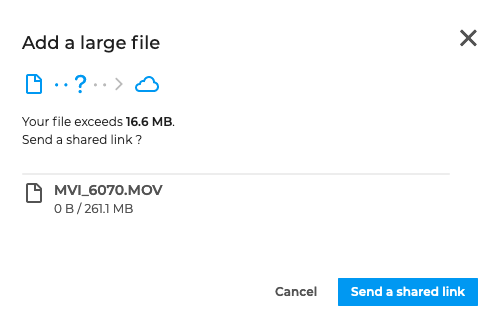
To send a large attachment, add the file to the email and click "Send a shared link" in the pop-up window that opens automatically.
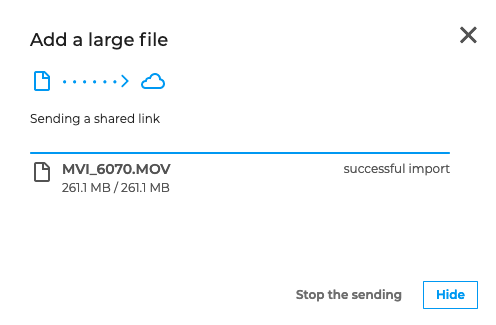
When the file is saved on the server and a link is generated, a "successful import" message appears. Click "Hide" or close the pop-up window.
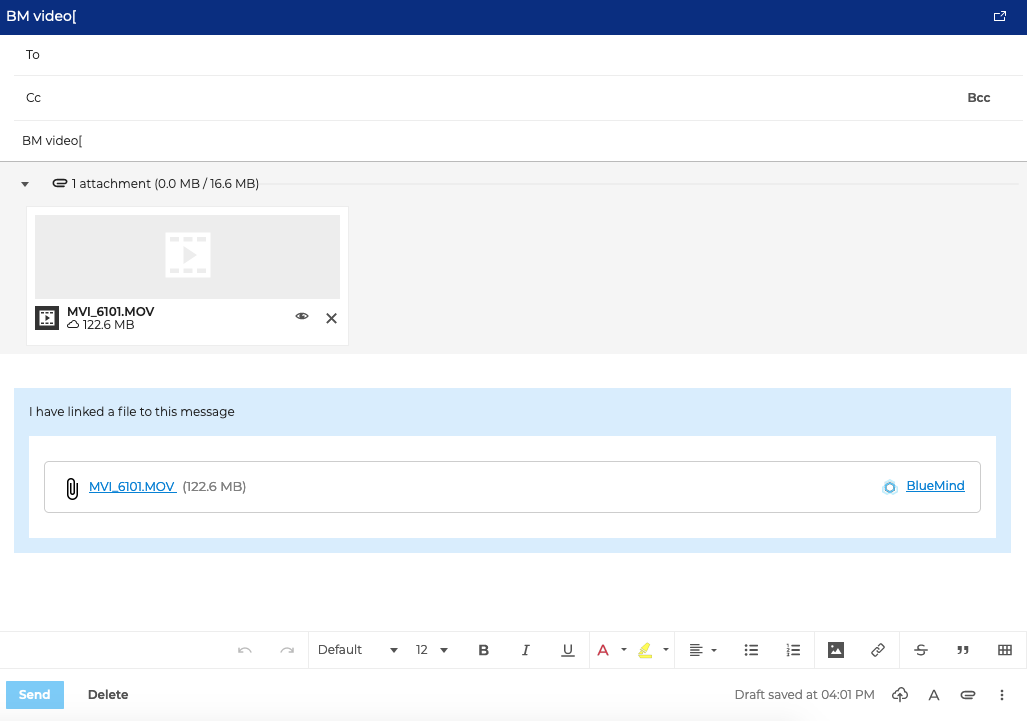
You can also send a standalone attachment—regardless of the file size—by clicking the "cloud" icon" in the action bar at the bottom of the composer
The link is then added automatically to the message. Just send the email to the recipients.
Sending a Large Attachment with Nextcloud
BlueMind also offers the option of attaching documents stored on a Nextcloud personal account.
This feature must be enabled by the administrator.
To configure the connection to a Nextcloud account, go to the BlueMind settings: Preferences - External accounts
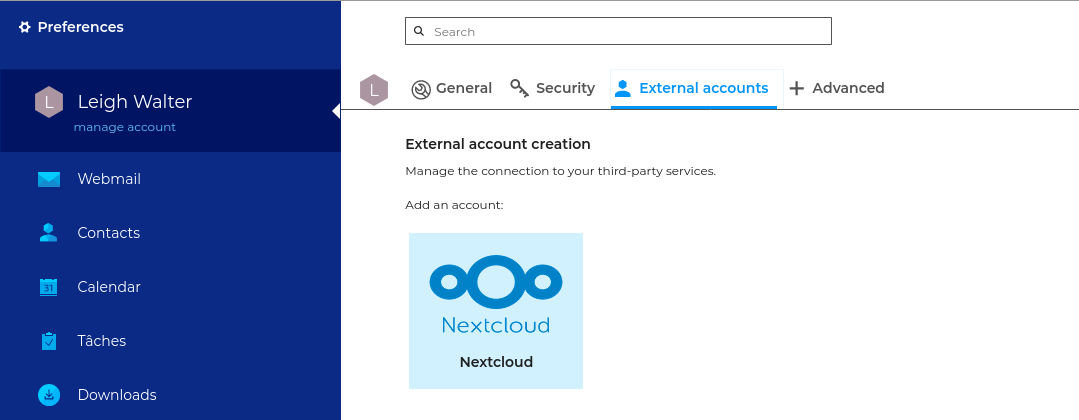
Enter your Nextcloud account details:
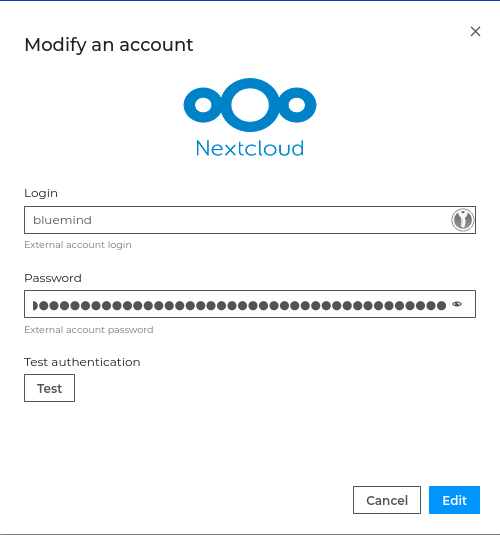
Click test to make sure authentication is working properly.
Then follow theprocedure for sending large attachments