Moving, Flagging and Marking Messages
All the actions possible on a message are available in the action bar above it:

The main actions are also accessible when hovering over a message in the message list:

When several messages are selected, possible actions appear in the action bar and in the main display area:
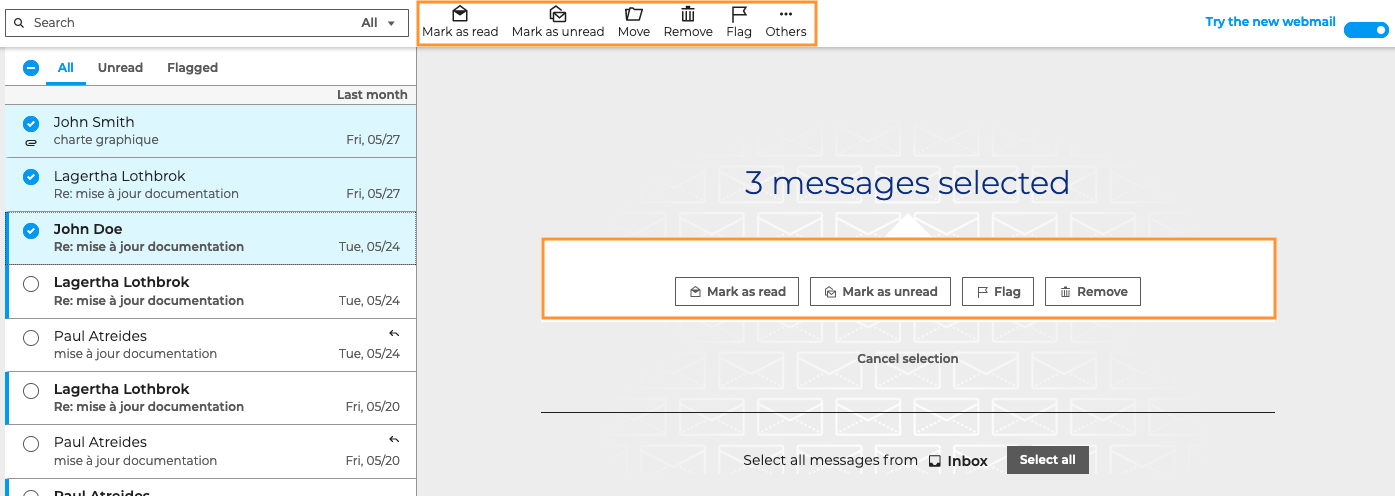
Flagging and marking messages
You can perform the following actions on messages:
-
Mark as read: unread messages are shown in bold in the message list. You can select one or several message(s) and mark them as read without opening them by clicking this button
- → Click Mark as unread to revert this
-
Flag: marks messages as "important"
- → Click Remove flag to cancel this.
These actions also allow you to quickly find messages through the filters at the top of the message list
Moving messages
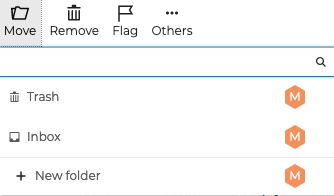
To organize one or several messages in a folder, click Move. Use the pop-up window that opens to find a folder or create a new one.
Messages can also be moved using drag-and-drop - simply drag the message(s) to the desired location.
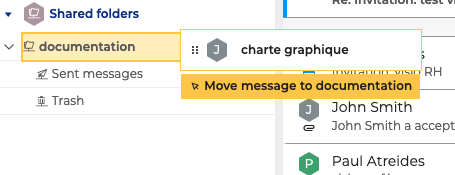
A confirmation message shows that the operation has been carried out. Click the folder name in the message to be redirected to the destination folder:

Deleting messages
To move a message to the Trash folder, use the  button in the action bar or on hover over the message.
There are several ways to delete it permanently (without going to the trash):
- go to Other and click on Permanently delete
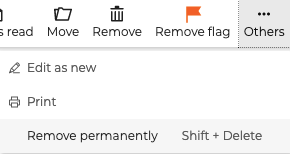
- use the keys
Shift + Del - hold down ****
Shiftand click on trash in the message's quick actions menu or in the menu bar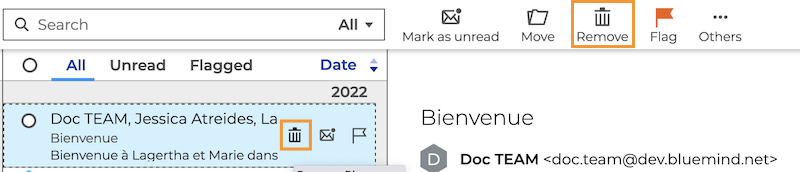
Several messages can be deleted simultaneously.