Viewing messages
View and print emails, attachments, etc.
Reading messages
Messages arrive in the folder Inbox. All messages from the inbox are displayed in the message list. The contents of the message selected is shown in the main display area.
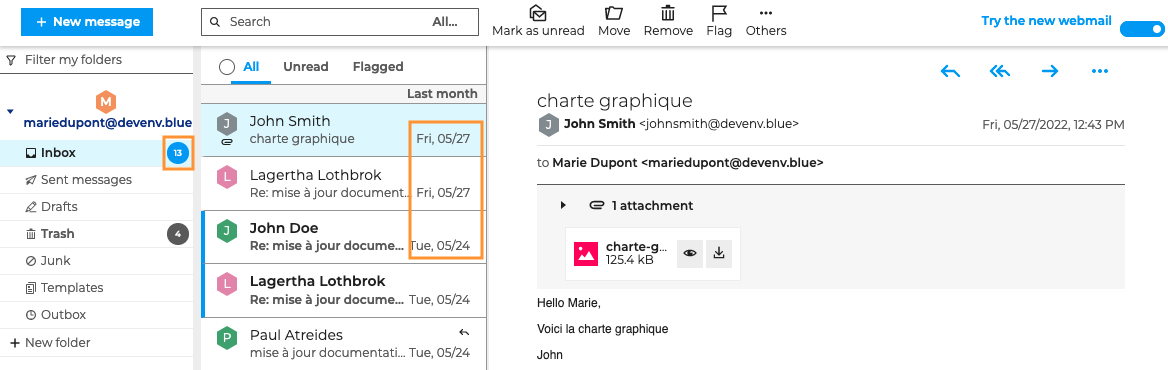
Message received dates (day and time for same-day messages) are shown in the message list. Messages are shown as unread (in bold) as long as they are not opened. Your "Inbox" folder shows the number of unread messages.
:::tip Notifications
When desktop notifications are enabled in user preferences, a notification appears on the screen upon receiving a new message. Clicking a conversation opens the message thread in the main display area.
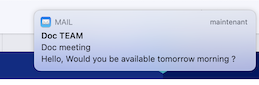
In the browser, if the BlueMind messaging tab is inactive, meaning when browsing on another page, the number of new messages is displayed in the messaging tab title.

:::
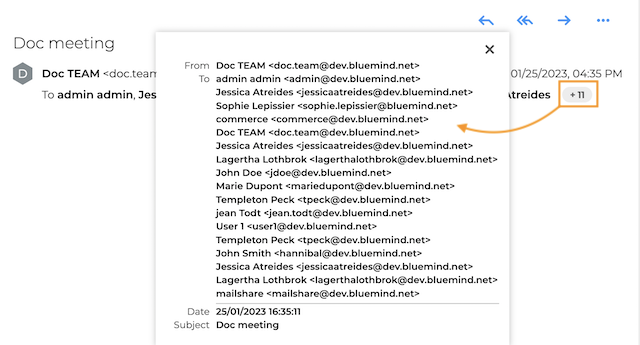
The sender appears in the "From" field and the recipients in the "To" and "Cc" fields.
When the number of recipients is large, only the first line is displayed, showing the number of additional recipients. Clicking on the numbers displays a summary of the message with sender, subject, date and all recipients.
Reading messages in a conversation
When the conversation mode is enabled, the conversation is displayed in the message list indicating the number of messages contained. Clicking a conversation opens the message thread in the main display area.
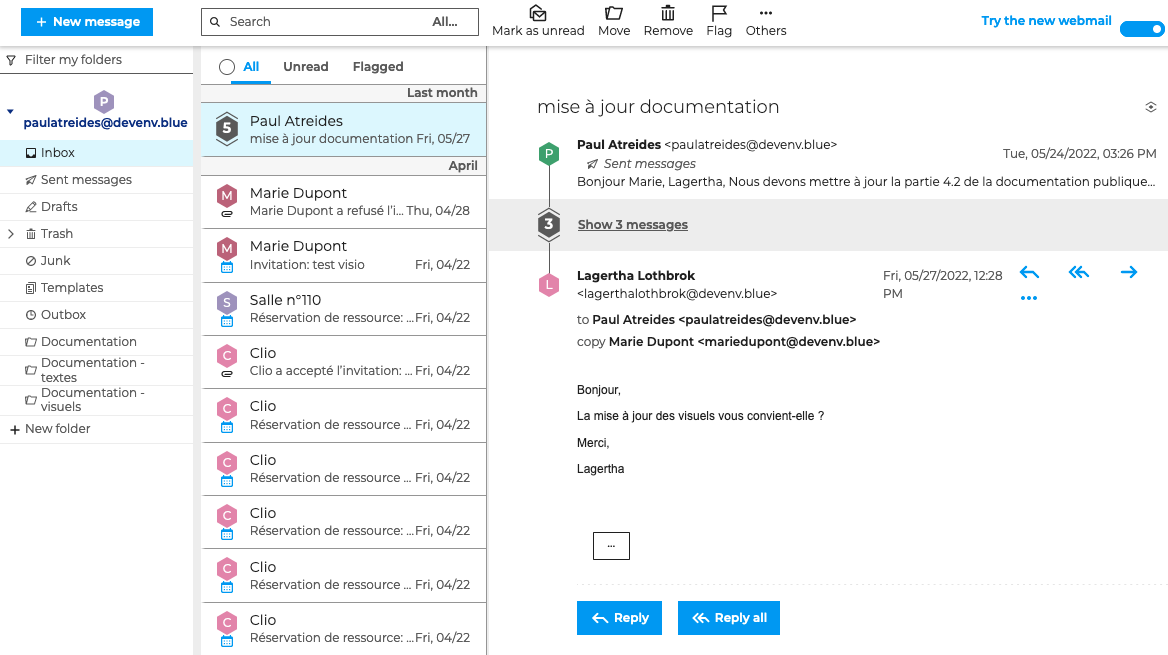
When a message belonging to a conversation is received, the conversation is shown in your Inbox with the date of the latest message. The conversation appears as unread until it is opened again.
The new message is also visible in duplicated conversations in personal folders. However, duplicate conversations in folders are not marked as unread, and the date does not change.
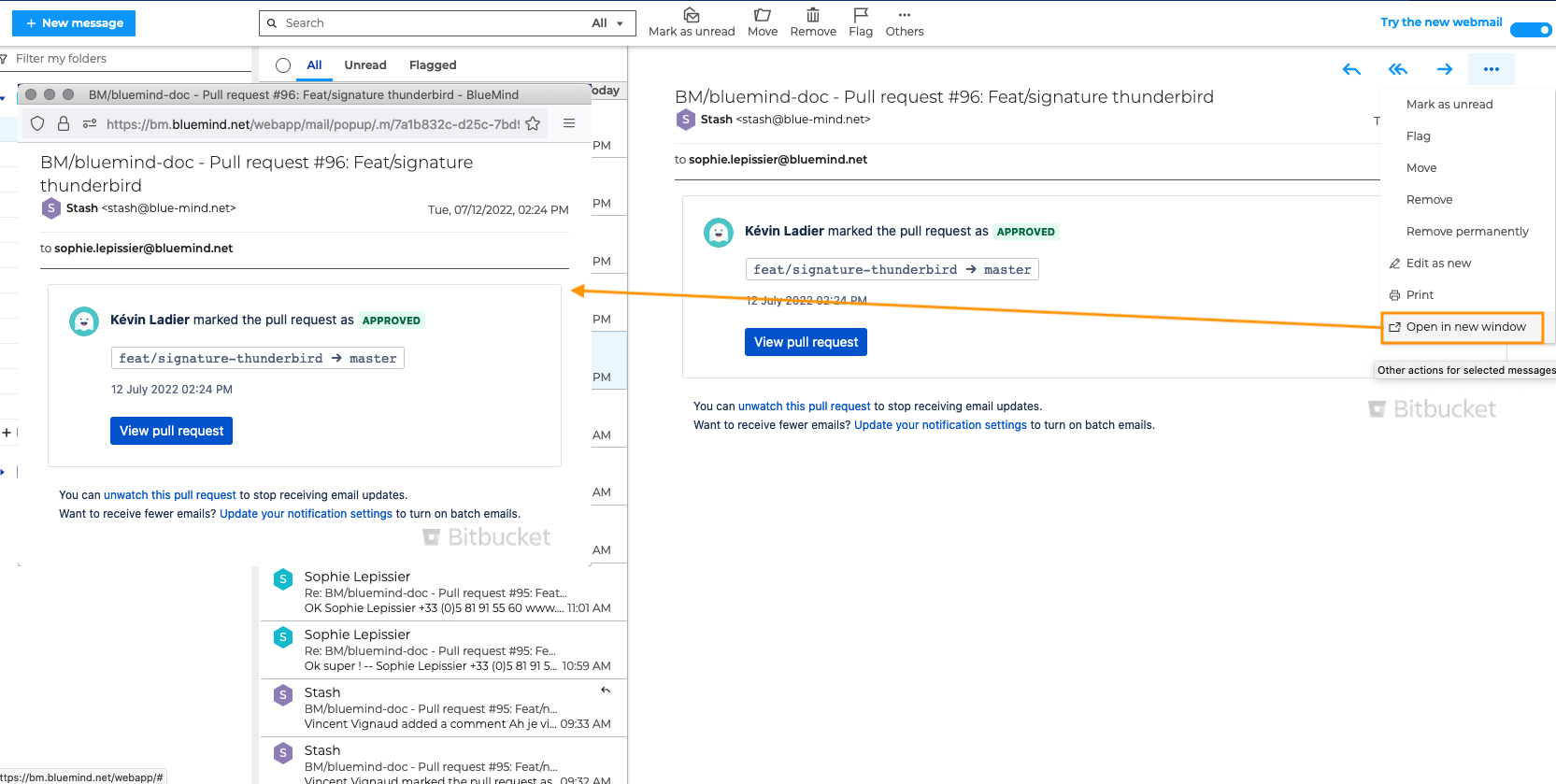
To make reading easier, you can display one or more messages, each in a new window, while scrolling through the conversation in the main area.
To display a message in a new window, go to the message menu and click on "Open in new window"
Display contact details
To view directly from a message, the contact details of the sender or one of the recipients, click on the desired contact.
A file appears, merging all the contact details linked to the e-mail address.
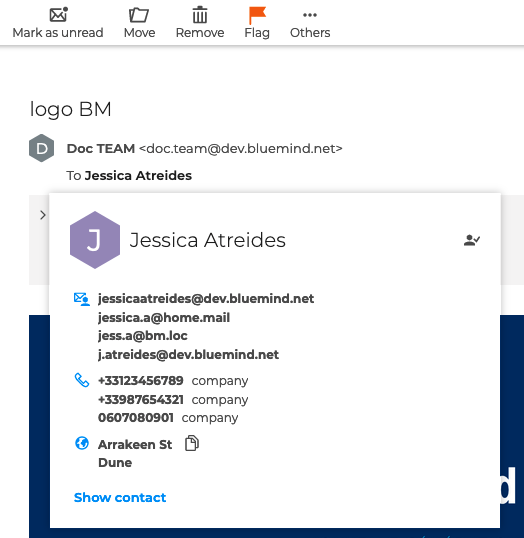
The contact data sheet contains:
- The icon
 indicating membership in a personal address book or in the Directory
 - The contact details (e-mail, telephone numbers and postal address) of the clicked contact
- The contact's email-related information when clicked, i.e. all the information found in the contact cards having the same email address as the clicked contact
Example:- The email of the clicked contact 'Jessica Atreides' is
jessicaatreides@dev.bluemind.net - the email
jessicaatreides@dev.bluemind.netis also provided in the contact card of 'Jess A.'
⇒ the contact details of 'Jess A.' appear in the contact details of the clicked contact
- The email of the clicked contact 'Jessica Atreides' is
- The "View contact" action opens the detailed record of the contact clicked on in the Contacts application.
If the contact does not exist, click on "Add contact" to add it to the address book "My Contacts". Once a contact has been added, the action "Display contact" appears on the contact details page. - Next to each coordinate, the
 icon lets you copy it to the clipboard for use in any software or application.
In the same way as in the Contacts application, links to e-mails and phone numbers allow you tosend a message or call the contact directly from the file.
Refer to the page Editing a contact for more details.
Managing invitations
BlueMind is a complete solution, and the various applications are interconnected. Also, management of invitations to meetings sent from the Agenda application can be carried out in the Messaging application thanks to e-mail notifications:
- guests can reply toinvitations
- the organizer can manage new schedule proposals sent by guests, as well as resource reservations
To facilitate the management of responses toinvitations, the organizer can also create a email filter specific to this type of email.
To do this, create a filter with the condition "The header exists" and indicate "X-BM-Event-Replied" in the "The header name" field.
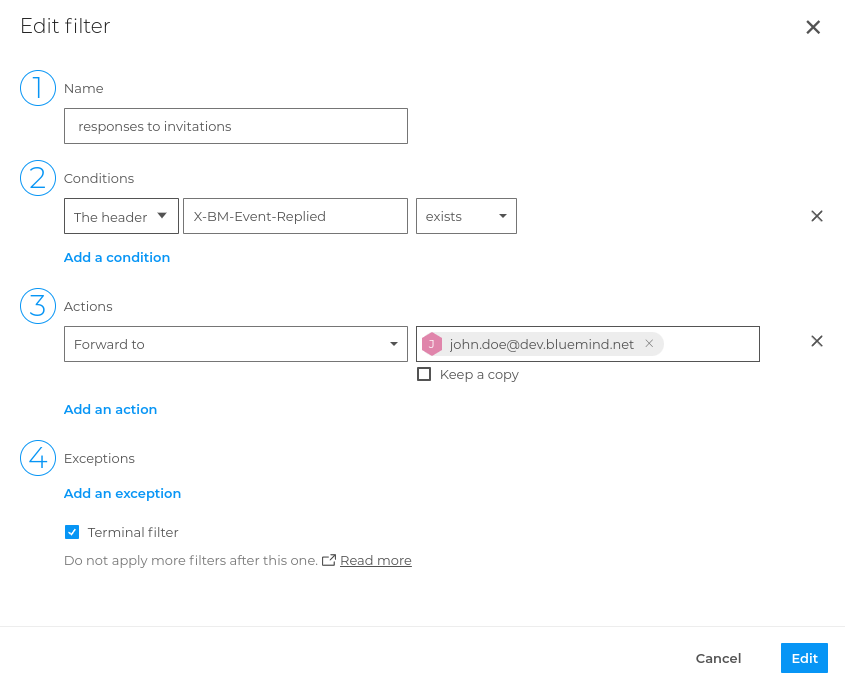
In this example, all replies to invitations will be forwarded to John Doe.
Opening attachments
Attachments are shown in a collapsible box under the message header.
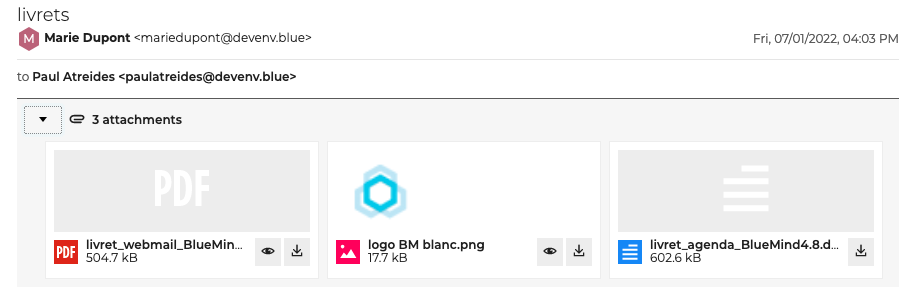
Each file can be downloaded by clicking the icon 
Images, PDFs, videos, audio files, text files, and HTML files can be previewed by clicking on  . Attachment previews open in a pop-up window.
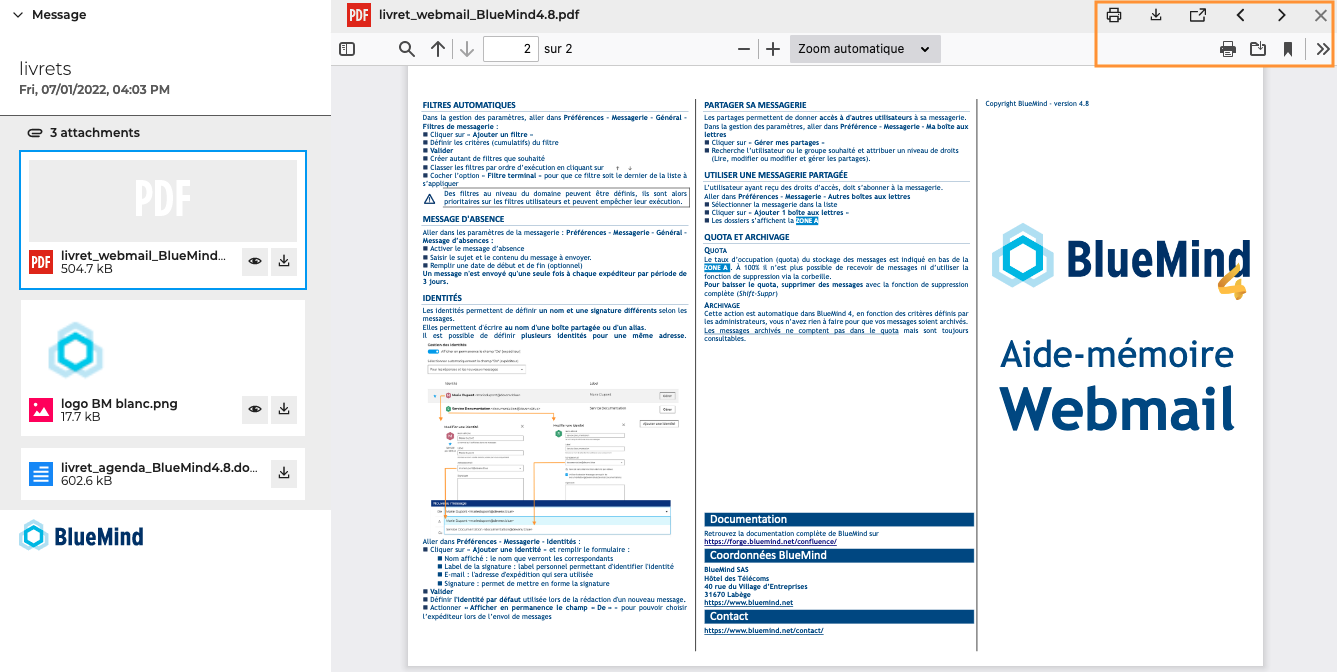
The command bar can be used to move to the next attachment, and print or download the current document.
The document then opens in a new browser window. Use the control bar to print or download it.
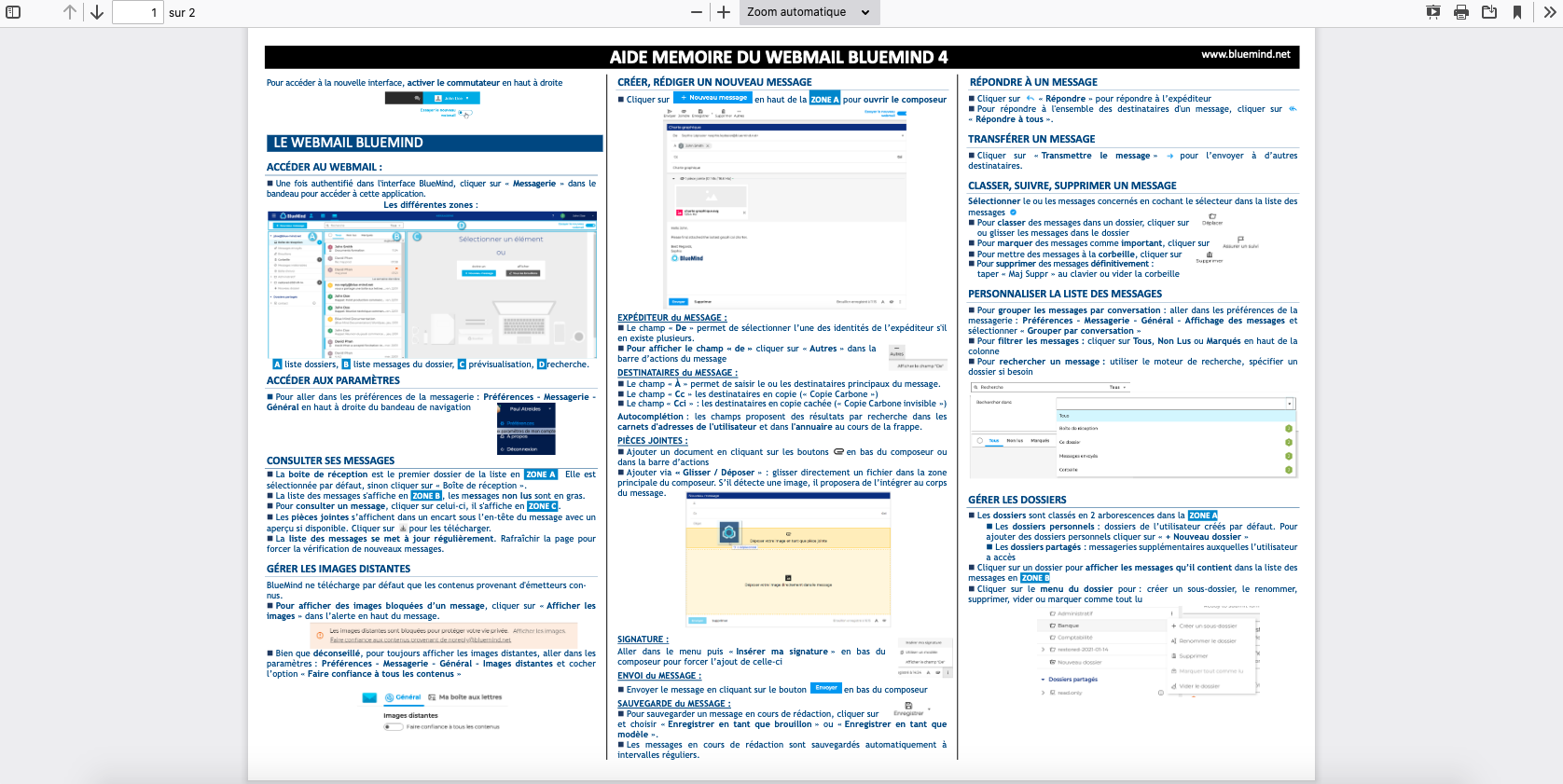
One-click download of all files will be available in a future version.
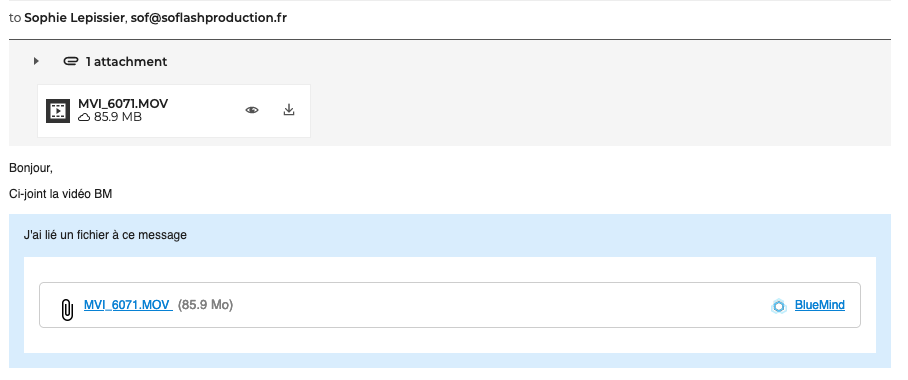
Large attachments are sent via a download link to keep emails lighter. Click the link to open and download the attachment.
Printing messages
To print a message, go to the Other actions for selected messages and click Print
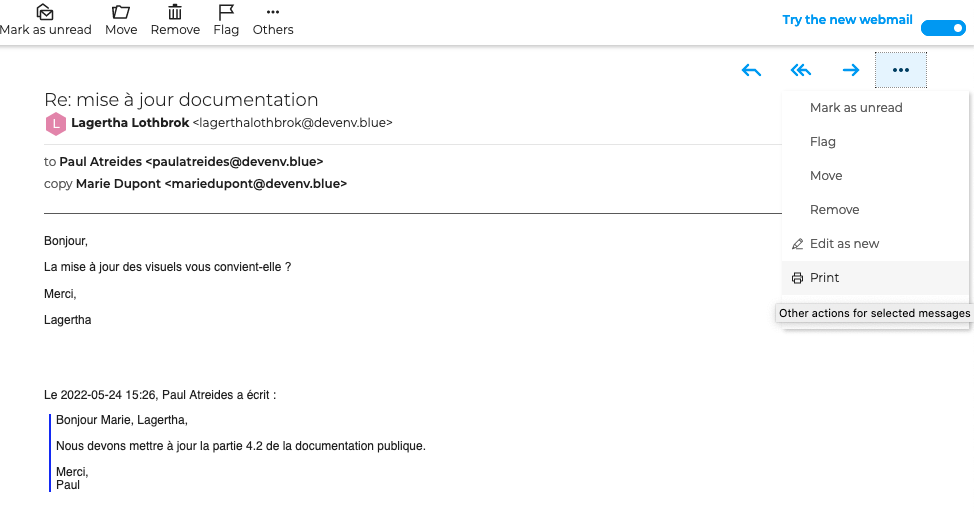
The message opens in a pop-up window. Choose a printer (or Save as PDF), page orientation, the number of copies, etc. and click Print.
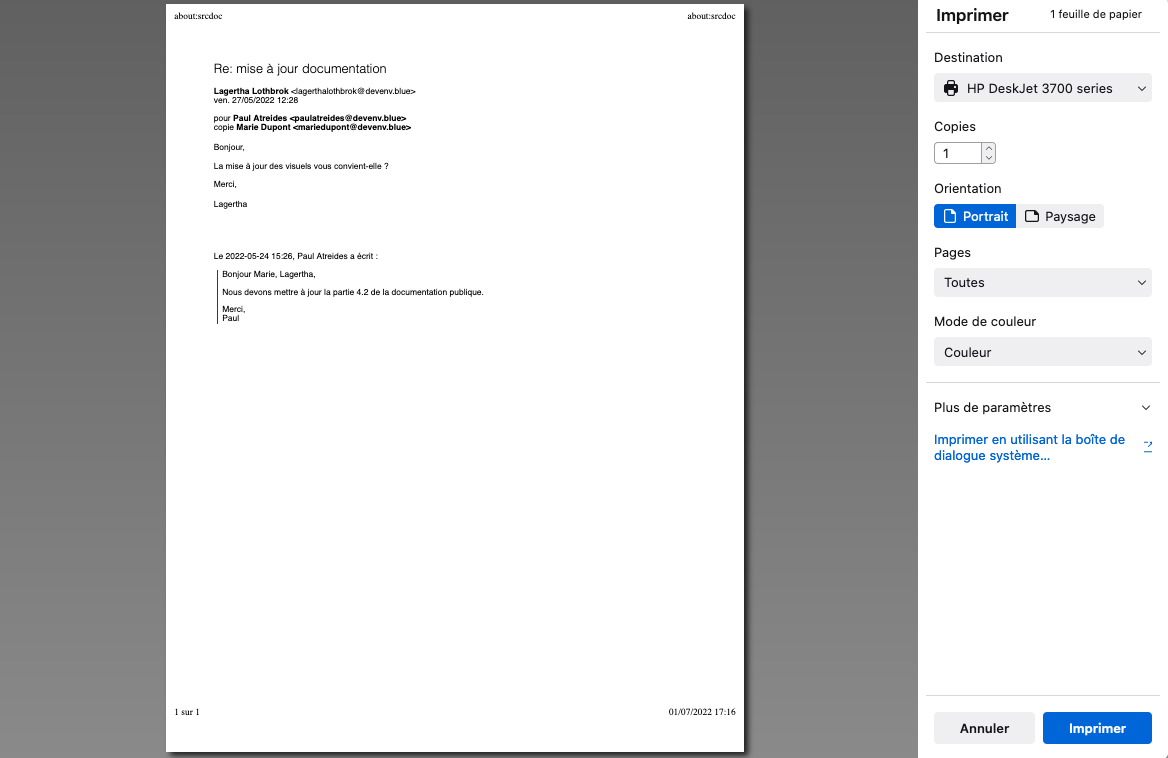
This view may look different depending on the browser you use.
Managing Remote Content
Remote content is content such as invisible images or "tracking pixels" that is not included in the message body but embedded as links to remote servers. The images are downloaded when the message is opened. This technique allows message senders not only to know that the message has been read but also how many times, at what time and where (IP address geolocation).
To protect your privacy, BlueMind only downloads content from known senders by default. Although we highly advise you against it, you may enable automatic downloading for all content.
To enable automatic downloading for all content, go to your mail settings: Preferences - Webmail - General - Remote images

When the "Trust all content" option is disabled, an alert pops up with 2 options:
-
show the content provided the message is opened
-
always trust this sender - in this case, the sender will be added to "collected contacts" and will then be considered "known"

Viewing the source of a message
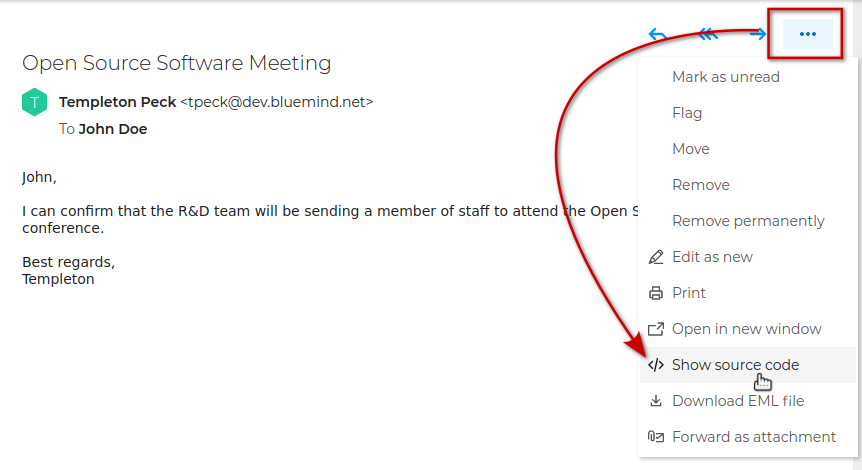
To view the raw source code of a received email, open the menu in the upper-right corner of the main display area and click "View Source Code":
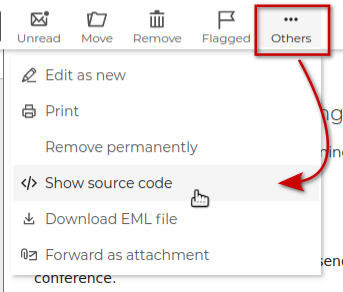
This option is also available in the other actions menu of the main toolbar:
This option is only available for received messages, and cannot be used to change the source of messages currently being written.
Downloading a message
It can be useful to download a message to save it, to import it into an external messaging system, or to request support.
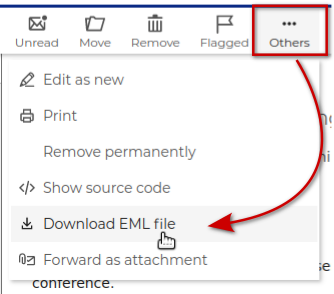
To download an email in a standardized raw format, open the menu in the upper-right corner of the main display area and click "Download EML File":
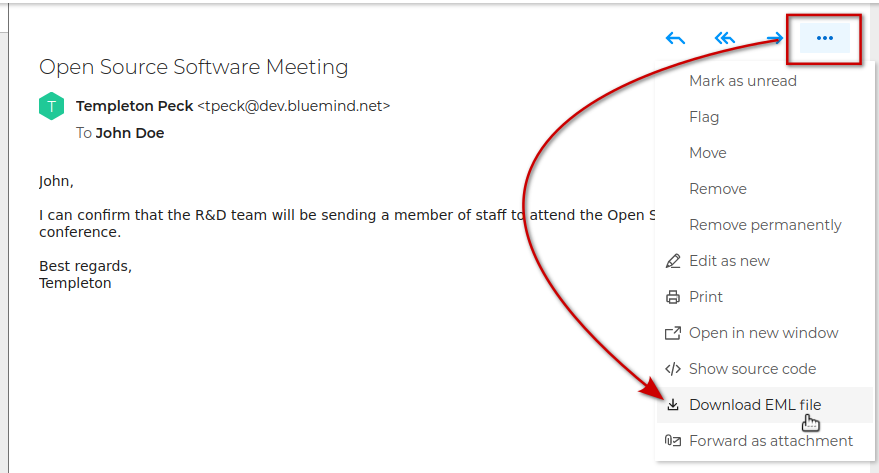
This option is also available in the other actions menu of the main toolbar:
Send delivery receipts or read receipts
The sender of a message can request an acknowledgement of receipt when the message is delivered to the server, or a read confirmation when it is opened by the recipient.
In the case of a delivery receipt, the server automatically issues a reply indicating that the message has arrived. This request is transparent to the user, who has nothing to do and cannot refuse it.
In the case of a read confirmation request, a banner appears at the top of the message display area, allowing the user to send or ignore the request using the links to the right of the banner:
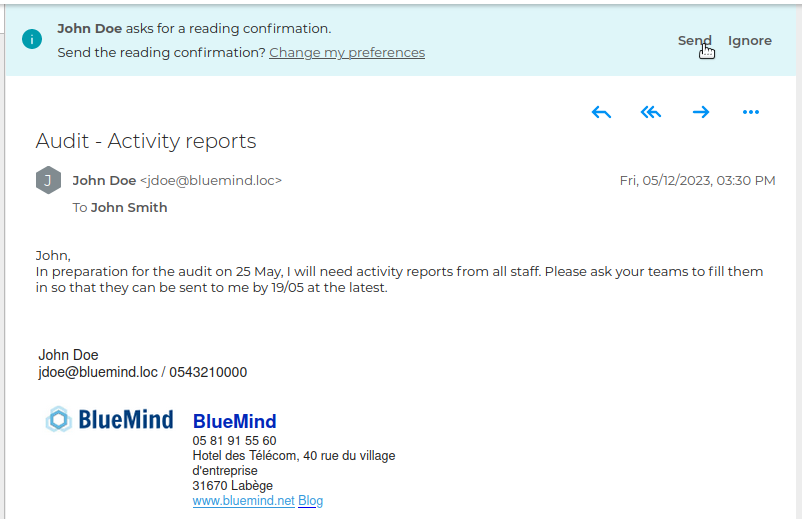
:::tip Cancellation Il n'est pas possible d'annuler un envoi, une fois la confirmation envoyée le bandeau disparait donc.
:::
To set how BlueMind should behave when a message requests a read confirmation, go to preferences management > section Messaging > Paragraph "Acknowledgements and read confirmations" and select the desired behavior: 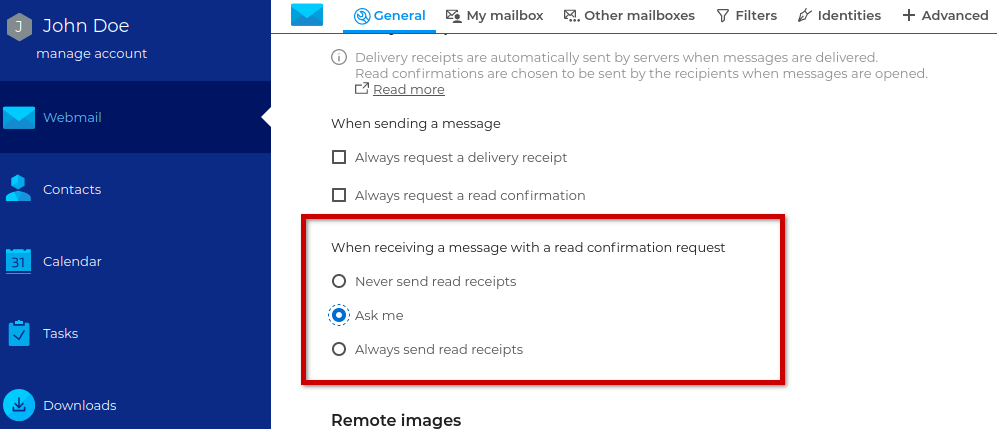
- Never send read receipt : no reply is sent and the banner does not appear in the header of messages containing a request.
- Ask me : the banner appears in the header of messages containing a request, allowing you to reply manually.
- Always send read receipt : a reply is automatically sent to any message containing a read confirmation request, and the banner does not appear in the message header.
To find out more about requesting acknowledgements in BlueMind, visit Send a message > Request acknowledgements.
Find out more
Related BlueMind documentation pages
- Moving, Flagging and Marking Messages
- Moving, Flagging and Marking Conversations
- Apply sorting and action rules
- Adding attachments
- Creating and Editing Personal Address Books
- Linked Attachment Administration