Managing Account Identities
BlueMind lets you manage several identities for the same account, with a label, an email address, and a different signature for each, allowing you to customize the sender and the signature when composing messages.
You can create identities from:
- his default email address
- one of his aliases
- an external e-mail address
ℹ️ Rôle nécessaire
Pour qu'un utilisateur puisse créer une identité à partir d'une adresse hors BlueMind, l'administrateur doit lui accorder le rôle "Identité externe". - the address of a shared mailbox (individual or group)
ℹ️ Droit nécessaire
Pour créer une identité à partir de l'adresse mail d'une boîte partagée collective ou individuelle, l'utilisateur doit avoir les droits d'écriture et y être abonné.
Identities are managed in your mail settings. To edit or add identities, go to Preferences - Webmail - Identities.
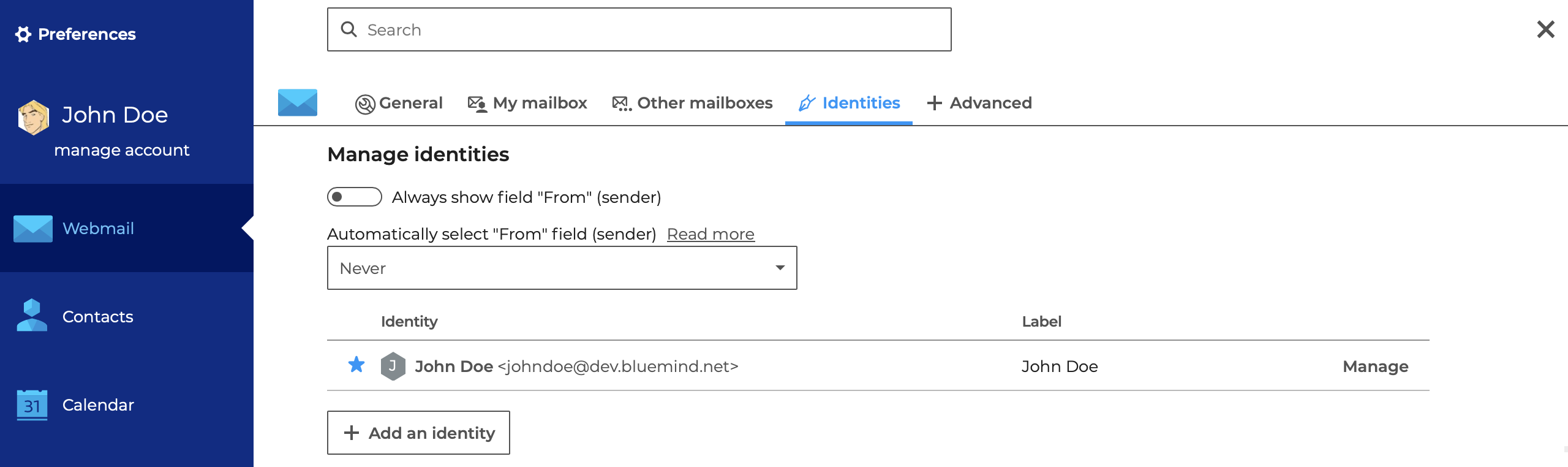
Creating an identity
A default identity is created on the user's main address. You can add as many identities as you like, for example, to write in the name of a shared box,, one of your own e-mail aliases, or to have several signatures for the same address. You can also choose a default identity, i.e. the identity that will be used when you create a new message.
Click Add an identity to open the creation form:
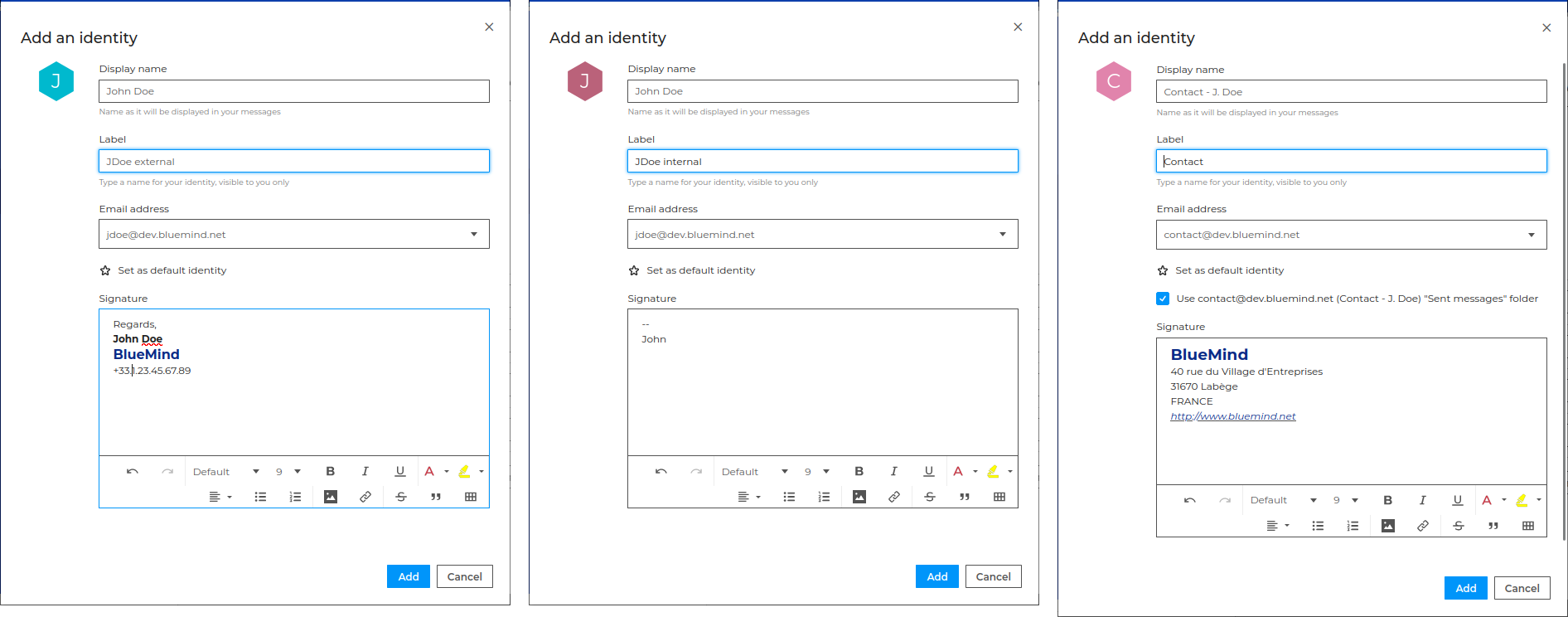
- Display name: the name that will appear when you send messages
- Label: the label is used to identify the identity in the list -- one email address and display name may be used by several identities
- Email address allows you to choose the identity's email address from the list of addresses assigned to or shared with the user account :
- their personal email address: the account's default address or one of its aliases
- a shared mailbox address (individual or group): the default address or alias of a mailbox with a minimum sharing level of "Can edit"
⇒ When a shared mailbox email address is selected, an option appears allowing you to choose the folder to use for storing sent emails: check the box to use the shared mailbox folder, or leave it unchecked to use the user’s default folder.

💡 Autocomplétion et recherche d'alias
Commencer à taper une partie de l'adresse souhaitée, l'autocomplétion propose les adresses accessibles correspondantes : l'adresse par défaut de la boîte trouvée (personnelle ou partagée) ainsi qu'un lien permettant d'afficher/cacher les alias de celle-ci.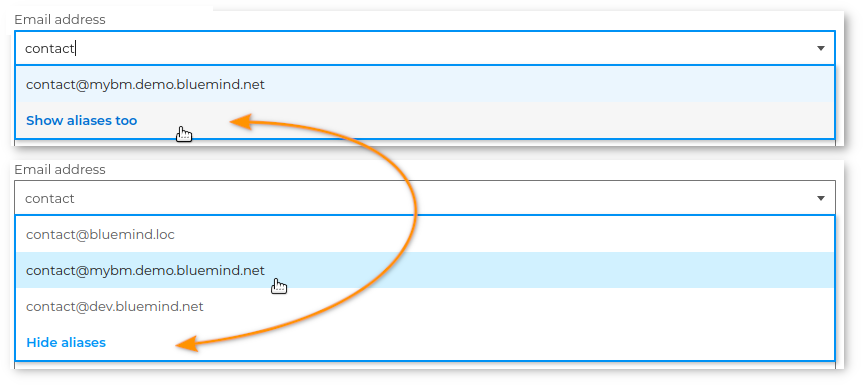
- an external address: Type in the desired address and confirm by clicking on the suggested address or simply leaving the field blank:

- Signature: the signature is in HTML format, i.e. it can include images, logos, etc.
- Make this identity my default identity : this option does not appear on the identity already set as default.
💡 The default username is marked with a blue star in the list

Click on "Add" to validate the creation
Modifying or deleting an identity
To modify it, click "Manage" and fill in the fields:
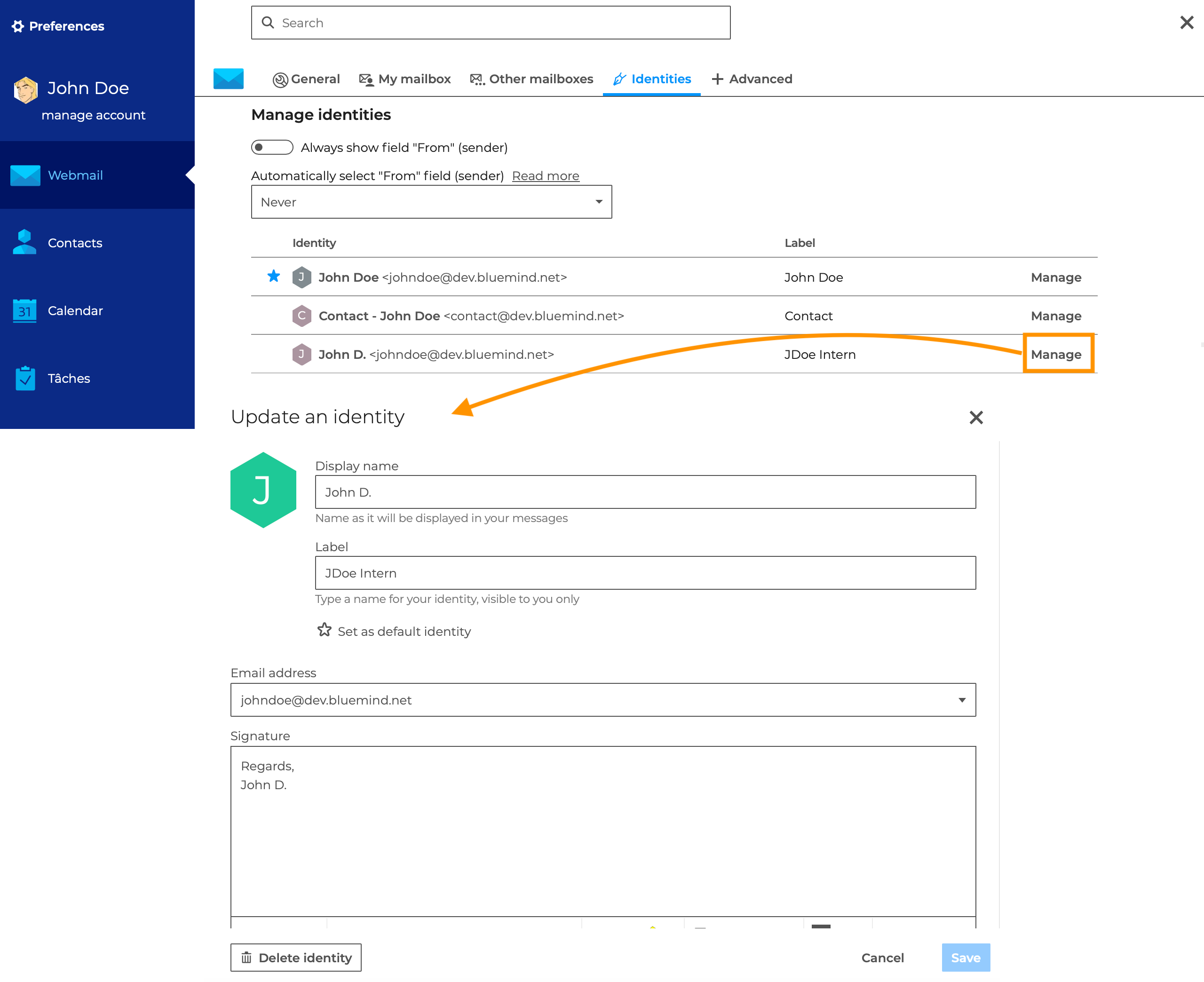
The form is identical to the identity creation form.
To delete an identity, click the button at the bottom right of the popup.
The default identity cannot be deleted, so the button is grayed out.
To delete the signature currently set as default, edit another signature to set it as default, then delete the desired signature.
Using an identity
:::caution Signature placement
When a corporate signature is set and applied to the message, the personal signature will be deleted.
For more information, see the relevant section: Send an email > Use a company signature.
:::
The identity is selected when writing a message, using the "From" field.
This field can be displayed in two ways:
-
Occasionally: See the section on the Send an Email page > Choose Sender.
-
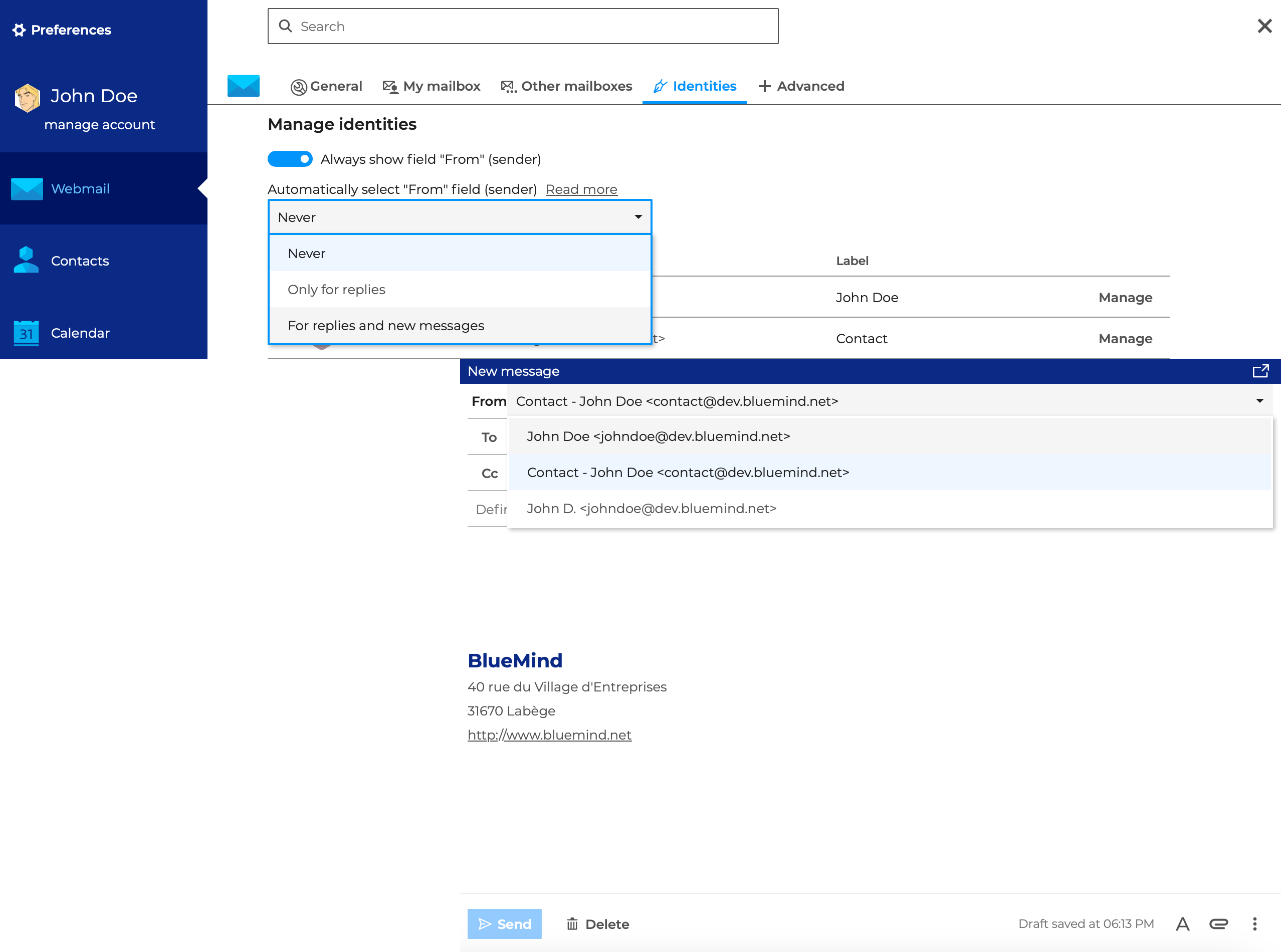
Permanently: In Identity Management, check the option "Always display the 'From' (sender) field".
💡 Automatically select the "FROM" (sender) field " allows you to specify the context in which the application will automatically select the most suitable identity: never, only for replies, or for replies and new messages.