Organizing Folders
The left-side column shows the list of folders you have access to -- either to view or to view and edit -- organized into 2 collapsible sections:
- User mailbox contains their own folders: default folders (inbox, sent messages, trash, etc.) followed by folders created by the user sorted alphabetically
- Mailboxes shared by other users: a tree structure for shared mailboxes, grouping default folders and user-created ones
- Shared folders: includes shared mailboxes on which the user has read or write access.
The tree structure of each mailbox can be unfolded or folded. The status will be retained when you reload or reconnect to the mailbox.
When a folder is selected:
- the messages it contains are shown in the middle column
- the folder name is shown on a blue background
- the colored dot showing the number of unread messages appears in bright blue

In this example, the folder "restored-2021-01-14" is selected
Creating folders
To create a "New folder":
- Click
 at the bottom of your folder list
 - Type a folder name

- To confirm the folder creation, press "Enter"
- To cancel the creation: press
Escor click the X at the end of the row
Managing folders
When you hover over a folder, a menu appears, showing possible actions on this folder and the messages it contains:
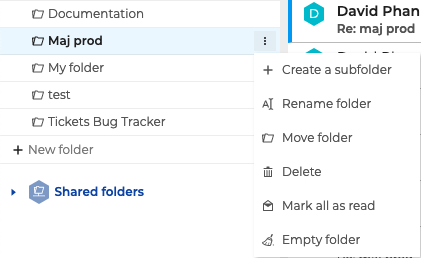
Currently, available actions are:
- Create a subfolder
- Rename folder
- Move folder
- Delete folder: the folder and its contents are moved to the trash
- Mark all as read: all the messages in the folder will be marked as read
- Empty folder: the messages contained in the folder will be deleted permanently. They will not be placed in the Trash folder.
Finding a folder
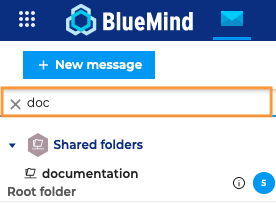
The "Filter my folders" field at the top of the column is used to find folders quickly. Type the first letters of the folder's name in the search box and the list of matching folders will appear.
Moving a folder
To move a folder, click "Move folder" in the folder's action menu. A pop-up window opens:
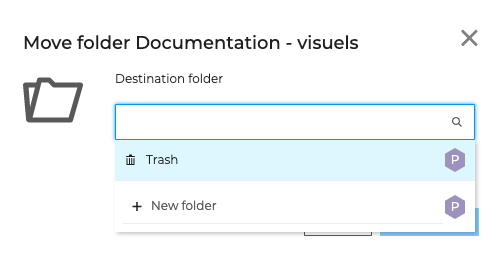
Select the destination folder - type the first letters of the folder's name, autocomplete displays matching folders - then click "Move folder".
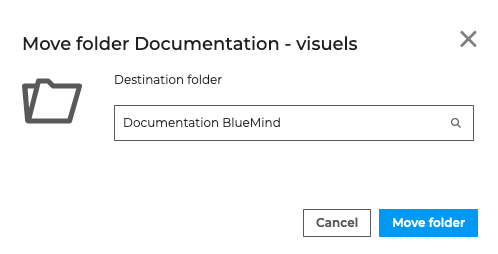
The folder and the messages it contains is moved to the desired location:
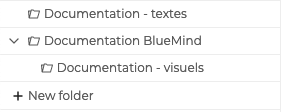
Folders can also be moved quickly using drag-and-drop.

Folders can only be moved within the same mailbox. Currently, it is not possible to move a folder from your personal mailbox to a mailbox shared by another user or a shared folder, and vice versa.
Emptying the Trash folder
Emptying the recycle garbage can permanently deletes messages and folders , thus reclaiming storage space. To do this, go to the actions menu of the "Recycle garbage can" folder and click on 
To avoid overusing storage space, you can empty the Trash every time you log out of BlueMind. To set this up, go to your account settings: Preferences - Webmail - General - On logout and enable "Empty Trash". 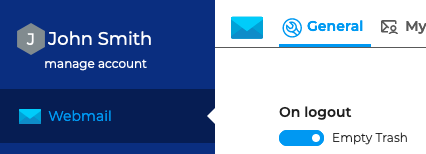
Displaying Storage Capacity
To help you manage your storage capacity, you can display used and free storage.
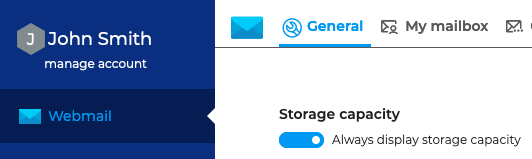
To do this, go to your account settings: Preferences - Mail - General - Storage capacity and enable "Always display storage capacity"
:::info About space quotas Lorsqu'un quota est défini par l'administrateur et que l'option "Toujours afficher la capacité de stockage" est activée, le taux d’occupation (quota) du stockage des messages est indiqué en bas de la liste des dossiers.
When a quota is reached, it blocks the reception of e-mails. They are stored by the server for a few days. Sending and even deleting operations can also be disrupted, as the system needs to make copies in a temporary directory and/or in the trash.
To lower your usage quota, we recommend that you permanently delete messages by pressing "Shift-Del".
A maximum quota reached can be manually increased by your administrator and decreased back to the initial value.
:::