Searching in messages
The BlueMind solution features a high-performance search mode, enabling multi-criteria and full-text searches (body and attachments) in message content.
Quick search
Clicking on the search field at the top of the message list expands it, giving you access to a direct search and more options:

For a direct search, simply type the desired term and confirm with "Enter" or by clicking on the "Search" button:
At the beginning of the search box, a drop-down list allows you to specify the folder(s) to search:
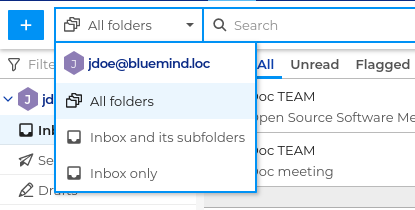
- All folders : all the folders and sub-folders of the user or shared box currently selected in the tree.
- [Current folder] and its subfolders : the currently selected folder and its subfolders will be searched.
- [Current folder] only : the search will only be performed in the folder currently selected in the tree structure.
:::info Default search folder
The default selection depends on the folder currently selected in the tree:
| Selected folder | Default search folder |
|---|---|
| Inbox | All folders |
| Other folder | Current folder and its subfolders |
:::
Multi-criteria search
To carry out a more detailed search, click on the  button at the end of the search field; this opens the complete search form:
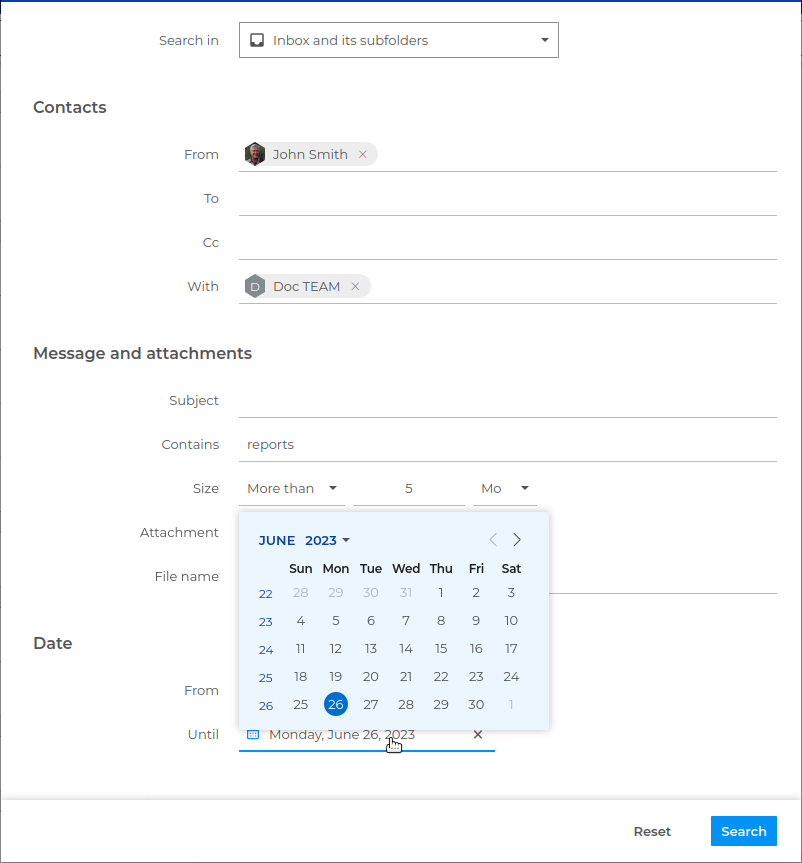
:::info Multi-criteria search Les critères de recherche sont cumulatifs : seront remontés les messages remplissant toutes les conditions saisies.
:::
Contacts : the fields in this section benefit from autocompletion: as you type, the addresses in all the user's notebooks (personal and shared) are suggested:
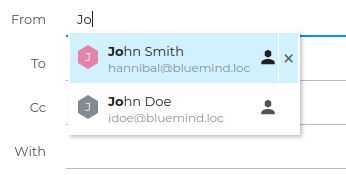
:::tip Confirm or ignore proposals Pour valider un choix, cliquer dessus avec la souris ou utiliser le clavier : naviguer au moyen des flèches puis valider avec entrée ou la touche de tabulation.
To disregard the suggestions and validate the typing as is, click outside the input field.
:::
Messages and attachments : this section allows you to search the various message content fields.
Date : date search fields feature a calendar to help you enter data:
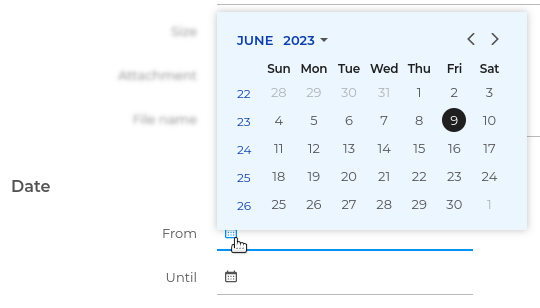
You can fill in just one field to search for messages received before or after a given date, or both fields to search for messages from a given period.
:::tip Calendar navigation
To navigate the calendar :
- click on the year to change it using the drop-down list
- use the arrows at top right to move from one month to the next
:::
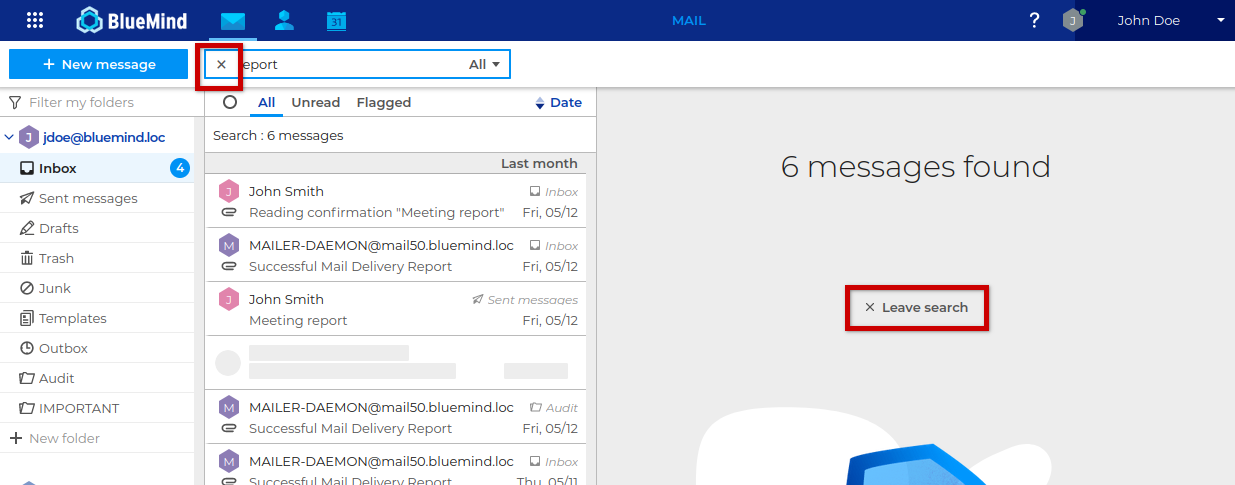
Resetting view
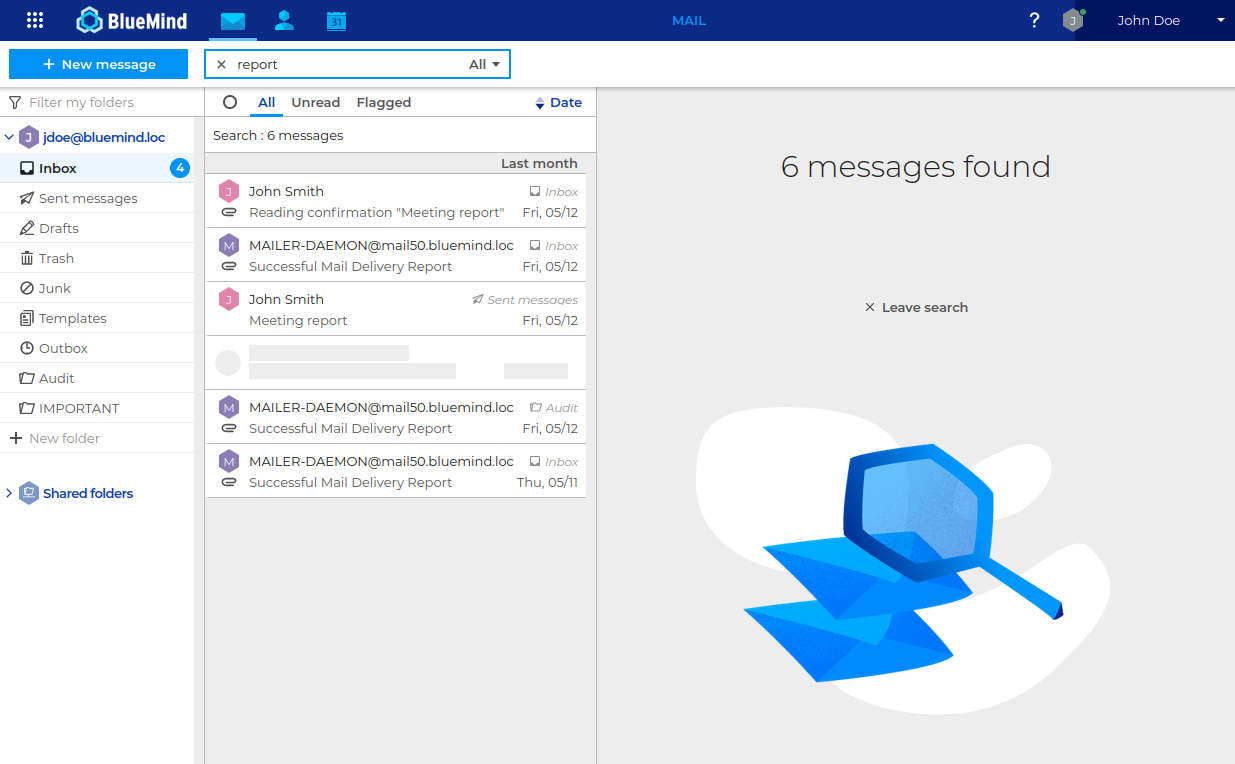
At any time, use the cross in the search field or the link in the main display area to quit the search and return to the full message list:
Searching with search operators
Simple search
For advanced users, criteria can be entered directly in the quick search field.
:::info List of criteria La liste des critères pris en charge étant en constante évolution, il n'est pas possible d'en fournir une liste exacte et à jour.
:::
Terms must be entered in English (see examples below for syntax):
- From: sender
- To: recipient
- With: searches sender, recipient and copy fields
- Subject : Object of the message
- ...
Examples:
from:smith@bluemind.loc: messages received from this addressfrom:smith object:report: messages containing "smith" in the sender and the word "report" in the subject.date:[2023-05-15 TO 2023-06-02]: messages received between 05/15/2023 and 06/06/2023date:[2023-05-09 TO *] subject:confirmation: confirmation messages received after May 9, 2023
:::note Correlation with the complete form En ouvrant le formulaire, les critères pris en charge se retrouvent dans les champs correspondant, les autres termes sont placés dans le champ "Contient".
:::
Multi-criteria search
The AND and OR operators can be used in the form and in the quick search field; they obey the following rules:
- The terms and the operator must be placed between parentheses behind the desired criterion:
- subject:(annual AND maintenance) -> CORRECT
- subject:maintenance AND annual -> INCORRECT
Here only "maintenance" will be taken into account for the subject search, "annual" will be placed in the "Contains" field (see box above)
- The OR operator applies to a single field only:
- subject:(marketing OR commercial) -> CORRECT
- subject:marketing OR with:smith@bluemind.loc -> INCORRECT
- The AND operator between fields is the default behavior, it is implicit and not necessary:
- from:smith AND subject:confirmation = from:smith subject:confirmation
- In the absence of aoperator, AND is used, in which case the message must satisfy all the criteria:
- subject:(marketing commercial sales) = subject:(marketing AND commercial AND sales) -> the subject must contain the 3 words