Adjusting your Account Settings
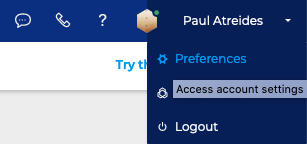
Your account settings can be accessed from the top navigation ribbon on all BlueMind pages:
Saving changes
Some modifications are automatically taken into account and saved on the fly, with an information banner appearing at the top of the page:

When a user action is required, save and cancel buttons appear at the bottom of the page:

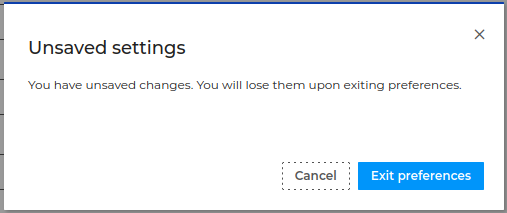
If the user clicks on the close cross to exit preference management, confirmation is requested if any changes have not been saved:
Setting localization preferences
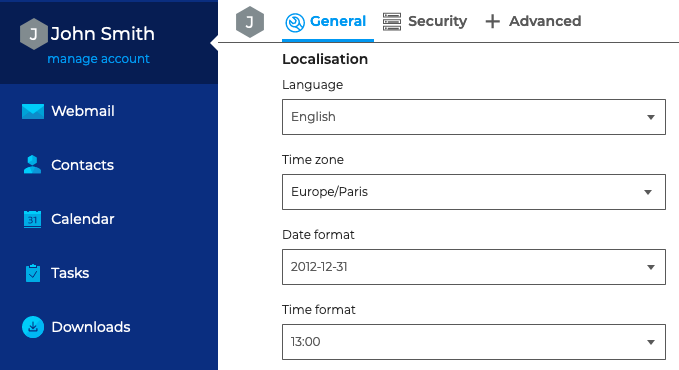
The Localization section lets you adjust the app's general localization and display settings:
- Display language
- Timezone -- the app sets its clock accordingly
- Date format: day/month/year or month/day/year or year-month-day
- Time format: 24-hour ("13:00") or 12-hour clock ("1:00 pm")
About languages
BlueMind is currently translated and being translated into several languages. You can view the available languages and their progress on the app's translation website: https://forge.blue-mind.net/translate/
Setting the default startup app
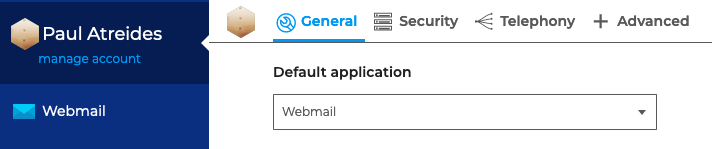
Still in the general section of preferences, under Default application you can choose the app that will open by default when you start BlueMind.
Creating Tags
Tags are keywords that can be added to contacts or events to help organize and find them quickly.
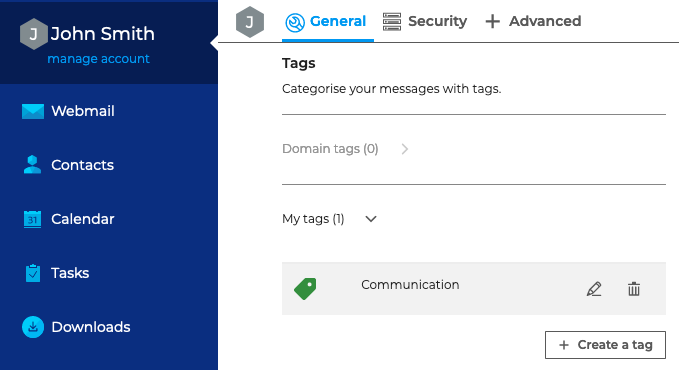
Domain tags -- created by your administrator -- cannot be edited.
To add a personal tag, go to "+ Create a tag" and
- enter a name
- choose a color (by default, an available color is suggested)
- click Create
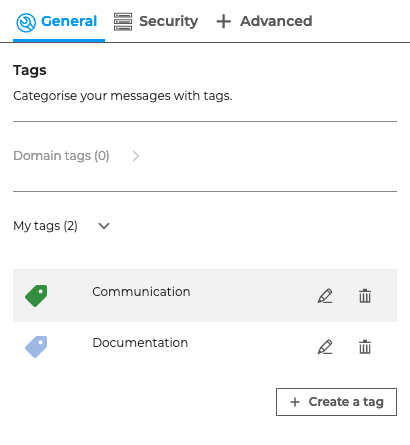
Click  to edit and
  to delete a tag.
Managing passwords and API keys
To change your password and generate an API key, go to the Security tab.
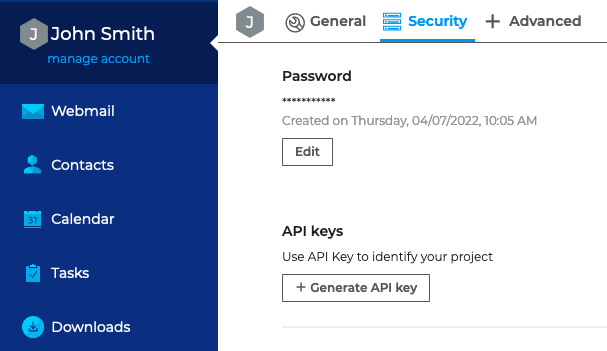
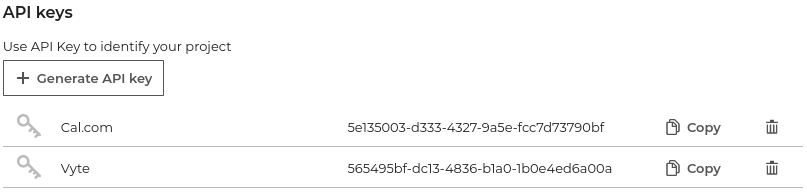
API keys can be used to connect to a user account without using the account login password. In particular, they enable you to connect an external service without having to provide it with the user password, and to revoke access at any time by deleting the key.
To create a key:
- click on the "Generate API key" button
- enter a name to identify the use of the key (for example, the name of the service or site for which it will be used):
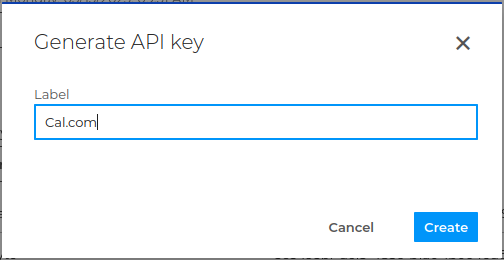
- click on "Create". The key is immediately created and added to the user's key list:
:::tip Number of keys per user
There is no limit to the number of keys, and each user can create as many as he or she wishes.
:::
Managing local data and notifications
The "+ Advanced" tab in your account settings can be used to Reset local application data as well as Enable notifications.
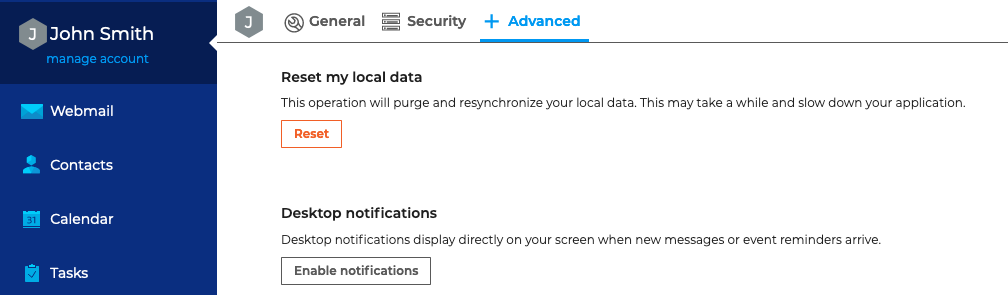
When notifications are enabled, an alert will be displayed on your screen when you get a new message or have an event reminder.
The following browsers support this feature:
- Chrome
- Firefox
- Safari
The following browsers do not support this feature:
- Internet Explorer
- Opera
Downloads
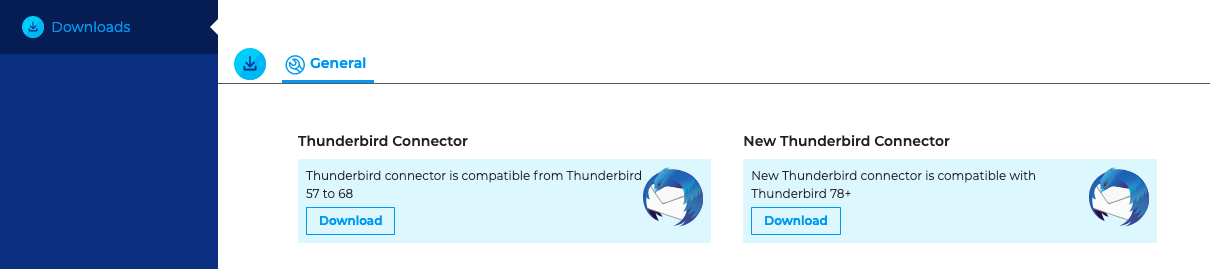
In the Downloads section you will find the Thunderbird connector to enable syncing with Thunderbird -- when it is provisioned by your administrator.
Find out more
Watch related BlueMind videos
Manage app settings:
- Calendar:
- Mail:
- Contacts:
- Tasks :