Frontend / UI
Frontend Environments
Installation prerequisites
VM with Bluemind version 4.8 or above up and running.
VueJS Environment
Installation prerequisites
NodeJS installed from the official website (version 8 or above). NPM is installed with NodeJS. NodeJS installed from the official website (version 1.12 or above).
To start the development server:
- Go to the plugin that contains the application, in the folder where the
package.jsonis located (typically, it is in the root of the Vue.js plugin) - Run "
yarn dev" (or "npm run dev" if you aren't in the bluemind-all repository): a development server (live-reload enabled) starts. The server is launched athttp://*:9180/
VSCode editor (recommended)
- Edit via Files > Preferences > Settings
{
    "settings": {
        "prettier.eslintIntegration": true,
        "editor.tabSize": 4,
        "eslint.autoFixOnSave": true,
        "eslint.validate": [
            {
                "autoFix": true,
                "language": "javascript"
            },
            {
                "autoFix": true,
                "language": "vue"
            }
        ],
    },
    "extensions": {
        "recommendations": [
            "formulahendry.auto-close-tag",
            "formulahendry.auto-rename-tag",
            "msjsdiag.debugger-for-chrome",
            "dbaeumer.vscode-eslint",
            "eg2.vscode-npm-script",
            "christian-kohler.npm-intellisense",
            "esbenp.prettier-vscode",
            "dariofuzinato.vue-peek",
            "octref.vetur",
        ]
    },
}
If a Webpack Dev server doesn't recompile the source files immediately when they are modified, this is probably caused by an insufficient number of "inotify watchers": https://github.com/guard/listen/wiki/Increasing-the-amount-of-inotify-watchers
GWT Environment
Installation prerequisites
Eclipse 2022-03 (minimum) installed
Installation:
- Install the "GWT Eclipse Plugin" (via Eclipse Marketplace)
- When installing the add-on, check only GWT 2.8
To start the development server:
- Right-click the project that provides the JS bundle (e.g. net.bluemind.ui.adminconsole.main for the AC), then "Run As" and "GWT Development Mode with Jetty"
- If a message such as "could not find any host pages in project" appears when the server starts: right-click the project / Properties / GWT / Web Application and select "This directory has a WAR directory" (and configure the folder, e.g. web-resources).
- If this message appears:
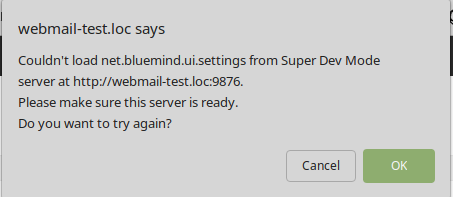
There are several possible reasons:- With devmode, you might have to specify an IP address for the GWT dev server. This is done in Run Configuration / Arguments, by adding a parameter "
-bindAddress 0.0.0.0" (for example) - You have a Content Security Policy issue (check in the console). Go to devmode's CSP issues section
- You have a Mixed Content Security issue (check in the console). Go to devmode's HTTPS issues section
- With devmode, you might have to specify an IP address for the GWT dev server. This is done in Run Configuration / Arguments, by adding a parameter "
- If this message appears:
[ERROR] jreLeakPrevention.gcDaemonFail
java.lang.ClassNotFoundException: sun.misc.GC
	at java.base/jdk.internal.loader.BuiltinClassLoader.loadClass(BuiltinClassLoader.java:641)
	at java.base/jdk.internal.loader.ClassLoaders$AppClassLoader.loadClass(ClassLoaders.java:188)
	at java.base/java.lang.ClassLoader.loadClass(ClassLoader.java:520)
	at java.base/java.lang.Class.forName0(Native Method)
	at java.base/java.lang.Class.forName(Class.java:375)
	at com.google.gwt.dev.shell.jetty.JettyLauncher.jreLeakPrevention(JettyLauncher.java:915)
	at com.google.gwt.dev.shell.jetty.JettyLauncher.start(JettyLauncher.java:737)
	at com.google.gwt.dev.DevMode.doStartUpServer(DevMode.java:636)
	at com.google.gwt.dev.DevModeBase.startUp(DevModeBase.java:898)
	at com.google.gwt.dev.DevModeBase.run(DevModeBase.java:705)
	at com.google.gwt.dev.DevMode.main(DevMode.java:432)
You can safely ignore it. The surrounding controls are there to prevent this from happening - the JRE implementation used has removed this feature.
Closure Environment
Installation prerequisites
- Create the empty folders
/root/dev-unsecure-cookiesand/root/dev-no-cspon the VM and restart the bm-hps service - Compilation in open/ui:
mvn -Dmaven.test.skip=true clean install
To start the development server:
- In open/ui, run the script
plovr.sh - The list of the different configurations (applications) managed by plovr can be found at
http://localhost:9810
- Useful Plovr configurations (to add to the URL, right after "index.html", e.g.:
https://virt.bluemind.loc/contact/index.html?mode=RAW)- ?level=QUIET to stop warnings being displayed above the application,
- ?mode=RAW puts you in uncompiled mode (the entire JS essentially)
- For more information on Plovr configuration and options, visit: http://plovr.com/options.html
Configuring the reverse proxy
You must configure your development environment so that the correct JS file (the one that is being developed) is consumed by the BlueMind webserver installed on your VM.
Via the devmode plugin (recommended method)
Advantage: doesn't require a reverse proxy on the development machine.
Installation prerequisites
The bm-plugin-webserver-devfilter package installed in your VM.
Implementation
- A conf file is automatically created (
/etc/bm/dev.json) when the package is installed (only if no existing conf file is detected) - Add "
YOUR_HOST_IP_ON_THE_VM_NETWORK dev.bluemind.test" in your host's/etc/hostsfolder - Still in the host, start the development server
Remarks
- In the conf file, change the filters' "
active" field to activate them. - Every time you change the conf file, restart bm-webserver or add "?reload-devmode" to the URL (e.g.: /cal/index.html?reload-devmode)
- Two specific filters can be left active to develop in Closure: the one that deactivates the appcache and the other on /input/
- You can view or download devmode default configuration here
Issues with HTTPS/Mixed Content Security
There are two solutions:
- In your web browser in "unsecure mode":
- For Firefox: from the page "about:config", pass the parameter
security.mixed_content.block_active_contentto false - For Chrome: a priori Chrome no longer authorizes mixed content (see https://support.google.com/chrome/thread/25175839?hl=en and https://docs.adobe.com/content/help/en/target/using/experiences/vec/troubleshoot-composer/mixed-content.html)
- For Firefox: from the page "about:config", pass the parameter
- Switch to full HTTP mode:
By default Bluemind redirects HTTP to HTTPS. You therefore need to add the following configuration to your nginx (on your VM). In this example,bluemind.virtis the URL used to access your VM and bluemind-dev.virt will be the URL used to access it in HTTPserver {listen 80;server_name bluemind-dev.virt;location / {proxy_pass https://bluemind.virt;}}
Issues with CSP
If the BlueMind CSP blocks the request?
Just do a touch /root/dev-no-csp and restart HPS
Unable to authenticate with HTTP://
Empty the application cache, especially cookies, create the file /root/dev-unsecure-cookies and restart HPS.
Issues with HSTS
- On the VM, you must delete the line that adds the header
add_header Strict-Transport-Security max-age=15768000;in the nginx configuration:/etc/nginx/sites-enabled/bm-client-access - Restart nginx:
nginx -s reload - In google-chrome/chromium, you must empty the HSTS cache (chrome://net-internals / Domain Security Policy / Delete domain security policies)
Debugging
If devmode doesn't work, the cause is probably either of the two issues mentioned above.
Otherwise, try the following steps to pinpoint your issue:
- Is the VM ok?
- Has the development server been launched?
- Ping the host from the VM?
- Curl the JS you want from the VM (firewall issue?)
- Are the rules defined in /etc/bm/dev.json correct?
Via un reverse proxy
Installation prerequisites
Either the reverse proxy Nginx or Apache must be installed on your development machine.
Remarks:
bluemind.host: BM server access URL installed on your VMbluemind.virt: URL used to have the correct JS active (the one yo modify on your dev machine, compiled and served in live-reload by webpack-dev-server)./etc/hostsexample (for Linux):
Nginx
Remark: the modified configuration is the Nginx configuration on the development machine, not the VM.
For example:
upstream core2 {
  server bluemind.virt:443;
}

server {
  	listen 80;
  	server_name bluemind.host;

	# SIGNATURE
	location /signature/js/compile/net.bluemind.ui.signature.application.js {
		proxy_pass http://127.0.0.1:8080/signature/js/compile/net.bluemind.ui.signature.application.js;
	}
}
Apache
RewriteEngine On

# SIGNATURE
RewriteRule "^/signature/js/compile/net.bluemind.ui.signature.application.js$" "http://127.0.0.1:8080/signature/js/compile/net.bluemind.ui.signature.application.js" [R]