Installing an Android VM
This page will walk you through installing a virtual Android environment on Linux.
If you don't need Android Studio (rich IDE), you can install only what is strictly necessary to mount an Android virtual machine.
All the information on command line tools is available here: https://developer.android.com/studio/command-line
Prerequisites
Before you install the virtual machine, you must set up a number of environment variables and install sdkmanager.
Below you will find the actions to perform depending on your distribution (generic actions, specific commands for some distributions).
Generic Linux operations
-
Install the latest version of openJDK' (cf. https://doc.ubuntu-fr.org/openjdk)
-
Download the command line tool: https://developer.android.com/studio#command-tools-only
-
Create the directory tree that will host the SDK :
sudo mkdir -p /opt/android-sdk/cmdline-tools -
Unpack the archive contents and rename the parent directory
cmdline-toolstotools -
Move or copy this directory to the previously created directory:
sudo cp -r tools /opt/android-sdk/cmdline-tools -
Set up environment variables by adding the following 2 lines to the user's
.profilefile:export ANDROID_SDK_ROOT="/opt/android-sdk"PATH="$PATH:$ANDROID_SDK_ROOT/cmdline-tools/latest/bin:$ANDROID_SDK_ROOT/cmdline-tools/tools/bin:$ANDROID_SDK_ROOT/emulator" -
Create the
android-sdkgroup, include the current user and assign rights to the folder:sudo groupadd android-sdksudo gpasswd -a $USER android-sdksudo setfacl -R -m g:android-sdk:rwx /opt/android-sdksudo setfacl -d -m g:android-sdk:rwX /opt/android-sdksudo chown android-sdk /opt/android-sdk -Rsudo chmod u+w /opt/android-sdkinfoYou need to relocate or run
newgrp android-sdk. -
Install
tools:/opt/android-sdk/cmdline-tools/bin/sdkmanager --sdk_root=/opt/android-sdk "tools"
Now you have everything you need to use command-line tools to manage your environment.
Android Virtual Device
Managing SDKs and tools
A few useful sdkmanager commands:
sdkmanager --list
sdkmanager --update
Before continuing, make sure you have all the prerequisites in place:
- check the PATH for command access
echo $PATH
/home/marie/.local/bin:/usr/local/sbin:/usr/local/bin:/usr/sbin:/usr/bin:/sbin:/usr/games:/usr/local/games:/snap/bin:/snap/bin:/opt/android-sdk/cmdline-tools/latest/bin:/opt/android-sdk/cmdline-tools/tools/bin
- check ANDROID_SDK_ROOT
echo $ANDROID_SDK_ROOT
/opt/android-sdk
- check what is installed
$ ls -al -g $ANDROID_SDK_ROOT
Permissions Size User Group Date Modified Name
drwxrwxr-x@ - user android-sdk 14 Sep 13:13 emulator
drwxrwxr-x@ - user android-sdk 14 Sep 13:19 licenses
drwxrwxr-x@ - user android-sdk 14 Sep 13:11 patcher
drwxrwxr-x@ - user android-sdk 14 Sep 13:13 platform-tools
drwxrwxr-x@ - user android-sdk 14 Sep 13:19 system-images
drwxrwxr-x@ - user android-sdk 14 Sep 13:15 tools
- check the permissions for the installation folder
$ sdkmanager --list
Installed packages:=====================] 100% Computing updates...
  Path           | Version | Description                | Location
  -------        | ------- | -------                    | -------
  emulator       | 30.0.26 | Android Emulator           | emulator/
  patcher;v4     | 1       | SDK Patch Applier v4       | patcher/v4/
  platform-tools | 30.0.4  | Android SDK Platform-Tools | platform-tools/
Managing AVDs
Before you create an AVD (Android Virtual Device), you must have a system image installed on your environment.
If this is not the case, install the required platforms and platform-tools packages:
sdkmanager "platforms;android-33" "system-images;android-33;google_apis;x86_64"
sdkmanager --install platform-tools
Next, create the AVD according to the installed image:
avdmanager create avd -n avd-android33-pixel -k "system-images;android-33;google_apis;x86_64" --device "pixel"
Finally, start AVD from command line using the name given in the creation command:
emulator -avd avd-android33-pixel
To list the AVDs available in the emulator :
$ emulator -list-avds
avd-android30-pixel
avd-android33-pixel
Tips
Physical keyboard
To use your physical computer keyboard in the emulator, change the hw.keyboard variable value in the file ~/.android/avd/<your avd>/config.ini
hw.keyboard = yes
Handling the emulator
You can send commands to the emulator to simulate specific activities, such as receiving a text message, changing the gps position or gsm power.
The list of possible actions is available here: https://developer.android.com/studio/run/emulator-console
telnet localhost 5554

Trying ::1...
Connected to localhost.
Escape character is '^]'.
Android Console: Authentication required
Android Console: type 'auth <auth_token>' to authenticate
Android Console: you can find your <auth_token> in
'/home/user/.emulator_console_auth_token'
OK
auth FEHdxl/bQ4B24S2l
Android Console: type 'help' for a list of commands
OK
sms send 4085555555 hi there
OK
Opening a root shell
Create a root shell console on the current terminal. It has the following differences with shell adb:
- It creates a root shell that is used to modify multiple parts of the system.
- It works even if the emulated system's adb demon is faulty.
- When you click Ctrl+C (⌘C), the emulator stops instead of the shell.
cf. https://developer.android.com/studio/run/emulator-commandline#advanced
Connect via ADB
adb devices
adb shell
emu64x:/ $ su
emu64x:/ # (you win!)
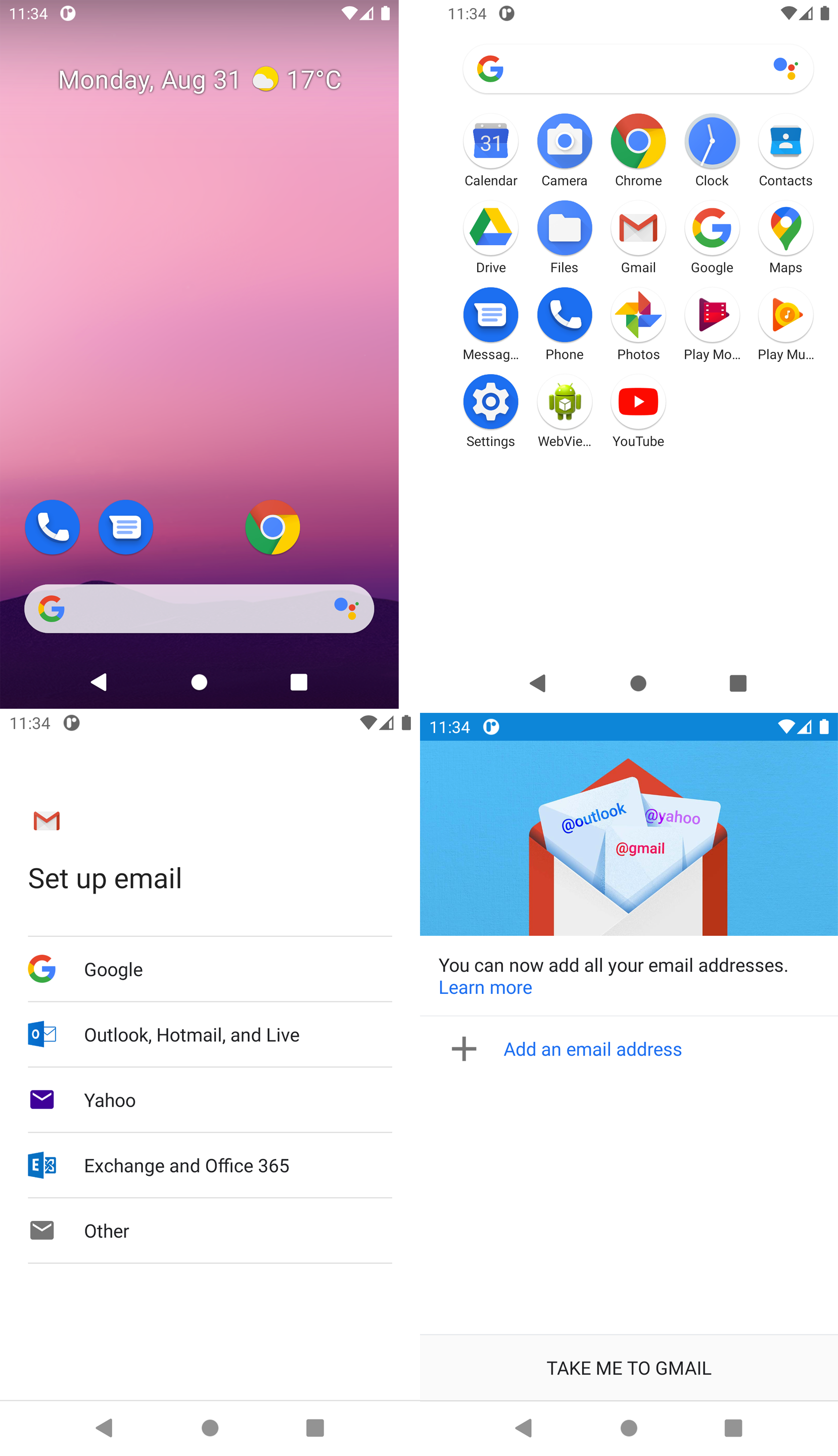
Screenshots
Known issues
sdkmanager error "Could not create settings"
Whatever the sdkmanager command, you get this response:
$ sdkmanager --list
Warning: Could not create settings
java.lang.IllegalArgumentException
	at com.android.sdklib.tool.sdkmanager.SdkManagerCliSettings.<init>(SdkManagerCliSettings.java:428)
	at com.android.sdklib.tool.sdkmanager.SdkManagerCliSettings.createSettings(SdkManagerCliSettings.java:152)
	at com.android.sdklib.tool.sdkmanager.SdkManagerCliSettings.createSettings(SdkManagerCliSettings.java:134)
	at com.android.sdklib.tool.sdkmanager.SdkManagerCli.main(SdkManagerCli.java:57)
	at com.android.sdklib.tool.sdkmanager.SdkManagerCli.main(SdkManagerCli.java:48)
Resolution
You need to help the java application find the root sdk:
sdkmanager --sdk_root=/opt/android-sdk --list
Error "Warning: Failed to read or create install properties file."
Unable to write to the directory /opt/android-sdk.
Resolution
$ sudo chmod g+w /opt/android-sdk
Emulator error "PANIC: Broken AVD system path. Check your ANDROID_SDK_ROOT value [/opt/android-sdk]!"
Emulator error
There are two binaries in the installation: /opt/android-sdk/tools/emulator and /opt/android-sdk/emulator/emulator. It's a bit obscure.
Fewer issues occur with the version installed in /opt/android-sdk/emulator (cf. sdkmanager --list). Still, according to the $PATH variable, the other binary will be used (cf. which emulator).