Getting started with videoconferencing
BlueMind Video, BlueMind's integrated solution, gets you up and running quickly.
Adding a videoconference to a meeting
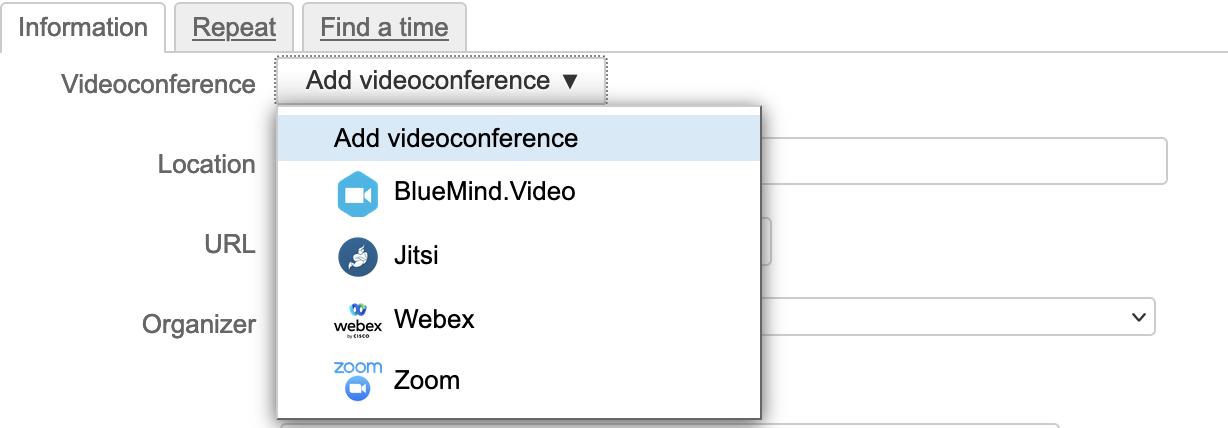
To add a videoconference to an event, go to "Add a videoconference". If an external service is installed by the administrator in addition to the BlueMind Visio service, the button offers a drop-down list for selecting the service to be used:
A link is automatically added to the event:
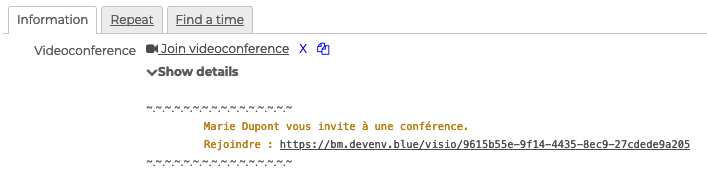
Participants will receive the videoconference invitation along with the meeting invitation notification.
To learn more about the steps to follow, consult the dedicated documentation section: Organizing meetings > Adding a videoconference.
Creating independent Videoconferences
It is also possible to create a videoconference outside the calendar. To do this, click on the videoconferencing icon in the navigation bar:

Once the video conference page is open, copy the link displayed in the browser's address bar to send it to participants via email, chat, etc.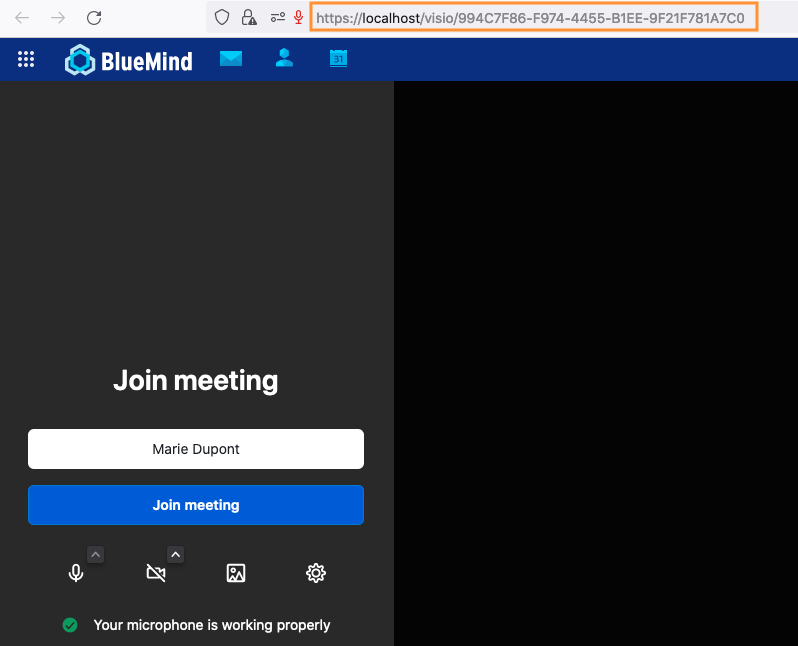
Attending Videoconferences
To access the video conference, click on the link received in the invitation.
You just need to allow your domain to use your device's microphone and camera.
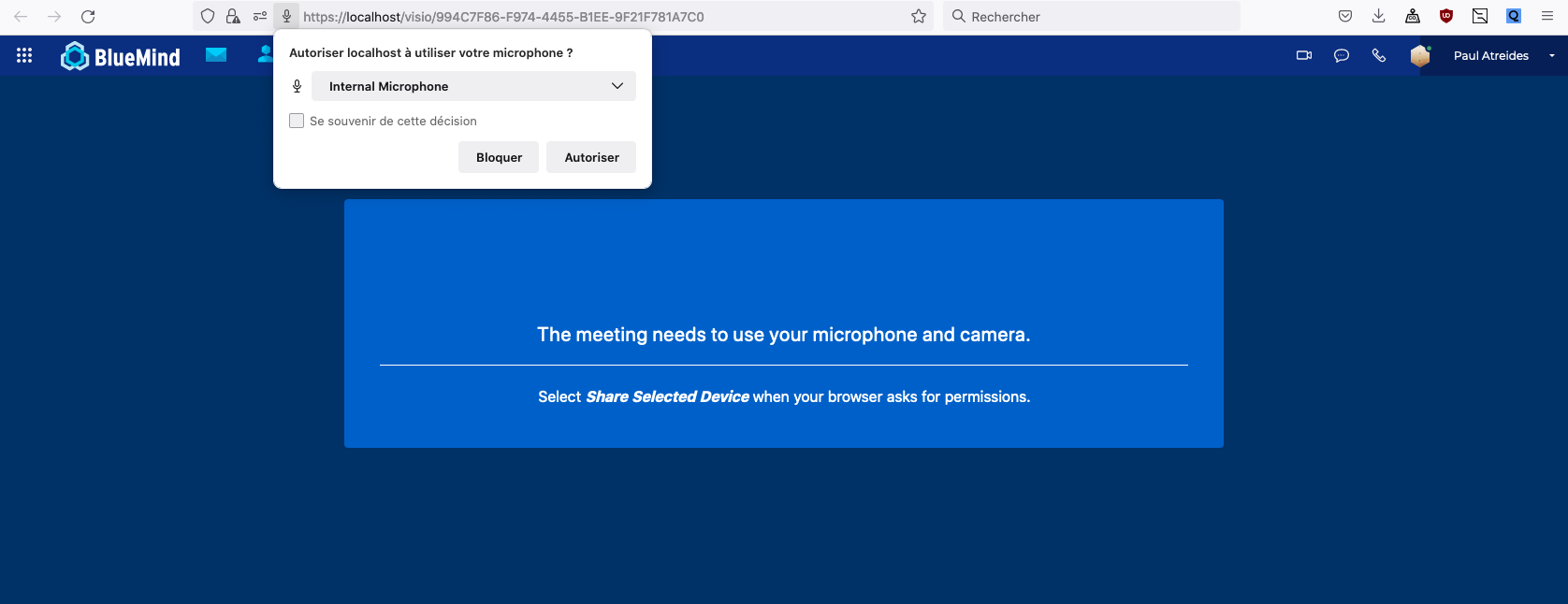
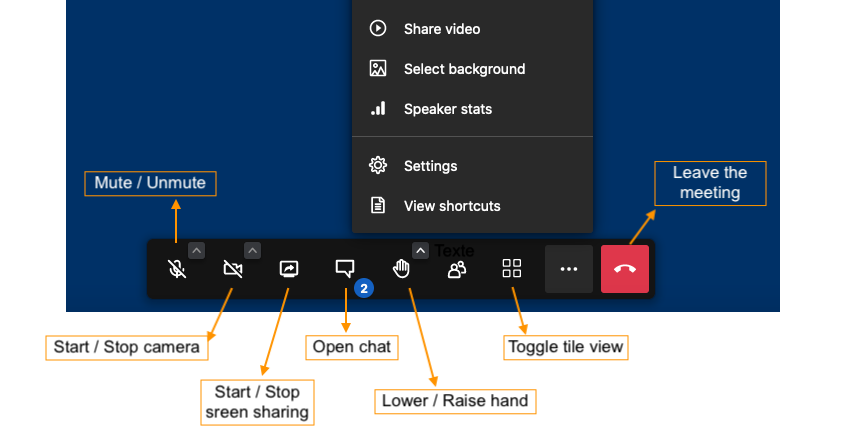
To interact, use the icons in the action bar at the bottom of the screen
Find out more
For more details and help, see Videoconferencing