Getting Started with Contacts
Finding your way around contacts
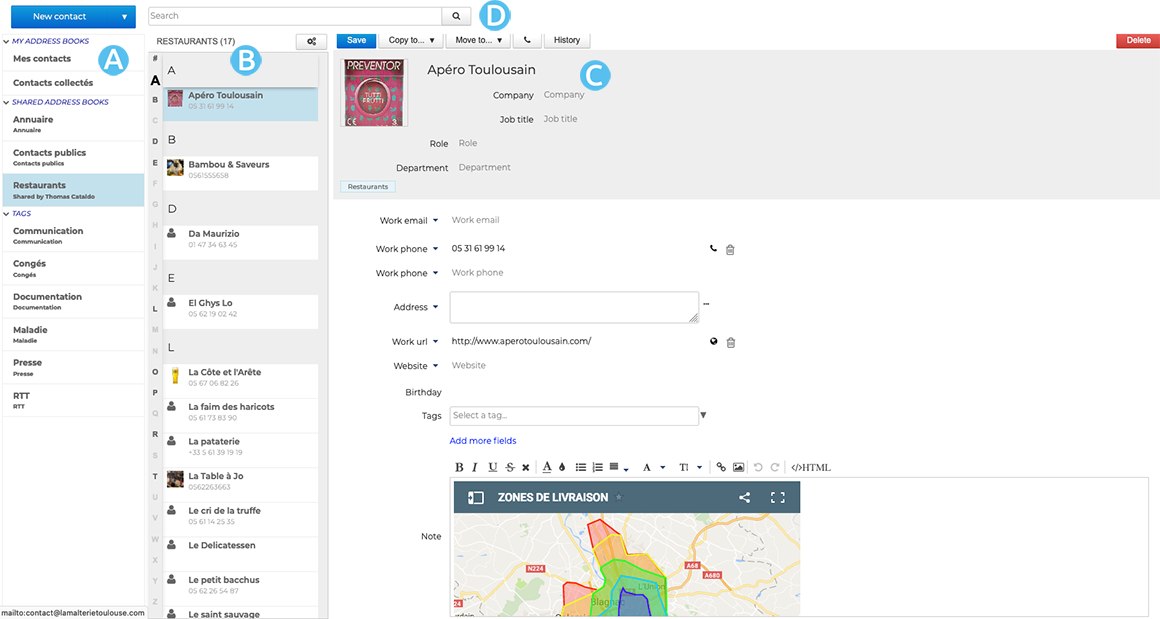
-
 : the first column, under the "New contact" button, shows the list of contacts you have access to: your default address books, personal address books as well as those that have been shared with you or you are subscribed to;
 -
 : The second column shows the contacts from the address book selected in the first columntip
The vertical alphabet on the left helps navigate contacts quickly - the letters with contacts in them are highlighted in bold and black.
-
 : the third column -- the main display area -- shows the details for the contact selected in the second column.
 -
 : search box
Address books
Contacts are sorted by address book, organized into 2 categories:
- personal address books:
- My contacts: an address book you can add your personal contacts to
- Collected contacts: a personal address book that automatically includes message recipients not present in the Directory
- shared address books:
- Directory: company address book
- address books shared by other users to which you must subscribe
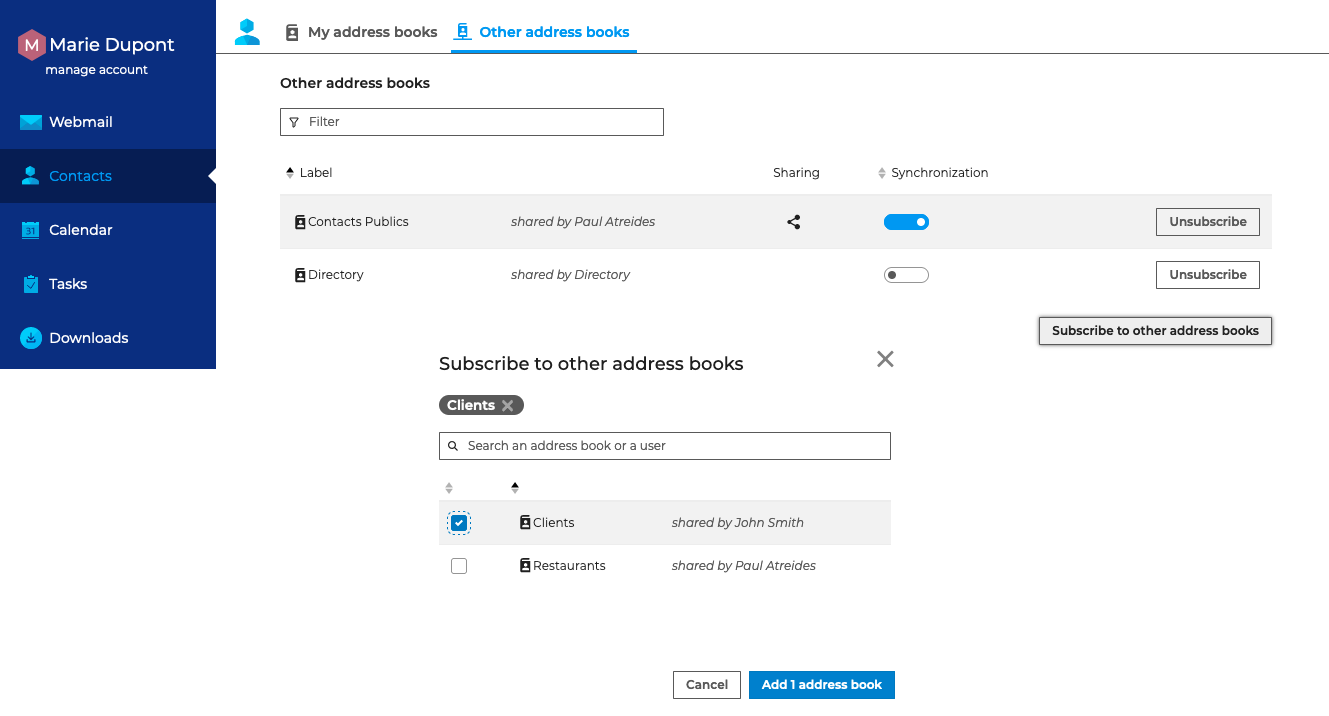
To subscribe to a shared address book, go to Settings: Contacts - Other Address Books.
Click "Subscribe to other address books," select the address book(s) from the list, and then click "Add X address book(s)."
Contacts
To add a contact, click "New contact" in the top left corner of the page and a blank contact details page opens.
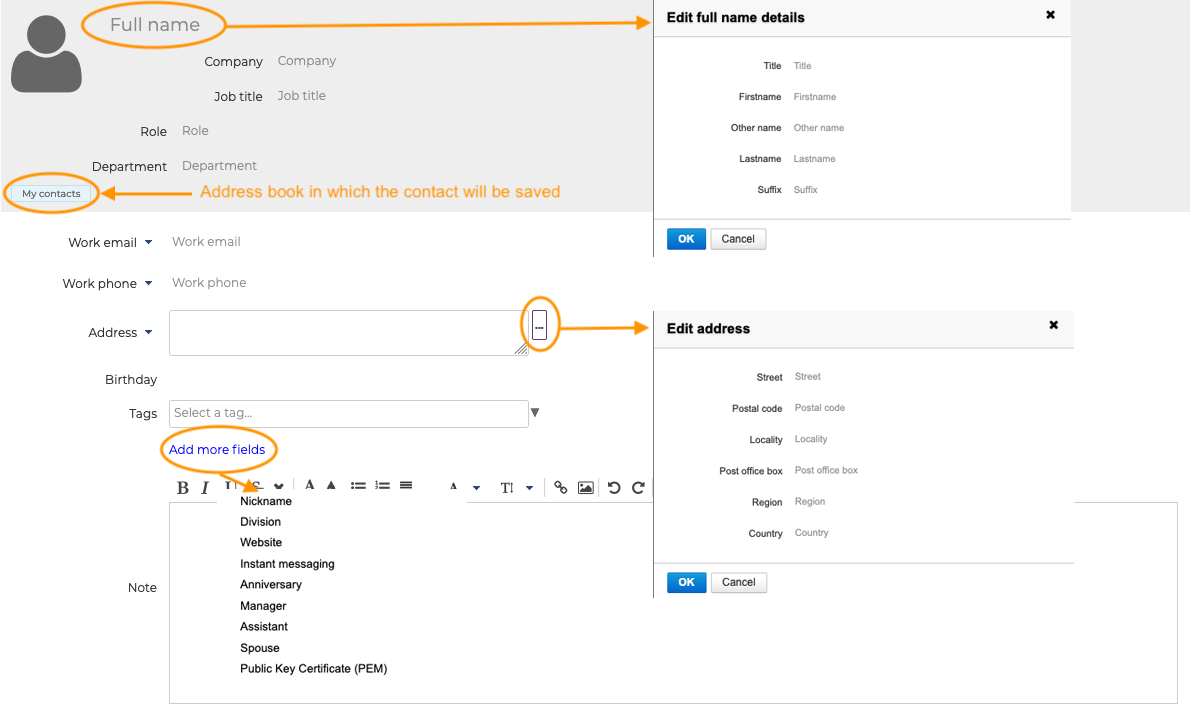
Fill in the desired fields and click "Save". The contact is created in the current address book.
To edit a contact, go to the contact details page and edit it as desired.
If you don't have permission to edit this contact, its details are displayed but action buttons are missing.
To delete a contact, go to the contact details page and click "Delete" in the top right corner.
For more details on managing contacts, please refer to the pages on Editing contacts and Editing distribution lists.
Find out more
For further details and help, see Contacts